Gateway GWTC116-2BL Display Replacement
ID: 172172
Description: Replacing the display of your Gateway...
Steps:
- Ground yourself before disassembling and handling the computer.
- Remove the ten 3.0 mm Phillips #00 screws from the back panel of the laptop.
- Use the spudger to pry the back panel away from the body of the laptop.
- Remove the five 3.0 mm Phillips #00 screws.
- Using your fingers, flick open the battery connector bracket.
- Remove the connector from bracket.
- Pull up the battery to remove from the base.
- Using your fingers, flick the cable connector bracket open.
- Remove the cable from the connector.
- Using your fingers, disconnect the black and white connector brackets underneath the gray cable.
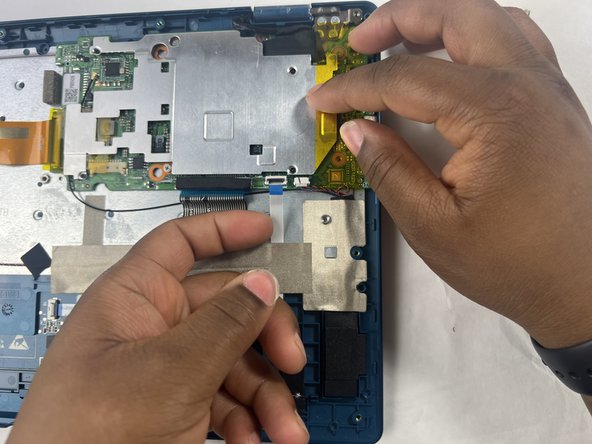
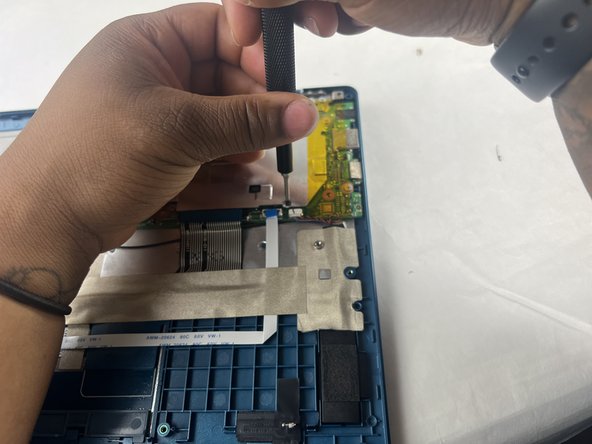
- Remove the four 3.0 mm Phillips #00 screws located on the motherboard casing.
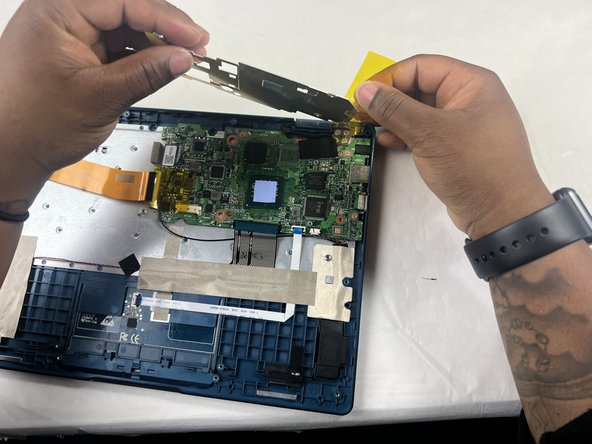
- Peel the yellow tape off of the casing.
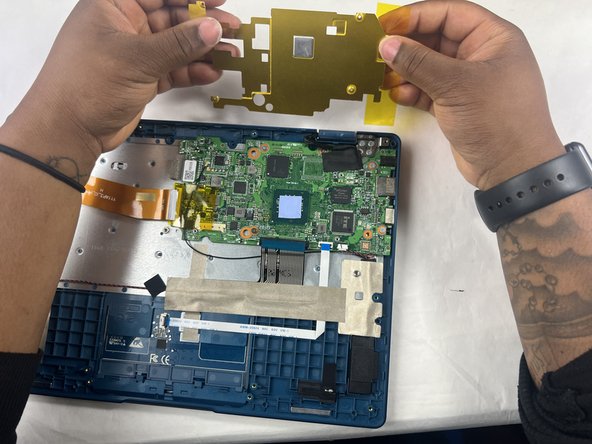
- Lift the casing off of the motherboard.
- Peel off the yellow tape.
- Remove four 3.0 mm Phillips #00 screws.
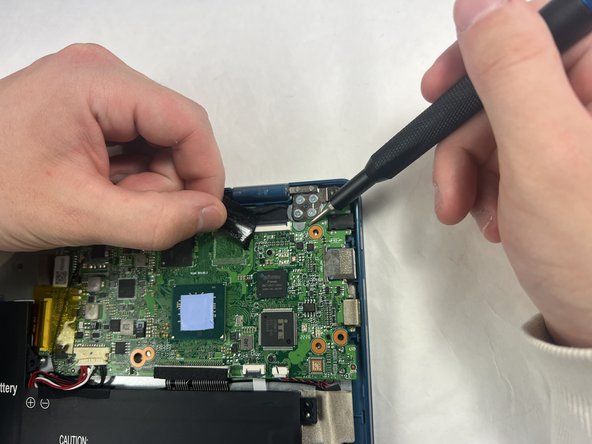
- Peel off the black piece of tape covering the display cable.
- Flick open the bracket securing the display cable and disconnect the cable from the motherboard.
- Remove the motherboard from the device.
- Remove seven 3.0 mm Phillips #00 screws from the laptop.
- Applying some force, use your hands to pry the display of the laptop away from the base.