Amazon Fire HD 8 Plus 12th Gen USB Port Replacement
ID: 172183
Description: If your Kindle Fire HD 8 12th gen is having...
Steps:
- Unplug the charger, power down the device, and remove the SD card before beginning.
- Insert an opening pick into the seam between the rear case and the screen assembly.
- Slide the opening pick around the perimeter, prying periodically, until the screen assembly begins to release.
- Insert an opening tool into the gap you created, and continue to pry periodically around the entire perimeter until the screen assembly fully releases.
- Be patient and don't pry too hard in any specific place. Excessive force may cause damage to the device.
- Remove the rear case.
- Use an opening tool to lift the battery connector until it disconnects.
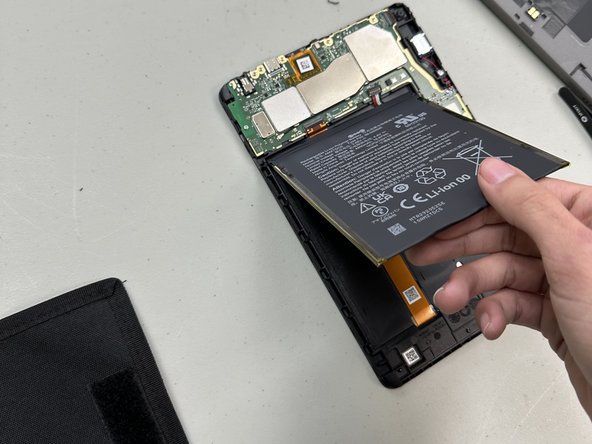
- Gently and slowly grip and pull the three white adhesive tabs that secure the battery until they fully release.
- The adhesives are marked with a black flap with a white adhesive. You will know it has been successfully removed when you can move the battery around.
- Gently pry around the entire perimeter of the battery with an opening tool until the adhesive releases.
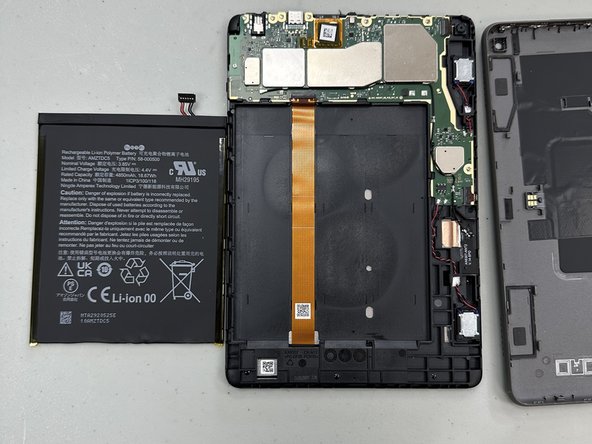
- Remove the battery.
- Take care not to bend or puncture the battery while prying the battery.
- Clean under the old battery and insert a new battery with adhesive to ensure the battery stays in place.
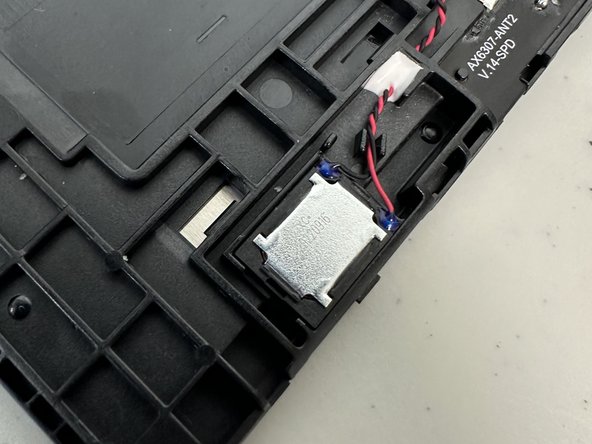
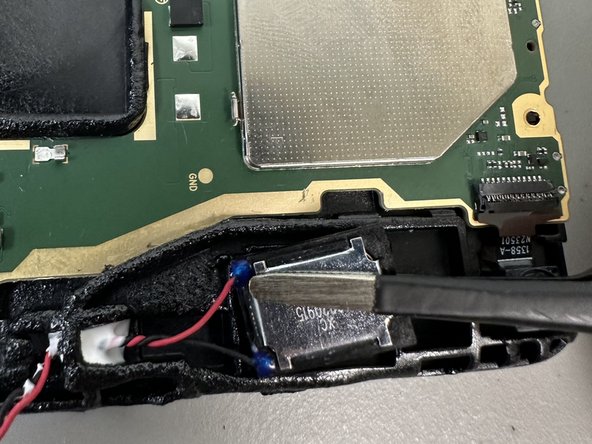
- Desolder the speaker motherboard connections.
- Soldering can cause burns and fires. Always solder in a well-ventilated workspace.
- Lift the speaker up and out of the chassis.
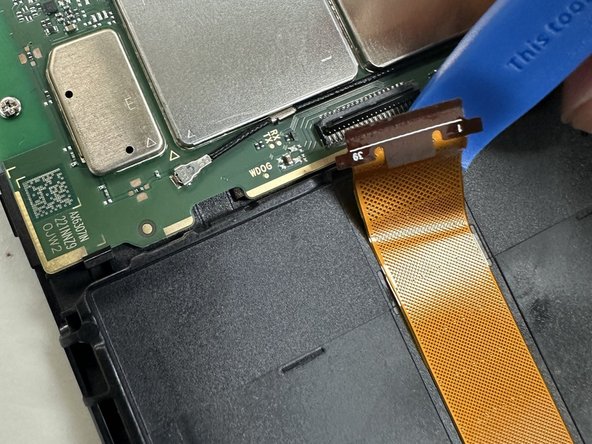
- Lift the black ZIF locking flap.
- Disconnect the orange ribbon cable.
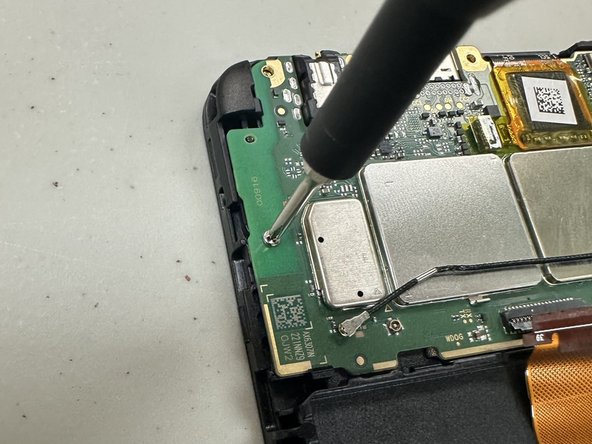
- Remove all of the Phillips screws that secure the motherboard.
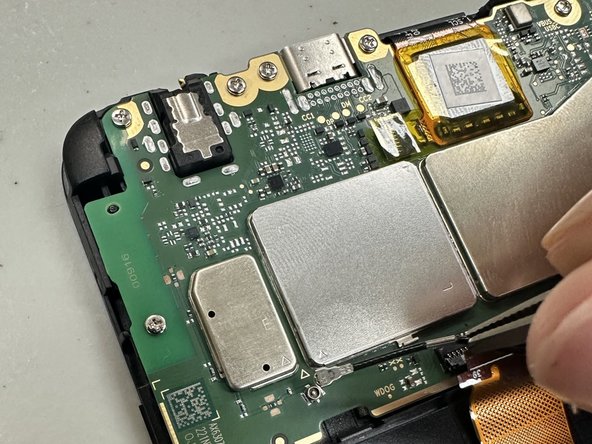
- Once the motherboard is fully disconnected from the device lift the motherboard out of the chassis with an opening tool.
- Desolder the USB port.
- Remove the orange film.
- Soldering is can cause fires and burns. Always solder in a well-ventilated area.