Gateway NV53A24u Keyboard Replacement
ID: 74961
Description: Gateway NV53A24u Keyboard Replacement Time for...
Steps:
- CAUTION: When using any kind of repair tool for technological devices its very important to consider the following:
- Keep a grounded surface to prevent shortages of equipment, it's recommended to use officially licensed protective gear, and to always repair the device on a flat surface.
- Use a standard and LED safe instrument for this project to prevent serious injury.
- Failure to do these steps could lead to harm of the device.
- The materials needed for this project are:
- A metal spudger but preferably a black nylon spudger
- You can find a complete set available on the Ifixit website:
- POWER OFF THE DEVICE
- Unplug any sources of power to device
- Place the device on a hard-surface if able
- Open the device so it's forward most facing you directly, this will be helpful for the repair process.
- Before proceeding to the next step consider the following: The device is off, has no sources of power connected to it and you have opened the device.
- Grab the spudger and fit the flat end on the seam of the key-board
- There are six metal tabs under the frame holding the key-board securely.
- Using the spudger lift the frame of the key-board from the seam until these tabs are visible
- Gently pry on the tabs until they become loose or it's possible to lift the keyboard
- Remove the key-board from the laptop
- When working with electronics, it's important to choose a tool that's ESD-safe to avoid accidental damage to the device. The metal spudger is great when you need serious prying power, but a regular black nylon spudger should be used whenever possible.
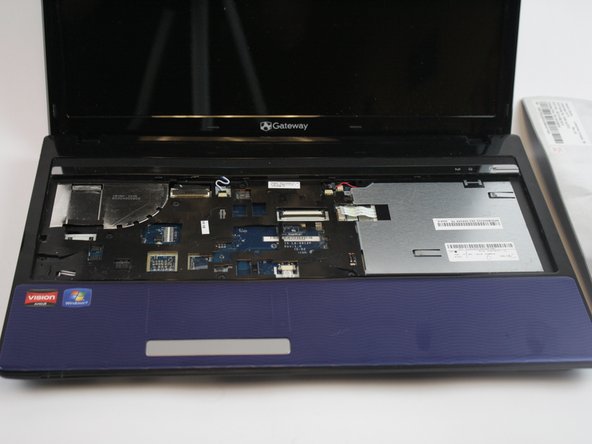
- At this point the Keyboard should be removed. It's components should be visible. See image three
- You will likely need to remove the connecting ribbon cable. See image three
- look for where the cable meets the motherboard, this is known as the locking clip.
- Gently pull on the clip until separated from the motherboard entirely.
- DO NOT use excessive force as this could harm the device.
- For assistance and to ensure the device is functional follow the diagrams and compare the layout of your device to the case example
- Place the new keyboard face down, the Keys should be facing you
- Look for a mechanism near the motherboard and grab the ribbon cable
- Connect the ribbon cable to the mechanism located on the keyboard
- Set the keyboard on the laptop, ensure you have the correct model of keyboard
- Engage the locking flap to ensure the keyboard is secure
- Find all six of the metal tabs and press against them to ensure the keyboard won't suddenly be loosened or damaged. It's helpful to match the shape of the keyboard for success
- Apply force to the keyboard until it fits securely on the laptop
- If you need further assistance please contact the ifixit support.
- Attach the laptops power cable, ensure there is power.
- Turn the device on
- If all the steps were followed the keyboard should glow and respond to user input
- If you experience difficulty please contact support: ifixit.com/support