HP Mobile Thin Client mt41 Charging Port Replacement
ID: 106824
Description: Use this guide to replace a faulty charging...
Steps:
- Locate the two slots on the bottom of the laptop to unlock the battery.
- Pull on both slots outwards as shown in the images to unlock the battery. The battery will not come out if the slots are locked. The battery should easily slide out without much force.
- Remove the nine screws that keep the back cover secured using the T5 Torx screwdriver.
- Remove the middle plate using the iFixit opening tool.
- This may require a bit of force. If it is not coming out try the other side.
- Pop the back cover off from its latches by separating the two parts along their seam using the iFixit opening tool.
- Be gentle; the plastic can crack.
- Lift the back cover once all corners are unclasped from their latches.
- Lifting the cover should not require much force.
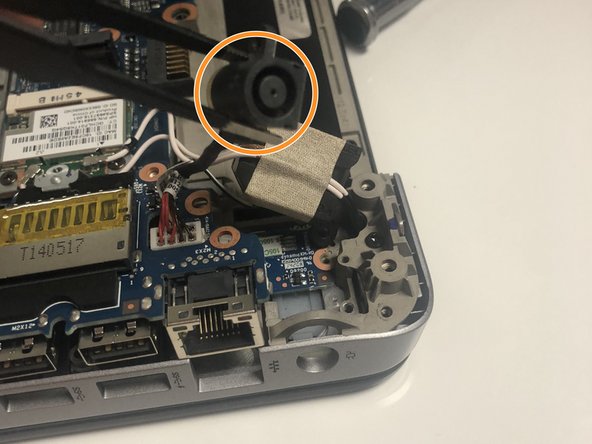
- Locate the charging port (pictured here).
- Use the T5 Torx screwdriver to remove the screw securing the charging port.
- Remove the charging port with a pair of tweezers. Gently pull it away from the computer base.
- Just below the charging port, you will find a connector with a white base and a bundle of wires.
- Using your fingers, pull the cable directly up and away from the computer base. This should be the same direction that the wires are facing.
- This should not require much force.