Samsung Chromebook Pro Hinge Replacement
ID: 115378
Description: Use the guide below to help you replace the...
Steps:
- Remove the eight 30 mm screws from the edges of the case with the JIS J000 screw bit.
- Slide the plastic opening tool in a corner at a steep angle, and lift up to remove the outer case.
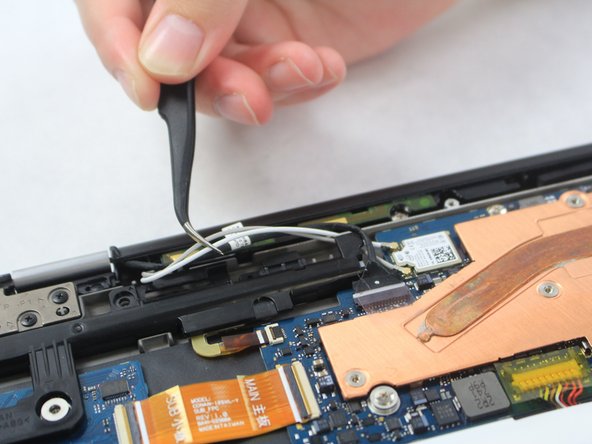
- Locate the two white wires and one black wire. With the flat precision tweezers, untangle the white wires from the CONAN >PC+ABS< # 1-1.
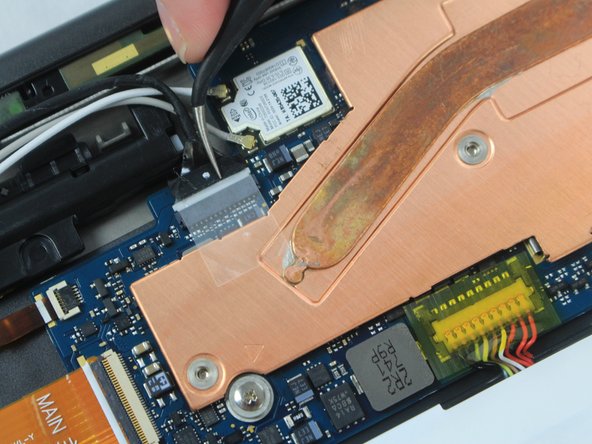
- Completely disconnect the black wire.
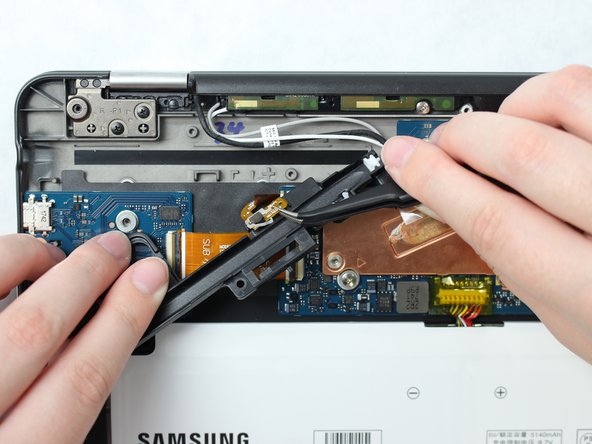
- Remove the three 30 mm screws using the JIS J000 screw bit from the black CONAN >PC+ABS< # 1-1 plate.
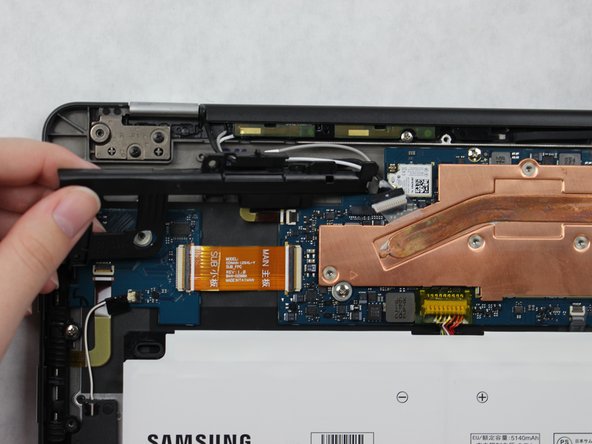
- Once all the screws are removed from the CONAN >PC+ABS< # 1-1 plate, remove the wire attached to underside and lift the plate to remove.
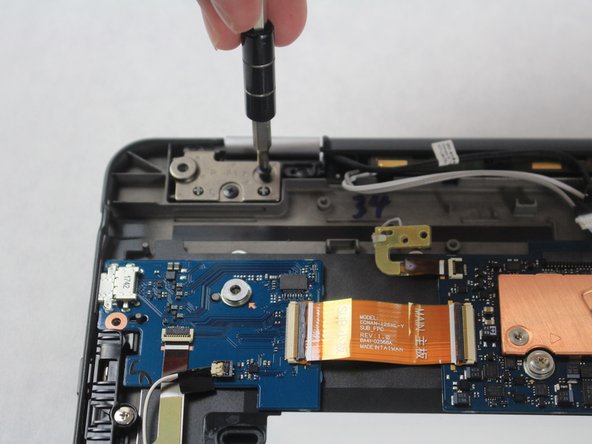
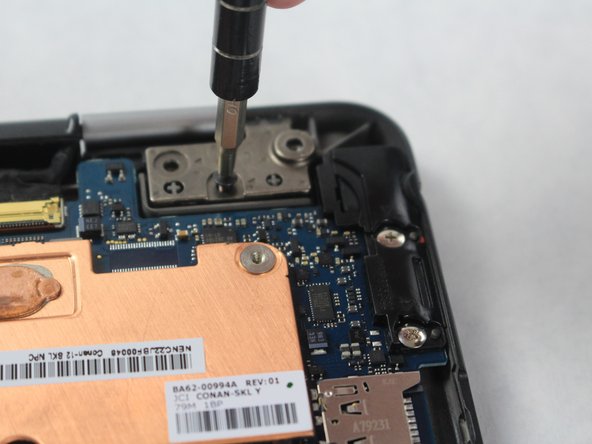
- Locate hinge plates LP1 and RP1 on the top left and right corners of the Chromebook.
- Remove the two 30 mm screws from hinge plates LP1 and RP1 using the JIS J000 screw bit.
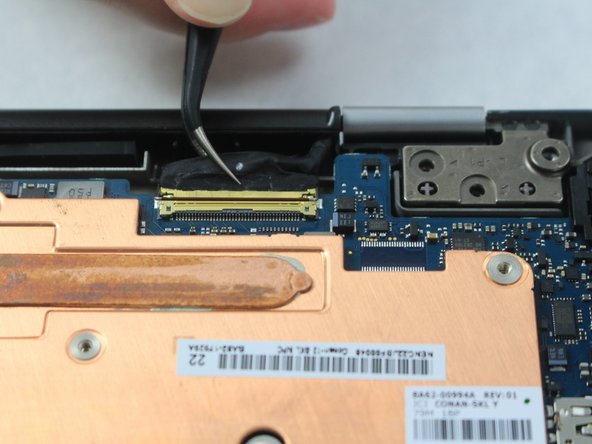
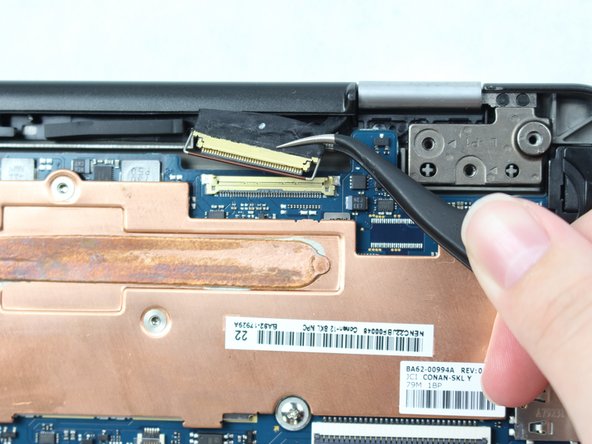
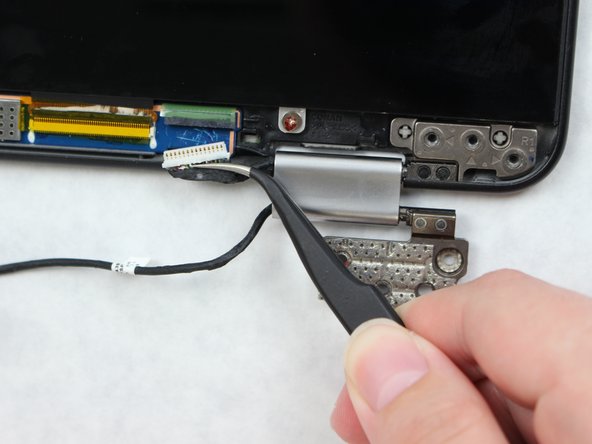
- On the right top corner, locate the black and gold wire.
- Lift the bar that is locking the wire in using the precision tweezers.
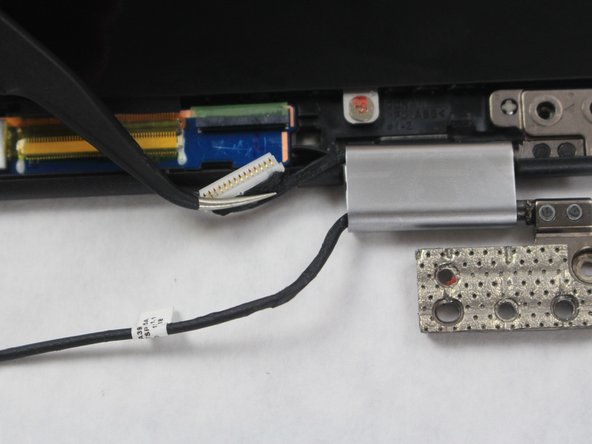
- Disconnect the wire by grasping the black portion with the precision tweezers, and then pulling away from the Chromebook Pro.
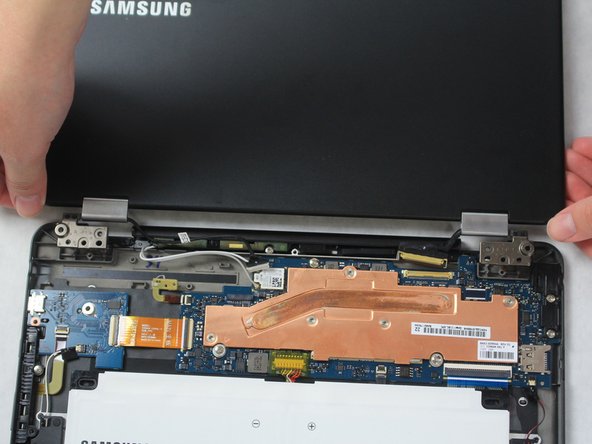
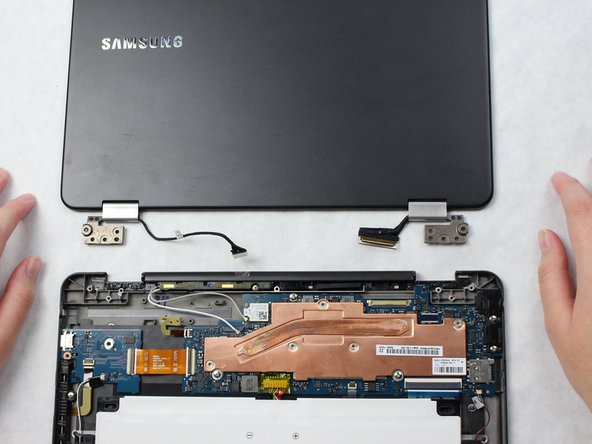
- Completely open the Chromebook and gently separate both halves.
- Be careful not to pull any wires.
- Make sure the Chromebook is facing up.
- Place the plastic opening tool at an angle in the gap between the hinge and Chromebook screen and lift up.
- Completely remove the plastic screen lining using the plastic opening tool.
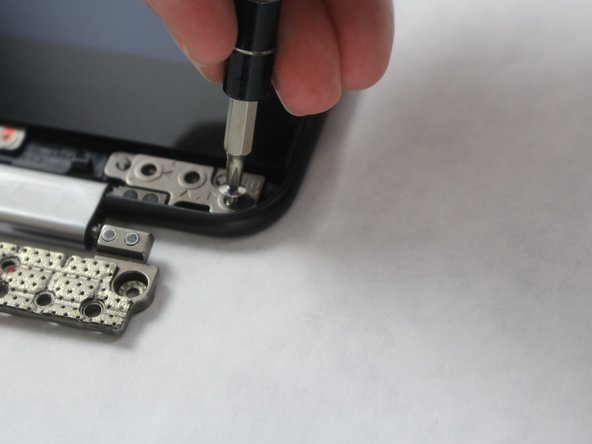
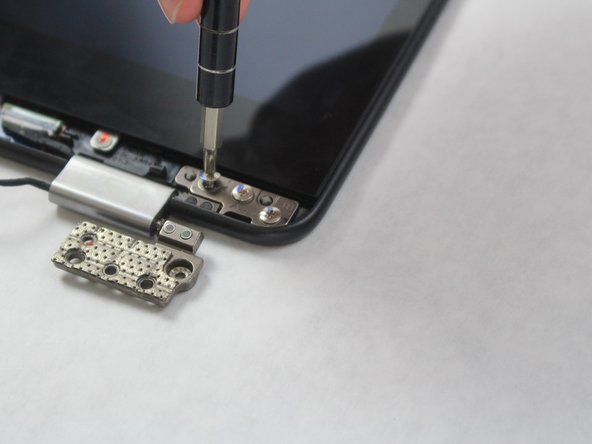
- Remove the three 30 mm screws from hinge plate R1 and L1 using the JIS J000 screw bit.
- Disconnect the black wire on the R1 plate connected to the screen using the precision tweezers.
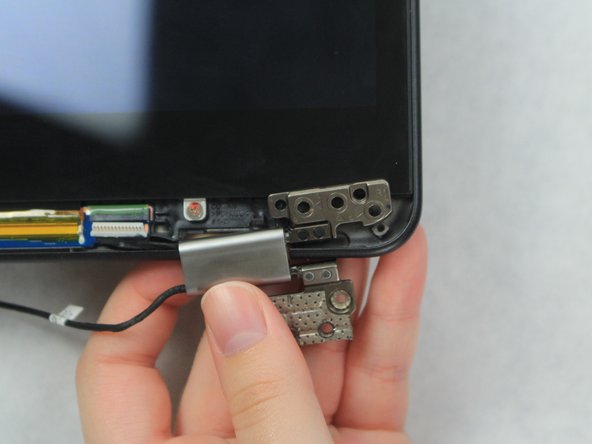
- Lift the hinge to remove from the Samsung Chromebook Pro.