HP ProBook 440 G1 Hard Disc Drive (HDD) Replacement
ID: 117374
Description: How to remove and replace the HDD on an HP...
Steps:
- Make sure the laptop is turned off before you start.
- Push and hold the release tab on the right and left toward the center.
- Pull the battery out.
- Push and hold the release tabs on the right and left toward the center again.
- Slide the backplate off.
- Locate the hard drive, opposite the battery across from the wireless card.
- Remove all four Phillips #00 screws that hold the hard drive in place.
- Lift up on the outer part of the hard drive.
- Pull the hard drive out.
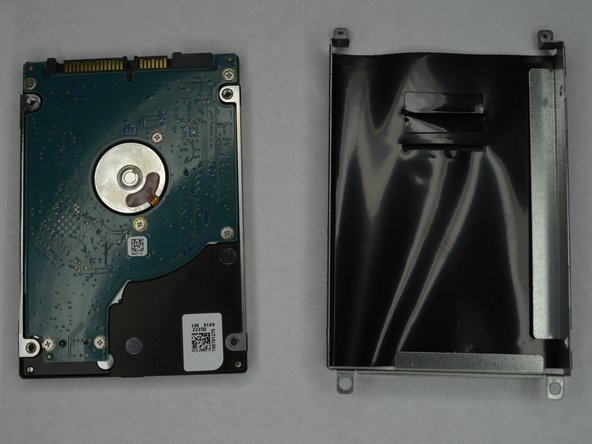
- Remove the four Phillips #00 screws holding the HDD in the HDD cover.
- The HDD should slide out after all screws are removed.