Dell Desktop Optiplex 960 RAM Replacement
ID: 132257
Description: RAM (random access memory) or main memory, or...
Steps:
- Back up all files and shut the computer down safely.
- Carefully unplug the cords located at the back of the computer (i.e. Power, Monitor, USB, etc).
- Switch off the electrical connection before unplugging any cords to avoid electric shock.
- Pull the trigger located at the bottom of the desktop to unlock the desktop back. This may look different on each individual's computer.
- Gently lift up the side panel by pulling it upward while holding the trigger.
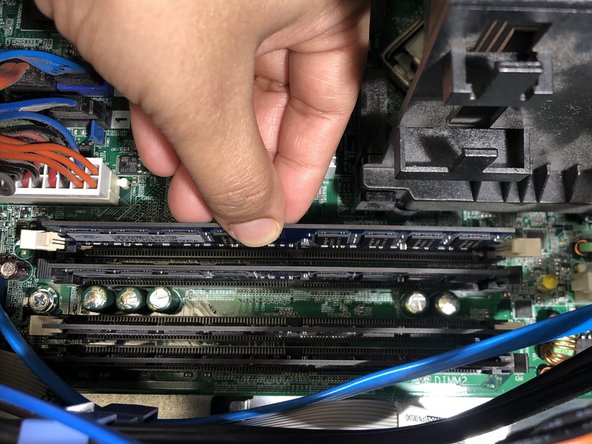
- To unlock the RAM, press down the two clips/buttons located on both end of the RAM holder.
- Unplug the RAM from the slot.
- Ensure that your new RAM chip matches the same shape as the one you removed from your computer.
- Place the new RAM chip into the slot and gently press it down until the clips on either side clasp around it.
- Press the wall of the computer back into place until you hear a click from the lock engaging.
- Plug the cords back and power on your computer.
- Your computer should be back up and running.