Dell Vostro 1220 Hard Drive Replacement
ID: 133130
Description: The aim of this tutorial is to replace the hard...
Steps:
- To remove the battery, unlock the two latches outwards (Orange) and hold them to remove the battery (Red)
- We're going to have to remove the top bar. To do this, simply unclip the edges carefully (no screws here).
- The tablecloth is in the middle of the bar. We will remove it after the keyboard so be careful when handling not to tear it off
- We have three screws to remove (red) below the bar that we unclipped in step 2 (be careful, the cable is still connected).
- The keyboard unclips at the top and then removes by sliding upwards (the lower part inserts into the shell directly).
- Disconnect the cable from the keyboard and the top bar so that you can remove the assembly and have access below.
- To disconnect the CD player, turn the laptop over and remove the only screw that holds it.
- Once the screw is removed, simply take out the CD player.
- In order to disconnect the WiFi card, we will open the door by unscrewing two screws and unclipping the cover.
- We then remove the two connectors from the Wi-Fi card.
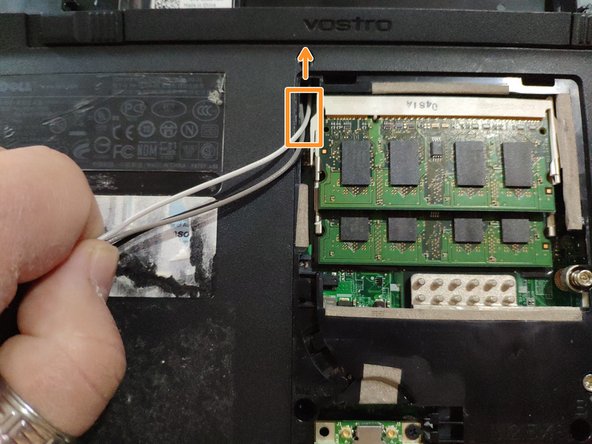
- Finally, we remove the cables from the front of the laptop (the Wi-Fi card is located behind the laptop but the antenna is located in the screen).
- To disconnect the screen, we will detach the cable and the ground screw.
- We will also disconnect the tablecloth from the motherboard.
- In order to detach the part of the shell below the keyboard, we will remove the last screws behind the laptop.
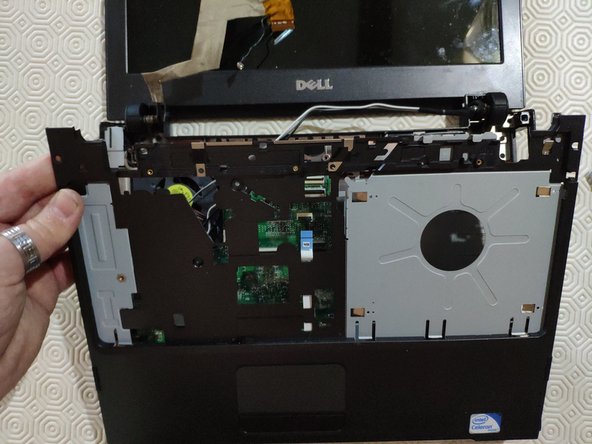
- The upper part of the shell is removed by sliding down.
- We will first unclip both sides and the top, then we will slide the shell down
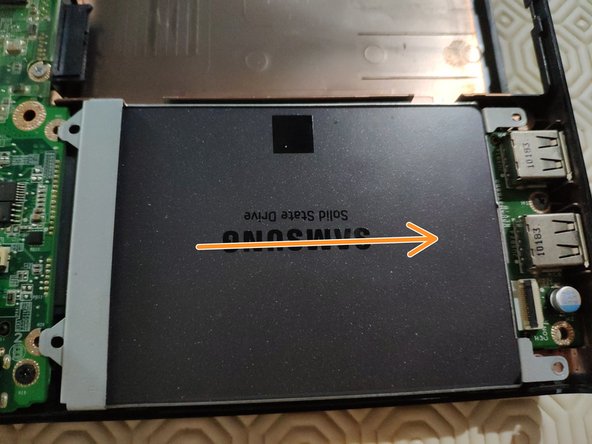
- We will unscrew the hard drive cage as well as the tablecloth.
- Then we slide the cage to the right.