MacBook Air 13" Early 2020 USB-C Board Replacement
ID: 142683
Description: Use this guide to remove or replace the USB-C...
Steps:
- Before starting this procedure, you should disable your Mac's Auto Boot feature. Auto Boot powers on your Mac when you open the lid, and may be accidentally triggered during disassembly. Use this guide to disable Auto Boot.
- If your MacBook is running Big Sur v11.1 or later, disabling Auto Boot may not work. You can proceed normally, but make sure to disconnect the battery as soon as you're inside.
- Completely power off and unplug your MacBook Air before you start. Close the display and flip the entire laptop upside-down.
- Use a P5 driver to remove the following screws:
- Two 7.9 mm screws
- Two 7.1 mm screws
- Six 2.6 mm screws
- Throughout this repair, keep track of each screw and make sure it goes back exactly where it came from to avoid damaging your MacBook.
- Wedge your fingers between the display and the lower case and pull upward to pop the lower case off the Air.
- Remove the lower case.
- To reinstall the lower case:
- Set it in place and press firmly to engage the two hidden clips underneath. You should feel and hear them snap into place.
- Peel back the tape covering the battery connector enough to reveal the connector underneath.
- Use a spudger to slide the battery connector parallel to the logic board and out of its socket on the logic board.
- Use a T3 Torx driver to remove the two 1.4 mm screws securing the USB-C connector cover.
- Remove the USB-C connector cover.
- Use the flat end of a spudger to pry the USB-C cable connector up and out of its socket on the logic board.
- To re-attach press connectors like this one, carefully align and press down on one side until it clicks into place, then repeat on the other side. Do not press down on the middle. If the connector is misaligned, the pins can bend, causing permanent damage.
- Use a T4 Torx driver to remove the two 2.9 mm screws securing the USB-C board.
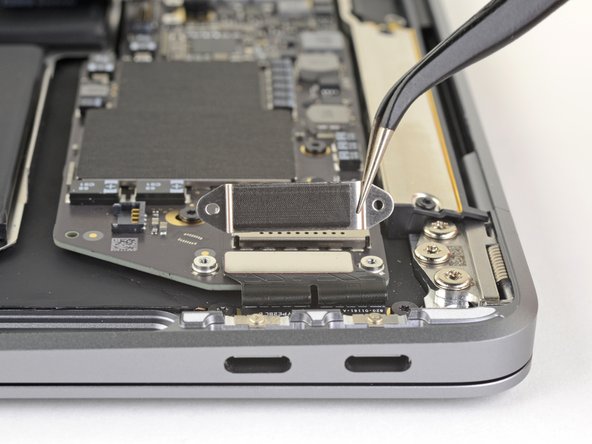
- Use a pair of tweezers to remove the USB-C board.