Wacom Intuos CTL4100 Battery Replacement
ID: 144891
Description: Battery capacities degrade over time, reducing...
Steps:
- Flip the tablet over so the bottom case faces upwards.
- Remove the rubber pads on the corners by pulling them up with your fingers.
- Remove the 4 mm Philips screws on the four corners using a Phillips screwdriver #00.
- Insert a plastic opening pick between the front and back case to unclip the clips that hold the cases together.
- Slide your plastic opening pick around the sides until all clips are unclipped.
- Lift the bottom case to separate the top and bottom case
- When you see the internal components, set aside the bottom case.
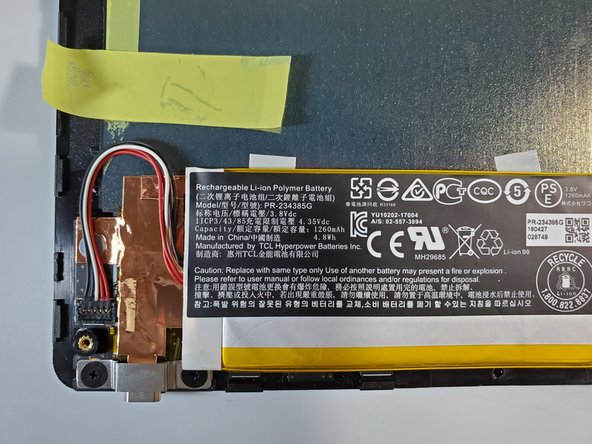
- Remove the yellow tape that is on top of the battery wires.
- When the battery wires under the tape are exposed, stick the yellow tape just above the battery wires.
- Gently pull up the battery wire pin with your fingers to disconnect the pin from the motherboard.
- Remove the battery by lifting the battery up with your fingers.
- Place the new battery on the area you removed the battery.
- Gently connect the battery wire pin to the motherboard.
- Reapply the tape you put above the battery wires.