HP Pavilion x360 14m-ba011dx Screen Replacement
ID: 145053
Description: If the touchscreen on your HP Pavilion x360...
Steps:
- Remove the top left and right rubber pads closest to the hinge of screen using a plastic spudger to expose the screws underneath.
- Remove the following 6 screws from the bottom of the device using a Phillips #00 Screwdriver:
- Two 7.5 mm screws.
- Three 5 mm screws.
- One 6.5 mm screw.
- Push into the two screw holes that were under the rubber pads with the screwdriver to pop the keyboard out just a little.
- Do this with the screen open so that you do not damage the screen.
- Do not remove keyboard all the way.
- Separate the keyboard from the rest of the device using a metal or plastic spudger around the edges.
- Pull up gently just until you can see the cables attaching the keyboard to the motherboard.
- Flip the small white flaps holding the cables to the motherboard open to unplug the cords.
- Remove the purple cable attaching the battery to the motherboard by flipping the black flap and pulling the cable out.
- Remove seven 4 mm screws using a Phillips #00 Screwdriver.
- Remove the battery by gently pushing battery up, then pulling.
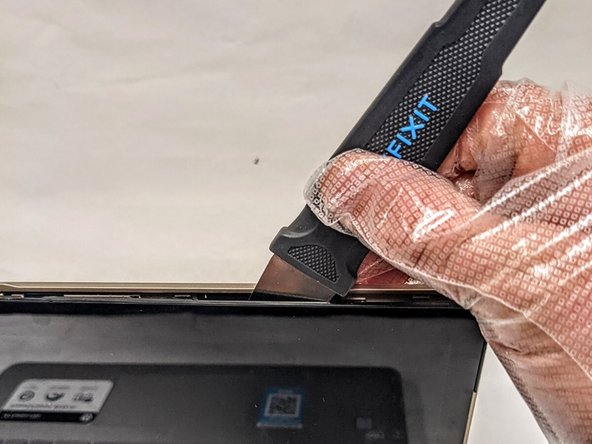
- Insert the Jimmy between the screen and back case.
- Carefully detach the screen from the back case by sliding the Jimmy around the casing and prying the screen from the case.
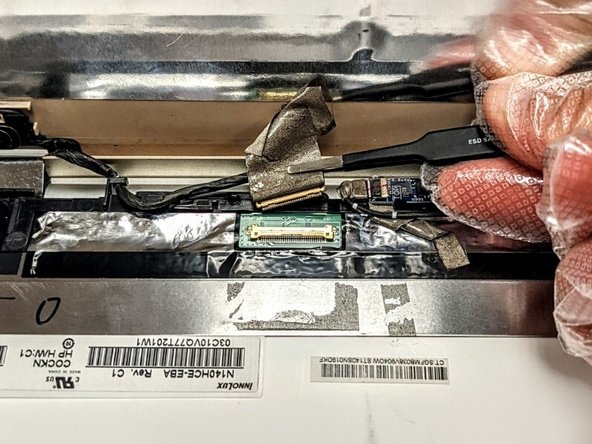
- Using the tweezers, remove the tape securing the connector and gently disconnect the wire.
- Using the tweezers, remove the right side connector from the connector port and free the wiring from right to left.
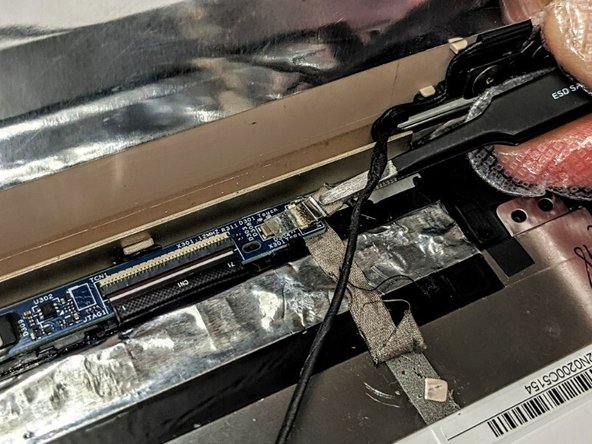
- Using the tweezers, remove the left side connector from the connector port and ensure all tape securing the wiring harness is free.
- Remove the screen from the rest of the laptop.