How to create a ChromeOS Recovery USB Drive
ID: 149148
Description: If your Chromebook's operating system ever...
Steps:
- In order to make your recovery device, you will need the following items.
- 1 x USB Drive or SD Card (8 GB is the minimum)
- Any content that is stored on this drive will be erased during the next few steps. Be sure to back up any content you want saved, or make sure this is a drive you are going to use for future devices.
- 1 x computer running the Google Chrome Browser, or Chrome OS.
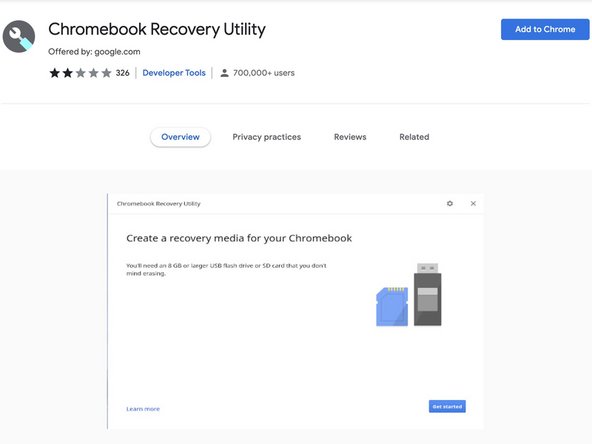
- Open Google Chrome and navigate to the Chrome Web Store and download the Chromebook Recovery Utility extension.
- Add the utility to Chrome and launch it. You will be greeted with this page.
- Click on "Get started" and you will be prompted to enter the model of your Chromebook.
- You have the option of either entering the code that is on the device's recovery screen, or choosing from the model list.
- Plug in your spare 8 GB USB Drive and select it from the dropdown menu.
- Any content that is stored on the drive will be erased during the next few steps. Make sure that the drive is empty, or does not have any data that you don't want to lose.
- You will be presented with a screen that shows the drive you selected. Click on the "Create now" button and the processes will begin.
- Do not remove the drive while the process is taking place. The process will take about 5 minutes to complete and you will be prompted when the recovery drive is finished.