Dell XPS15 9570 Battery Replacement
ID: 151628
Description: SDD/HDD installed, purchase a 6GTPY battery. (...
Steps:
- Flip the laptop over to expose the baseplate.
- Remove the ten 3 mm screws using a T5 Torx screwdriver.
- This device uses soft screws, so take care not to strip the screws.
- Open the flap with "XPS" written on it.
- While holding the flap down, remove the two 8.5 mm screws using a Phillips #00 screwdriver.
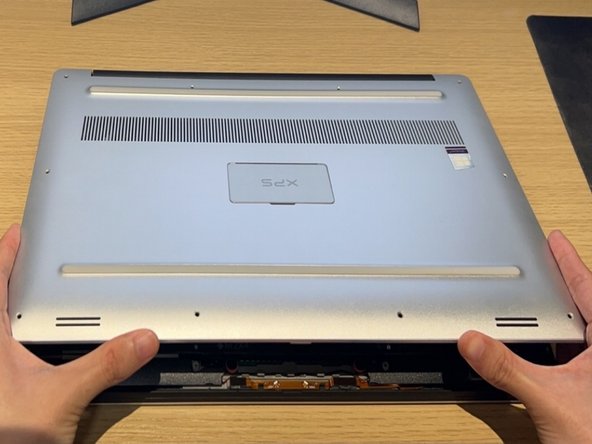
- Pry open the baseplate by pulling in an upward direction on one corner of the baseplate.
- Repeat for the next corner of the baseplate.
- With two hands, lift the baseplate off in an upward direction and remove it from the laptop base.
- Locate the battery connector inside of the laptop.
- Disconnect the battery connector from the motherboard by pulling in a downward and horizontal direction.
- Disconnecting the battery first is important to avoid damaging the motherboard.
- Remove the seven 4 mm screws using a Phillips #00 screwdriver.
- Lift the battery up and out of the chassis.
- The highlighted area in red is where you would place a 2.5" storage drive if you wanted to upgrade your laptop's storage.
- If the space for the 2.5" storage drive is occupied, then a different battery model should be purchased: H5H20.