How to Install Extra RAM in a Samsung 14'' Essential Notebook
ID: 151689
Description: Over time, laptop performance tends to...
Steps:
- Remove the battery.
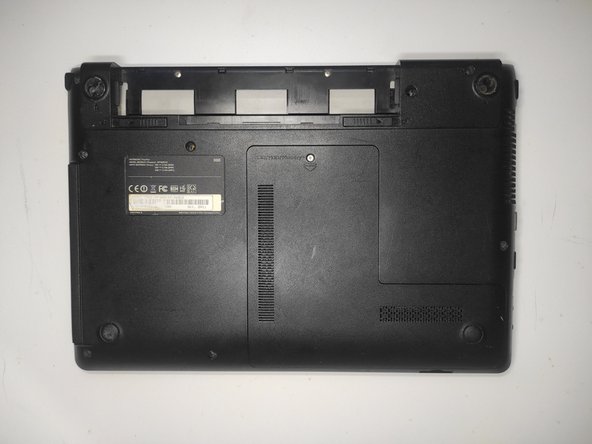
- Use a Phillips #0 screwdriver to remove the single 4 mm screw securing the memory compartment cover.
- Remove the memory compartment cover from the laptop by gently pushing it up until it's fully detached, then lift it up and off.
- Make sure that your laptop has at least one memory slot available. In this case, the available slot is the top one. This is the slot in which we will insert our new memory.
- RAM cards for laptops are different than RAM cards for PC. They are smaller, and not all of them will work for your laptop. For example, DDR4 RAMs won't work if your laptop supports DDR3 components. In this case, we're using a DDR3 4GB RAM card.
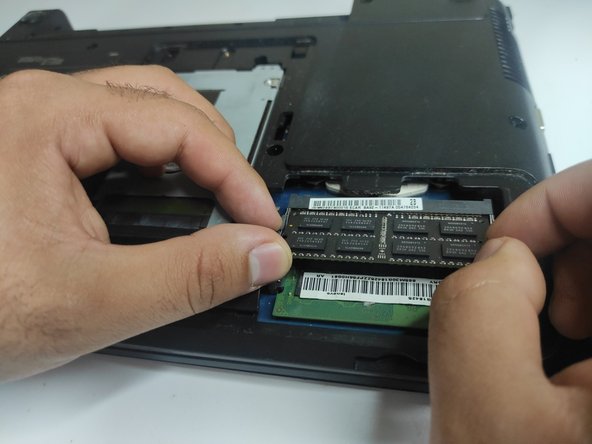
- Carefully insert the new RAM card into the free slot, then push it down slowly until it clicks into place.
- Replace the memory compartment cover.
- Tighten the single Phillips #0 screw to secure the memory compartment cover.
- It is important that this compartment is completely secured to avoid any potential damage to the internal components of your computer.
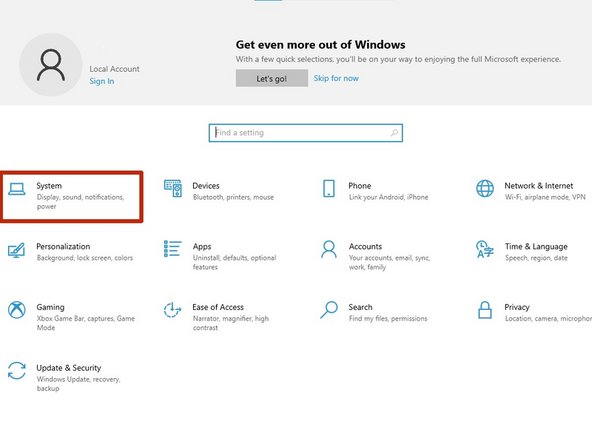
- To ensure that the RAM is properly installed, turn on your computer and open the system settings.
- Go to "System> About," and look for the "Device Specifications" section.
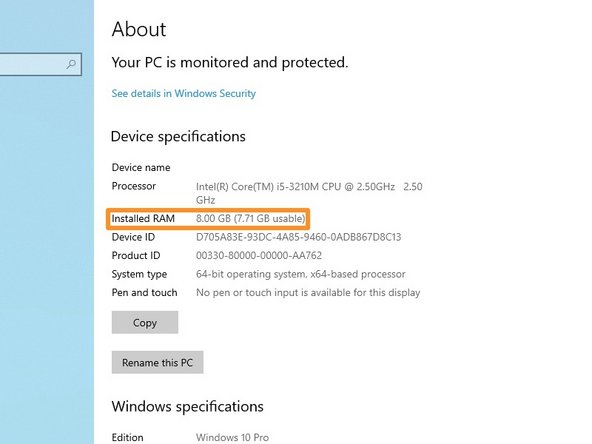
- In the “Installed RAM” section, make sure it displays the correct amount of RAM.
- In this case, we originally had 4GB RAM on our computer. By adding a new 4GB RAM card, we now have 8GB installed, improving the performance of our computer.