6. Installing Klipper Screen
ID: 152182
Description: In this guide I will show you how to setup...
Steps:
- You need to set the OS to boot to console
- sudo raspi-config
- 1 System Options > S5 Boot / Auto Login > B1 Console. Then reboot
- Download and install KlipperScreen
- git clone https://github.com/jordanruthe/KlipperSc...
- cd ~/KlipperScreen
- ./scripts/KlipperScreen-install.sh
- When the install is finished reboot the RPI. This will take some time to install so feel free to get yourself a cold beverage and relax for a little bit.
- If you loaded my config files it should already be included but check moonraker.conf contains:
- [authorization] under trusted clients contains 127.0.0.1
- [update manager KlipperScreen]
- If you used the latest version of Mainsail(v7.0) skip this next command.
- git clone https://github.com/mainsail-crew/moonrak...
- Regardless if you used the latest version or not run
- bash ~/moonraker-timelapse/install.sh
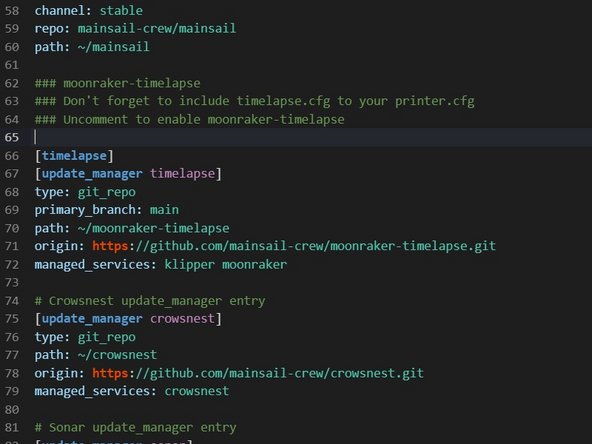
- Make sure printer.cfg calls the timelapse config
- [include timelapse.cfg]
- Make sure the [timelapse] section is uncommented in moonraker.conf