Dell Inspiron 17" 7786 2-in-1 Internal Battery Replacement
ID: 154840
Description: This guide is for the Dell Inspiron 17" 7786...
Steps:
- Remove the eight M2 5mm screws that secure the base cover using a Phillips #0 screwdriver.
- Loosen the three captive screws that secure the base closer to the hinges.
- Do not attempt to remove the three captive screws! You need only to loosen them. They're supposed to stay on the base cover.
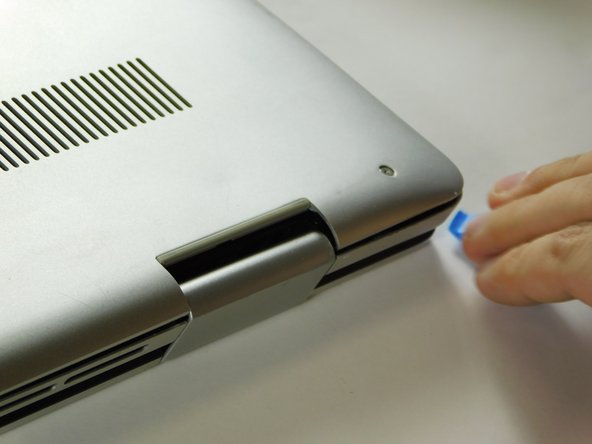
- Carefully pry the base cover using an iFixit opening tool in the crevice near the hinges. Guide the pick along the edges and slightly lift upwards as you go along.
- Do not start from the speaker end of the edges when opening, or you may cause further damage to your device!
- Carefully remove the base cover from the laptop.
- Detach the tab connecting the battery to the system board using your fingers or a pair of tweezers.
- Peel off the adhesive tab holding the cable to the device.
- Flip the device over. Press and hold the power button for a few seconds to discharge any leftover electrical current.
- You may leave the screen open if further repair is needed, or close it if you are only replacing the battery.
- Dell's official service manual does not mention of the 5th screw located near the middle edge of the battery closer to the touchpad.
- Flip the device back over.
- Remove five 3 mm screws that are securing the battery using a Phillips #0 screwdriver.
- Lift the battery upwards to remove it completely.