HP 15-db0004dx Fan Replacement
ID: 155037
Description: If your device is over heating excessively, and...
Steps:
- Turn the laptop off and unplug it before starting.
- Flip your laptop over, face down.
- Peel off the two long rubber grips running lengthwise on the laptop.
- Using a Phillips #000 screwdriver, remove the eleven 10 mm screws located on the underside of the laptop, that are holding the back panel in place.
- Carefully slide the optical drive out of the laptop.
- Use a plastic opening tool to separate the back panel from the laptop.
- For an easier removal, start at the corner and run the tool along the edge of the cover.
- If you do not have a plastic opening tool, open it carefully using your hands, as shown.
- Be careful to not bend the back panel, or to not apply too much pressure and force, doing so could cause the panel to break.
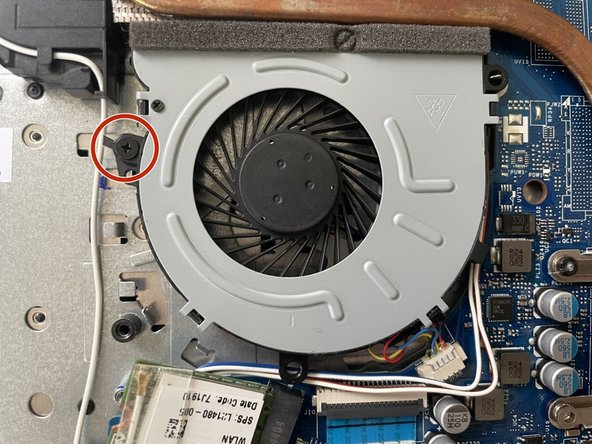
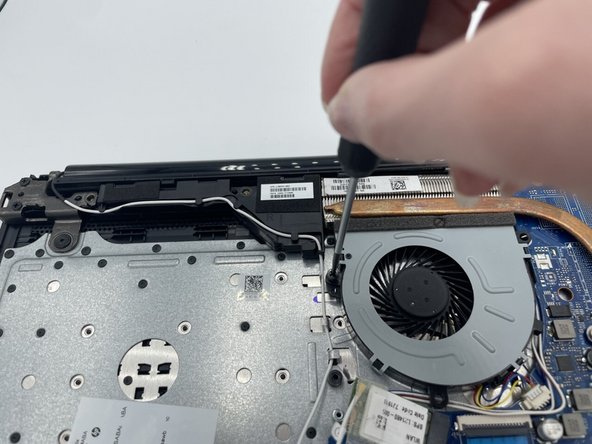
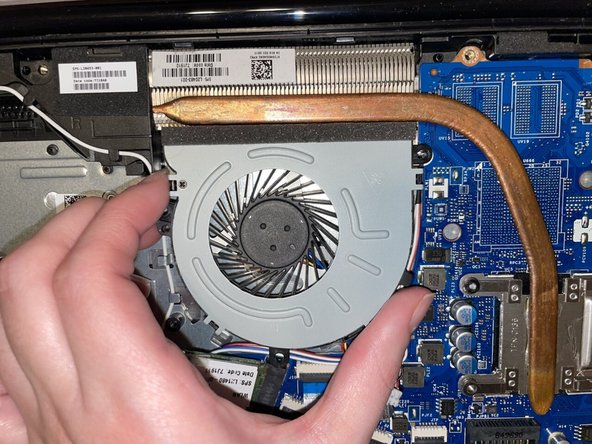
- Using a Phillips #000 screwdriver remove the 5mm screw holding the fan in place.
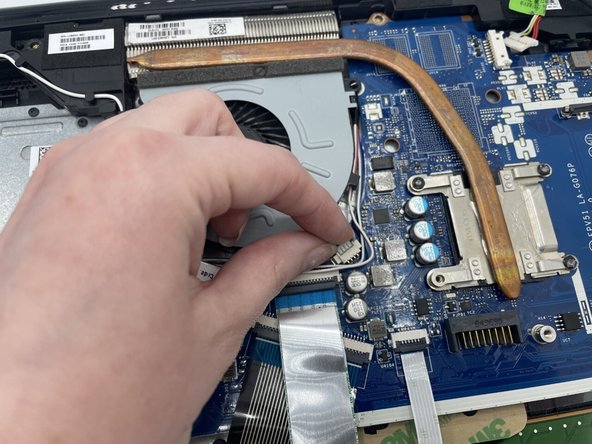
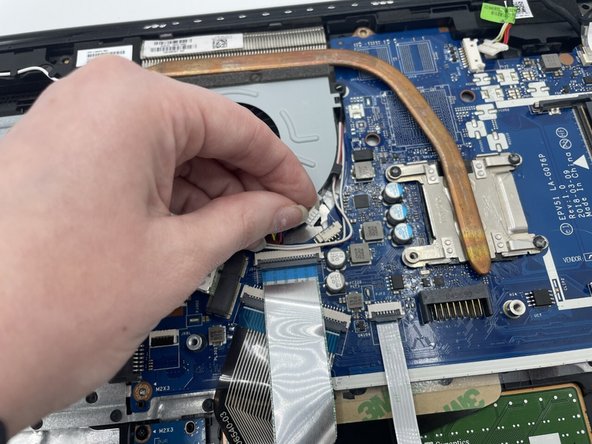
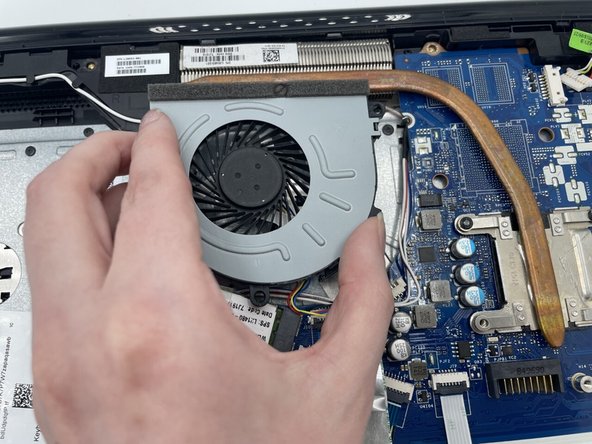
- After the screw is removed, carefully unplug the set of wires with one of each colored, red, black, yellow, and blue, from the white connector it is secured at.
- To unplug it gently pull the white connector from the adapter, possibly in a back and forth motion to free it.
- DO NOT pull on the wires, doing so could cause damage to the wires, or for them to become disconnected to the white adapter they are attached to.
- Carefully remove the fan from the laptop.
- Be careful with removal as to not bend or break anything. There is a metal peg shown in the image, that the fan is secured on that could potentially bend