Samsung Galaxy S22 Plus USB-C Port and Charging Board Replacement
ID: 155212
Description: Use this guide to replace the USB-C port and...
Steps:
- Insert a SIM eject tool, bit, or straightened paper clip into the SIM card tray hole on the bottom edge of the phone.
- Press the SIM eject tool into the SIM card tray hole to eject the SIM card tray.
- Remove the SIM card tray.
- If you accidentally inserted the SIM eject tool into a microphone hole, don't worry! You most likely didn't damage the microphone.
- Let your phone's battery to drain below 25% before starting this repair. A charged lithium-ion battery may catch fire if damaged.
- Prepare an iOpener and apply it to the bottom edge of the back cover for three minutes to loosen the adhesive underneath.
- A hair dryer, heat gun, or hot plate may also be used, but be careful not to overheat the phone—the display and internal battery are both susceptible to heat damage.
- Secure a suction handle to the bottom edge of the back cover, as close to the edge as possible.
- If the back cover is cracked, the suction handle may not stick. Try lifting it with strong tape, or superglue the suction handle in place and allow it to dry so you can proceed.
- Lift the back cover with the suction handle to create a small gap between the back cover and the frame.
- If you have trouble creating a gap, apply more heat to further soften the adhesive. Follow the iOpener instructions to avoid overheating.
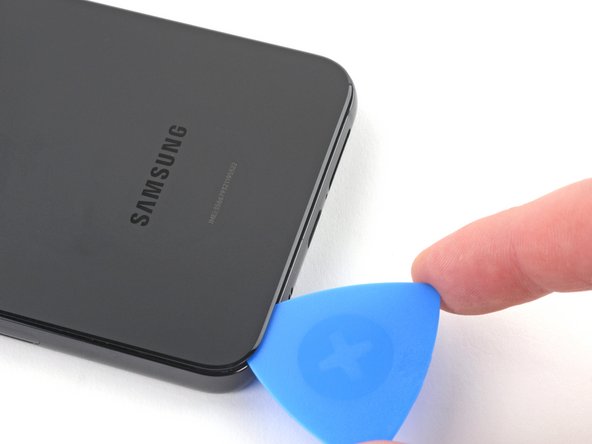
- Insert an opening pick into the gap you created.
- Remove the suction handle.
- Slide the opening pick along the bottom edge to slice the adhesive.
- If the adhesive becomes hard to cut, it has most likely cooled down. Use your iOpener for two to three minutes to reheat it.
- Leave the opening pick inserted near the bottom left corner to prevent the adhesive from resealing.
- Apply the heated iOpener to the left edge of the phone for 3 minutes to soften the adhesive.
- Reheat your iOpener for 30 seconds if necessary.
- Be careful not to overheat the iOpener. Overheating may cause the iOpener to burst.
- A properly heated iOpener should stay warm for up to 10 minutes.
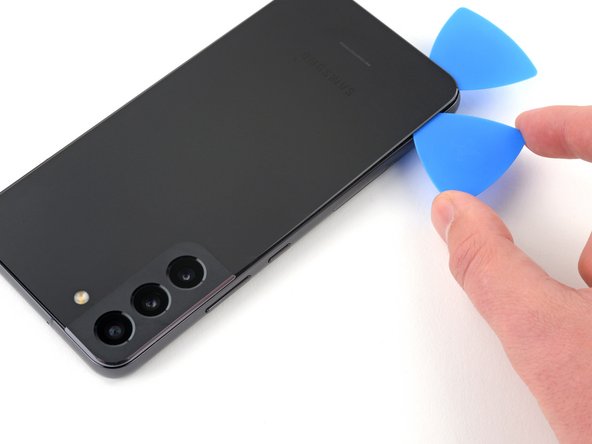
- Insert a second opening pick into the gap created near the bottom left corner.
- Don't insert the opening pick more than 5 mm, or you risk damaging cables near the camera module.
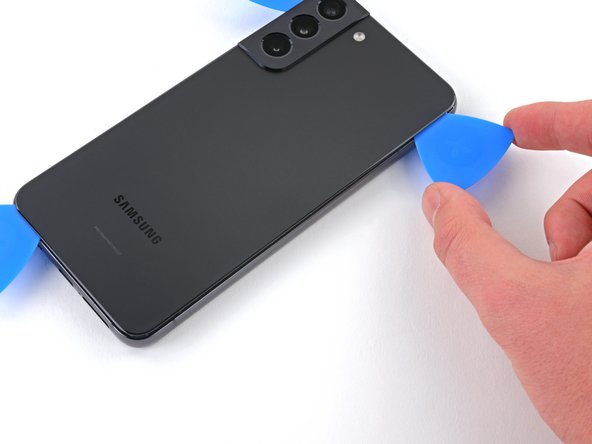
- Slide the opening pick along the left edge to slice the adhesive.
- Leave the opening pick inserted near the top left corner to prevent the adhesive from resealing.
- Apply your heated iOpener to the right edge of the phone for 3 minutes to soften the adhesive.
- Reheat your iOpener for 30 seconds if necessary.
- Be careful not to overheat the iOpener. Overheating may cause the iOpener to burst.
- A properly heated iOpener should stay warm for up to 10 minutes.
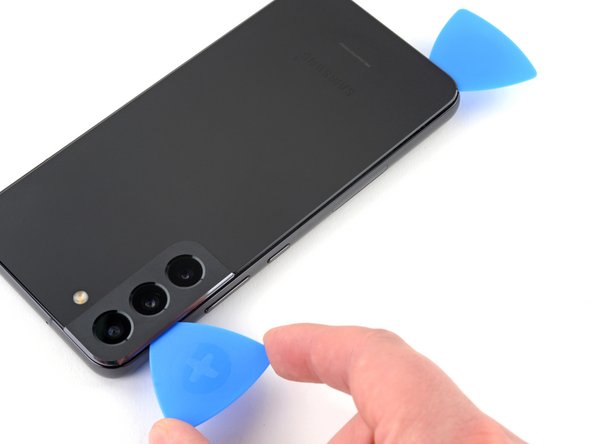
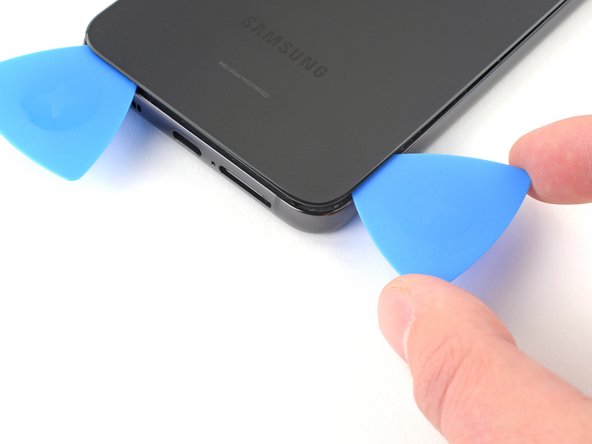
- Insert a third opening pick into the gap created along the bottom edge.
- Slide the opening pick around the bottom right corner of the back cover to slice the adhesive.
- Continue sliding the opening pick up along the right edge of the back cover to slice the adhesive.
- Don't insert the opening pick more than 5 mm to avoid damaging any internal components.
- Leave the opening pick inserted near the top right corner to prevent the adhesive from resealing.
- Apply your heated iOpener to the top edge of the phone for 3 minutes to soften the adhesive.
- Reheat your iOpener for 30 seconds if necessary.
- Be careful not to overheat the iOpener. Overheating may cause the iOpener to burst.
- A properly heated iOpener should stay warm for up to 10 minutes.
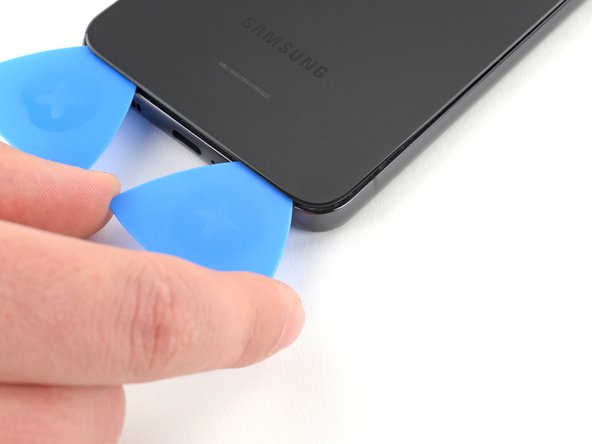
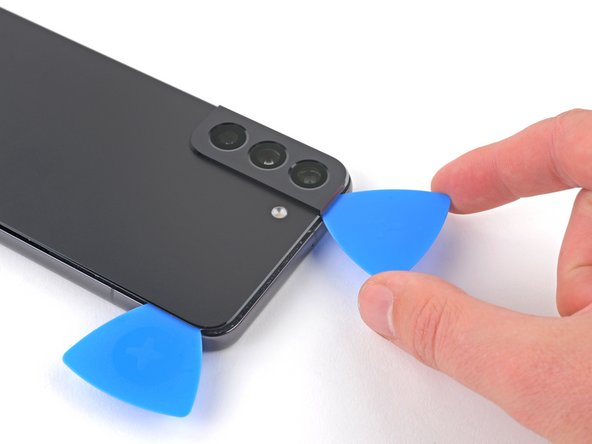
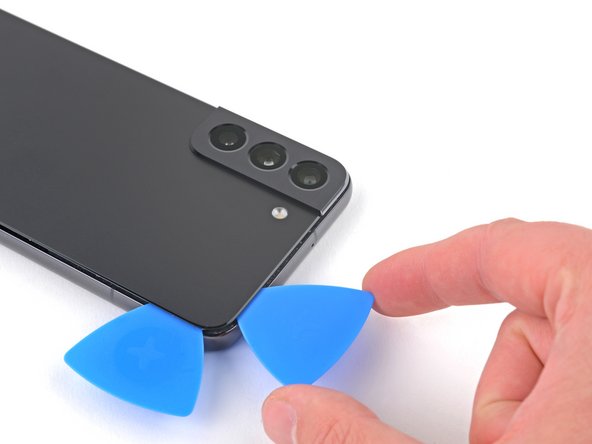
- Slide the opening pick in the top left corner across the top edge to separate the remaining adhesive.
- Don't insert the pick more than 5 mm to avoid damaging or smearing the rear cameras and flash.
- Remove the back cover.
- During reassembly:
- This is a good point to power on your phone and test all functions before sealing it up. Be sure to power your phone back down completely before you continue working.
- Remove any adhesive chunks with a pair of tweezers or your fingers. Apply heat if you're having trouble separating the adhesive.
- If you're using custom-cut adhesives, follow this guide.
- If you're using double-sided tape, follow this guide.
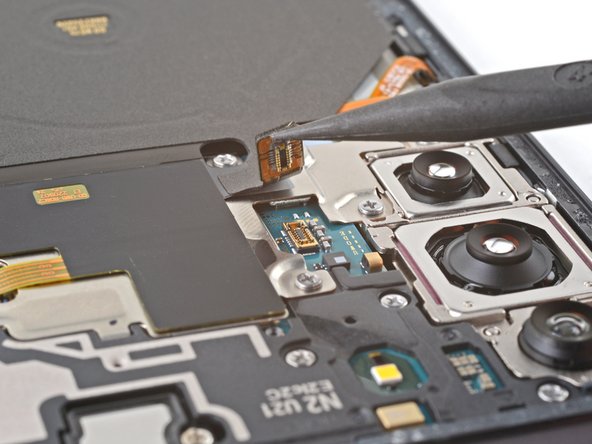
- Use the pointed end of your spudger to pry up and disconnect the charging coil's press connector from the motherboard.
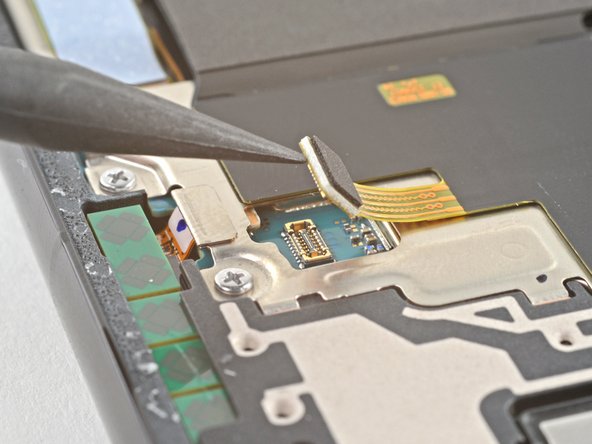
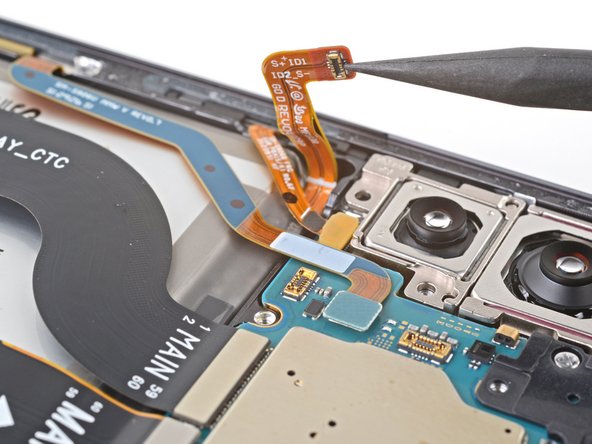
- Use the pointed end of your spudger to pry up and disconnect the NFC antenna cable from the motherboard.
- Use your Phillips screwdriver to remove the six 3.5 mm screws securing the charging coil.
- Use your Phillips screwdriver to remove the seven 3.5 mm screws securing the loudspeaker.
- Insert your spudger in between the left edge of the loudspeaker and the frame.
- Pry up to disconnect the clips securing the loudspeaker.
- Be careful to not separate the loudspeaker from the charging coil.
- During reassembly, press the loudspeaker into the frame until the clips engage.
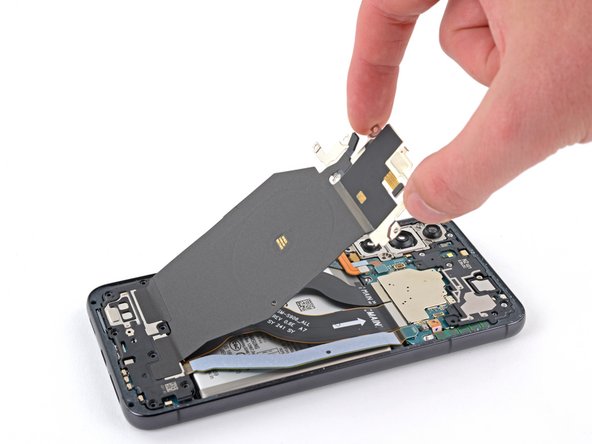
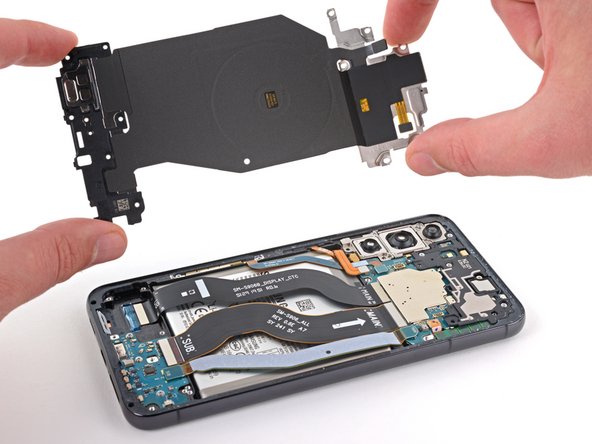
- Gently remove the charging coil & NFC antenna assembly.
- Do not separate the charging coil from the loudspeaker.
- Use your spudger to pry up and disconnect the battery's press connector.
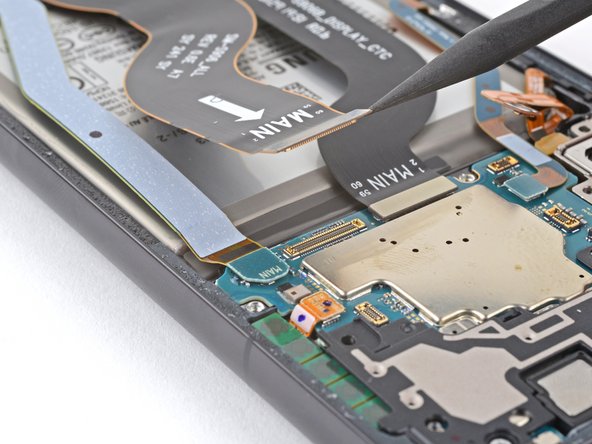
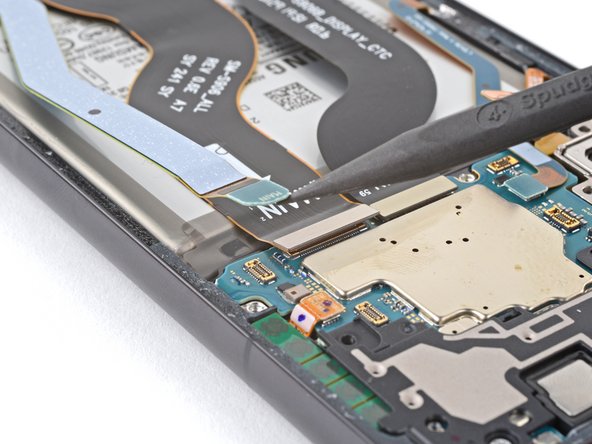
- Use your spudger to pry up and disconnect the primary interconnect cable from the motherboard.
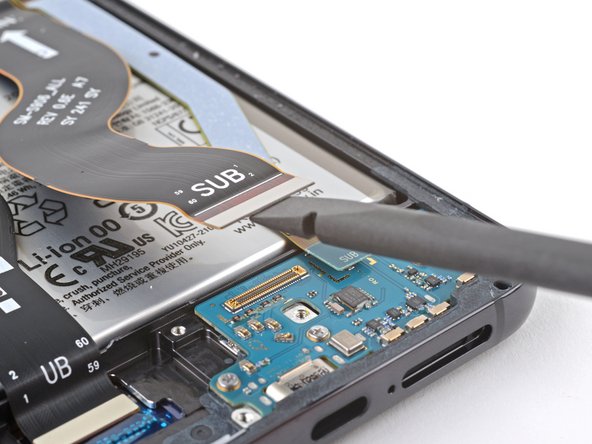
- Use your spudger to pry up and disconnect the secondary interconnect cable from the motherboard.
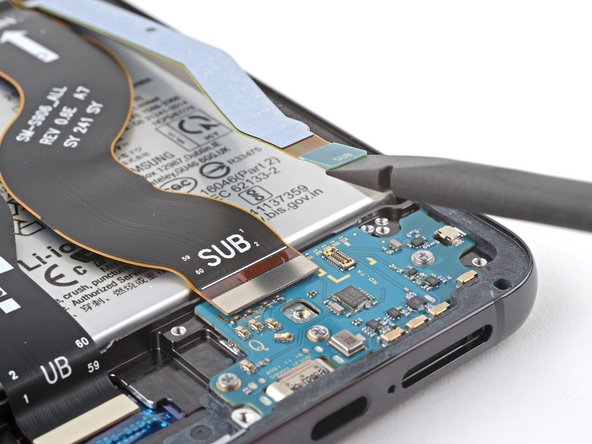
- Use your spudger to pry up and disconnect the primary interconnect cable from the charging board.
- Use your spudger to pry up and disconnect the secondary interconnect cable from the charging board.
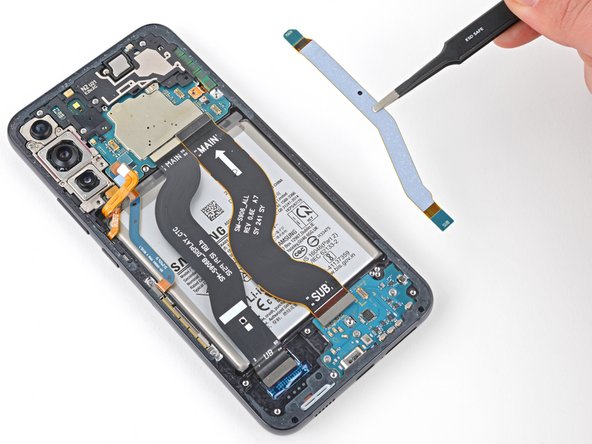
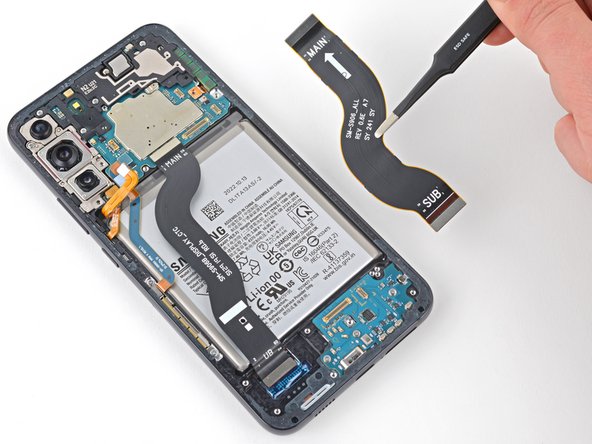
- Use tweezers, or your fingers, to remove the interconnect cables.
- During reassembly, make sure that the end of each cable labeled MAIN is connected to the motherboard, and the ends labeled SUB are connected to the charging board.
- Use your Phillips screwdriver to remove the three 3.4 mm screws securing the charging board.
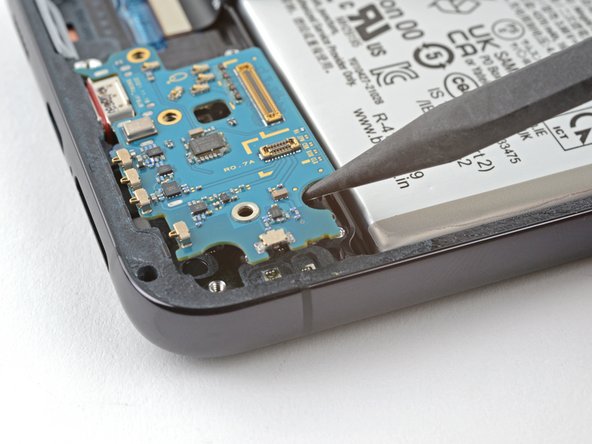
- Insert the pointed end of a spudger between the top right edge of the charging board and the frame.
- Pry up to lift the charging board enough to reach it with your fingers.
- Pull the charging board towards the top of the phone at a 30-degree angle and remove it.
- During reinstallation, make sure the red gasket around the charging port is seated flush against the edge of the phone to retain as much ingress protection as possible.