Samsung Galaxy S20 FE 5G Battery Replacement
ID: 160785
Description: Use this guide to replace the battery in your...
Steps:
- Before you begin, let your battery drain below 25%—a charged lithium-ion battery can be dangerous if accidentally punctured.
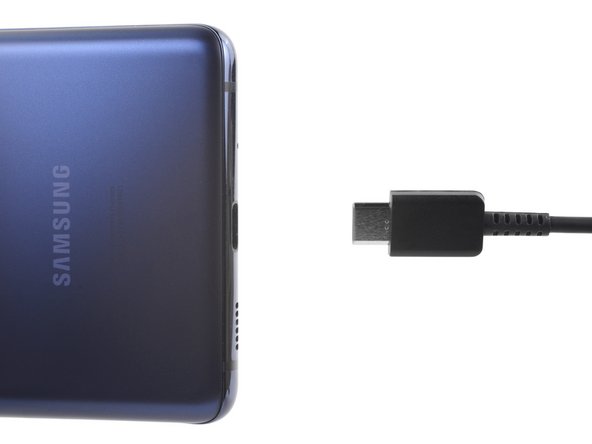
- Power off your phone and unplug any cables.
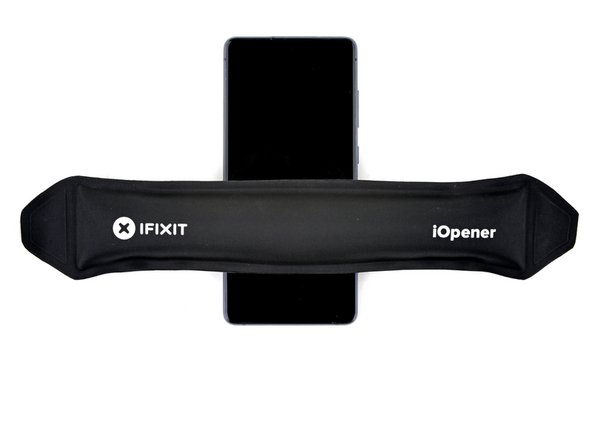
- Heat an iOpener and apply it to the bottom edge of the back cover for two minutes.
- You can also use a hair dryer—but be careful, as extreme heat will warp the back cover.
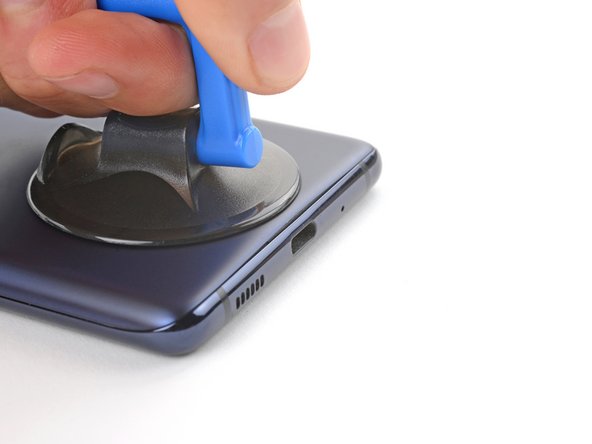
- Apply a suction cup to the center of the back cover's bottom edge, as close to the edge as possible.
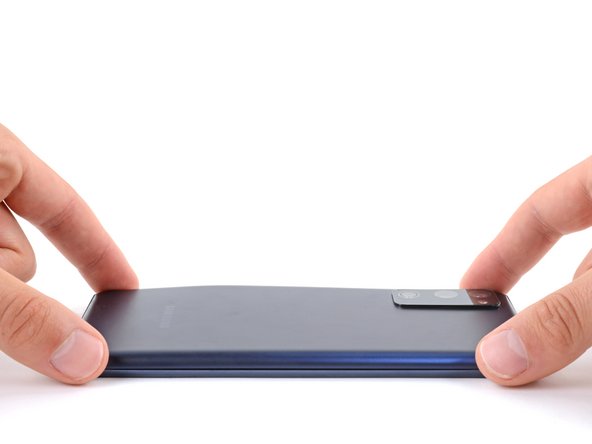
- Pull up on the suction handle with strong, steady force to create a gap between the cover and frame.
- This will require significant force. If you're having trouble, apply more heat and try again.
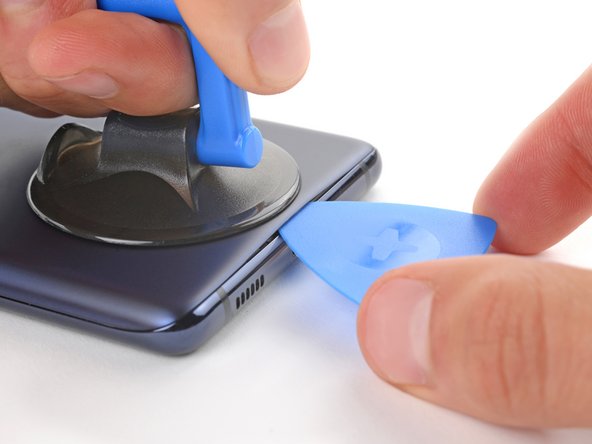
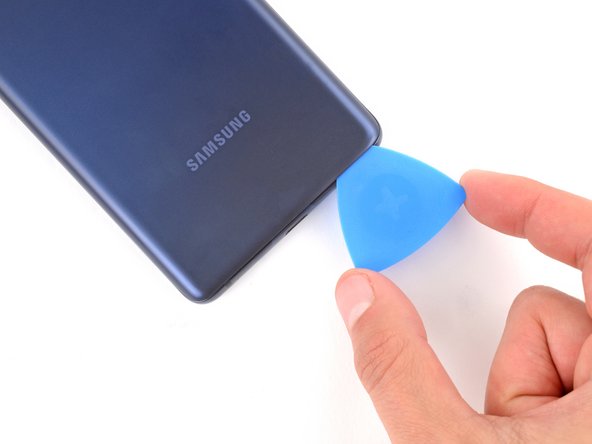
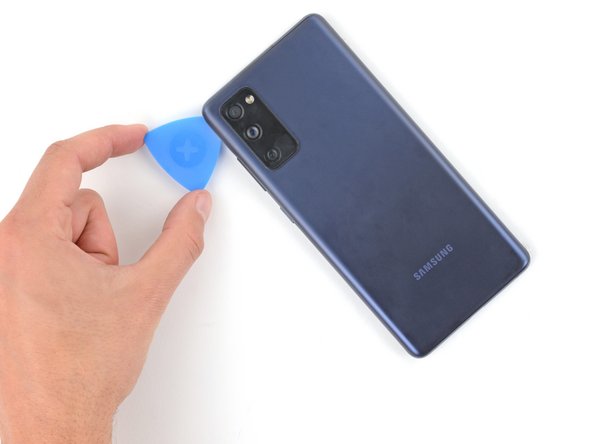
- Insert an opening pick in the gap.
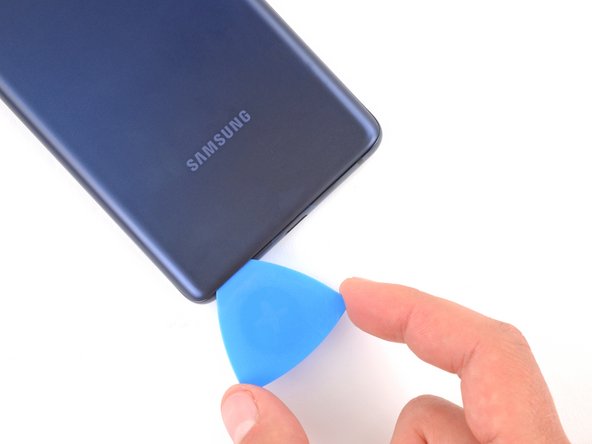
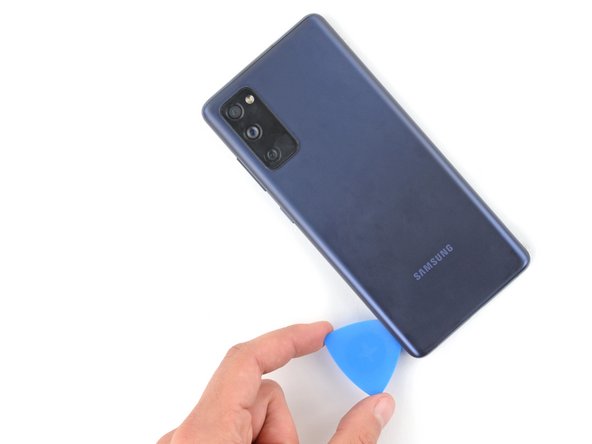
- Slide the opening pick along the bottom edge to slice the adhesive securing the back cover.
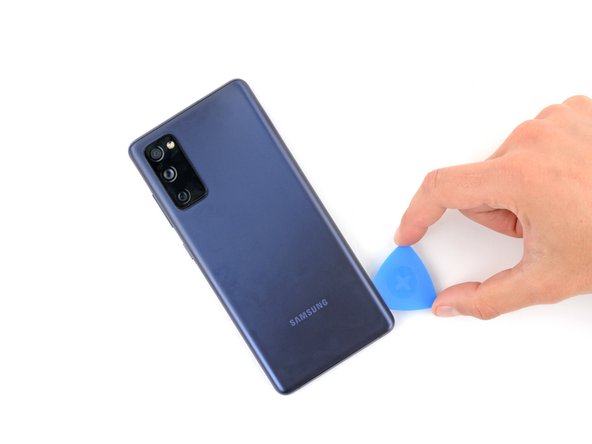
- Leave the opening pick inserted in the bottom right corner to prevent the adhesive from resealing.
- Apply a heated iOpener to the right edge of the back cover for two minutes.
- You can also use a hair dryer—but be careful, as extreme heat will warp the back cover.
- Slide the opening pick around the bottom right corner and all the way up the right edge to slice the adhesive.
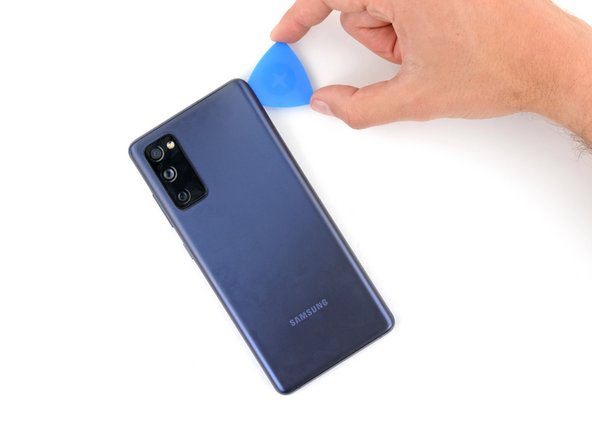
- Leave the opening pick inserted in the top right corner.
- Apply a heated iOpener to the top edge of the back cover for two minutes.
- You can also use a hair dryer—but be careful, as extreme heat will warp the back cover.
- Slide the opening pick around the top right corner and along the top edge to slice the adhesive.
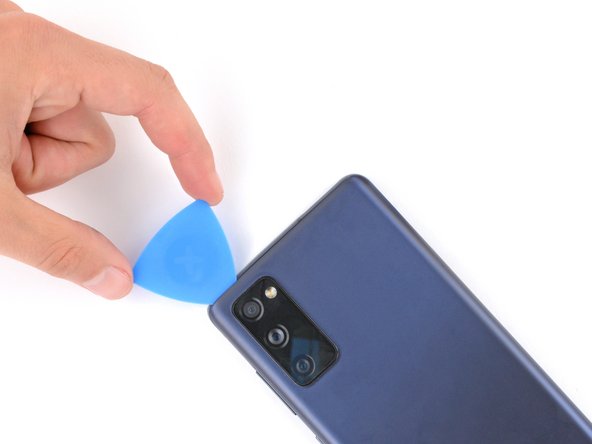
- Leave the pick inserted in the top left corner.
- Apply a heated iOpener to the left edge of the back cover for two minutes.
- You can also use a hair dryer—but be careful, as extreme heat will warp the back cover.
- Slide the opening pick around the top left corner and all the way down the left edge to slice the remaining adhesive.
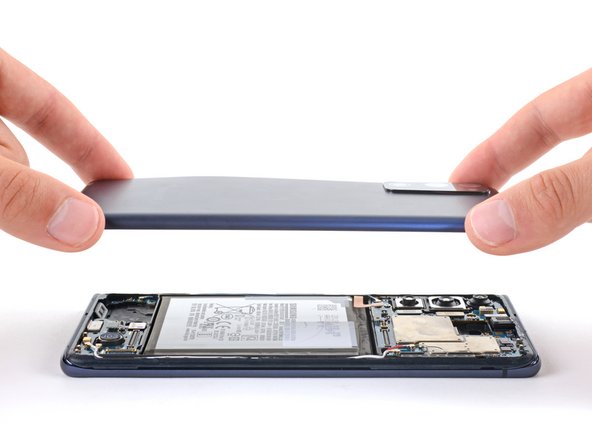
- Remove the back cover.
- If the back cover is still stuck to the frame, slide an opening pick around the perimeter to separate any remaining adhesive.
- During reassembly, this is a good point to power on your device and test all functions before sealing it up. Be sure to power it back down completely before you continue working.
- If you're reinstalling your old back cover:
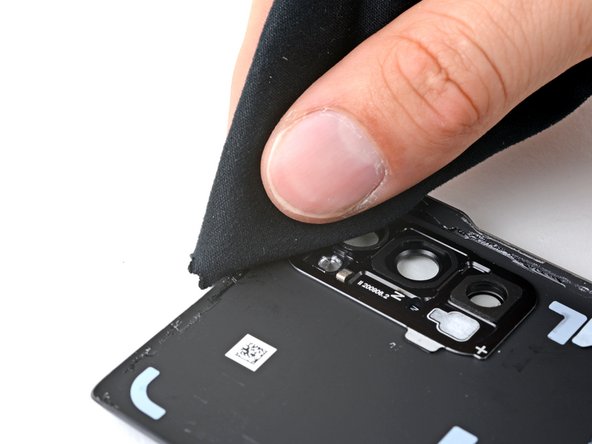
- Use tweezers or your fingers to peel off the old adhesive from the back cover and frame.
- Use highly-concentrated isopropyl alcohol (over 90%) and a microfiber cloth to remove any remaining adhesive residue.
- Follow this guide to apply new custom-cut adhesive.
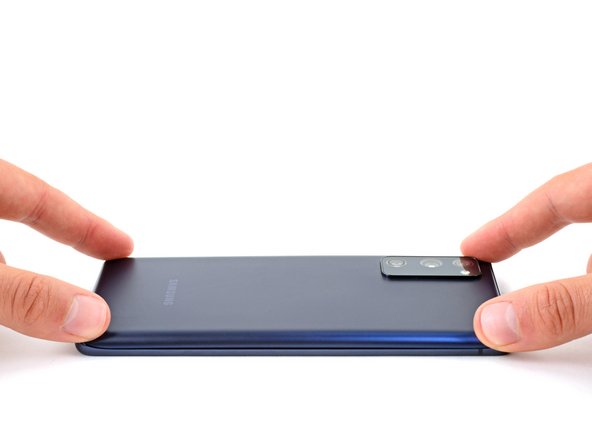
- If you're installing a new back cover, peel off the liners and press firmly around the perimeter to secure the back cover to the frame.
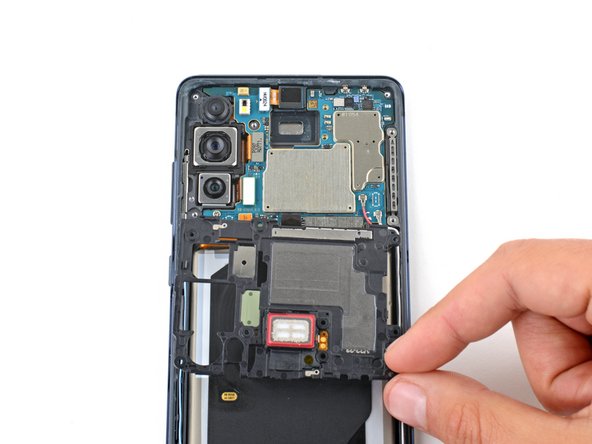
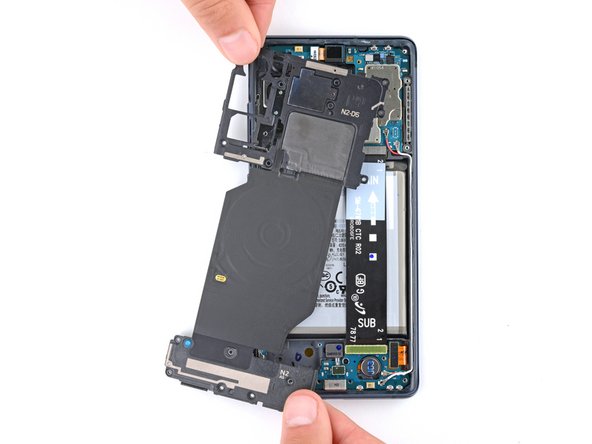
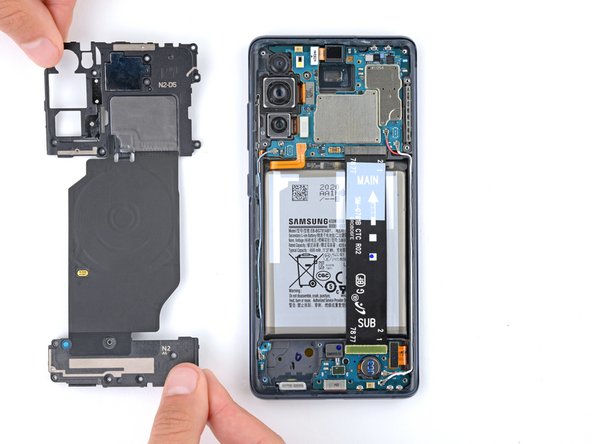
- The wireless charging assembly includes the motherboard cover, wireless charging coil, and loudspeaker. They're held together with graphite tape and should be removed as one piece.
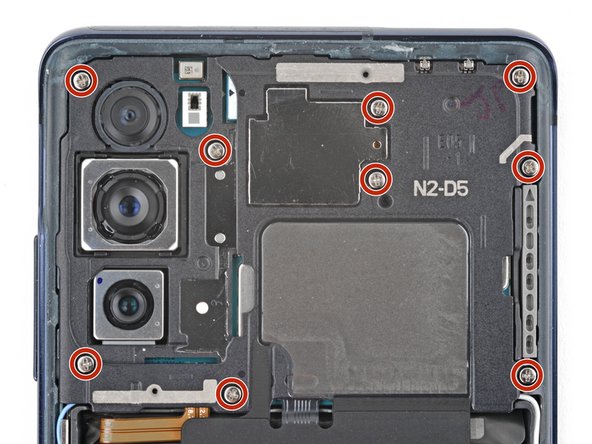
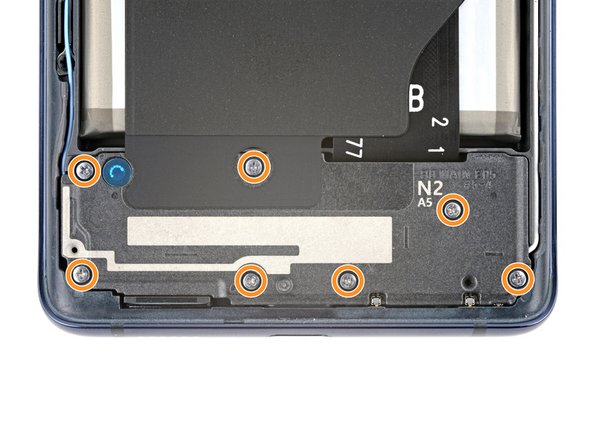
- Use a Phillips screwdriver to remove the 16 screws securing the wireless charging assembly:
- Nine 4 mm-long screws securing the motherboard cover
- Seven 4.5 mm-long screws securing the loudspeaker
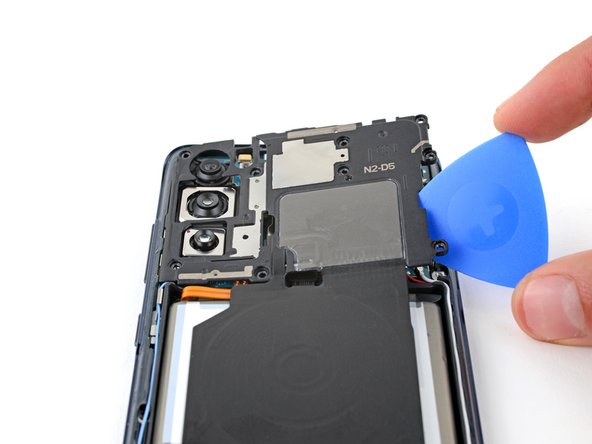
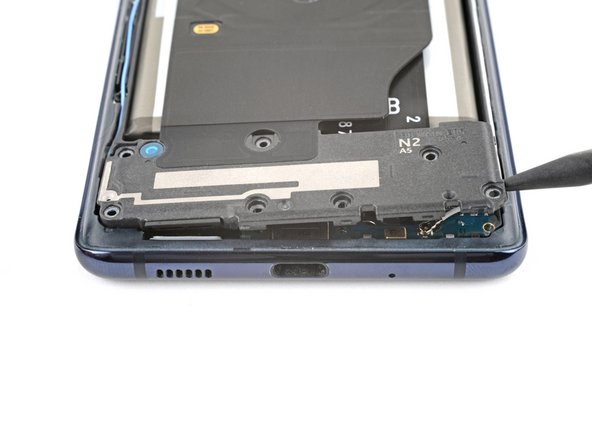
- Insert a pick under the bottom right edge of the motherboard cover.
- Twist the pick to release the clips securing the cover.
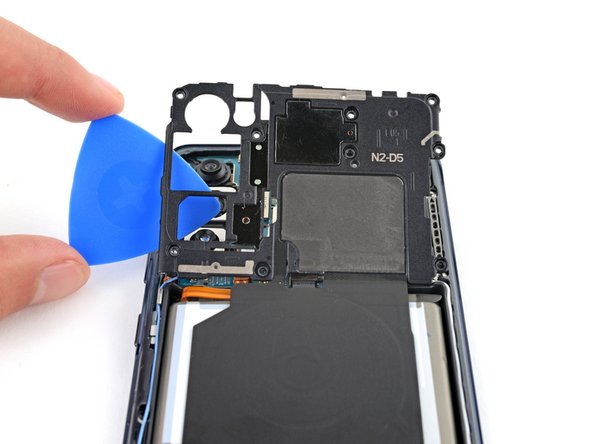
- Insert and twist the opening pick on the bottom left edge of the cover to release the remaining clips.
- During reassembly, press down firmly around the perimeter of the motherboard cover to engage the clips.
- Reposition the motherboard cover so you can access the battery and wireless charging press connectors on the bottom edge of the motherboard.
- Use the flat end of a spudger to pry up and disconnect the battery and wireless charging press connectors from the motherboard.
- To re-attach press connectors like this one, carefully align and press down on one side until it clicks into place, then repeat on the other side. Don't press down in the middle. If the connector is misaligned, the pins can bend and cause permanent damage.
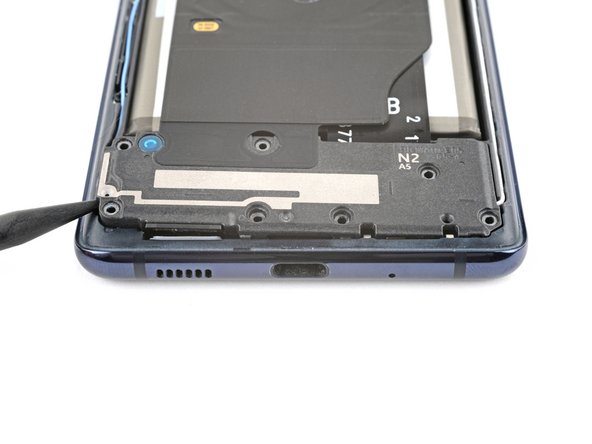
- Insert the point of a spudger between the bottom left corner of the loudspeaker and the frame.
- Pry up to release the clips securing the left edge of the loudspeaker.
- Pry up the bottom right corner of the loudspeaker to release the remaining clips.
- During reassembly, press down firmly around the perimeter of the loudspeaker to engage the clips.
- Remove the wireless charging assembly.
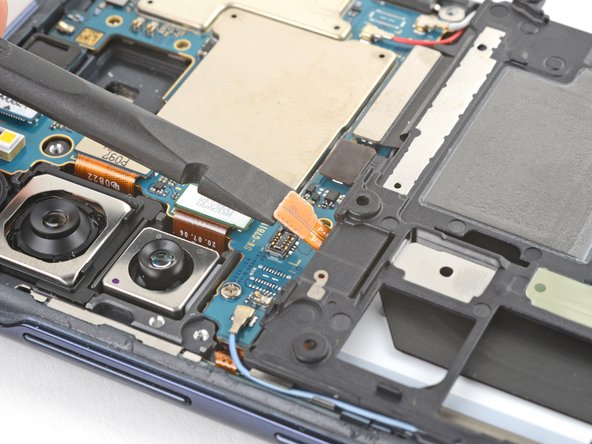
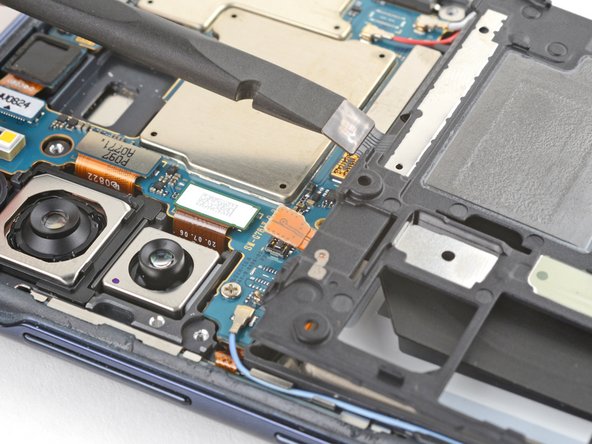
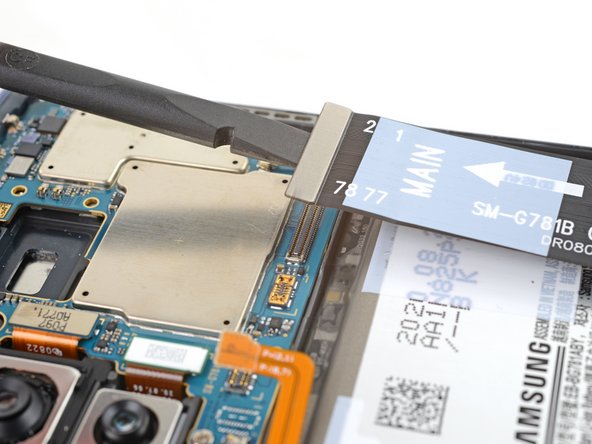
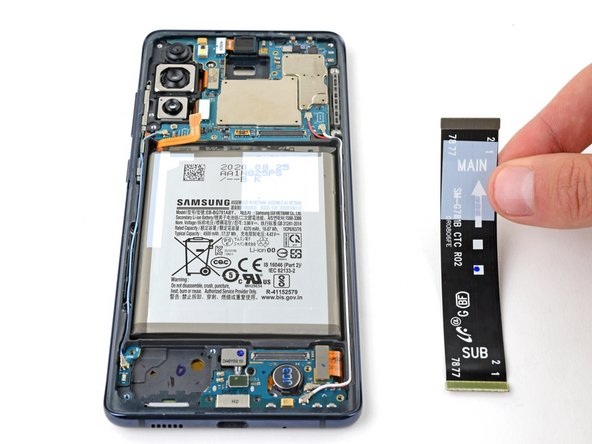
- Use the flat end of a spudger to pry up and disconnect the interconnect cable press connector from the motherboard.
- Disconnect the interconnect cable press connector from the charging board.
- Remove the interconnect cable.
- Place the back cover on the frame to protect your phone's internal components during the next step.
- Flip your phone over and apply a heated iOpener to the middle of the screen for two minutes to soften the battery adhesive.
- You can also use a hair dryer, heat gun, or hot plate—but be careful, as extreme heat can damage the display or battery and create a fire hazard.
- Flip your phone over and remove the back cover.
- The back cover may have lightly readhered to the frame. If it has, use an opening pick to slice the adhesive again.
- Take care not to puncture or bend the battery—it can leak dangerous chemicals and/or catch fire.
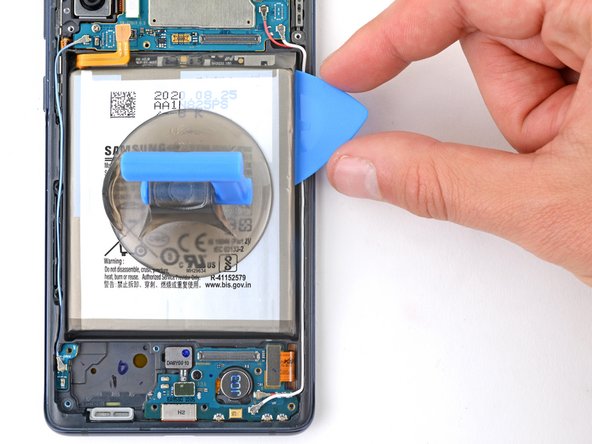
- Apply a suction cup to the center of the battery.
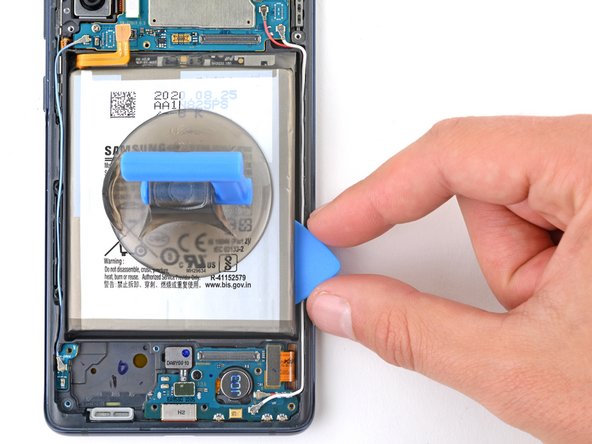
- Insert the flat side of an opening pick between the right edge of the battery and frame.
- Pull up on the suction cup with strong, steady force and simultaneously pry up with the pick until the right edge of the battery lifts from the frame.
- Don't use excessive force on the battery. Slow, consistent pressure is all that's required to free it from the frame.
- If you're having trouble lifting the battery, apply 1-2 drops of highly-concentrated isopropyl alcohol (over 90%) along the right edge of the battery, wait a minute, and try again.
- Using too much alcohol can damage the display.
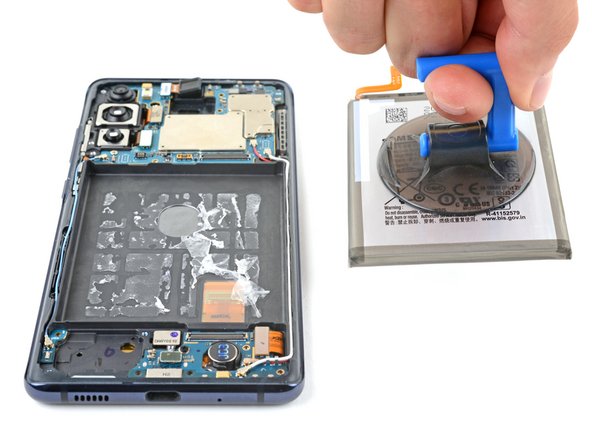
- Slide the opening pick back and forth under the battery to slice the adhesive.
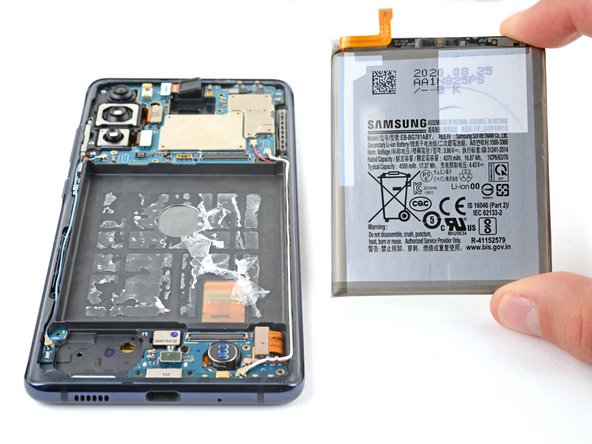
- Remove the battery.
- If you used isopropyl alcohol, wait ten minutes before installing the new battery to allow the alcohol to completely evaporate.
- To install a new battery:
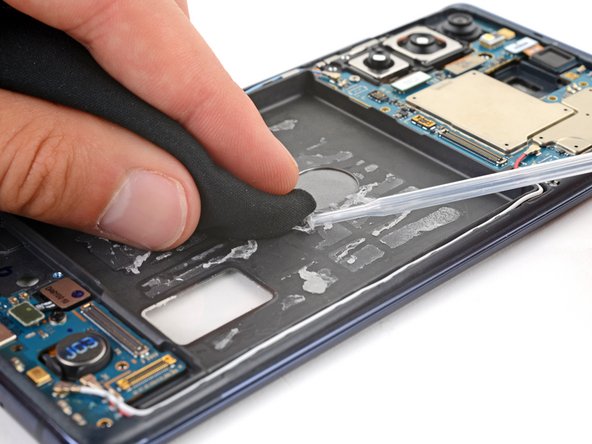
- Use tweezers or your fingers to remove the old adhesive from the frame.
- Use highly-concentrated isopropyl alcohol (over 90%) and a microfiber cloth to remove any remaining adhesive residue.
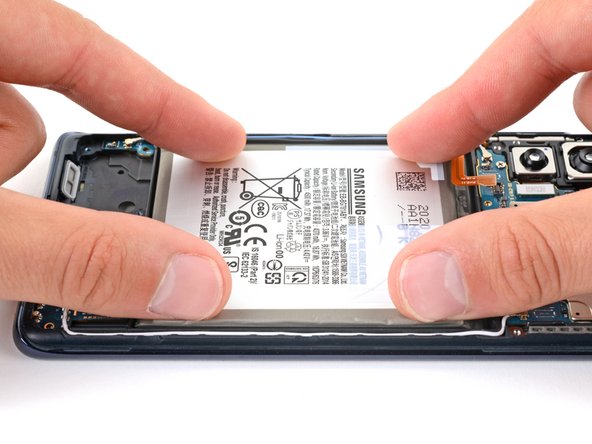
- Temporarily connect the replacement battery's cable to the motherboard and lay the battery in its recess to ensure proper fit and orientation.
- If you're using custom-cut battery adhesive, follow this guide to apply it. Otherwise, apply double-sided tape such as Tesa Tape directly to the battery recess where the old adhesive was.
- Lay the replacement battery in its recess and press down firmly on the entire surface of the battery to secure it.