HP Envy x360 15m-bp112dx Speaker Replacement
ID: 160791
Description: Use this guide to replace the speakers for the...
Steps:
- Power off the laptop before starting the disassembly.
- Start by facing the device upside down with the hinge facing away from you.
- Remove the seven 1 mm Phillips screws.
- Use an opening tool to pry the back panel by pushing the bottom cover upwards.
- Place the bottom cover away from the laptop.
- Carefully remove the sata ribbon cable from the hard drive, pulling it out horizontally.
- To avoid injury, ensure that you disconnect the battery prior to removing any of the cables in the laptop.
- Remove the hard drive by pulling it out vertically.
- Remove the plastic casing around the hard drive by peeling it back.
- Disconnect the ribbon cable by pulling it away horizontally from the hard drive.
- Carefully peel back the tape connecting the heat sink to the fan assembly.
- Loosen the four 1 mm Phillips screws retaining the fan assembly.
- Remove the three 2 mm Phillips screws.
- Unplug the thin cable connected to the fan, pulling horizontally.
- Carefully peel back the connected tape.
- Carefully remove the fan assembly by pulling on it upwards.
- When reassembling, ensure that you clean off and replace the thermal paste on the fan assembly.
- Remove the two 5 mm Phillips screws from the first speaker.
- Carefully peel back the tape.
- Open the tab connected to the right speaker cord, prying it with a plastic opening tool upwards.
- Pull out the speaker cord horizontally.
- Remove the thin cable from the speaker, pulling it out horizontally.
- Remove the right speaker, pulling upward carefully.
- While pulling on the speaker, unwind the cord around the plastic clips to free the speaker and place it to the side.
- Remove the twelve 2.5 mm Phillips screws.
- Unclip the ribbon cable using a plastic opening tool to flip up the black ZIF connector locking flap.
- Remove the ribbon cable by pulling it out horizontally.
- Unclip the second ribbon cable using a plastic opening tool to flip the black ZIF connector locking flap up.
- Remove the ribbon cable by pulling it out horizontally.
- Unclip the third ribbon cable using a plastic opening tool to flip up the black ZIF connector locking flap.
- Remove the ribbon cable by pulling it out horizontally.
- Remove the thin cable carefully by pulling out horizontally in line with its slot.
- Unclip the fourth ribbon cable using a plastic opening tool to flip up the black ZIF connector.
- Remove the ribbon cable by pulling it out horizontally.
- Carefully remove the motherboard by pulling upwards on it.
- The removal of the right speaker is located in the motherboard guide during steps 1-4.
- Remove the two 1.5 mm Phillips screws.
- Carefully peel the tape back.
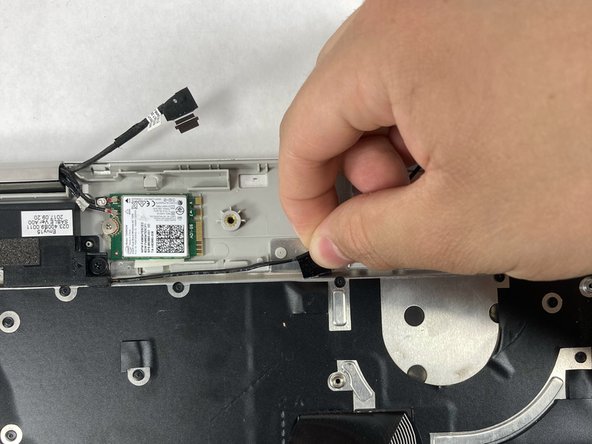
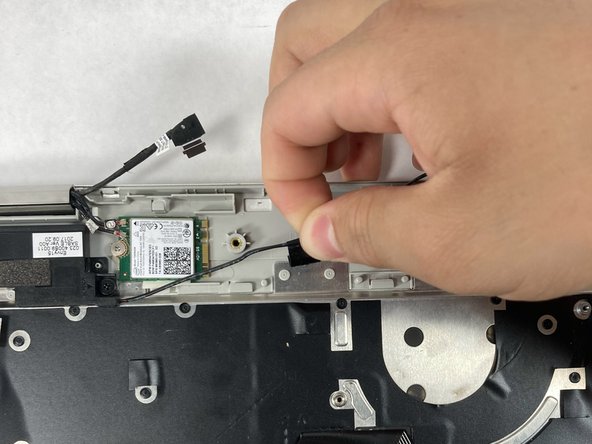
- Pull the left speaker cord around the plastic clips.
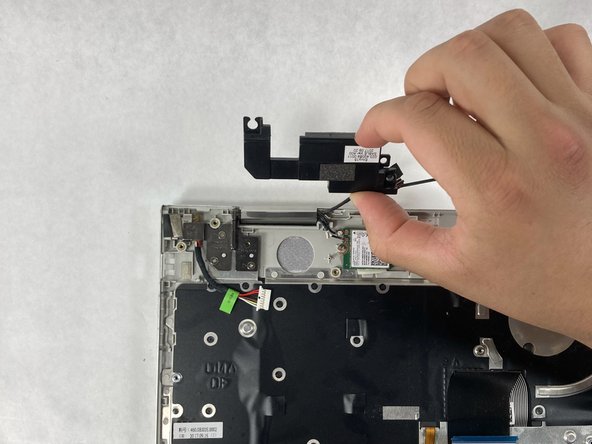
- Carefully remove the left speaker by pulling up vertically.