Mitsubishi Hands Free Module Firmware Update (AM/FM-ST Electronic Tuning Radio, CD Player, DY-5W69U)
ID: 162790
Description: This guide provides step-by-step instructions...
Steps:
- Turn the Ignition switch to the ACC or ON position.
- Switch off the radio and CD player by pressing on the PWR/VOL knob.
- Press the following buttons in that order within sixty seconds from Step 1:
- The 1 RPT button.
- The ⏮ button.
- The ⏭ button.
- The 4 ⏩ button.
- The display should now read
HFM DIAG. - When an invalid button is pressed during diagnosis mode except the hands free-ECU update, the diagnosis mode will be cancelled, thus switching off the radio and CD player.
- While in diagnosis mode, the sound input to the microphone unit is output directly through the speaker.
- Press the 4 ⏩ button twice to display the Parts Number.
- The display should read something along the lines of
PN XXXXXXXX. - We'll need this later when downloading the Firmware file.
- Press the 4 ⏩ button twice to display the Software Version.
- The display should read something along the lines of
S/W XXXXXXX. - If the Version Number is 19.00.000 you already have the last available Firmware installed and don't need to do anything.
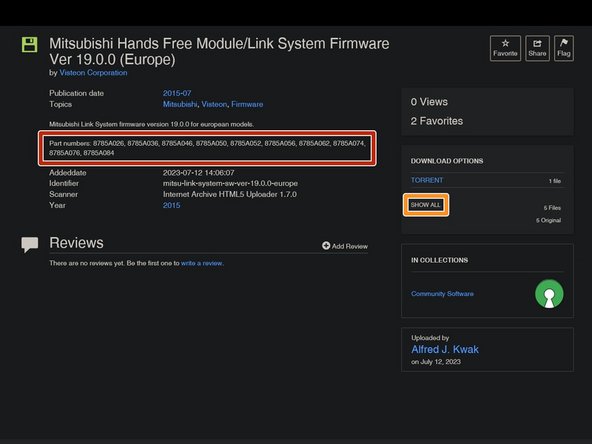
- You can download the firmware files here: Version 19.0.0 (Europe) and Version 19.0.0 (Japan and North America).
- Check if the Firmware Version works with your device.
- Download the Firmware for your device.
- Press on SHOW ALL.
- Download update.package.
- The flash drive needs to be formatted to FAT32 and should not be larger than 16GB. Additionally the head unit can be a bit picky and might not accept all flash drives. If it can't read your flash drive, just try a different one.
- Copy the update.package file to the root directory of the USB flash drive.
- Insert the USB flash drive into one of the USB ports in your car.
- You can usually find a USB port inside the center console or below the head unit.
- Re-enter the HFM DIAG-Section of the Diagonstic Menu by repeating the previous steps or pressing the 3 ⏪ button four times while displaying the Version Number.
- Initiate the Update by pressing the PAGE button.
- If the display reads
NO FILEit means that it couldn't read your flash drive. - If the display reads
HFM UPDATEit means that it found an update file on your flash drive, and will proceed in 3 seconds. - When the display reads
CODE_, enter the Security PIN using the number buttons. - If you don't have one set you can just enter 1234.
- Perform the following steps to remove your Security PIN, if you have forgotten it:
- Return to
HFM DIAGby pressing the PAGE button. - Forecefully remove the Security PIN by pressing the the DISP button. The display should now read
UNLOCK. - The display will return to
HFM DIAGafter 3 seconds. You can now proceed by repeating Step 9. - The update will start 3 seconds after you entered the correct Security PIN.
- Wait for the update to finish.
- Do not remove the flash drive or turn off the car while the update is running!
- Once the update is completed the display will read
UPDATE COMPLETE.