Dell Inspiron 5100 (2015) Thermal Paste Replacement
ID: 162843
Description: If your Dell Inspiron 15 5100 (2015) is thermal...
Steps:
- Use the slider to release and remove the battery.
- Remove the 11 screws using a small tip Phillips screwdriver.
- Use a flat screw driver to pry against the angled metal.
- Remove the 3 small screws that were under the optical drive using a small tip Phillips screwdriver.
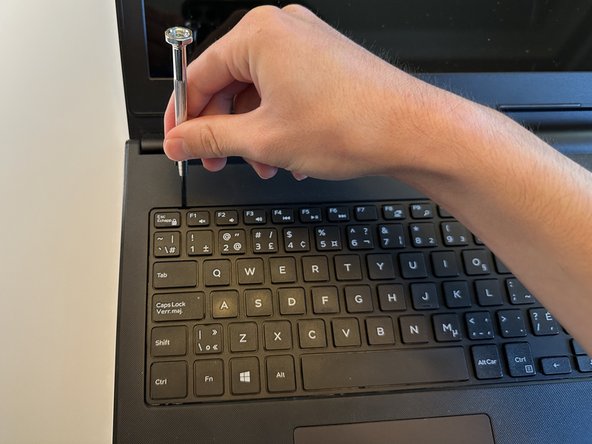
- Use a small flat-head screwdriver to pry up at each point indicated to unclip the keyboard from the chassis.
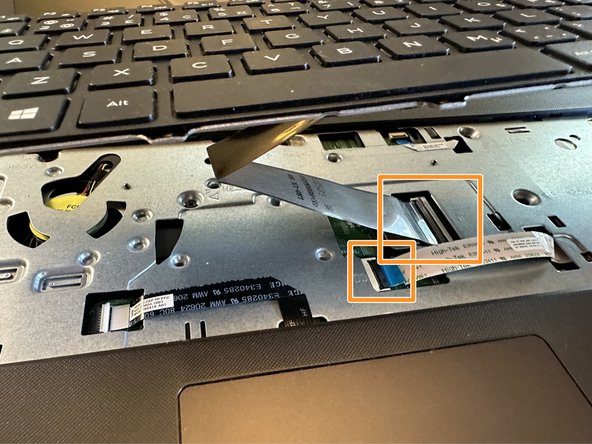
- Lift the keyboard 2-3 inches up and carefully disconnect the two ribbon cables by unlatching the mechanism and carefully sliding the cable out horizontally.
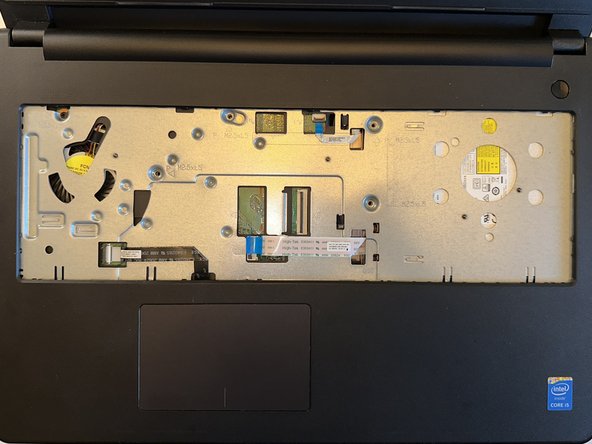
- Place the keyboard to the side.
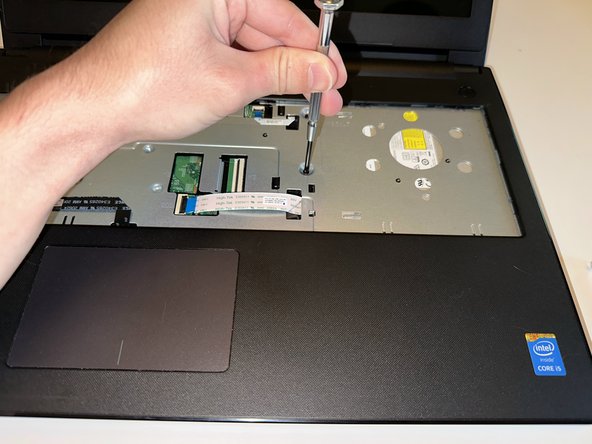
- Remove the 5 screws using the small Phillips screwdriver.
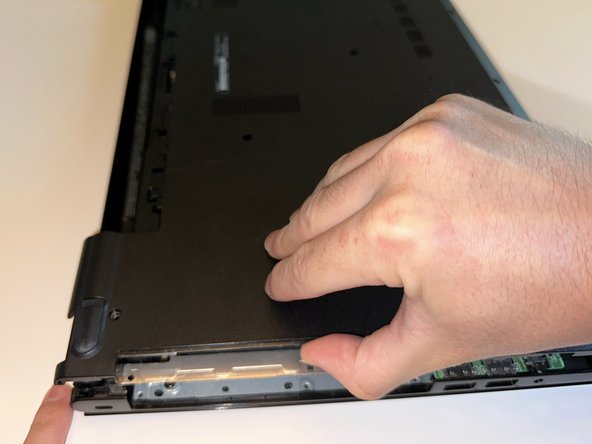
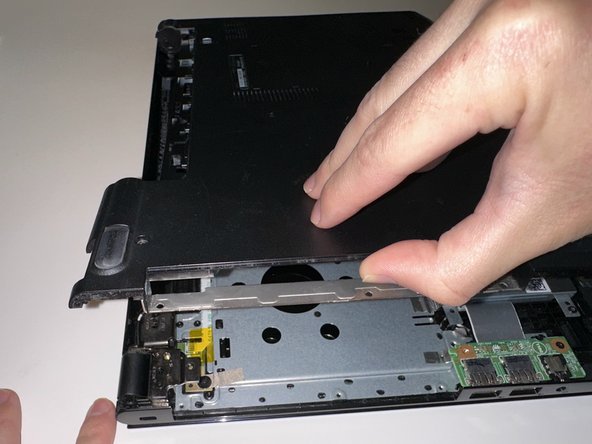
- Grab the bottom panel where the optical drive was and lift straight up.
- It should start popping clips and then come off without much force required.
- Pay special attention to not break any plastic clips.
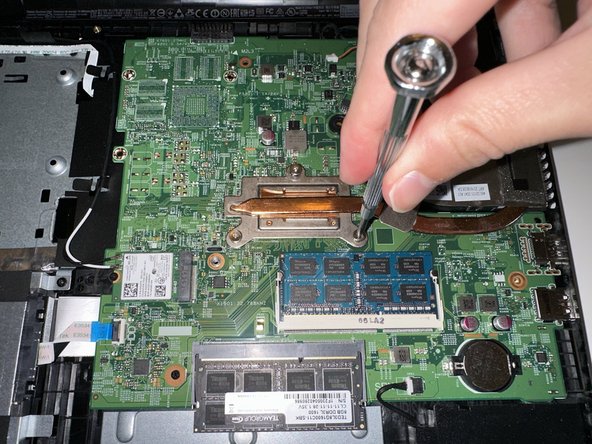
- Loosen the screws one at a time and repeat until they are fully unscrewed.
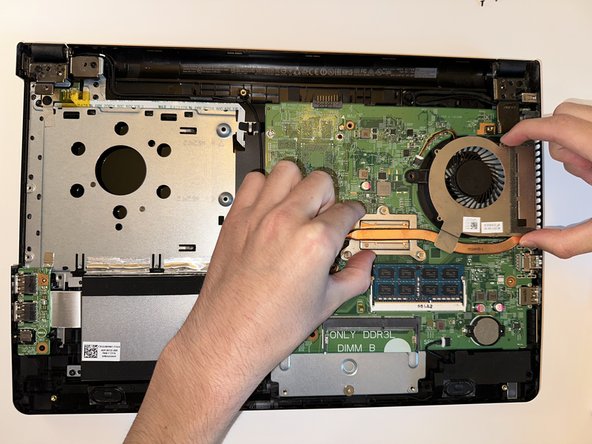
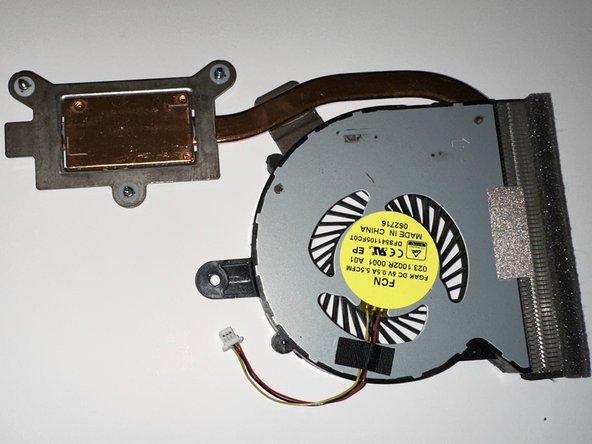
- Unplug the fan cable from the header by sliding it out horizontally.
- Lift the cooler off the CPU with one hand on the CPU area and one hand on the fan assembly.
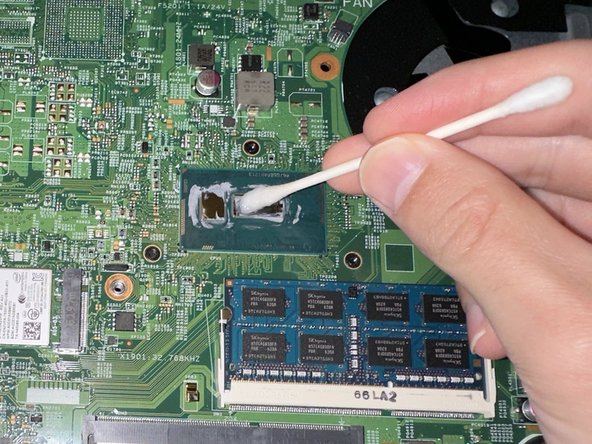
- Using paper towels, q-tips, and isopropyl alcohol, clean off the old thermal paste on the CPU and heatsink.
- Be careful around the CPU; it is delicate and can be damaged.
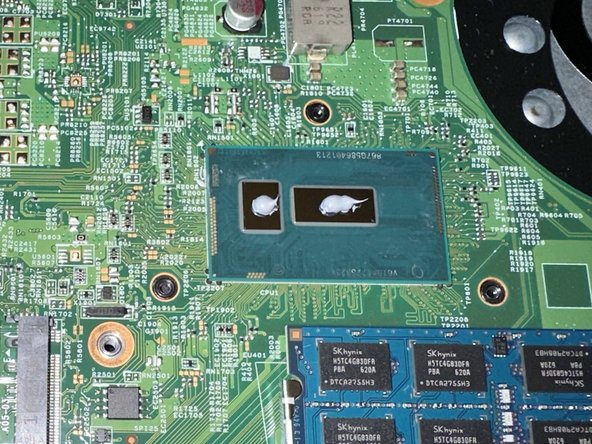
- Apply a grain of rice amount of thermal paste to the CPU in the indicated spots.