Mac Studio 2023 Bottom Cover Screw Pad Replacement
ID: 164947
Description: Use this guide to replace a damaged, scuffed,...
Steps:
- Completely shut down your Mac Studio.
- Unplug all cables from your device.
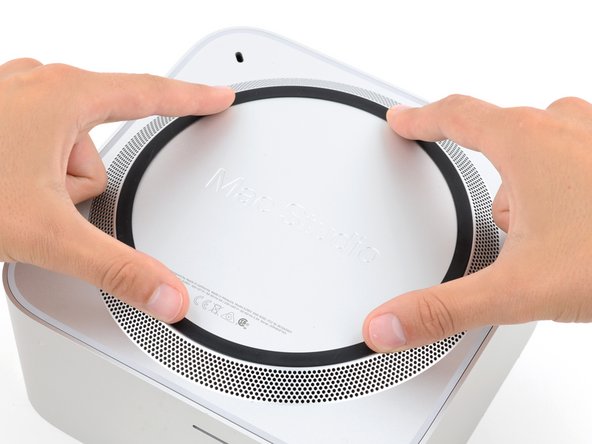
- Flip your Mac Studio over and lay it down so the bottom faces up and the SD card slot and two front USB‑C ports are facing you.
- Adhesive strips secure the bottom cover screw pad.
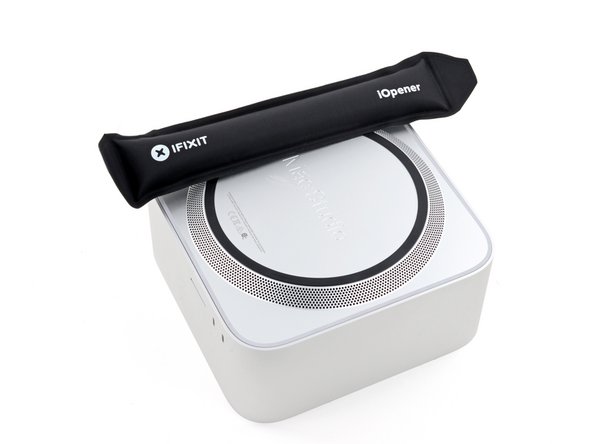
- Heat an iOpener and lay it over one of the bottom cover screws for two minutes to soften the adhesive near the screw—this is where you'll insert a spudger in the next step.
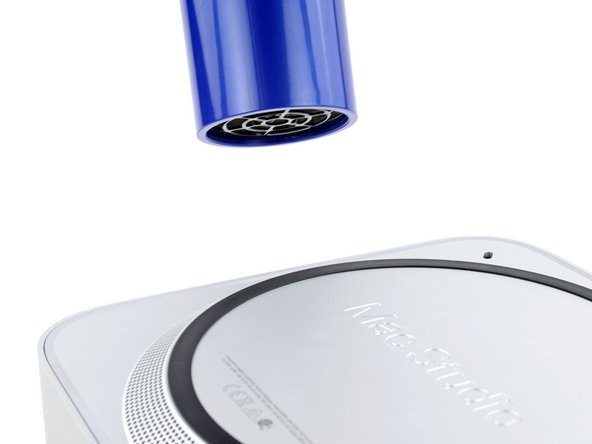
- You can also use a hair dryer or heat gun, but be careful as extreme heat will warp the pad.
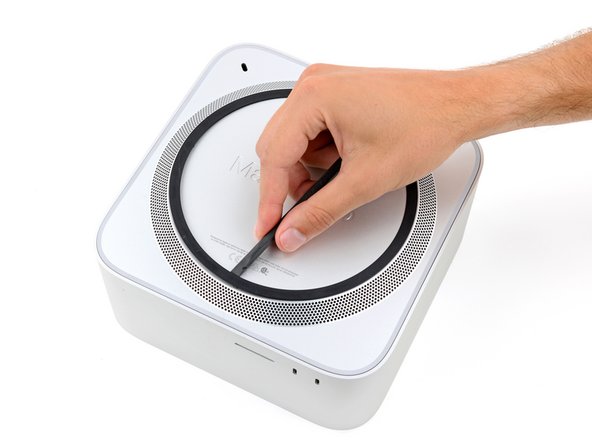
- Insert the point of a spudger under the pad's inner edge, near the screw you applied heat to in the previous step.
- This may take some force. If you're having trouble, apply more heat and try again.
- Use the spudger to lift the pad and separate the adhesive.
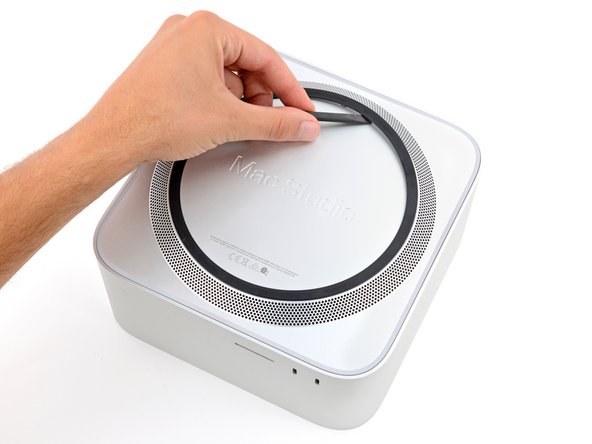
- Insert the flat end of a spudger under the pad.
- Slide the spudger under the entire pad to separate the remaining adhesive.
- Remove the bottom cover screw pad.
- During reassembly:
- If the adhesive strips are still sticky, you can reuse them.
- If you're applying new adhesive:
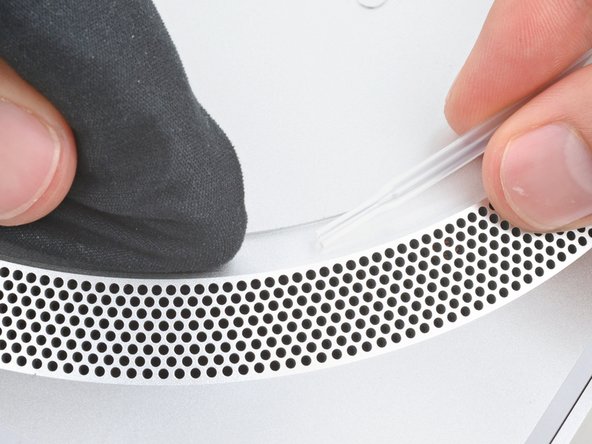
- Use the flat end of a spudger and your fingers to scrape up and remove the old adhesive strips.
- Use isopropyl alcohol and a microfiber cloth to remove the old adhesive residue.
- If you don't have replacement adhesive, you can use strips of thin, double-sided tape 2–3 mm wide.
- Apply the new adhesive strips to the bottom cover and remove their liners.
- Firmly press the bottom cover screw pad into its recess to secure it.