How to Fix an Xbox One Controller Stuck Button
ID: 167264
Description: Is your Xbox One controller plagued by sticky...
Steps:
- Use an opening tool to remove the back panels of the controller.
- Remove the five screws from the back of the controller.
- The 5th screw is behind the sticker in the battery compartment.
- Remove the front and back covers.
- Remove the screws on the inside.
- Remove the screws.
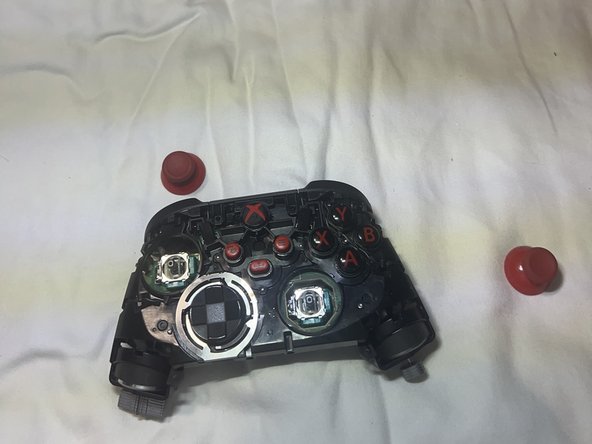
- Flip the controller over and remove the joysticks.
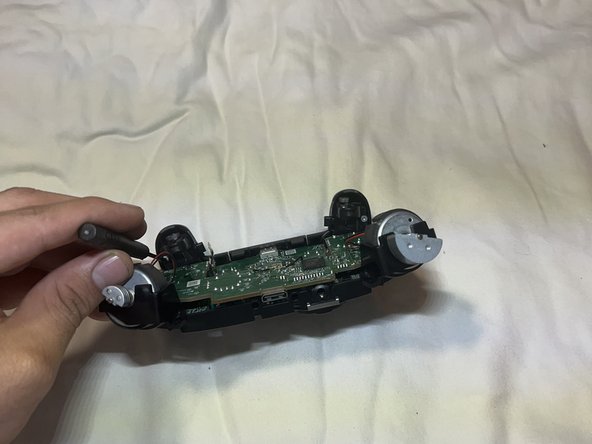
- Remove both screws near the trigger.
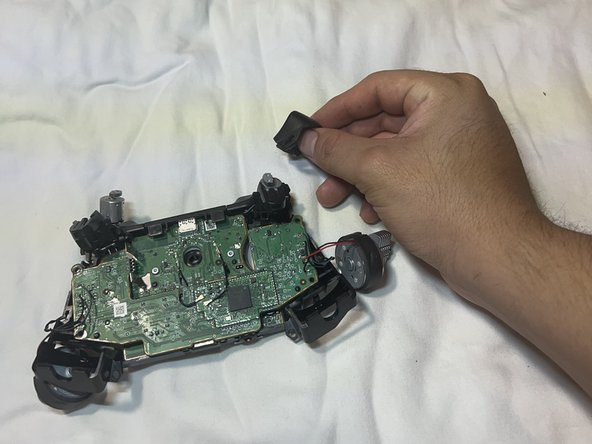
- Remove the triggers to create more space.
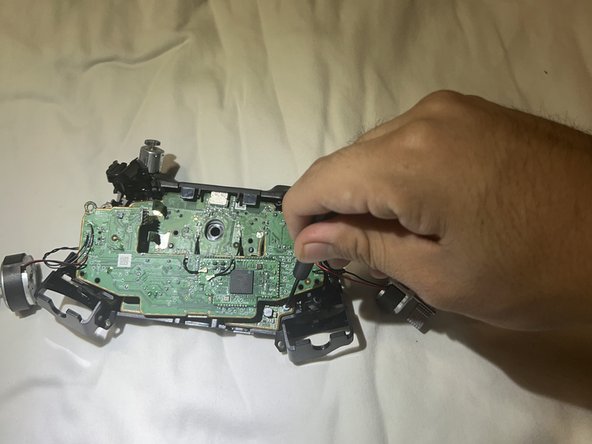
- Remove the screws holding the motherboard.
- Remove the screws underneath the first chip board.
- Remove all screws holding the motherboard.
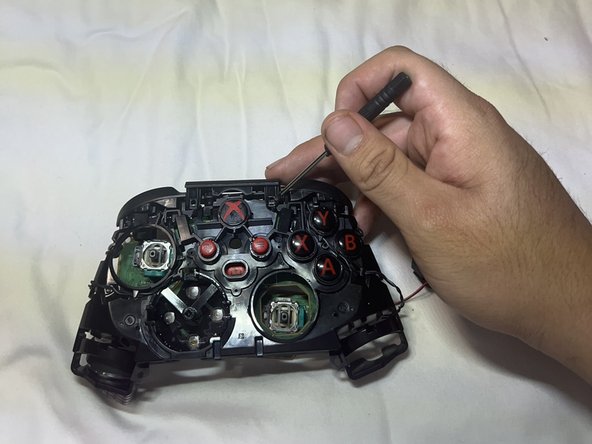
- Pry open the top of the controller to release the motherboard.
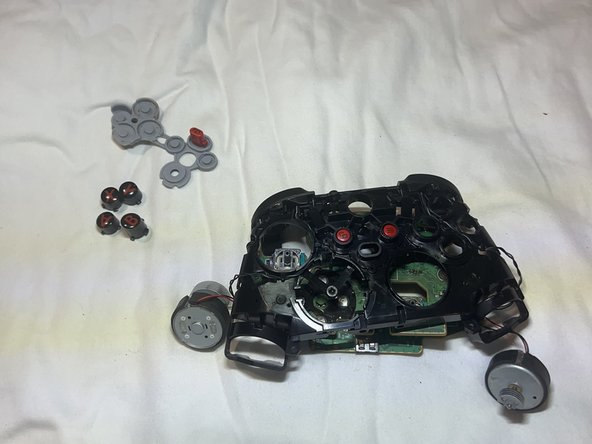
- Remove the motherboard.
- Remove the buttons.
- Clean the new buttons with rubbing alcohol for less friction.
- Clean the controller frame holes.