Macbook Pro 14" Late 2023 (M3 Pro and M3 Max) Speakers Replacement
ID: 167660
Description: Use this guide to replace one or both speakers...
Steps:
- Allow your MacBook's battery to drain below 25% before starting this repair. A charged battery may catch fire if damaged during the repair.
- Fully shut down your MacBook, close the lid, and flip it over. Keep the lid closed until you've physically disconnected the battery.
- Unplug the MagSafe cable and any accessories connected to your MacBook.
- Completely power off and unplug your MacBook Pro before you start. Close the screen and flip the entire laptop upside-down.
- Use a P5 Pentalobe driver to remove eight screws securing the lower case:
- Four 9.3 mm screws
- Four 5 mm screws
- Throughout this repair, keep track of each screw and make sure it goes back exactly where it came from to avoid damaging your device.
- Press a suction handle into place near the front edge of the lower case, between the screw holes.
- Pull up on the suction handle to create a small gap under the lower case.
- Insert an opening pick into the gap you just created.
- Slide the opening pick around the nearest corner and then halfway up the side of the MacBook Pro.
- This releases the first of the hidden clips securing the lower case. You should feel and hear the clip pop free.
- Repeat the previous step on the other side, using an opening pick to to release the second clip.
- Sliding clips along the back edge of the MacBook further secure the lower case. Separating these clips may require a lot of force—consider using gloves to protect your hands from the sharp edges of the lower case.
- Firmly pull the lower case away from the back edge, one corner at a time, to disengage the sliding clips.
- Keep the lower case flat to the MacBook. Don't pull upward until it's completely separated.
- Remove the lower case.
- To reinstall the lower case:
- Lay it down and align the sliding clips with the back edge of the MacBook. Press down on the lower case and slide it toward the back edge to engage the clips.
- When one side is engaged, it may push the other out of alignment. Check both sides as you push.
- Once the back corners of the lower case are secured and flush with the frame, press down along the middle of the lower case to engage the four remaining clips.
- You'll hear and feel each clip snap into place.
- Peel back any tape covering the battery board data cable connector on the logic board.
- Use a spudger to gently pry up the locking flap on the ZIF connector for the battery board data cable.
- Disconnect the battery board data cable by sliding it out from its socket on the logic board.
- Use a 3IP Torx Plus driver to remove the two 2.1 mm‑long screws securing the trackpad cable bracket to the logic board.
- Use tweezers, or your fingers, to remove the trackpad cable bracket.
- Use the flat end of a spudger to pry up and disconnect the trackpad cable's press connector secured to the logic board.
- To re-attach press connectors like this one, carefully align and press down on one side until it clicks into place, then repeat on the other side. Don't press down on the middle. If the connector is misaligned, the pins can bend, causing permanent damage.
- The trackpad cable is lightly adhered to the frame.
- Peel the trackpad cable away from the device, making sure to separate the adhesive.
- Peel back any tape covering the battery board data cable connector under the large pancake screw.
- Use a spudger to gently pry up the locking flap on the ZIF connector for the battery board data cable.
- Disconnect the battery board data cable by sliding it out from its socket on the battery board.
- The battery board data cable is lightly adhered to the device.
- Slide blunt nose tweezers under areas with adhesive to separate the cable from the device.
- Remove the battery board data cable.
- Use a 5IP Torx Plus driver to remove the 3.8 mm wide-head screw securing the battery power connector.
- Use the flat end of your spudger to lift the battery connector away from the battery board, disconnecting the battery.
- Lift the connector high enough that it doesn't accidentally make contact during the repair, but no more than 45 degrees to prevent damaging its hinge.
- For added safety, place a barrier, such as a piece of a playing card, between the connector and board.
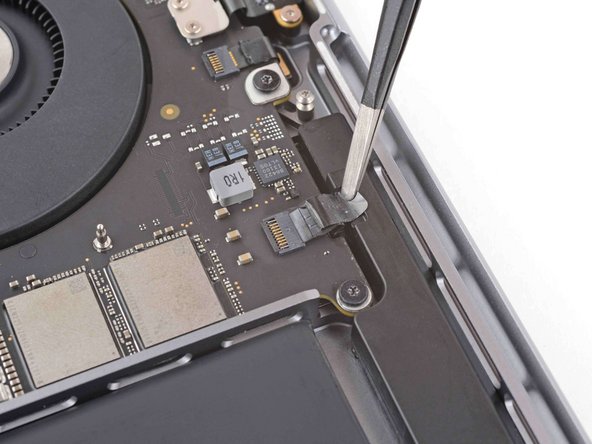
- Peel back the tape covering the right speaker ZIF connector.
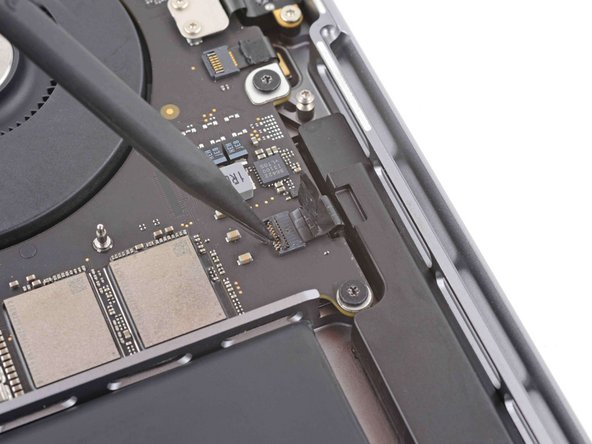
- Use the pointed end of a spudger to gently pry up the locking flap on the right speaker ZIF connector.
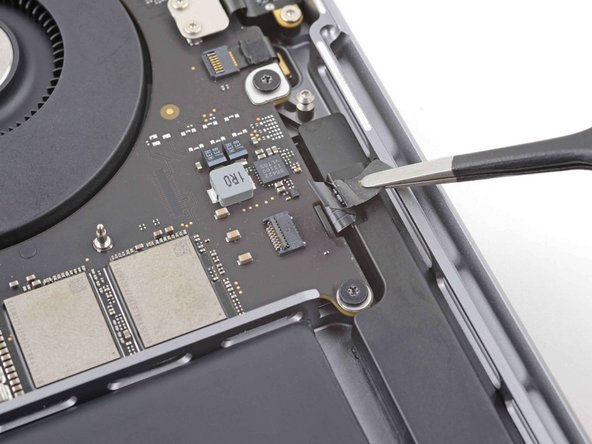
- Disconnect the right speaker cable by sliding it out from its socket.
- Follow the procedure in the previous three steps to disconnect the left speaker.
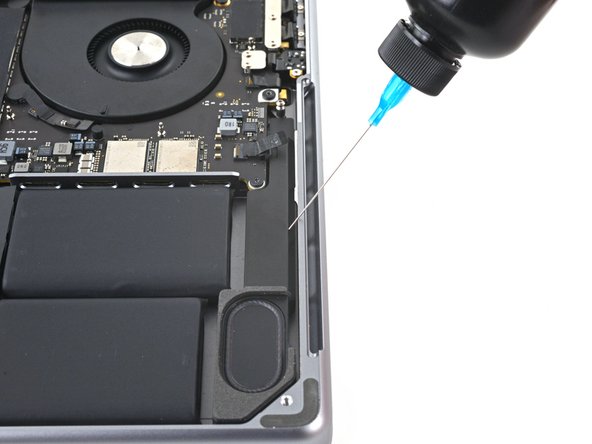
- Apply a few drops of highly-concentrated isopropyl alcohol (>90%) in the gap between the speaker and the edge of the frame.
- Wait for 1–2 minutes to allow time for the isopropyl alcohol to weaken the adhesive.
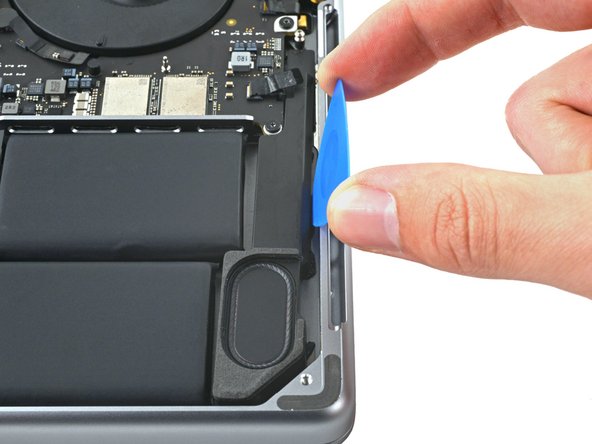
- Insert the tip of an opening pick in the gap between the speaker and the edge of the frame.
- Slide the opening pick along the edge of the speaker to slice the adhesive beneath it.
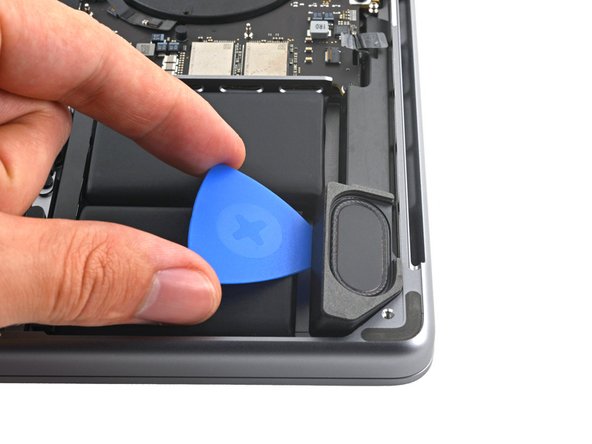
- Insert the tip of an opening pick in the gap between the battery and the speaker.
- Pry up with the pick to separate the speaker from the frame.
- Take care not to puncture the battery while you pry. If you're having difficulty prying up, apply a few more drops of isopropyl alcohol.
- Slide the pick along the edge of the speaker to separate the adhesive.
- Use your fingers to remove the speaker, making sure to peel off any remaining adhesive.
- Repeat the loosening and separating process for the other speaker.
- Use a pre-cut adhesive sheet, like Tesa Tape, to secure the speaker back to the frame.
- Clean up any remaining adhesive from the frame before installing new adhesives.