How to Re-lube Keyboard Stabilizers on Your Finalkey V65
ID: 167712
Description: If your Finalkey V65 keyboard stabilizers start...
Steps:
- Start the disassembly process by removing all the keycaps on the keyboard.
- To use a keycap puller, insert the tool's wires beneath the edges of the keycap you want to remove, ensure a secure grip, and gently lift to detach the keycap from the keyboard switch.
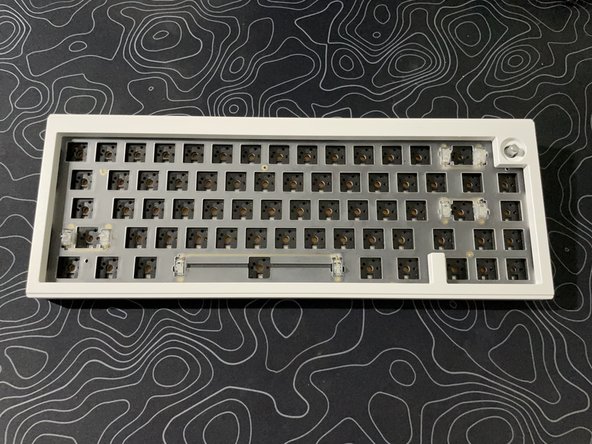
- Remove all the switches on the keyboard.
- Position the switch puller onto the switch, lining up the tips of the puller to the two clips on the switch. Apply gentle pressure, rocking it back and forth slightly while pulling upward to remove the switch from the board's plate.
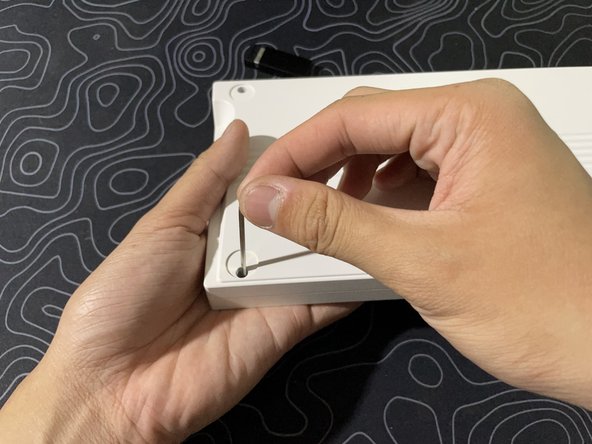
- Next, open up the case by unscrewing the four screws on the back of the case, as labeled, using a hex key.
- After taking out the screws, flip the keyboard back up and take out the top frame and the plate out of the keyboard.
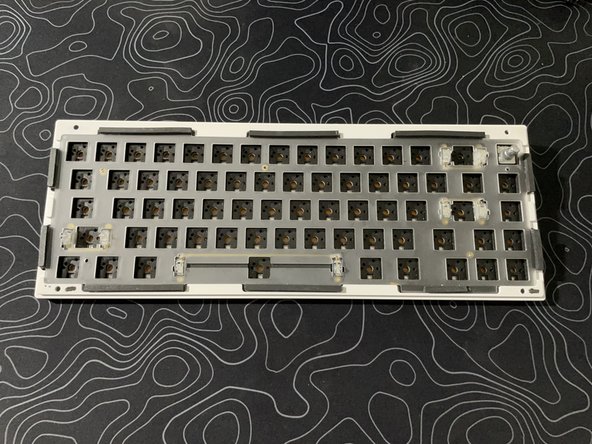
- From there, remove all the foam inside the case. Then, remove the board's PCB.
- As pictured, two foam sheets are within the board: the plate foam and the PCB foam underneath the PCB.
- Be careful not to damage the daughterboard and the battery wires underneath the PCB when lifting it up.
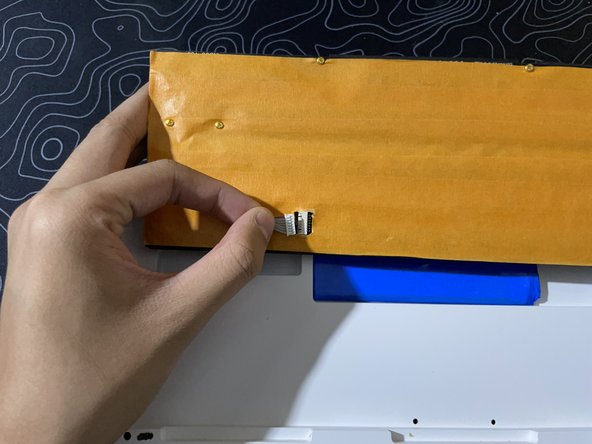
- Unplug the two wires when possible; it makes handling the PCB easier and eliminates the risk of damaging the connectors or the cables.
- Carefully unplug both wires before proceeding.
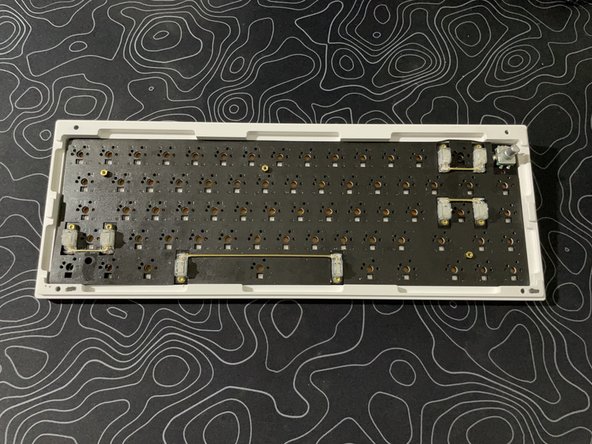
- In the end, you have just the PCB.
- Flip the PCB upside down to reveal the screws that hold the stabilizers onto the PCB. Take a Phillips-head screwdriver and unscrew both screws to detach the stabilizer from the board.
- The pictures show the PCB upside down.
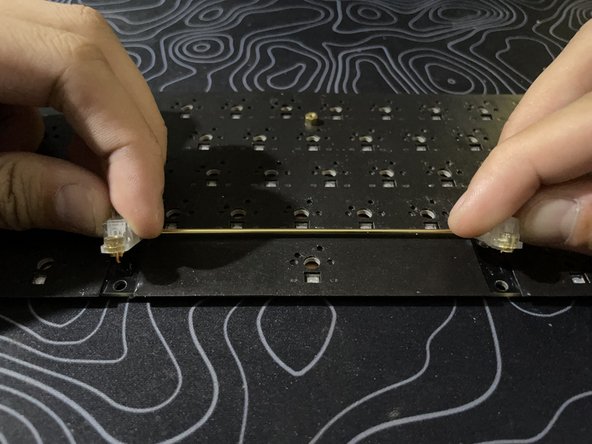
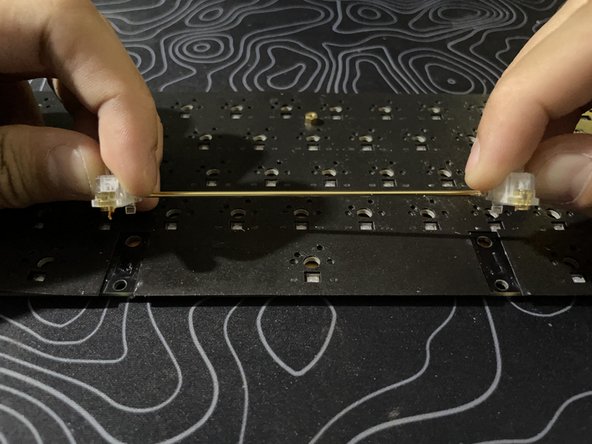
- After unscrewing the stabilizers, you can unhook and lift them off.
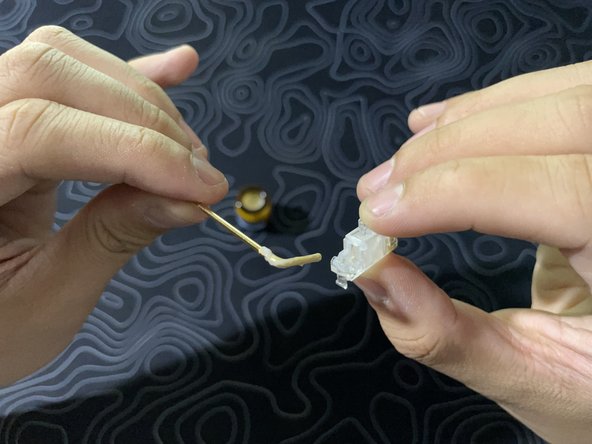
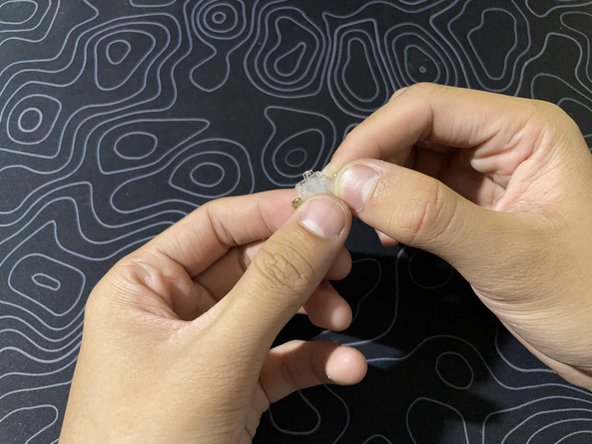
- Next, we need to take apart the stabilizers.
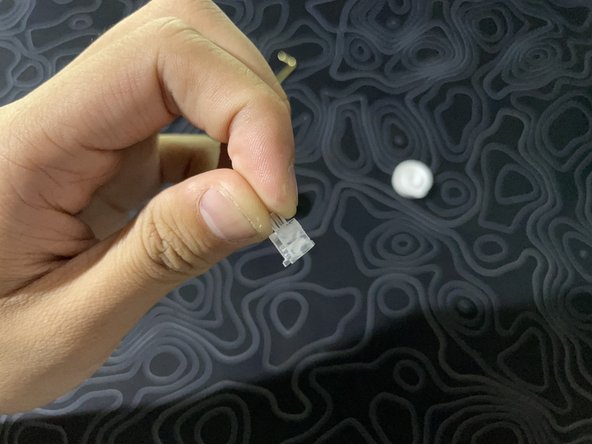
- To do this, we separate the wire from the stem by rotating the wire 90 degrees from the stem.
- Then, separate the stem from its housing by sliding it down.
- Using a small paintbrush, apply a thick layer of Krytox 205g0 to both ends of the wire.
- It's important to lube the corner liberally, as this has constant contact with the stabilizer housing.
- Lube the two long sides, as pictured, for the stabilizer housing.
- Apply enough lube to coat the housing with a thin, even coat.
- Lube the two long sides, as pictured, for the stem.
- The same thing applies where you should end off with an even layer of lube.
- Reassemble the keyboard by reversing the steps in this guide regarding disassembly.
- In short, this means putting the stabilizers back and screwing them on, plugging in the daughterboard and battery, inserting the foam, placing the plate and top case, screwing the board back together, and lastly, putting on the switches and keycaps.