Dell Latitude 5401 RAM Replacement
ID: 169366
Description: This guide will demonstrate the process of...
Steps:
- Disconnect any devices plugged into the computer.
- Hold the power button down for 5-10 seconds to shutdown the laptop.
- Note that during installation or removal of any hardware ensure all data has been backed up properly.
- Flip the laptop so the bottom is facing up.
- Use a small Phillips screwdriver to loosen the eight screws on the back case.
- The screws are captive and will remain attached loosely to the lower case.
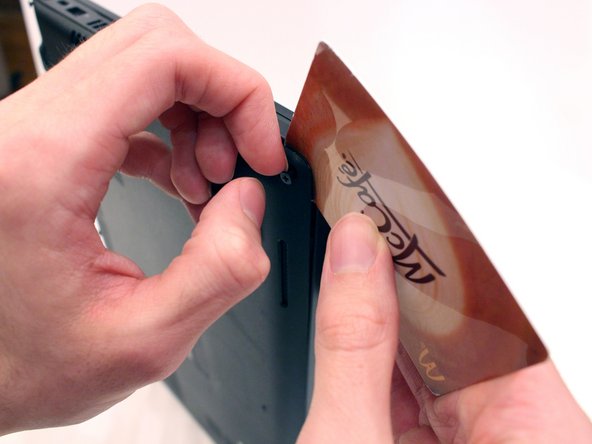
- Expose the seam that connects the laptop case by pulling on a corner screw while holding the base.
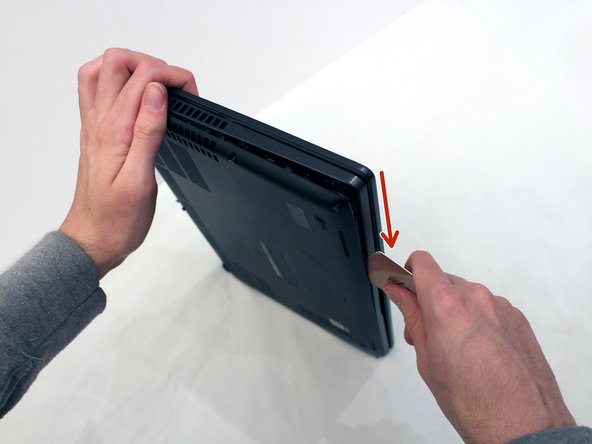
- Insert a plastic card into the gap.
- Slide the card around the perimeter of the case to release the clips.
- Gently pry the laptop apart.
- This step can be difficult and will take some time and strength!
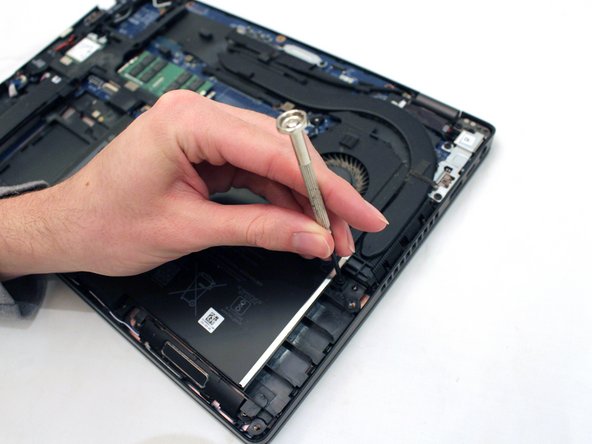
- Use a small Phillips screwdriver to loosen the single screw securing the battery.
- Thes screw is captive and should not be removed.
- If the battery is swollen, be very careful and follow these safety suggestions.
- Carefully remove the battery from the case.
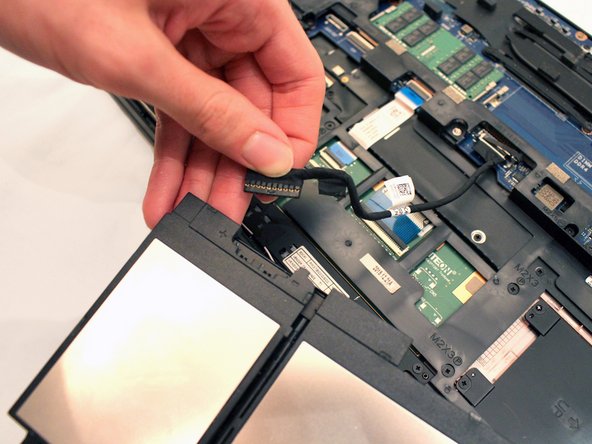
- Flip the battery over.
- Grip the battery cable tab and pull the cable from the battery to separate it from the device.
- Do not bend or twist the battery during the removal.
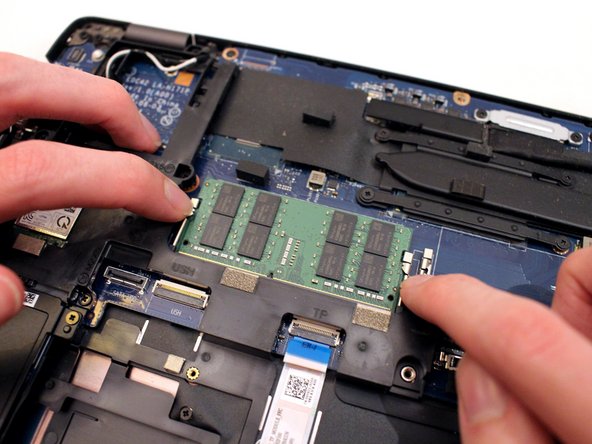
- Gently pull the metal arms on both sides of the RAM stick away slightly to release it.
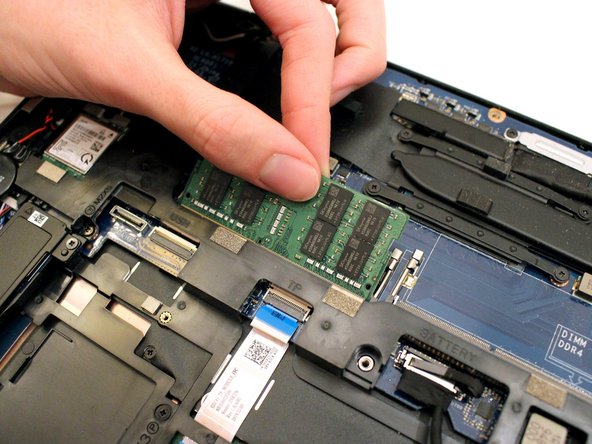
- The RAM will pop up by a few millimeters.
- Remove it at an angle and not straight up so you don't damage the socket.
- Check online to see how to properly dispose of e-waste in your region.
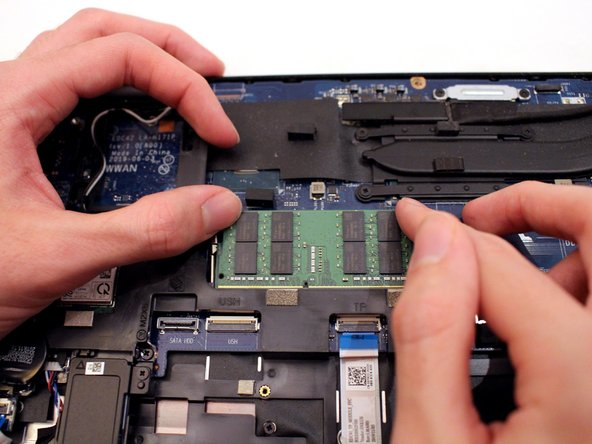
- Insert the new RAM stick into the slot at the same angle that you used to remove the original.
- Be sure to insert the grooved edge into the socket so the pins line up correctly to avoid damaging the socket and the RAM.
- Push down on the RAM until you hear a "click".
- The two metal arms should now hold the RAM in place.
- Reconnect the battery cable.
- Screw the battery back into place.
- Using both hands, push the lower cover back onto the laptop.
- You should hear a "click" when it is correctly attached.
- Use a small Phillips screwdriver to secure the eight captive screws on the bottom cover.