Framework Laptop 16" Numpad Replacement
ID: 169756
Description: Use this guide to replace the numpad, aka " lap...
Steps:
- Unplug all cables and fully shut down your laptop.
- If your repair requires a spudger, a T5 Torx, or a Phillips screwdriver, you can use the included Framework screwdriver. Whichever works best for you!
- Use your fingernail to pull out the two Input Module latches and unlock them.
- The latch will show red if it's unlocked.
- Use your fingers to slide the touchpad spacer toward the bottom edge of the laptop and unclip it.
- If you're having trouble, check if the corresponding Input Module latch is properly unlocked.
- Lift the touchpad spacer off the laptop and remove it.
- Repeat the same procedure for the other touchpad spacer.
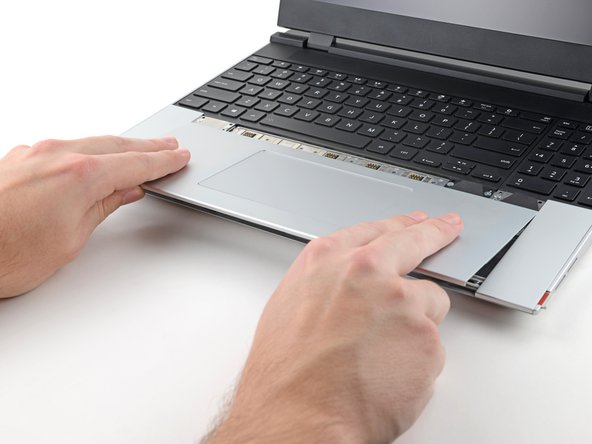
- Use your fingers to slide the touchpad toward the bottom edge of the laptop and disconnect it.
- If you're having trouble, check if the Input Module latches are properly unlocked.
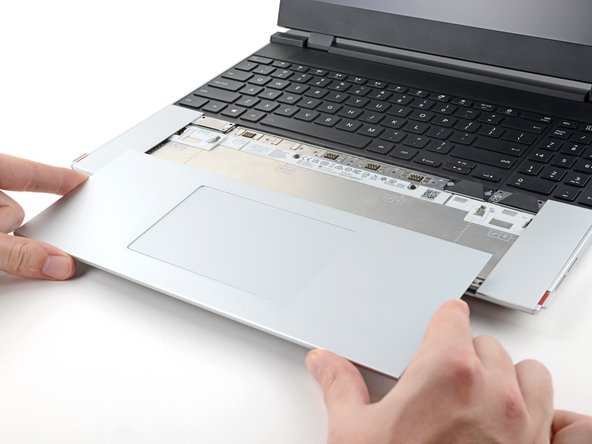
- Lift the touchpad and remove it.
- During reassembly, perform the following:
- Place the touchpad flat on its cutout so its clips are properly aligned.
- Press the touchpad down and slide it into place so it lines up evenly with the bottom edge of the laptop.
- The numpad is held in place with strong magnets. Apply gradually increasing force to avoid having the numpad violently eject.
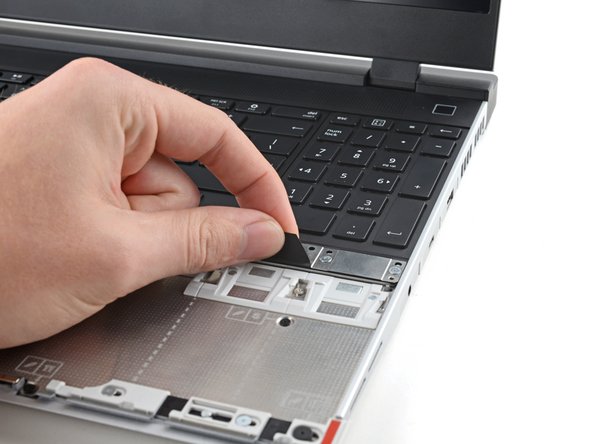
- Grip the pull tab at the bottom of the numpad.
- Lift the pull tab until the numpad magnets release.
- Remove the numpad.
- During reassembly, make sure the numpad is seated properly on its alignment pegs and sits flush with the edges of the laptop.