Lenovo Legion Y520-15IKBN Touchpad Button Board Replacement
ID: 170594
Description: This guide is for the Lenovo Legion Y520-15IKBN...
Steps:
- Shut down and unplug your device before proceeding.
- Remove the thirteen 6.5 mm screws from the base plate using a Phillips #00 screwdriver.
- Flip the laptop on its side and wedge a spudger between the base panel and chassis, then pry around the perimeter until the base panel releases.
- To get a better grip you may want to open the laptop slightly.
- Lift the bottom panel off of the chassis.
- During reassembly, make sure that the bottom panel clicks back into place on all four sides of the laptop.
- Remove the four 4 mm Phillips #00 screws securing the battery.
- Disconnect the battery connector by pulling the battery cable directly out of its port, toward the battery.
- Do not pull on the socket itself or you risk damaging the motherboard.
- If necessary, apply force and slowly wiggle the connector out of its socket. It should work its way out slowly.
- Lift the battery up and out of the chassis.
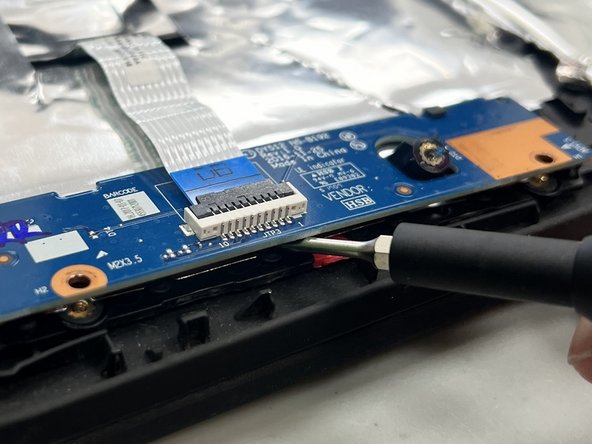
- Use a spudger or a clean fingernail to flip up the locking flap on the two ZIF connectors securing the touchpad button board to the motherboard and touchpad.
- Once the flaps are in the unlocked position, use tweezers or your fingers to gently pull the cables out of their sockets using the blue pull tabs.
- To reconnect, make sure the locking flap is flipped up and gently reinsert the cable. Then, flip the locking flap down to secure the cable. The cable should slide into the socket with little to no force. If you're having trouble, remove it, check that the flap is fully unlocked, and try again.
- Use a Phillips #00 screwdriver to remove two 6.5 mm screws from the blue touchpad button board.
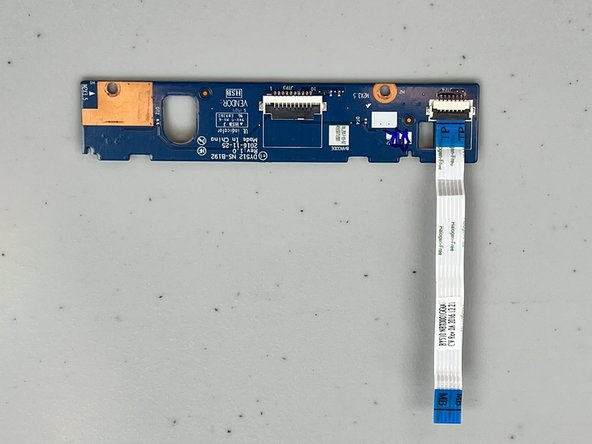
- Remove the touchpad button board.