Logitech G502 Hero Mouse Cable Replacement
ID: 170678
Description: Use this guide to replace the mouse cable in...
Steps:
- Before starting your repair, unplug the mouse.
- Throughout your repair, it may be helpful to lay your mouse on a soft cloth to stabilize it and prevent damage while you work.
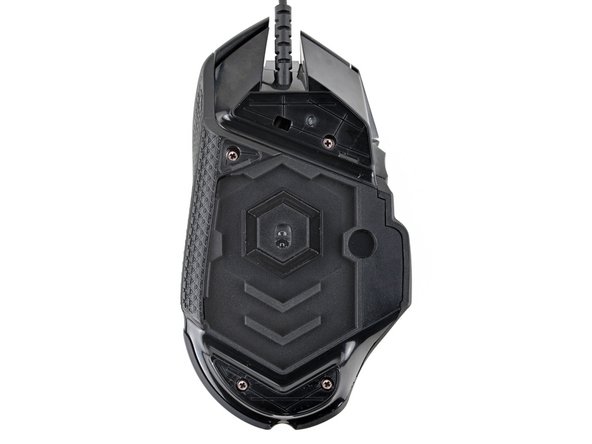
- The feet are secured to the bottom of the mouse with adhesive. In order to cleanly remove them, the adhesive needs to be thoroughly heated.
- Heat an iOpener and lay it on the mouse feet for one minute to heat the adhesive.
- Alternatively, you can use a hair dryer on the Low heat setting to soften the adhesive.
- If you're using a hair dryer, only heat the feet a few seconds at a time or you may warp the plastic shell.
- The feet have two layers—a rubberized one and an adhesive pad underneath.
- If you're reusing the feet, be very careful not to separate the two layers or damage the feet.
- Carefully slide the point of a spudger under the large foot near the front of the mouse, making sure it goes under both the foot and its adhesive pad.
- The foot recesses have a small notch that makes it easier to slide your spudger under.
- Gently slide the spudger farther under the foot and lift until you can grip the pad with your fingers.
- Peel up and remove the foot.
- If the rubber layer separates from its adhesive pad, use the same process to remove the pad.
- Repeat the last three steps to remove the remaining feet.
- If you're just removing the feet to open the mouse, you don't need to remove the two angled ones near the sensor or the larger one on the outer edge.
- To install a new foot:
- If any of the feet got damaged during removal or separated from their adhesive pads, replace them.
- Use a spudger to carefully scrape up and remove any remaining adhesive bits.
- Use isopropyl alcohol and a microfiber cloth to thoroughly clean all adhesive residue from the foot recesses. Allow the surface to completely dry.
- Remove the feet from their backing and firmly press them into place.
- Lift the weight door by its tab and remove it.
- If you have weights in the compartment, remove them.
- Use a Phillips screwdriver to remove the four 5.5 mm‑long screws securing the bottom shell.
- Tight plastic clips secure the top and bottom shells. During the next few steps you should feel and hear "clicks" as the clips release.
- Insert the flat end of a spudger between the top and bottom shells, near the back of the mouse.
- Twist the spudger to unclip the shells.
- Insert the flat end of a spudger between the textured edge of the top and bottom shells, near the back of the mouse.
- Slide the spudger towards the front of the mouse and intermittently twist, stopping near the screw hole.
- Leave the spudger inserted for the next step.
- Push the spudger into the mouse and twist to unclip the shells.
- Insert the flat end of a spudger between the top and bottom shells, near the back of the mouse.
- Slide the spudger towards the thumb rest and push in to unclip the shells.
- Insert the flat end of a spudger between the top and bottom shells, near the G8 and DPI shift (⊕) buttons at the front of the mouse.
- Pry up with the spudger and push the shells apart to unclip them.
- Unclipping this part of the mouse is tricky and may take a few tries. Be patient and don't pry too hard, or you may break one of the clips.
- At this point, the shells should be fully separated. If they're not, repeat the previous unclipping steps with your spudger.
- Lift the top shell straight up and remove it, making sure the main mouse cable stays attached to the bottom shell.
- During reassembly, put the top shell back in place and work your way around the perimeter firmly squeezing the shells together to reengage the clips.
- You don't need to remove the side buttons board to access the scroll wheel, but it makes it easier.
- Gently lift the side buttons board straight up and out of its slot.
- Don't try to fully remove the board yet, as it's still connected by a cable.
- Hold the button board out of the way so you can access its connector on the motherboard.
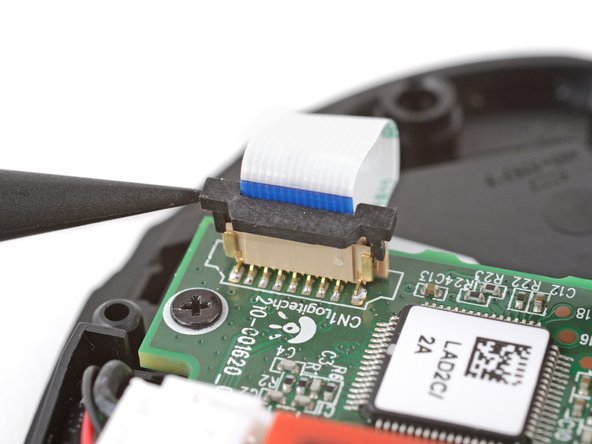
- Use the point of a spudger to push up on alternating sides of the connector's plastic latch until it's in the unlocked position.
- You should feel the latch pop up into the unlocked position. Don't push too far, or the latch may come completely off the connector.
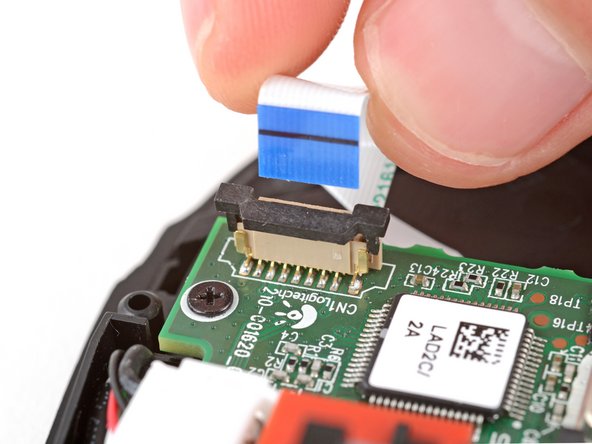
- Gently pull the board straight up so the cable comes out of its socket.
- The cable should come out easily. If you feel any resistance, push the latch up a little more and try again.
- During reassembly:
- Insert the cable into its socket so the blue tab is on the same side as the connector's latch.
- Use the flat end of a spudger to push the latch straight down into its locked position.
- Use the point of a spudger to push out and remove the locking pin from the plastic scroll wheel support in the center of the motherboard.
- During reassembly, insert the locking pin so the curved end is facing down.
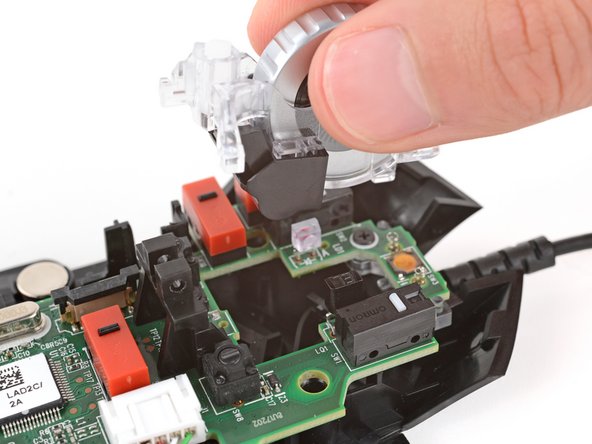
- Gently pull the scroll wheel towards the front of the mouse and lift to remove it.
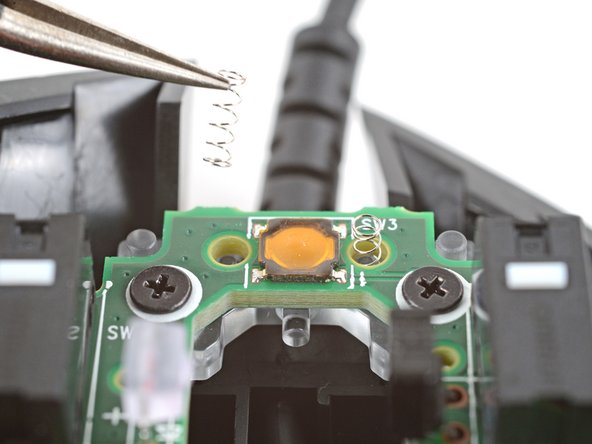
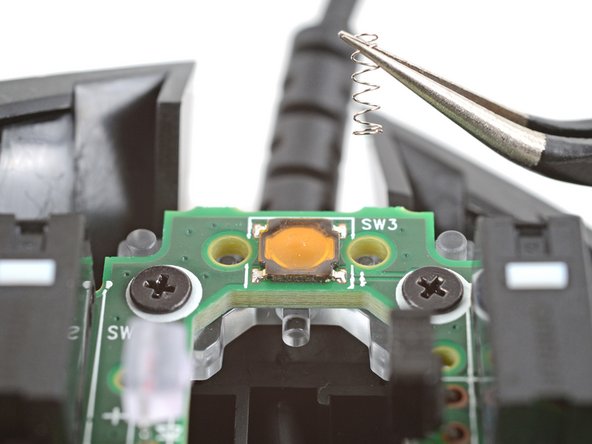
- Be careful not to lose the two small springs near the front of the mouse.
- Use a pair of tweezers to carefully remove the two small springs near the front of the mouse.
- Be careful, these springs can pop out very easily!
- Use the point of a spudger to push up on alternating sides of the plastic latch on the connector near the bottom corner of the motherboard.
- You should feel the latch pop up into the unlocked position. Don't push too far, or the latch may come completely off the connector.
- Pull the cable straight up and out of its socket.
- The cable should come out easily. If you feel any resistance, push the latch up a little more and try again.
- During reassembly, insert the cable into its socket and use the flat end of a spudger to push the latch down into its locked position.
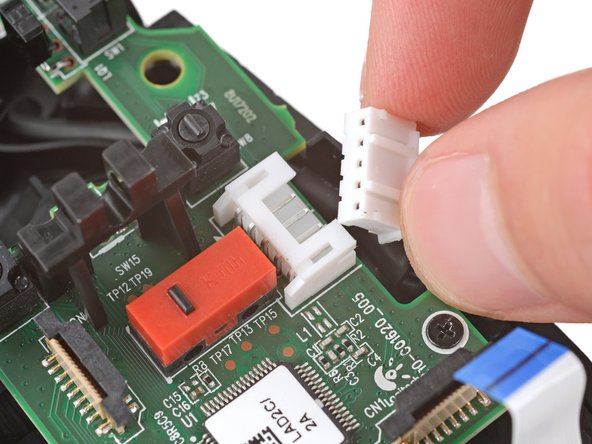
- Insert each arm of a pair of angled tweezers into the cutouts on the outer edges of the mouse cable connector, located near the edge of the motherboard.
- Use the tweezers to gently push the connector completely out of its socket.
- During reassembly, push on the edges of the connector with the flat end of a spudger until the connector slides fully into its socket.
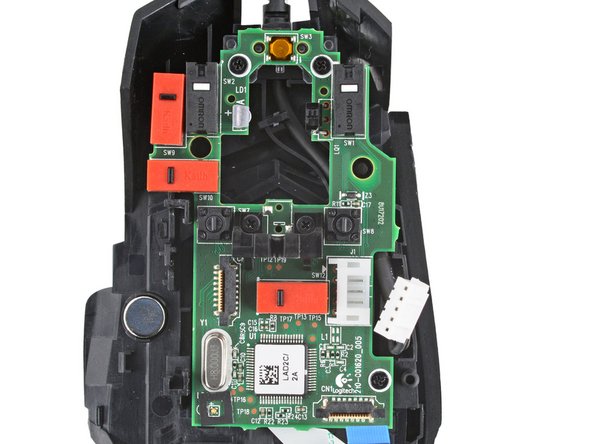
- Use a Phillips screwdriver to remove the five 5.5 mm‑long screws securing the motherboard.
- Remove the plastic scroll wheel support from the center of the motherboard.
- Lift the motherboard straight up and remove it.
- During reassembly, use the screw holes and their corresponding posts to align the board.
- Remove the clear plastic cable bracket from the front of the mouse.
- During reassembly, put the bracket back onto its posts so the small nubs are on top and the flat edge is near the front of the mouse.
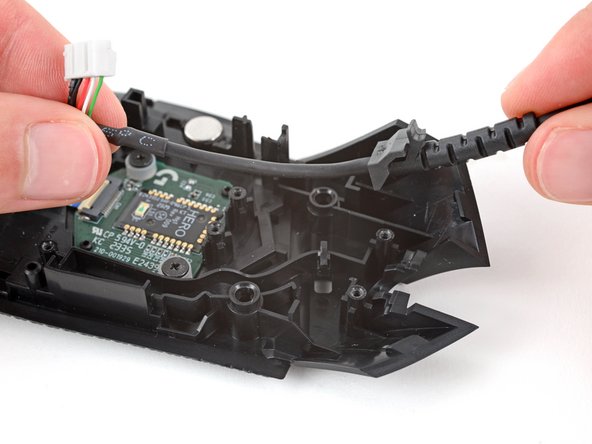
- Lift the cable up and out of its groove in the bottom shell.
- During reassembly, route the cable into its groove and press the rubber gasket fully into its recess near the front of the mouse—you should feel it slide back into place.