2018 MacBook Pro 13" Touch Bar Replacement
ID: 170688
Description: I couldn't find a guide so I made my own for...
Steps:
- Before starting this procedure, you must disable your Mac's Auto Boot feature. Auto Boot powers on your Mac when you open the lid, and may be accidentally triggered during disassembly. Use this guide or follow the abbreviated instructions below to disable Auto Boot. This command may not work on all Macs.
- Power on your Mac and launch Terminal.
- Copy and paste the following command (or type it exactly) into Terminal:
- 'sudo nvram AutoBoot=%00
- Press [return]. If prompted, enter your administrator password and press [return] again. Note: Your return key may also be labeled ⏎ or "enter."
- You can now safely power down your Mac and open the bottom case, without it accidentally powering on.
- When your repair is complete and your Mac is successfully reassembled, re-enable Auto Boot with the following command (typed into Terminal, as shown above):
- sudo nvram AutoBoot=%03
- Before proceeding, unplug and power down your MacBook. Close the display and lay it on a soft surface, top-side down.
- Use a P5 Pentalobe driver to remove the six screws securing the lower case:
- Two 6.2 mm screws
- Four 3.4 mm screws
- Throughout this repair, keep track of each screw and make sure it goes back exactly where it came from to avoid damaging your device.
- Apply a suction handle to the lower case near the front-center area of the MacBook Pro.
- Lift the suction handle to create a slight gap between the lower case and the chassis.
- Insert one corner of an opening pick into the space between the lower case and the chassis.
- Slide the opening pick around the nearest corner and halfway up the side of the case.
- This releases the first of the hidden clips securing the lower case to the chassis. You should feel and hear the clip pop free.
- Repeat the previous step on the opposite side, sliding your opening pick under the lower case and up the side to pop the second clip free.
- Insert your opening pick once again under the front edge of the lower case, near one of the two centermost screw holes.
- Give the pick a firm twist to pop free the third clip securing the lower case to the chassis.
- Repeat this procedure near the other of the two centermost screw holes, popping the fourth clip free.
- Pull the lower case firmly towards the front of the MacBook (away from the hinge area) to separate the last of the clips securing the lower case.
- Pull first at one corner, then the other.
- Pull to the side—not up.
- This can require a lot of force.
- Remove the lower case.
- Carefully peel up the large piece of tape covering the battery connector, on the edge of the logic board nearest the battery.
- Remove the tape.
- Gently peel back the small piece of tape covering the battery board data cable connector.
- The tape is integrated into the ribbon cable and will not detach completely. Simply peel it back enough to access the connector.
- Disconnect the battery board data cable by sliding it out from its socket.
- Slide parallel to the logic board, in the direction of the cable.
- Fold the battery board data cable to the side and out of the way.
- Use a T5 Torx driver to remove the 3.7 mm pancake screw securing the battery power connector.
- Use a spudger to gently lift the battery power connector, disconnecting the battery.
- Lift the connector high enough so that it stays separated from its socket. If it accidentally makes contact during the course of your repair, it could damage your MacBook Pro.
- Use a T3 Torx driver to remove the two 1.8 mm screws securing the trackpad cable connector bracket.
- Remove the trackpad cable connector bracket with a pair of tweezers.
- Use a spudger to disconnect the trackpad ribbon cable by gently prying its connector straight up from the logic board.
- Use a T3 Torx driver to remove the two screws.
- Two T3 Torx Screws.
- Carefully peel back the black tape to reveal the ZIF connector.
- Unlatch the ZIF connector by flicking the arm on the connector upwards and carefully remove the cable from the connector by sliding it out.
- Repeat this process with the newly revealed connector.
- The two screws that are outlined in yellow are not relevant to this step and are marked on the board itself. For this step, yellow corresponds to the yellow rectangle in the image.
- Use a T3 Torx driver to remove the two screws.
- Once the screw have been removed carefully remove the metal shield.
- Under the metal shield there is a connector, carefully unplug it.
- Use a T4 Torx driver to remove the two screws.
- Two T4 Torx screws.
- Carefully remove the metal shield.
- Under the metal shield you will find two connectors, carefully unclip them.
- The second cable you will disconnect will be lightly adhered so carefully slide a plastic spudger under it and finally unplug it.
- The adhered cable is very thin and delicate so don't rush it and take your time.
- Use a T3 Torx driver to remove the four screws.
- 4 T3 Torx screws.
- Once the screws are removed carefully remove the metal shields.
- Carefully unclip the connector.
- Disconnect the cables carefully with a plastic pry tool.
- Be gentle, if too much force is applied it can take the board connector up with it.
- Use a T3 Torx driver to remove the two screws.
- Remove the metal shield carefully.
- Carefully unplug the connector.
- Carefully peel back the black tape to reveal the ZIF connector.
- Unlatch the ZIF connector by flicking the arm on the connector upwards and carefully remove the cable from the connector by sliding it out.
- Repeat this process with the newly revealed connector.
- Carefully peel back the black tape to reveal the ZIF connector.
- Unlatch the ZIF connector by flicking the arm on the connector upwards and carefully remove the cable from the connector by sliding it out.
- Use a T3 Torx driver to remove the two screws.
- Once the screw have been removed carefully remove the metal shield.
- Under the metal shield there is a connector, carefully unplug it.
- Use a T4 Torx driver to remove the screw.
- T4 Torx screw.
- Remove the metal shield carefully.
- Carefully unplug the connector.
- The two screws that are outlined in yellow are not relevant to this step and are marked on the board itself. For this step, yellow corresponds to the yellow rectangle in the image.
- Use a T3 Torx driver to remove the two 1.4mm screws securing the bracket.
- Remove the bracket.
- gently disconnect the audio socket flex cable with a spudger.
- gently disconnect the Touch ID flex cable with a spudger.
- Use a T3 Torx driver to remove the two 2.4mm screws securing the display cable bracket.
- Use a T3 Torx driver to remove the two 1.2mm screws securing the display cable bracket.
- Remove the bracket.
- gently disconnect the flex cable with a spudger.
- Use a T5 Torx driver to remove the six 2.2mm screws securing the logic board.
- Use a T3 Torx driver to remove the three 1.9mm screws securing the logic board.
- Use a T5 Torx driver to remove the two 2.3mm (3.7mm head) screws securing the heatsink.
- Carefully lift up the logic board, make sure none of the connectors are connected, also make sure they aren't caught on the logic board.
- Congratulations you have now removed your MacBook's LogicBoard
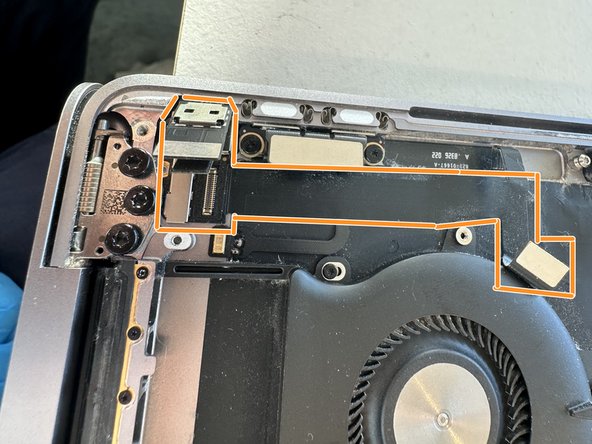
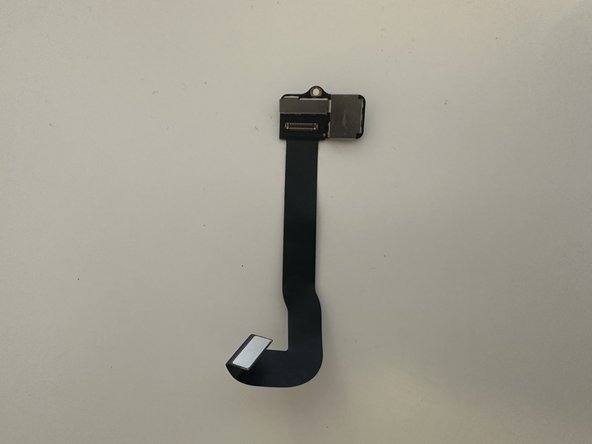
- In red you can see the two connectors for the Touch Bar. We will need to remove other parts first to be able to free them and be able to install the new connectors.
- In green one notable screw that you need to remove because the board it holds in place prevents the Touch Bar connectors from exiting/entering through the main case of the MacBook.
- We will therefore need to unplug both connectors, and remove the board, which takes a few additional steps that follow below.
- Carefully unplug the second Touch Bar connector
- This is not strictly required. However I found when removing the Touch Bar that it necessitated a lot of scraping and force near the Touch ID sensor, thus I advise removing it for protection.
- It is quite easy to remove, just be careful with the flex cable as it seems very fragile.
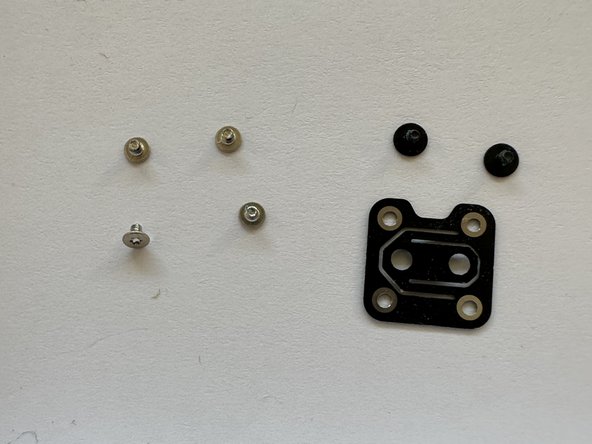
- Remove the 4 red screws
- Remove the 2 green screws
- Remove the black bracket which is now free
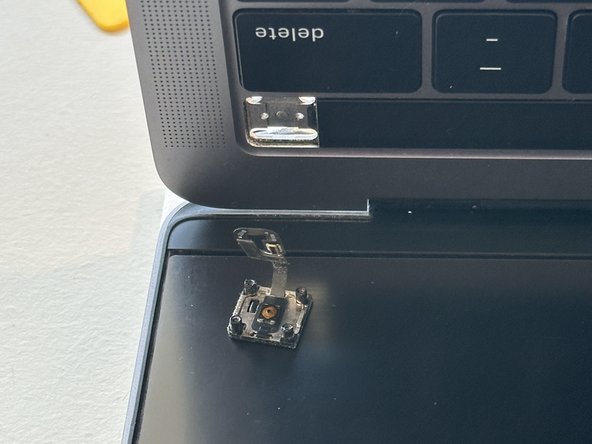
- Carefully open the laptop lid with the screen at the bottom. The Touch ID sensor should free itself and stay on the screen.
- This is necessary in order to remove the Touch Bar board and screw
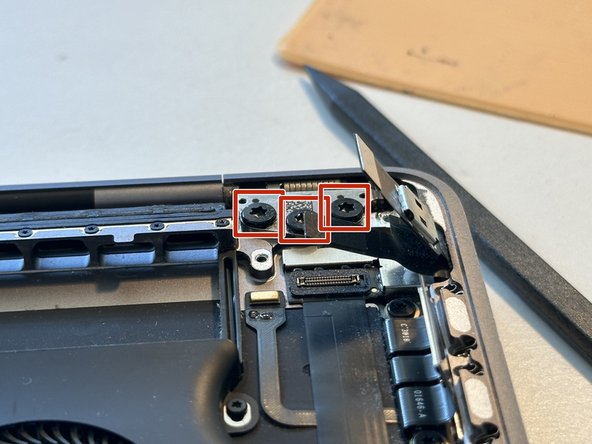
- Loosen the 3 T8 screws of the screen hinge
- Be careful not to completely remove those screws
- Be careful to be very gentle with the hinge from then on not to exert too much force on the cables going through the hinge axis !
- Remove the red screw half hidden between the screen hinge (I already removed it in the picture)
- This screw is smaller than T3 but I used a knife tip because I didn't have such a small screwdriver.
- Then remove the Touch Bar board and its flex cable, they have some adhesive so be careful. The Touch Bar connectors are now freed to pass through and out of the main case !
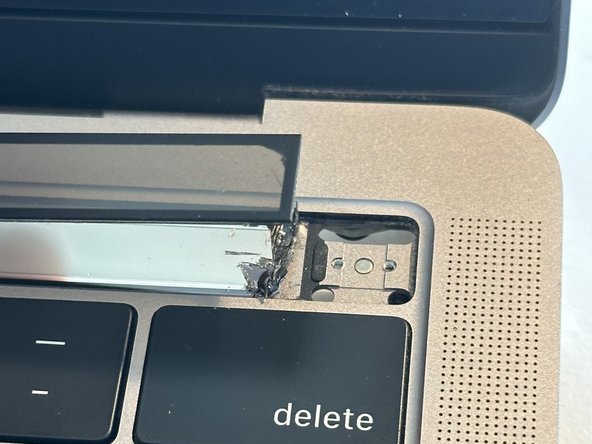
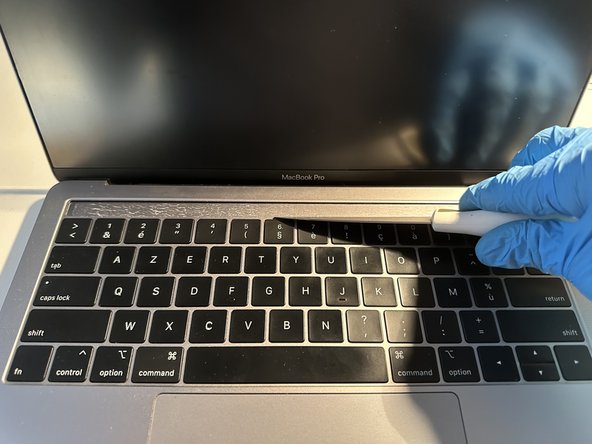
- Thanks to the removal of the Touch ID sensor, we have some room to get under the Touch Bar to remove it.
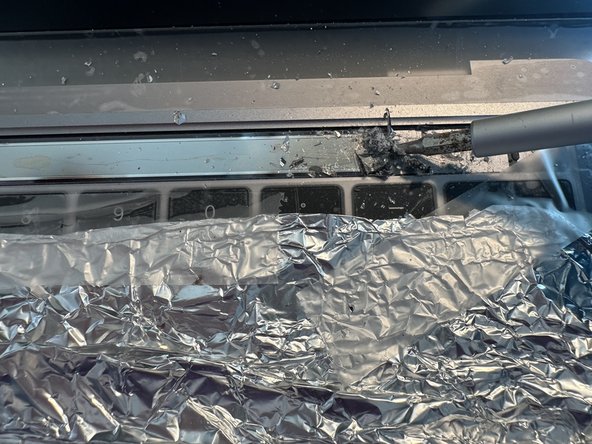
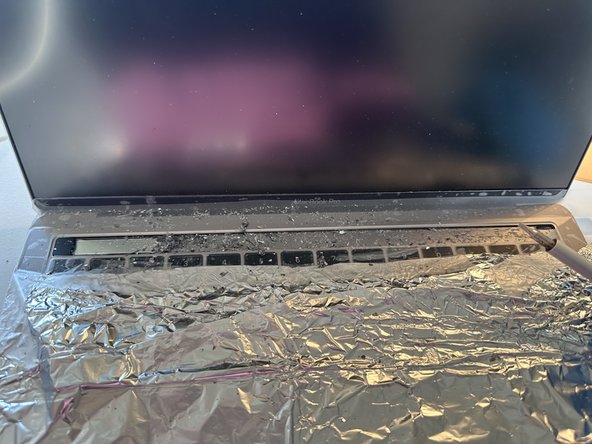
- Seeing how messy the next steps got for my, I adise taping over the bottom of the screen and top of the keyboard to prevent any dirt bits getting stuck there. I put some tin foil over the rest of the keyboard but a paper or plastic sheet would be better.
- I used a flathead screw driver but at first only the top glass popped off.
- In the end I tried using an adhesive dissolver fluid, some thin spudgers, some fishing wire, but only brute force and the flat head screwdriver really solved it.
- Please wear gloves and glasses as there are many glass shards flying about.
- Keep scraping slowly but with force. This part took me about an hour.
- After finally removing the brunt of the Touch Bar material, I could remove the connectors going through the main body.
- I spent some time scraping the remainders and the glue with different tools. Using a knife worked best, while being careful not to get injured or damage the screen.
- The Touch Bar slot was somewhat scratched but in the end it didn't matter after installing a new Touch Bar.
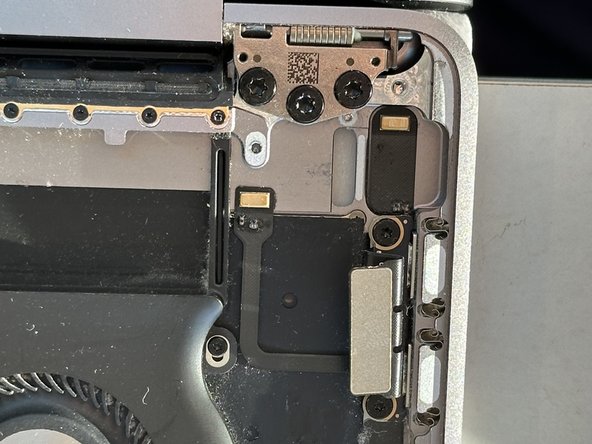
- When completely removed, the Touch Bar connector body passthrough is clearly visible from the top and bottom.
- Contrats, you have removed your Touch Bar !