How to Apply Flash Unit Adhesives in Your Google Pixel 8a
ID: 173231
Description: This repair guide was authored by the iFixit...
Steps:
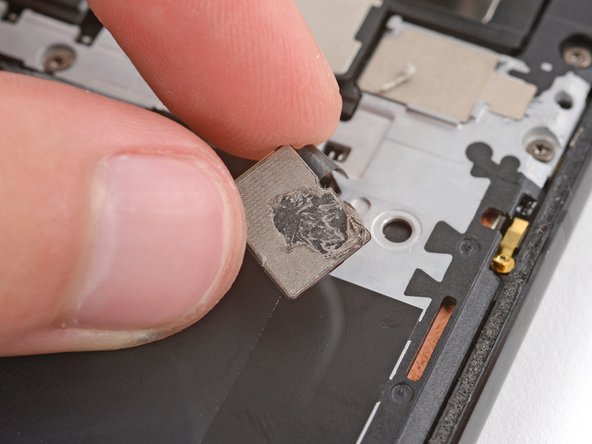
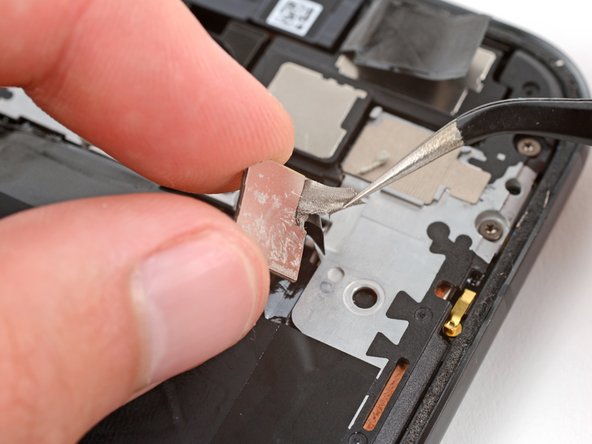
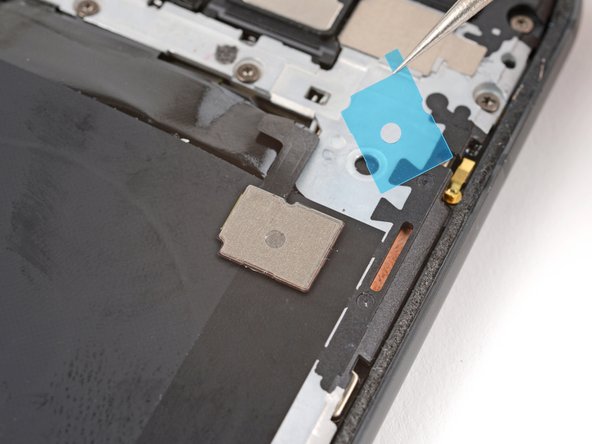
- Use tweezers to remove the conductive tape adhesive from the top right corner of the motherboard cover.
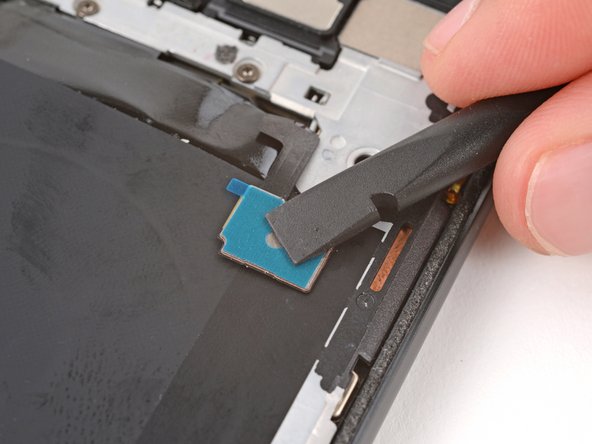
- Use the flat end of a spudger to scrape up any remaining bits of adhesive.
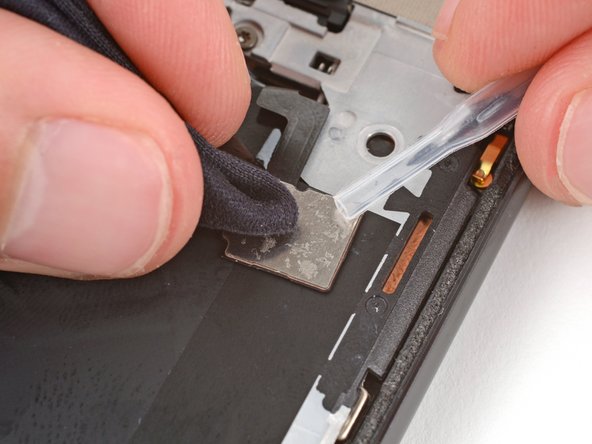
- Use a pipette or syringe to apply a few drops of highly-concentrated isopropyl alcohol (over 90%) to the adhesive residue and wipe it away with a microfiber cloth.
- Remove the conductive tape adhesive from its larger clear backing and put it into place with the tab on the right.
- Use the flat end of a spudger to press down and secure the conductive tape.
- Remove the remaining liner.
- Check the condition of the adhesive on the bottom of the flash unit.
- If the adhesive is undamaged and still sticky, you can skip the rest of this guide and return to your original repair guide.
- If the adhesive is damaged or no longer sticky, follow the next three steps to replace it.
- During the remaining steps, be very careful not to strain or tear the delicate flash unit cable.
- Use a spudger and tweezers to carefully scrape up and remove the old adhesive from the bottom of the flash unit.
- Use a pipette or syringe to apply a few drops of highly-concentrated isopropyl alcohol (over 90%) to the adhesive residue and wipe it away with a microfiber cloth.
- Remove the flash unit adhesive from its larger, clear liner and put it into place on the bottom of the flash unit.
- Use the flat end of a spudger to press down and secure the adhesive.
- Remove the remaining liner.
- Firmly press the flash unit into place on the logic board cover to secure it with the adhesive.
- Return to your original guide and continue with reassembly.