Dell 1350cnw Power Supply Board Replacement
ID: 177997
Description: This guide will cover how to access and remove...
Steps:
- Insert prying tool behind each end of the plastic strip. Pry outwards to unclip and pull the ends forwards away from the printer.
- Note - Unclipping the right-hand end requires opening the toner cover for access.
- Insert prying tool between the front band and top cover of the printer, and pry forwards to release the clips holding the top edge in place.
- Tilt the top of the front band away from the printer and lift away to remove.
- Unclip the back end of the plastic trim by prying away from the printer back panel.
- Pull the trim piece towards the back of the printer.
- Tilt the top edge away from the printer and lift away to remove.
- Pry up front edge of the control panel module to unclip.
- Lift up front edge and pull module forwards slightly to unhook rear edge.
- Pull out cable connector to unplug the display/ control panel module.
- Remove the front lower flap by carefully bending in the middle and pulling out the locating pins one end at a time.
- Remove both 7mm phillips screws securing the front cover in place.
- Unclip the three clips along each end of the front cover by prying outwards and forwards with a prying tool as shown.
- Slide out the bottom edge away from the printer and pull the front cover down away from the top edge to remove.
- Undo both the 5mm M3 phillips screws holding the top cover brackets to the chassis.
- Pull the top cover brackets forwards off the metal frame and lift up to loosen the front edge of the top cover.
- Pry the top cover clip off the locating peg at the back of the printer, and lift up the top cover corner.
- Pry apart the back edge of the top cover and the back cover of the printer to unclip the top cover.
- Lift up the top cover from the control panel corner, pulling towards the back right-hand corner.
- Note - The top cover should unclip from the back corner with the corner/side piece still attached.
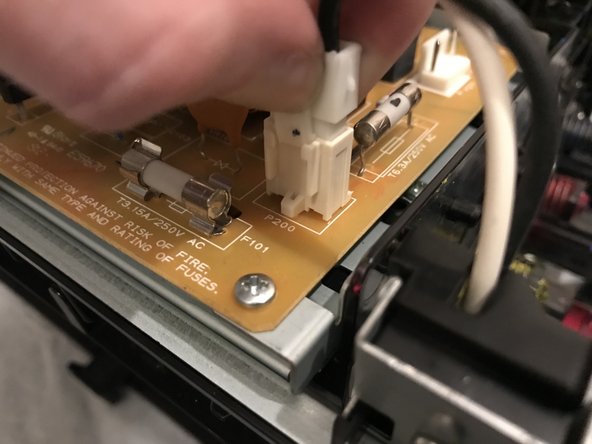
- Unplug both the mains voltage connectors (power supply input and fuser unit supply) by pressing in the retaining clip on each connector and pulling up from the PCB to remove.
- Pull up on the circled electrical connectors to remove from the power supply board.
- Pull one end of the ribbon cable out from its connector to unplug.
- The ribbon cable may be easier to remove by pulling up from the control board (green PCB) rather than pulling out horizontally from the power supply board.
- Unscrew the four 5mm M3 phillips screws securing the power supply board and lift the PCB out from the printer.