How to Fix an Epson EcoTank ET-2850 Printer That Smudges Ink While Printing
ID: 181589
Description: If the ink is smudging whilst printing using an...
Steps:
- Turn on the printer by pressing the power button.
- Pull out the printer tray.
- Pull gently as to not loosen the printer tray over time.
- Flip open the paper tray.
- Insert a sheet of paper into the paper tray.
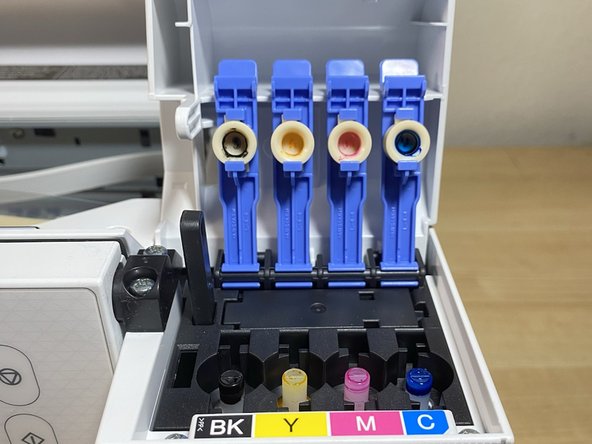
- Open the ink cartridge case.
- Open the latches for each individual color.
- Match the color with the label assigned to it (either BK, Y, M, or C).
- Refill the cartridge until the ink level reaches the top of the cartridge.
- Refill the cartridge slowly so the ink doesn't spill into the printer.
- Repeat the previous step for each color.
- Use the arrows on the control panel to land on “maintenance” mode.
- Press OK.
- Use the arrows to navigate to “head cleaning."
- Press “OK.”
- When this screen pops up to explain its role, click “OK” to proceed.
- Click the button that has a diamond with a line in the middle to start the process.
- Wait approximately three minutes until the loading screen disappears and the printer is finished cleaning.
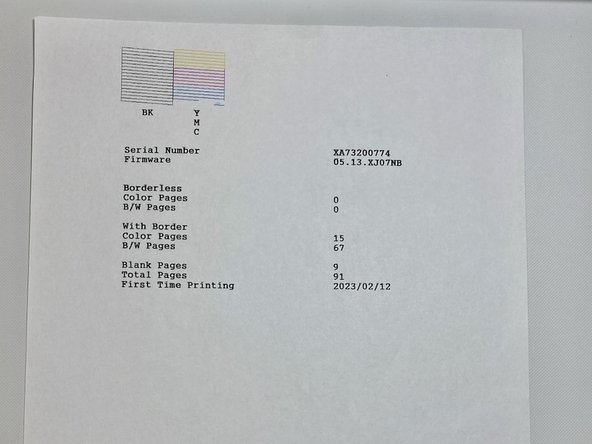
- Once the printer is finished cleaning, it will automatically print out a piece of paper with the ink colors and other words on it.
- If the colors and words on the paper are no longer smudged, then the issue is resolved.