Acer Chromebook Spin 714 CP714-2W-56B2 Camera Replacement
ID: 185086
Description: Use this guide to replace the camera in an Acer...
Steps:
- Flip the laptop to show the bottom side.
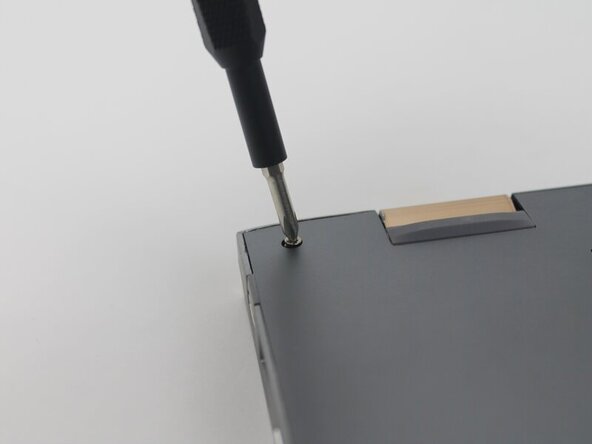
- Remove the nine 6.5 mm screws using a JIS #1 screwdriver.
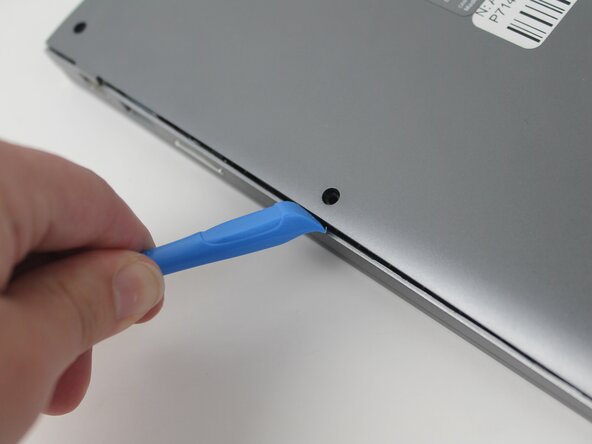
- Use a plastic opening tool to separate the outer casing and panel; gently work the tool around the entire outer edge
- The easiest place to start is at one of the hinges. The corners can be somewhat difficult.
- Be gentle. The internal clips can snap.
- Peel off the tape covering the wires.
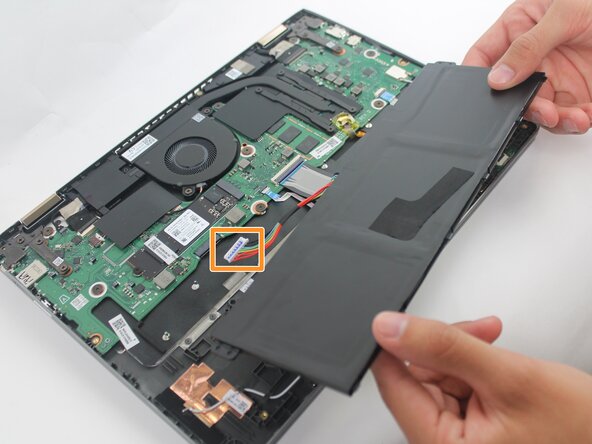
- Lift the battery from its studs, and place it closer to you.
- The battery is not clamped or screwed onto the frame. Once you disconnect the battery, you are able to safely remove it by picking it up.
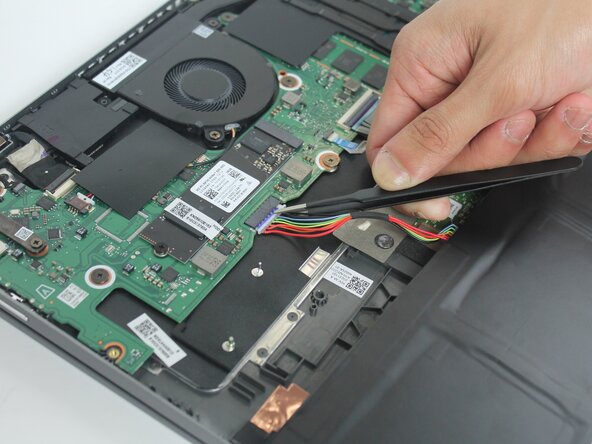
- Unplug the rainbow wires connecting the battery to the motherboard.
- Be sure to only grab the white portion of the plug, do not overstretch the rainbow wires.
- Remove the battery from the laptop.
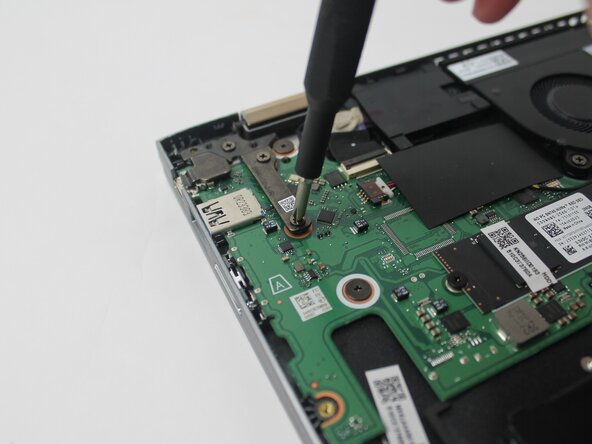
- Remove the three 4.6 mm screws holding the left-side screen bracket to the internal components using a JIS #1 screwdriver.
- Flip the bracket away from its original location.
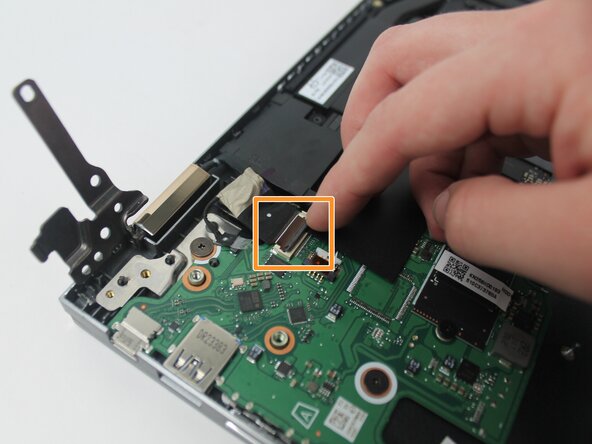
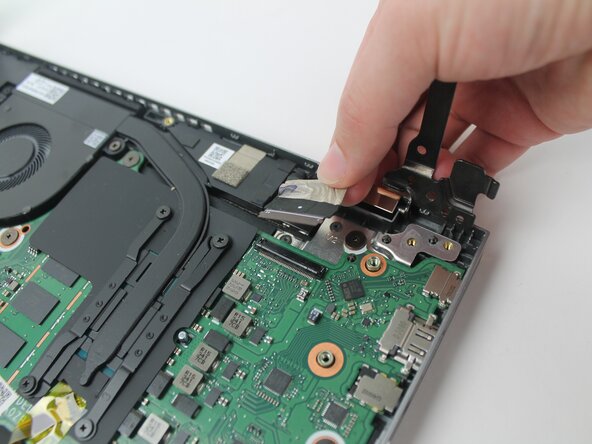
- Remove the clear tape securing the smaller wire.
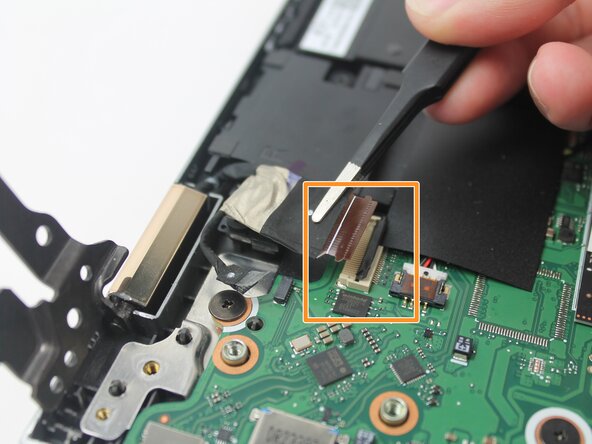
- Flip the small black clip securing the larger wire.
- The wire below loosely sits inside the plug. It is fine if it comes out on its own after the clip is opened.
- Unplug the smaller wire.
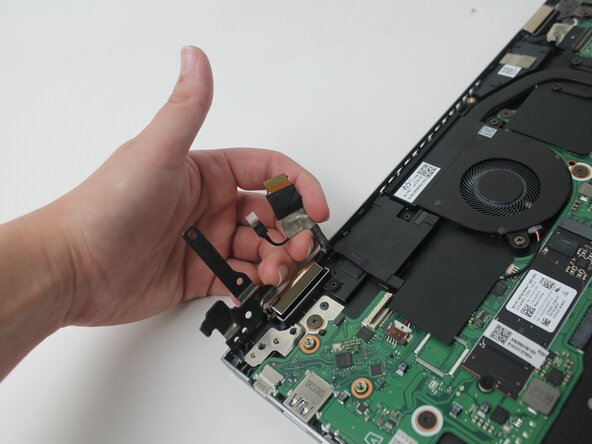
- Lift the larger wire, if it is still in place.
- Remove the three 4.6 mm screws holding the right-side screen bracket to the internal components using a JIS #1 screwdriver.
- Disconnect the ribbon cable from the motherboard.
- There is only one wire on the right side. It's similar to the larger wire on the previous side, but slightly wider.
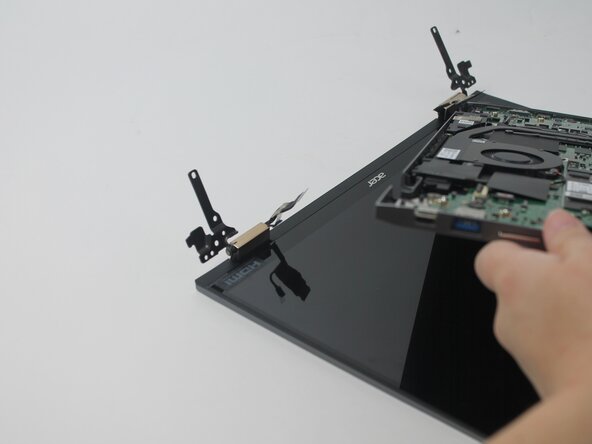
- Remove the panel you've been working on.
- Lift from the front edge of the panel, so that it and the screen form a 90 degree angle.
- Pull the electrical panel straight back, away from the hinges/brackets. It shouldn't require any force.
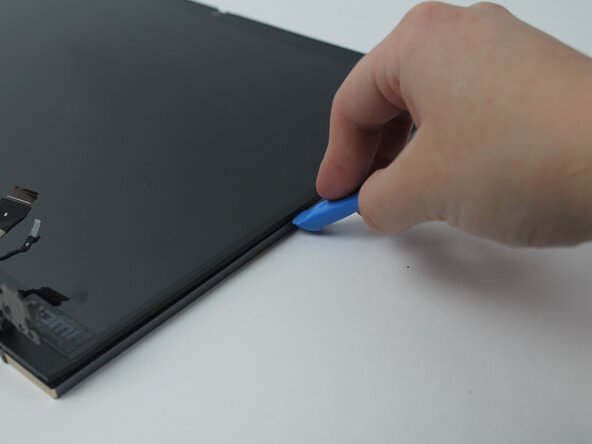
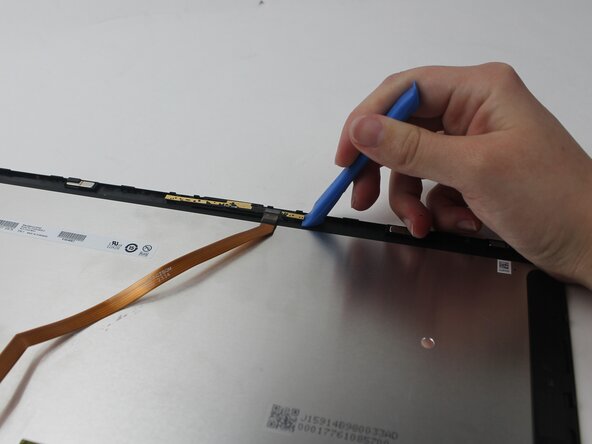
- Separate the screen from the top casing using an opening tool.
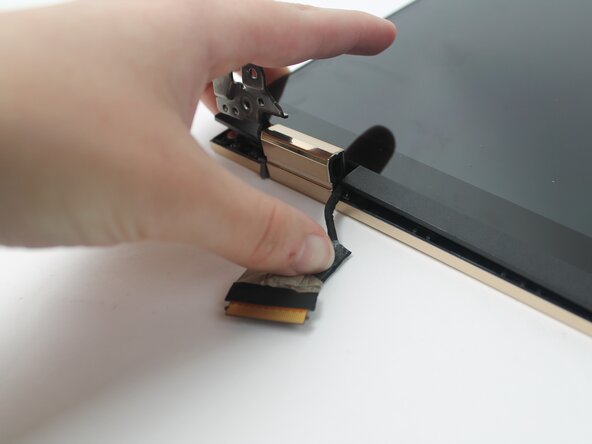
- Untuck the wires next to hinges.
- Lift the corner of the screen respective to the first hinge. Maneuver the wire around the edge of the screen on the other side of the hinge. Gently press the wire down onto your work surface.
- Lift the screen from the hinge casing.
- Flip the screen over so that the silver panel is visible.
- Note the silver wire at the bottom of the panel, as well as the ribbon running from the silver wire to the top part of the panel.
- Untuck the left side of the wire from the clip holding it in place.
- Remove the clear tape covering the plug.
- Unplug the wire.
- Unhook this side of the wire, like you did on the left side.
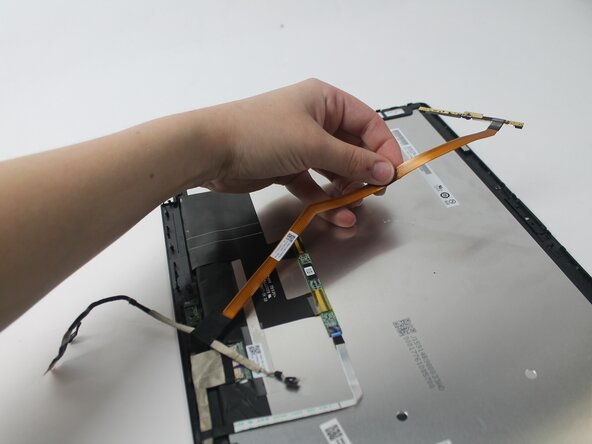
- Peel the orange ribbon from the silver panel.
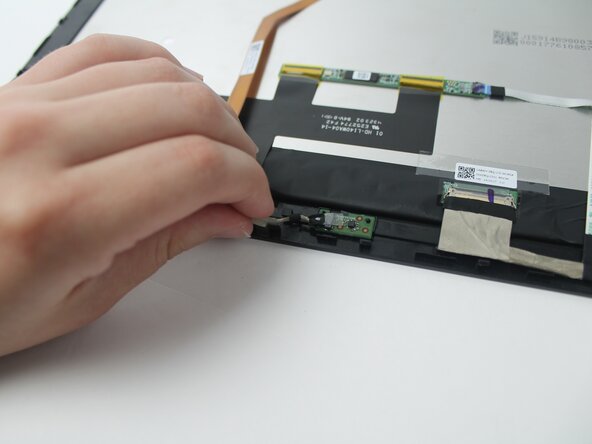
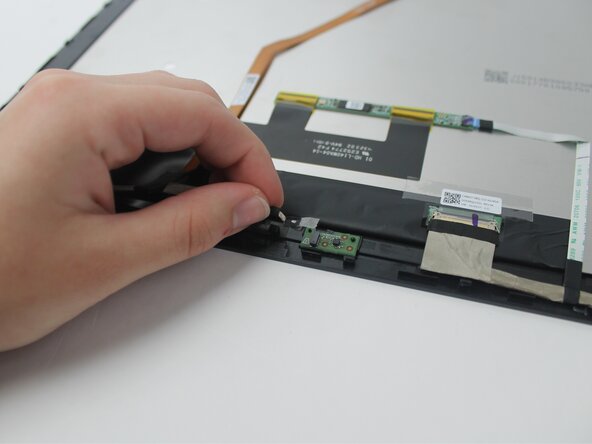
- Remove both rubber pads on either side of the camera using an iFixit opening tool.
- Remove the camera from the screen.