Lenovo ThinkPad P50 Keyboard Replacement
ID: 186144
Description: If your device is no longer typing like it used...
Steps:
- Slide the battery latch to the left to unlock it and remove the battery.
- Loosen the six 12.6 mm captive screws that secure the lower case with the Phillips #00 screwdriver.
- The screws will not come all the way out; do not attempt to remove them from the case.
- Pull up the notch with your fingernail or a spudger.
- Lift the lower case up and off of the chassis.
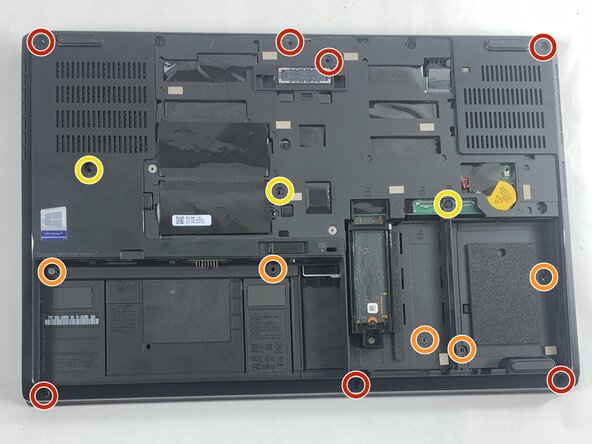
- Remove the following screws with a Phillips #00 screwdriver:
- Seven 5.7 mm screws
- Five 4.3 mm screws
- Three 12.6 mm screws
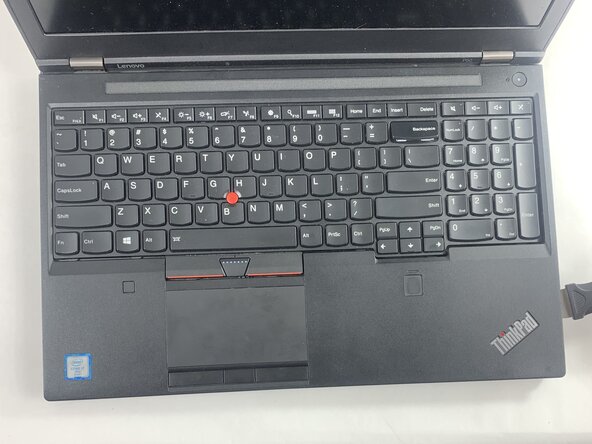
- Turn the computer over and open the lid.
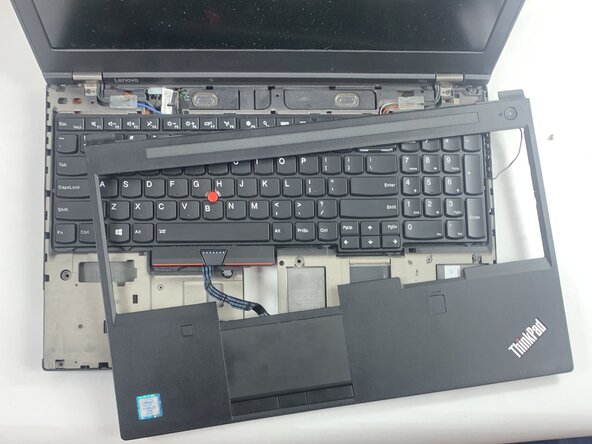
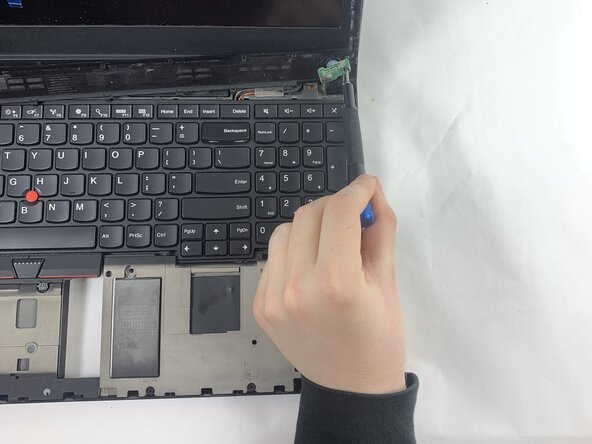
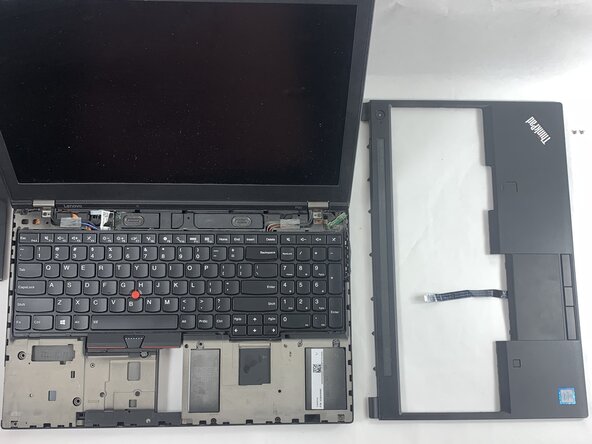
- Insert an opening pick in the seam between the keyboard bezel and chassis.
- Pry around the entire perimeter until the keyboard assembly fully releases.
- Pivot the keyboard further up until you can see the connectors on the underside of the keyboard
- Detach the connectors that connect to the trackpad.
- Most of the time, these connectors will have a lip or a tab along the top that can be used to push the connector out of its socket.
- To disconnect, use the wide end of a spudger to push on the connector tab to slide it out of its socket.
- It may take a lot of force to disconnect the cable. Go slowly, and don't pull on the cables.
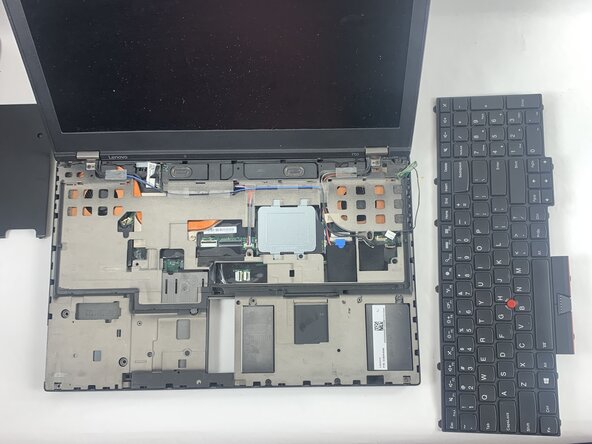
- Lift the keyboard slightly until you see the cable connection the keyboard to the rest of the computer
- Most of the time, these connectors will have a lip or a tab along the top that can be used to push the connector out of its socket.
- To disconnect, use the wide end of a spudger to push on the connector tab to slide it out of its socket.
- It may take a lot of force to disconnect the cable. Go slowly, and don't pull on the cables.