How to Install and Remove Expansion Cards
ID: 186324
Description: This guide shows how to install and remove...
Steps:
- Set your laptop face-down on a clean work surface.
- The next two steps show how to install an Expansion Card.
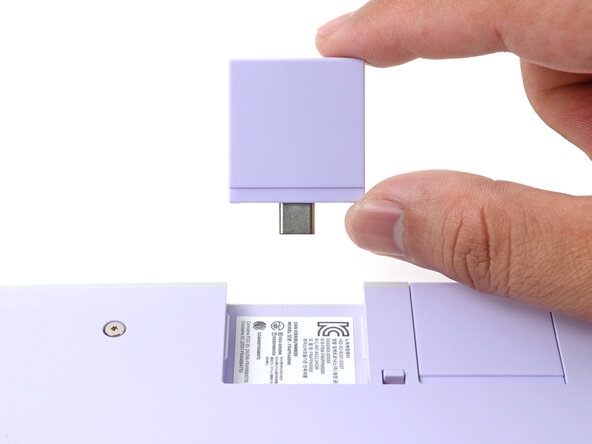
- Slide an Expansion Card into an Expansion Card slot.
- You don't need to unlock the latches to install the Expansion Cards—only when you want to remove them.
- The Expansion Cards should click into place, and the front edge should be flush with the laptop.
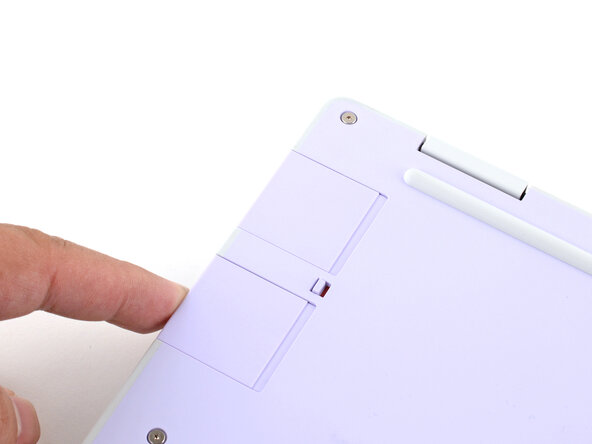
- If there's a red bar showing under the Expansion Card latch, use your finger to flip the latch and lock the Expansion Card into its slot.
- Locking the Expansion Card slots helps keep the cards in place when you unplug cables from them.
- The next two steps show how to remove an Expansion Card.
- Use your fingers to flip the two Expansion Card latches (one for each side) into the unlocked position.
- The latches display a red bar when they're unlocked.
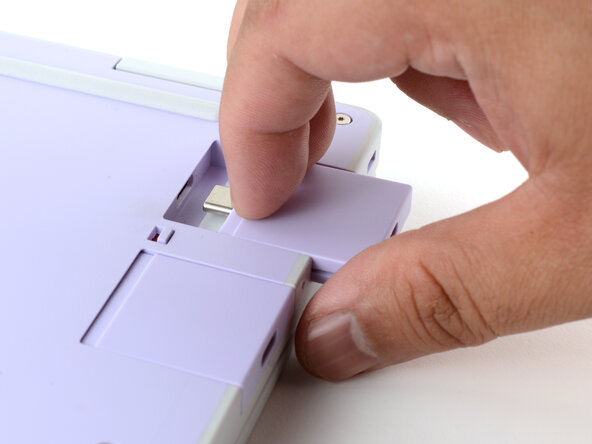
- Grip the lip of the Expansion Card with your fingers.
- Pull the Expansion Card out of its slot and remove it.
- If you have trouble pulling the Expansion Card out, you can also use the flat end of your Framework Screwdriver to push against the lip.