Logitech G915 X Lightspeed TKL Battery Replacement
ID: 190581
Description: Follow this guide to replace a worn-out or dead...
Steps:
- Slide the power switch on the top edge of the keyboard to the OFF position.
- A red indicator should be visible beneath the switch.
- Unplug all cables from your keyboard.
- Lay your keyboard down with the feet facing up on a clean work surface.
- If your work surface might scratch the keyboard, place a soft towel under it.
- The Logitech sticker hides two battery cover screws.
- Heat an iOpener and lay it on the Logitech sticker for one minute.
- Alternatively, you can use a hair dryer to heat the sticker. Make sure it's on the Low setting to avoid warping the plastic.
- You can either peel up the bottom corners of the sticker until you can access the screws, or you can remove the sticker entirely.
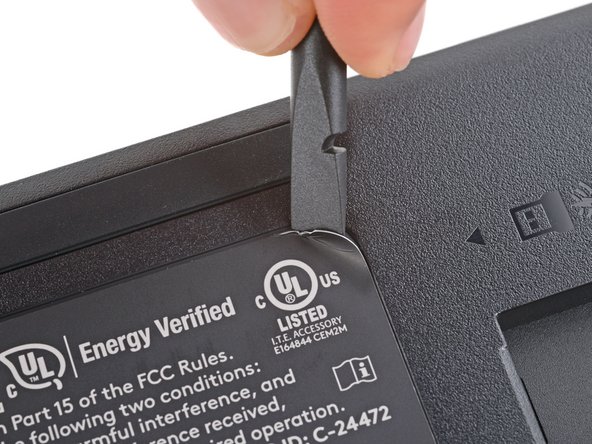
- Use a spudger or your fingernail to peel up a corner of the sticker until you can grip it with your fingers.
- Peel up the sticker with your fingers and remove it.
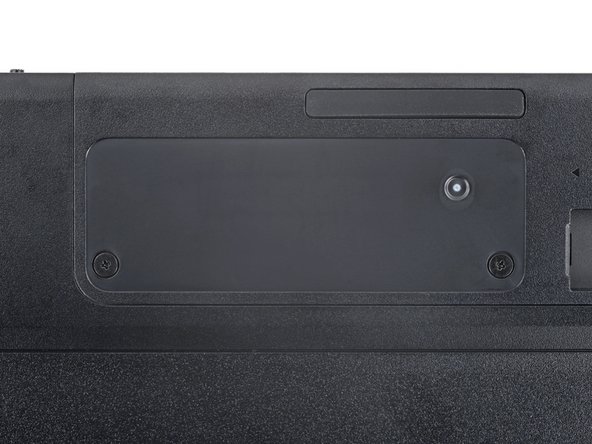
- Use a Phillips screwdriver to remove the two 4 mm‑long screws securing the battery cover.
- If you have a USB receiver stored in the battery cover compartment, use your finger to slide it out and remove it.
- Plastic clips secure the edges of the battery cover.
- Insert your finger in the USB receiver compartment on the battery cover.
- Pull up the bottom edge of the cover to release the clips.
- Don't try to fully remove the cover yet, as it's still connected by the battery cable.
- Gently pull the cover to the right so you can access the battery connector on the left side of the recess.
- Be careful not to scratch the board during this step.
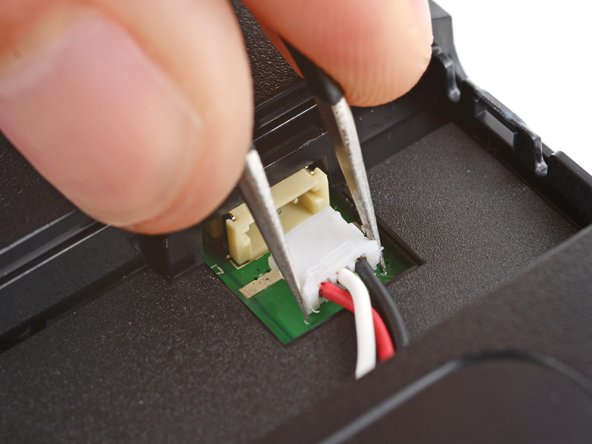
- Use a pair of angled tweezers to firmly grip the battery connector.
- Hold the tweezers with your fingers as close to the connector as possible to get a firm grip.
- Gently rock the connector side‑to‑side and slide it straight out of the socket.
- Remove the battery cover.
- Congratulations on completing disassembly! The remaining steps will show you how to install your replacement battery and reassemble your device.
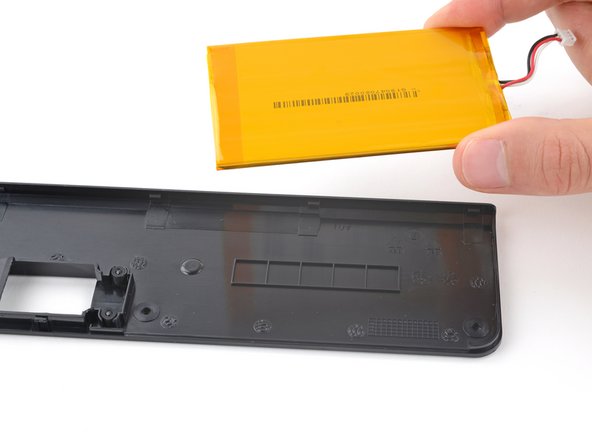
- Light adhesive secures the battery to its cover.
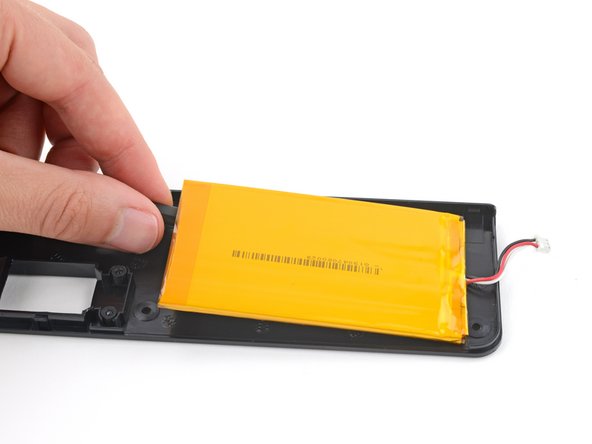
- Gently slide the flat end of a spudger under one of the short edges of the battery and lift to separate the adhesive.
- Be very careful not to puncture the battery, as it can leak dangerous chemicals or catch fire.
- Remove the battery from its cover.
- The adhesive likely stuck to the old battery. If not, remove it from the battery cover.
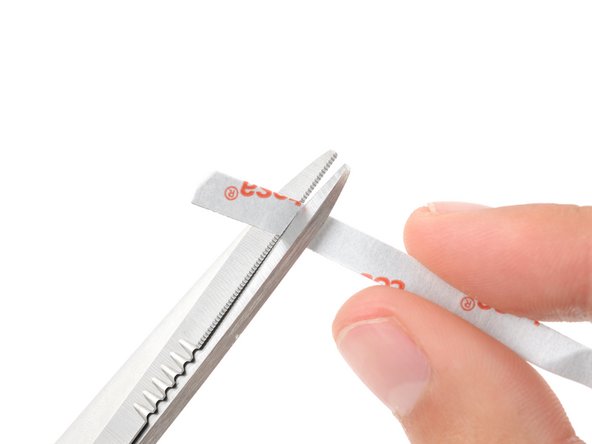
- Cut a piece of double-sided tape so it fits on the row of squares on the bottom of the battery cover.
- Press the tape firmly into place on the squares and remove the liner.
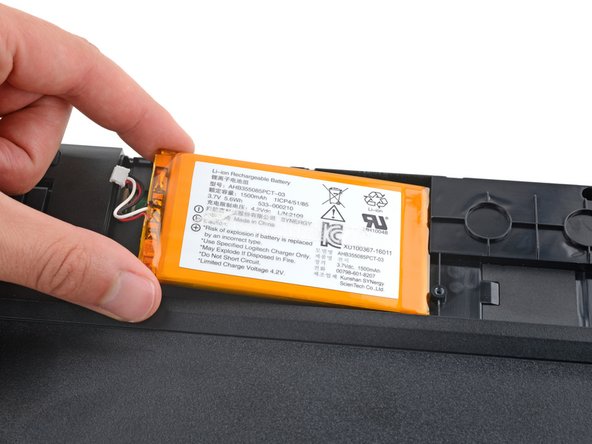
- Lay your new battery into its recess in the keyboard so the cable is nearest the battery connector.
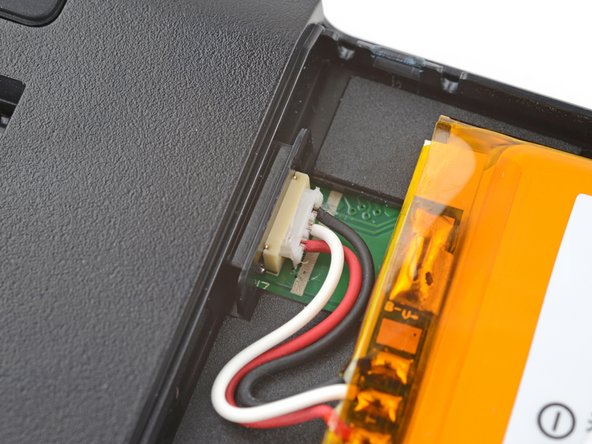
- Insert the new battery's connector into its socket so the side with exposed pins is on the bottom.
- Use a spudger to push the battery connector fully into its socket.
- Press only on the connector itself, and not on the wires.
- Set the battery cover into place and firmly press down around its edges to engage all the clips.
- You should feel and hear "clicks" as the clips engage.
- Use a Phillips screwdriver to install the two 4 mm‑long screws securing the battery cover.
- Use your fingers to apply the sticker to the battery cover.
- To help the sticker adhere better, you can apply some heat with an iOpener or hair dryer.