How to Install an 80mm Fan in your Framework Desktop
ID: 191476
Description: Follow this guide to install a secondary 80mm...
Steps:
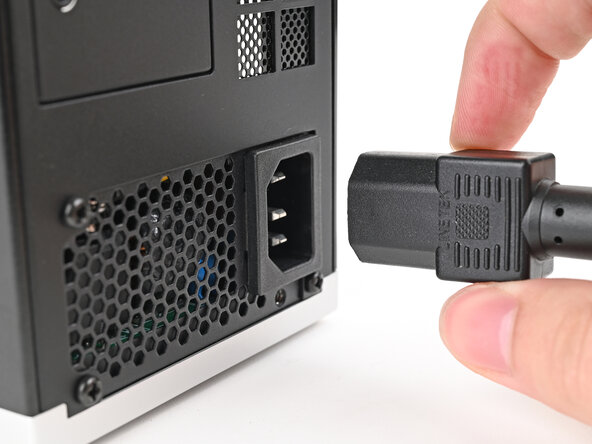
- Before you begin repairs, shut down your desktop from the operating system and unplug it.
- Wait one minute before continuing to allow your Desktop to fully power down.
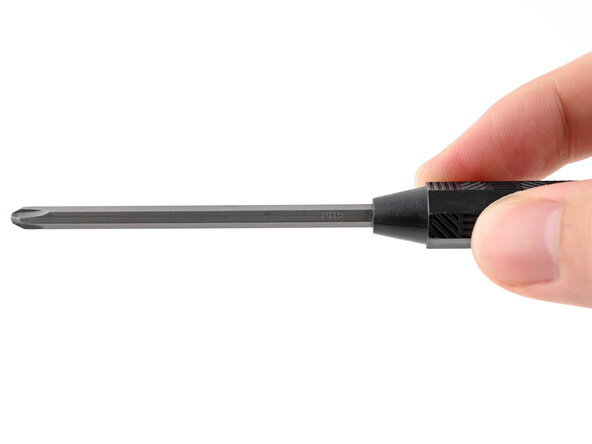
- Make sure your Framework Desktop Screwdriver has the Phillips #2 bit (labeled as PH2) facing outwards. If it's not, pull the bit out and flip it.
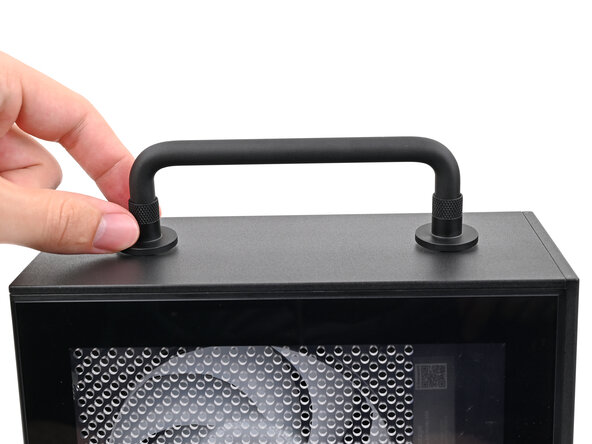
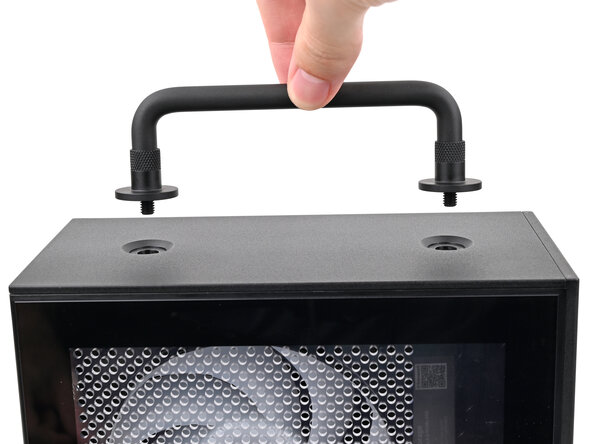
- If you installed the Handle on your Desktop, follow this step. Otherwise, skip it.
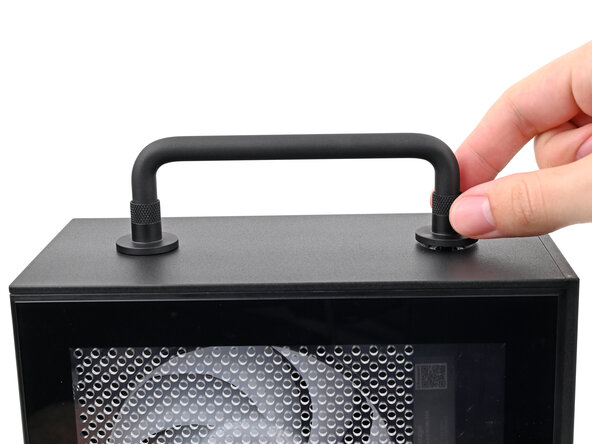
- Rotate the Handle's screw threads counterclockwise on both sides until it comes free.
- Remove the Handle.
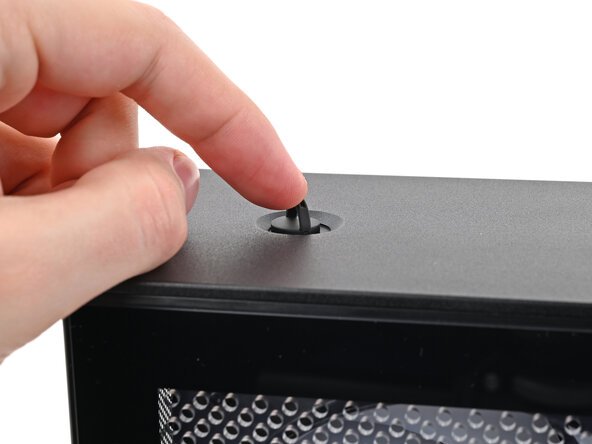
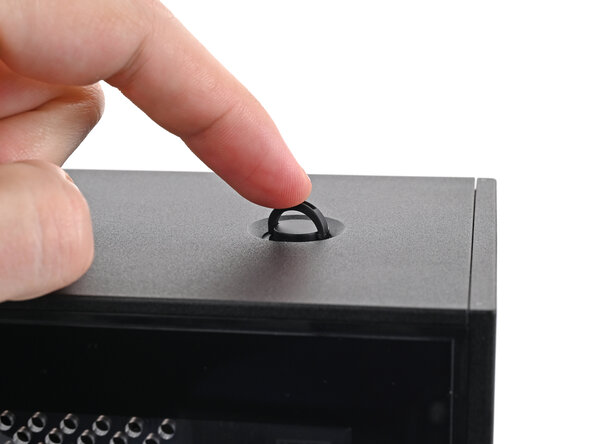
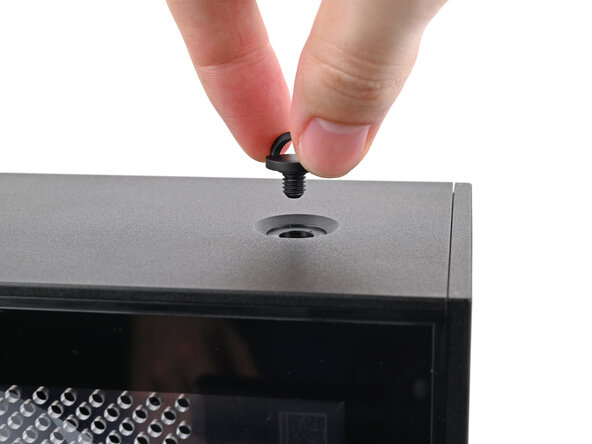
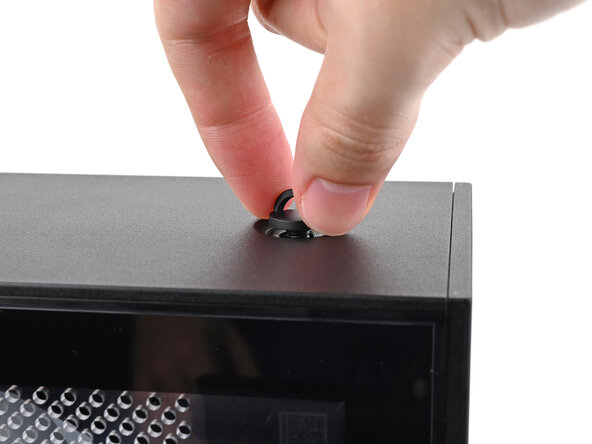
- Use your finger to lift up the two D-rings on the Top Panel screws.
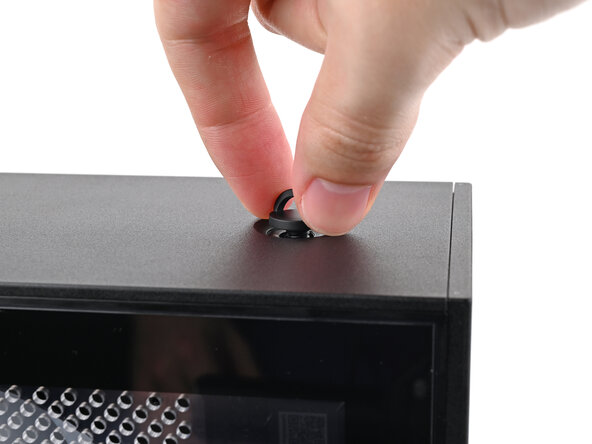
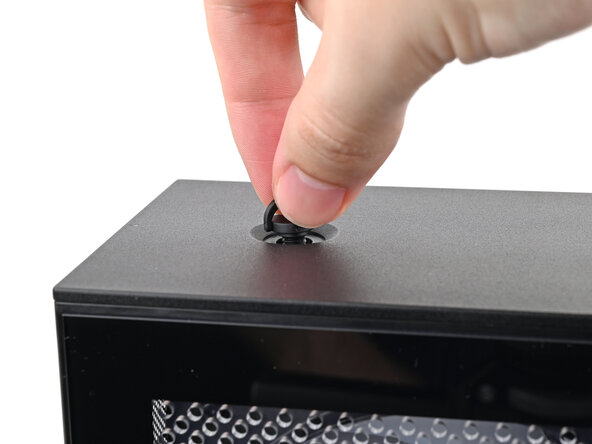
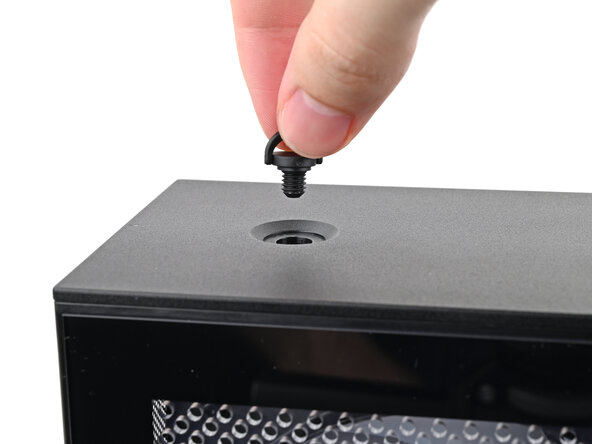
- Use your fingers to twist the screw counter-clockwise and loosen it.
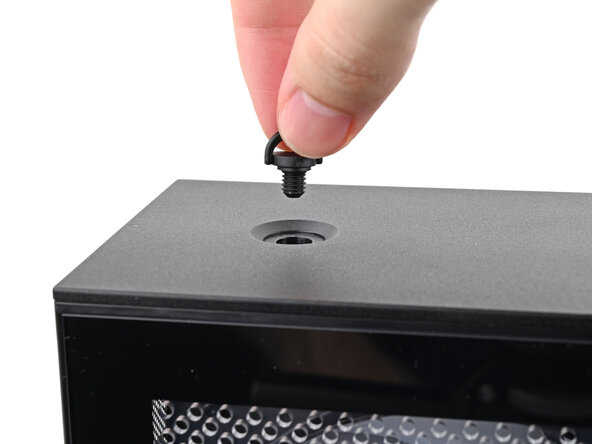
- Remove the Top Panel screw.
- Repeat the same procedure for the other Top Panel screw.
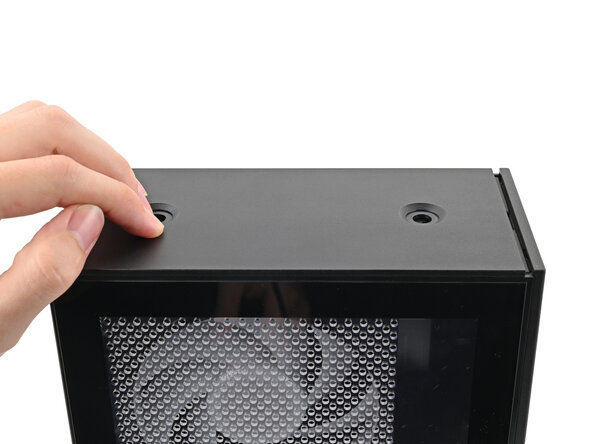
- Slide the Top Panel towards the rear of the computer to release the clips securing it to the chassis.
- If you're having a hard time gripping the Top Panel, use the screw holes to get a better handhold.
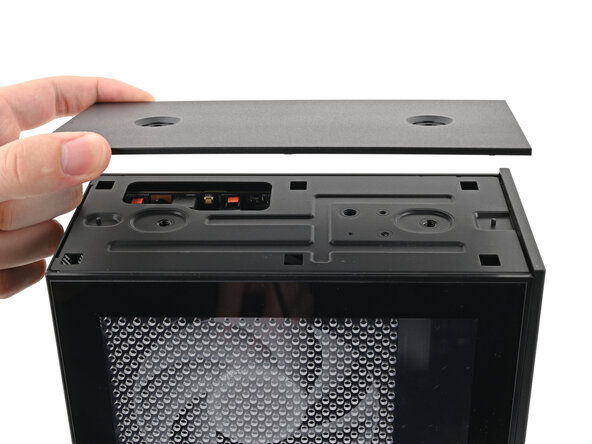
- Lift the Top Panel off the chassis and remove it.
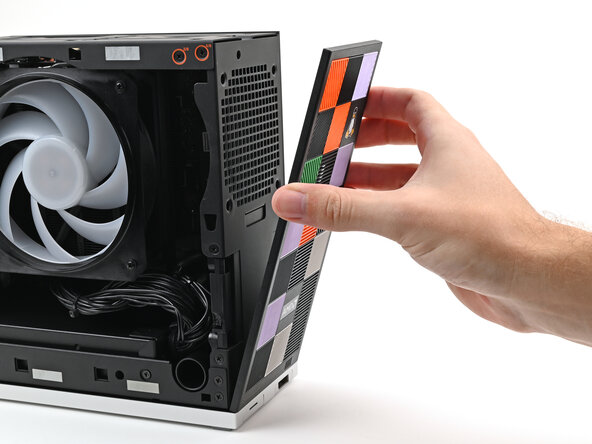
- Use your fingers to pull the Front Panel off the magnets securing it to the chassis.
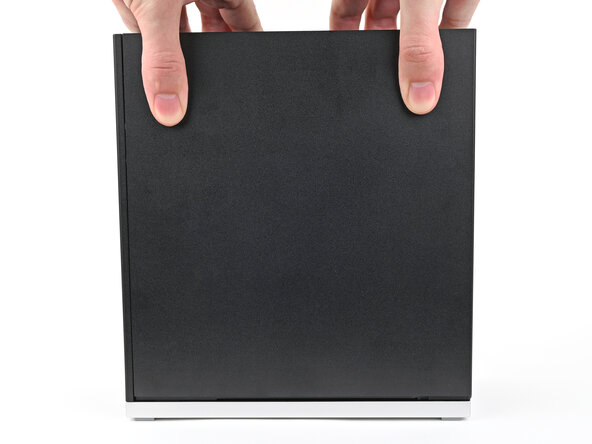
- Use your fingers to grip the top of the Right Panel and slide it upward to release its clips.
- Remove the Right Panel.
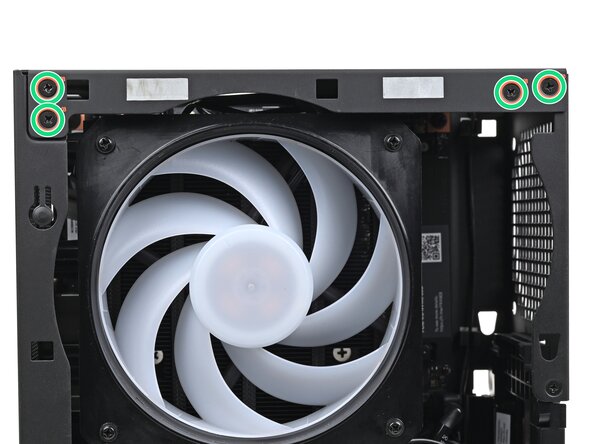
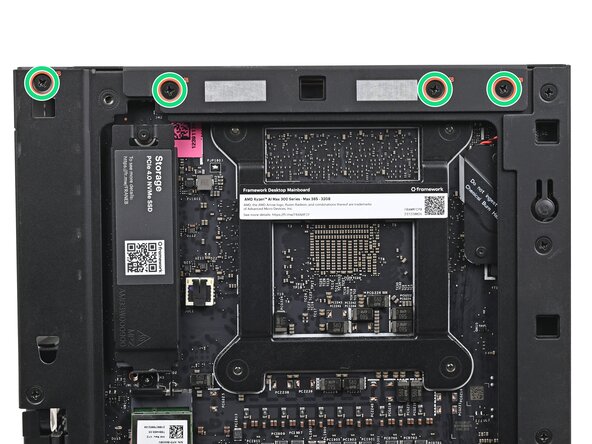
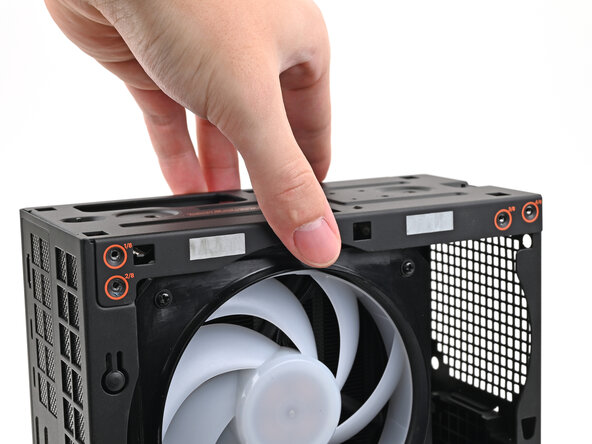
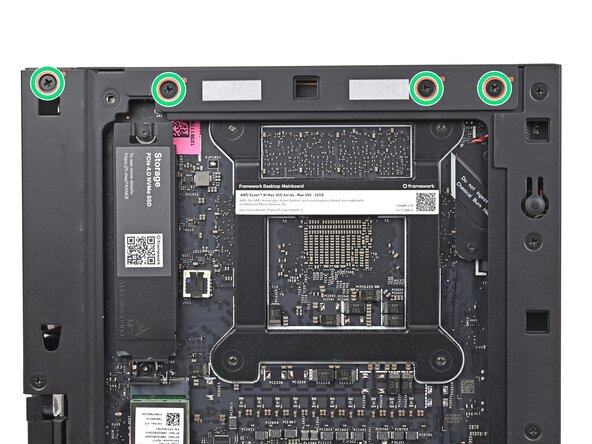
- While holding the Desktop steady, use your Framework Desktop Screwdriver to remove the eight 4.0 mm‑long Phillips screws securing the top plate.
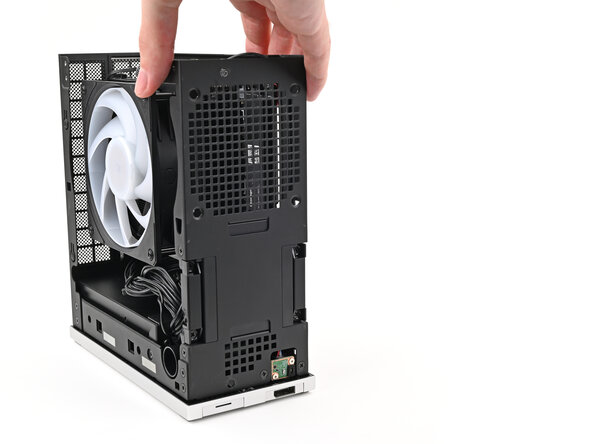
- Lift the top plate off the Desktop and remove it.
- Lay the right side of the Desktop on your work surface so the Mainboard is facing upward.
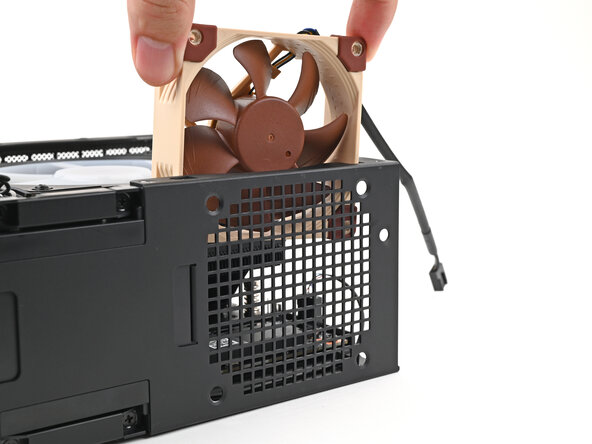
- Orient the fan so its label is facing away from the chassis fan grille and the cable is pointing up.
- If your fan has an arrow indicating airflow direction, make sure it's pointed towards the heatsink.
- If you're using a different fan, orient it such that the fan is blowing into the Desktop, not away.
- Insert the fan into the chassis and along the front plate, making sure that the screw holes in the chassis and the fan are aligned.
- Use your Framework Desktop Screwdriver to install the four screws securing the secondary fan.
- Most fans of this type use self-tapping screws that will carve threads into your fan's screw holes. This is normal and necessary for the fan to be secured.
- Orient the fan cable so its two vertical lines are facing you.
- Slide the fan cable over the four-pronged connector labeled "Sys Fan 2," making sure the orange label slots between the vertical lines.
- You can also connect the cable into the "Sys Fan 1" slot depending on the cable's length and orientation.
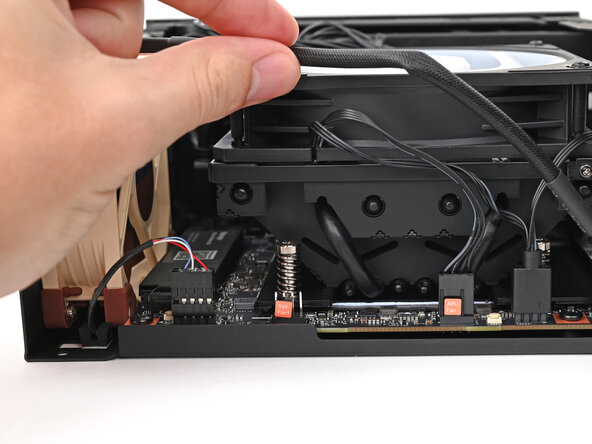
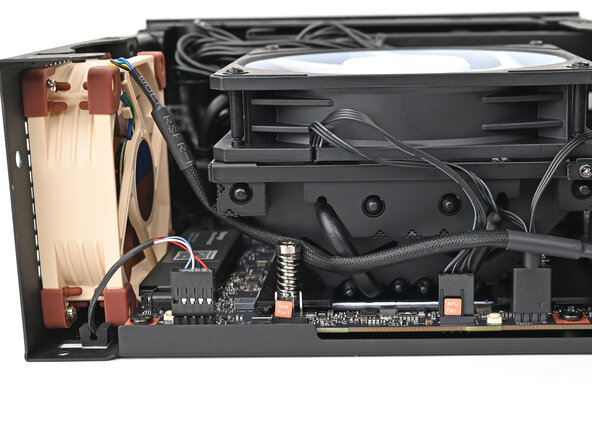
- Move the fan cable underneath the heat sink and tuck it behind the silver screw post.
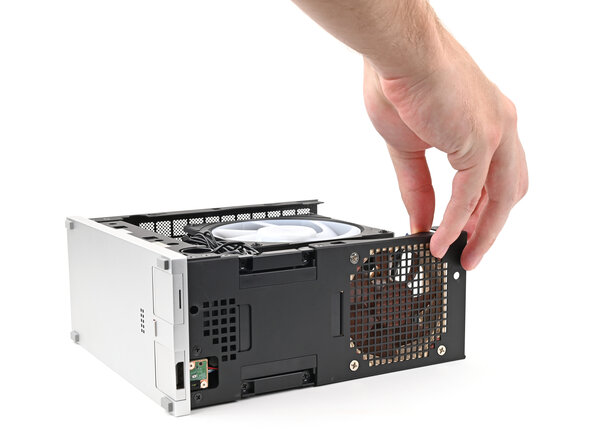
- Rotate the Desktop so it sits upright on your work surface.
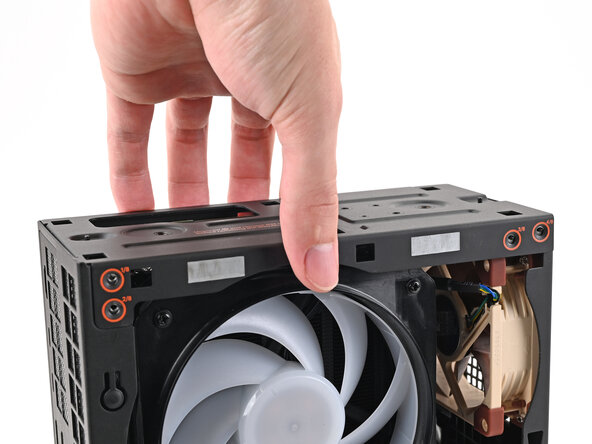
- Place the top plate on top of the Desktop, making sure it slots into the chassis so the orange circles are visible.
- Make sure the matching screw hole on the top plate labeled "5/8" is slotted on the inside of the Chassis so that the orange circle is visible.
- While holding the Desktop steady, use your Framework Desktop Screwdriver to install the eight 4.0 mm‑long Phillips screws securing the top plate.
- Slide the Right Panel onto the right edge of the chassis, from top to bottom, and press it flat to ensure its clips are slotted into place.
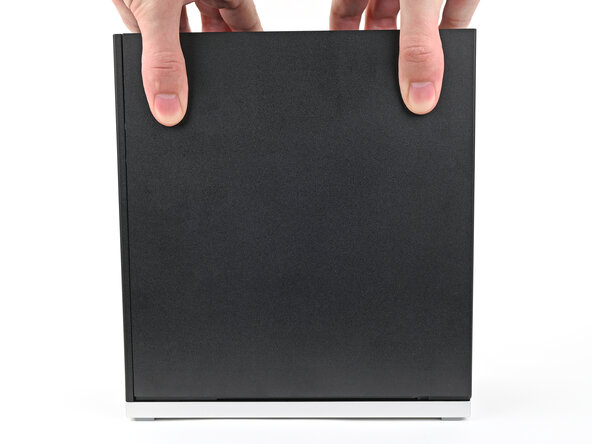
- There should be a small gap between the bottom of the Right Panel and the silver base.
- Push the Right Panel towards the base of the computer to engage the clips.
- Lay the bottom of the Front Panel on the small, protruding lip in the silver base to align its tabs.
- Press the Front Panel flat to the chassis and let it align to the magnets.
- Slide the Left Panel onto the left edge of the chassis and press it flat to ensure its clips are slotted into place.
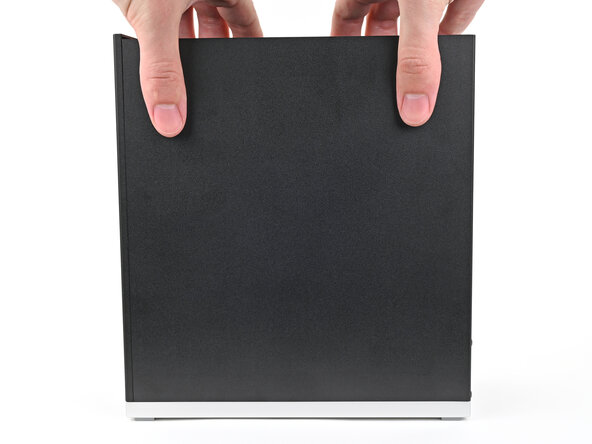
- There should be a small gap between the bottom of the Left Panel and the silver base.
- Push the Left Panel towards the base of the computer to close the gap and engage the clips.
- Orient the Top Panel so its arrow is pointing towards the rear of the computer.
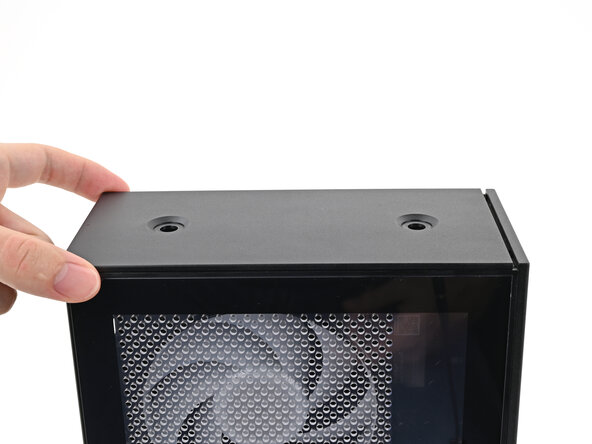
- While holding the Top Panel at a slight downward angle, slide it across the top of the chassis (from rear to front) until you feel its clips catch.
- There should be a small gap between the Top Panel and the front of the Desktop.
- Lay the Top Panel flat on the chassis to align the remaining clips.
- While securing the computer with one hand, use the other hand to slide the Top Panel towards the front of the computer to close the gap and engage the clips.
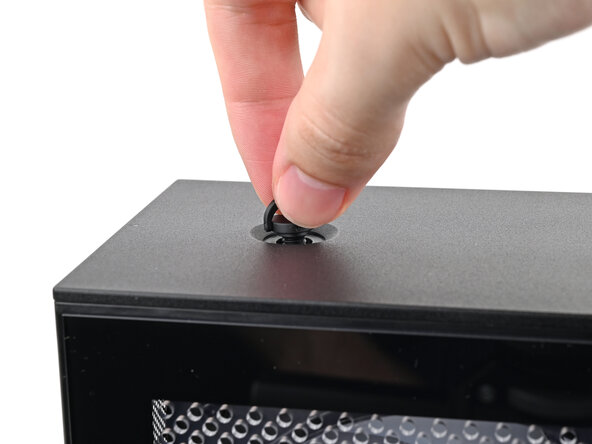
- Insert the top panel screw into its hole and twist clockwise until it feels snug.
- Repeat the same procedure for the other top panel screw.
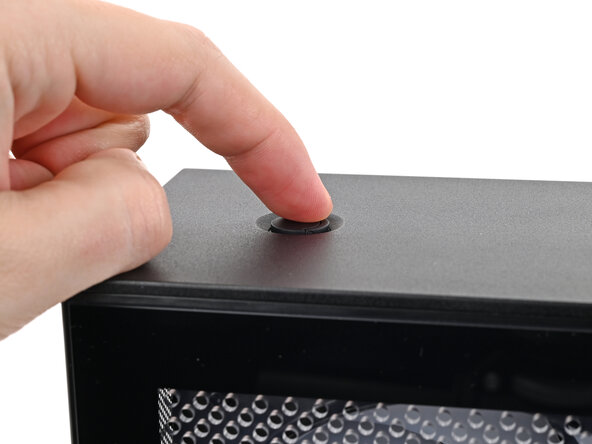
- Use your finger to close the two D-rings on the top panel screws.