Framework Desktop Mainboard Removal (Mainboard Replacement)
ID: 191551
Description:
Steps:
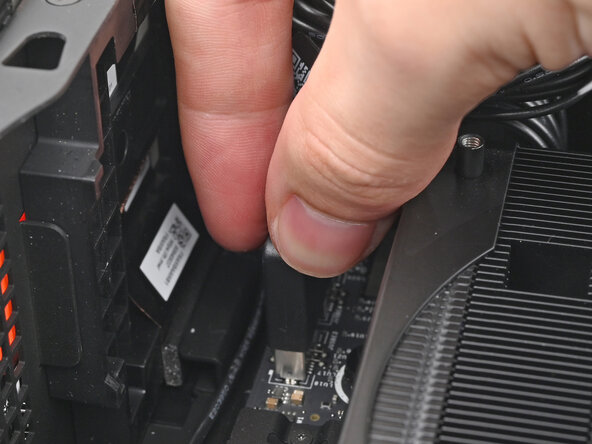
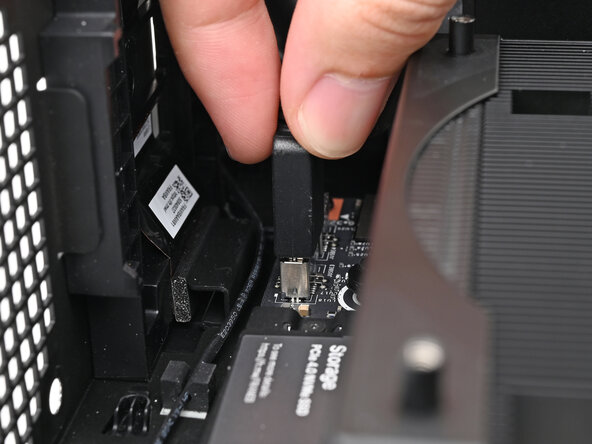
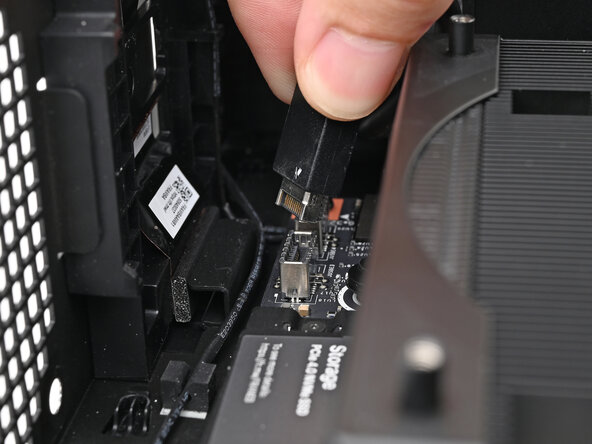
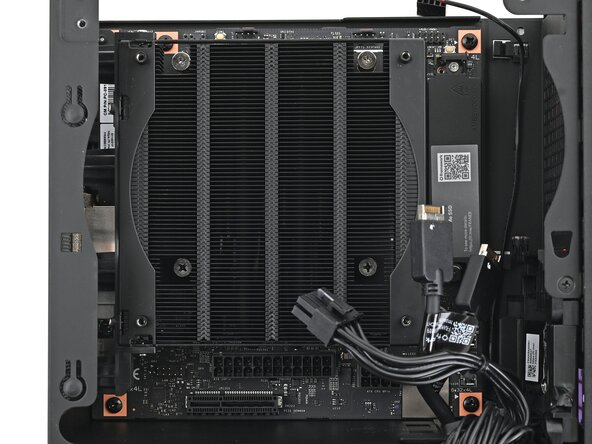
- Pull the top Expansion Card connector straight out of its socket in the Mainboard to disconnect it.
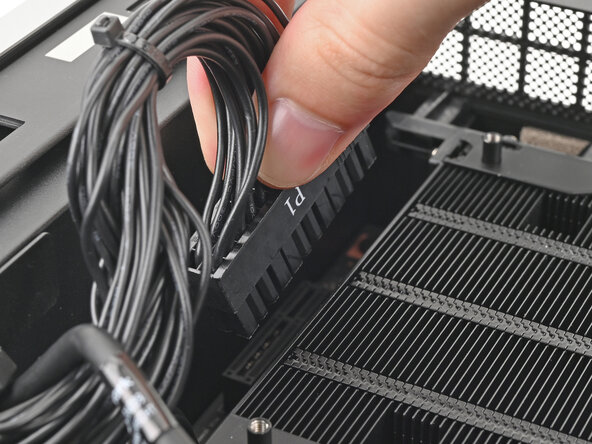
- While squeezing the clip on the main power cable, pull it straight up and out of its socket to disconnect it.
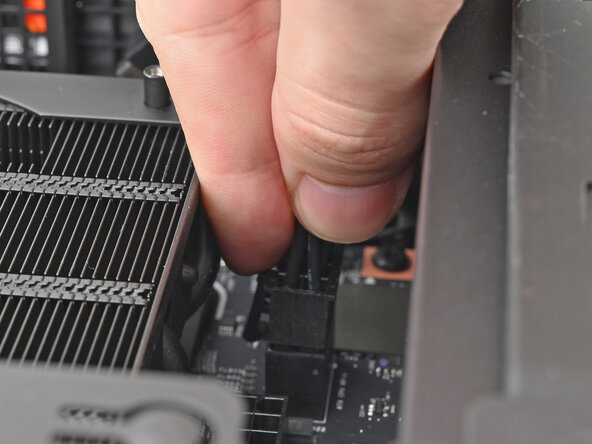
- While squeezing the clip on the CPU power cable, pull it straight up and out of its socket to disconnect it.
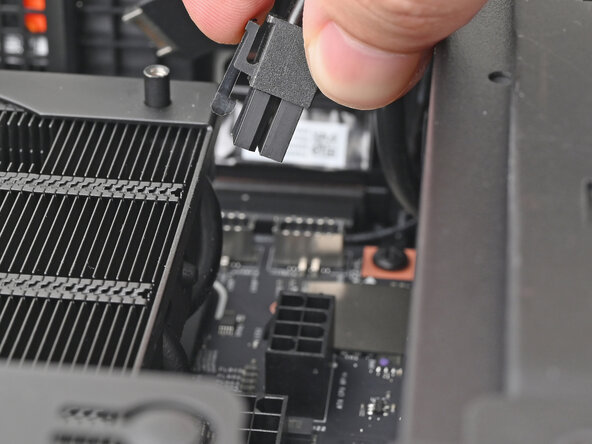
- Pull the bottom Expansion Card connector straight out of its socket in the Mainboard to disconnect it.
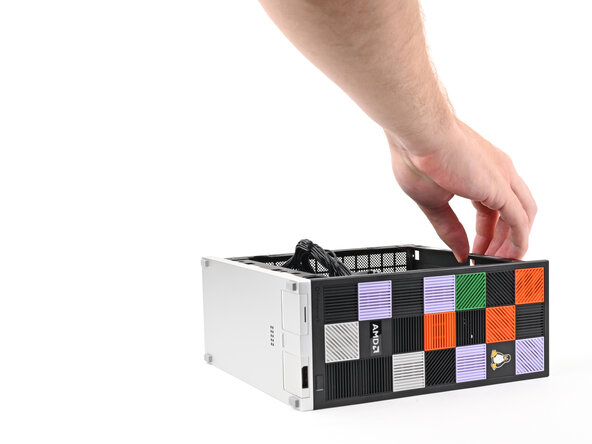
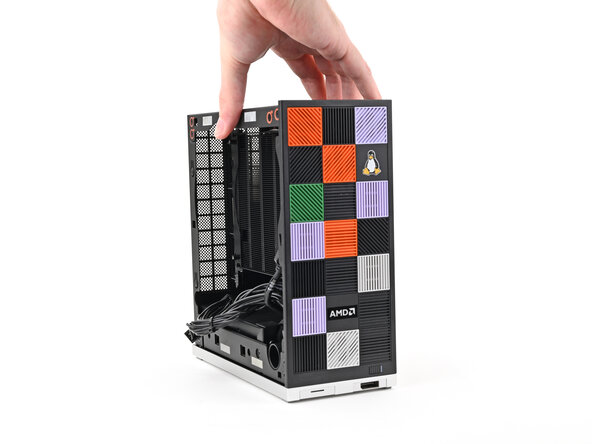
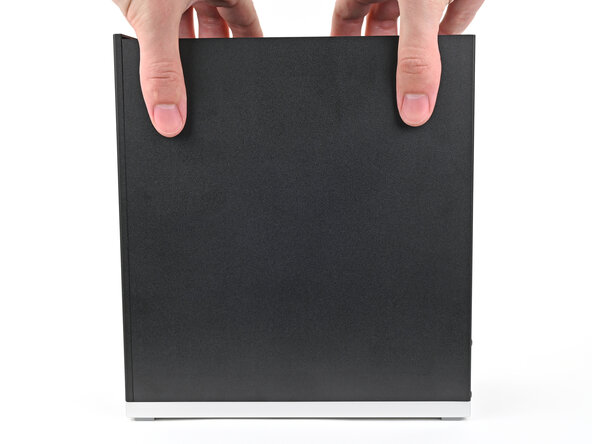
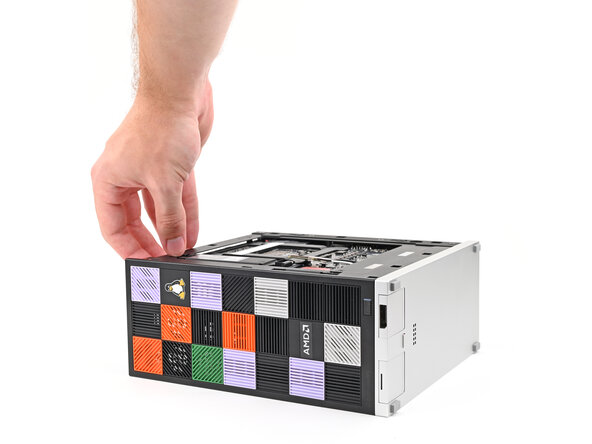
- Lift the Desktop so it stands upright on your work surface.
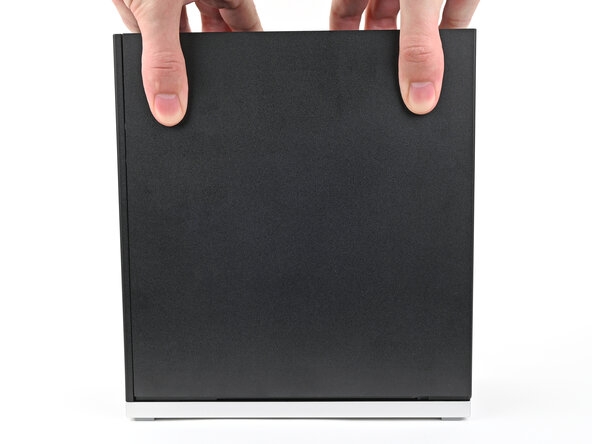
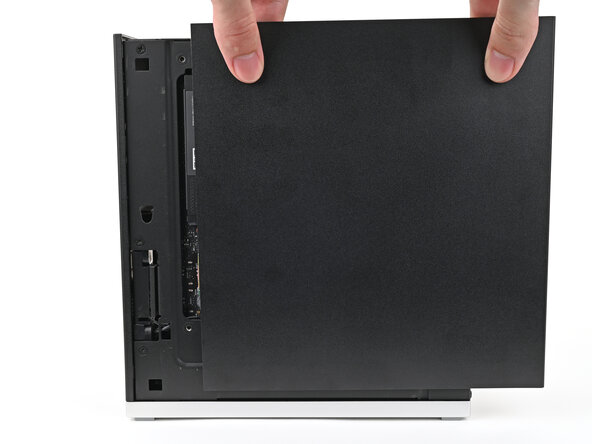
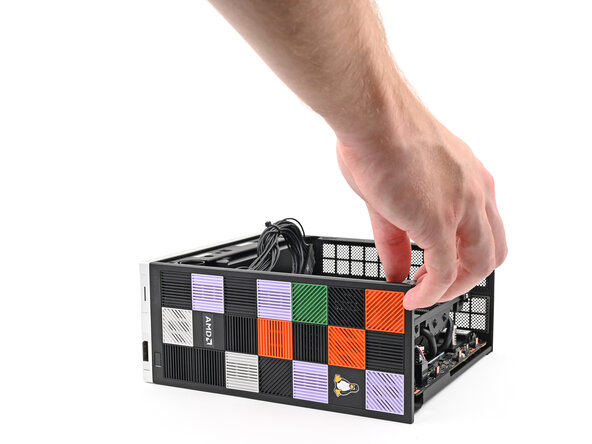
- Use your fingers to grip the top of the Right Panel and slide it upward to release its clips.
- Remove the Right Panel.
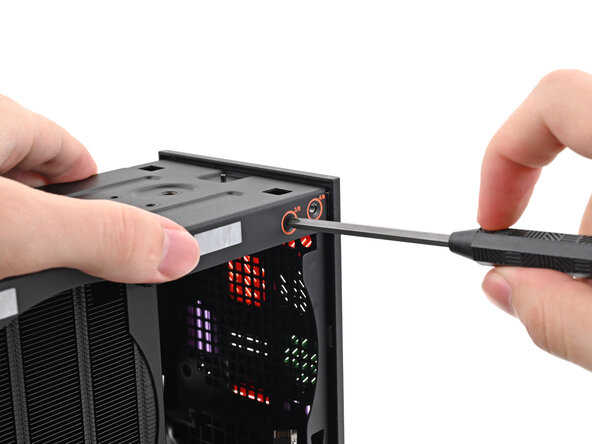
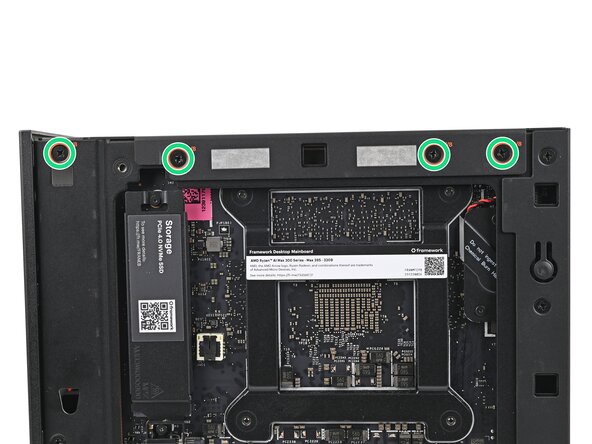
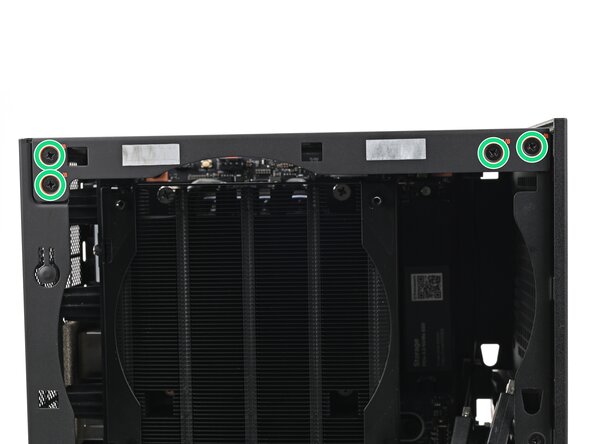
- While holding the Desktop steady, use your Framework Desktop Screwdriver to remove the eight 4.0 mm‑long Phillips screws securing the top plate.
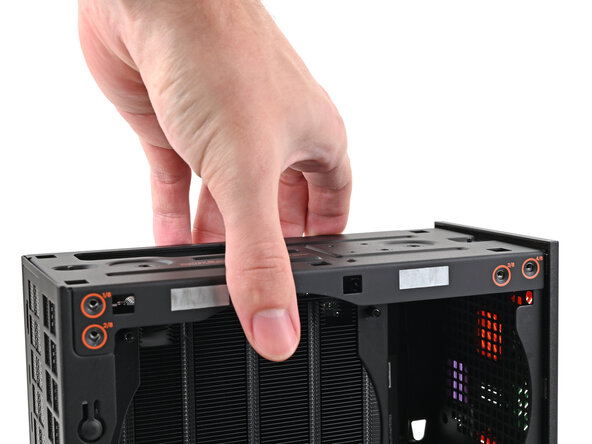
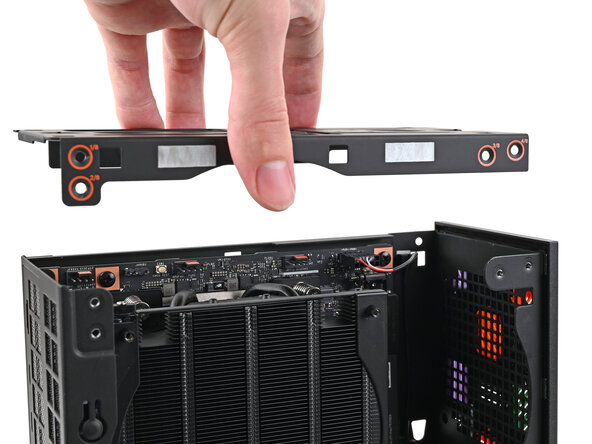
- Lift the top plate off the Desktop and remove it.
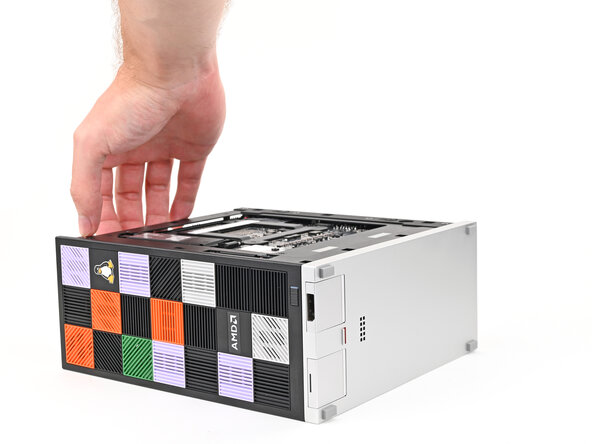
- Lay the left side of the Desktop on your work surface so the underside of the Mainboard is facing upward.
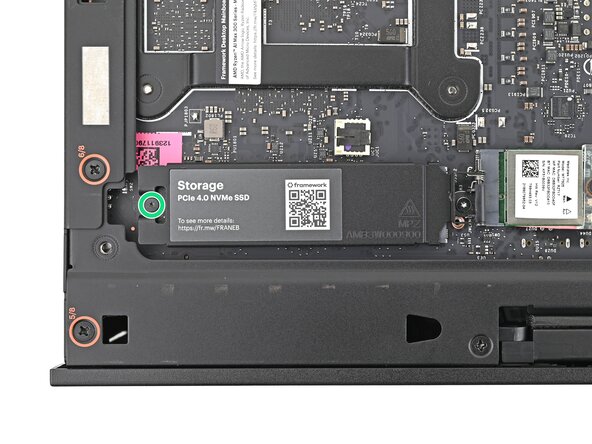
- If you have secondary storage installed, follow the next two steps. Otherwise, skip here.
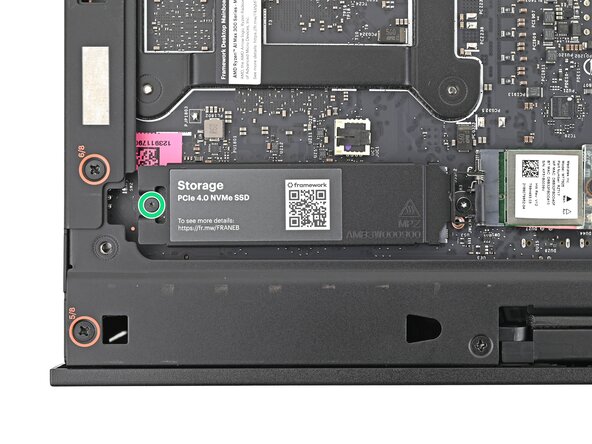
- Use your Framework Desktop Screwdriver to loosen the captive T5 Torx screw securing the SSD.
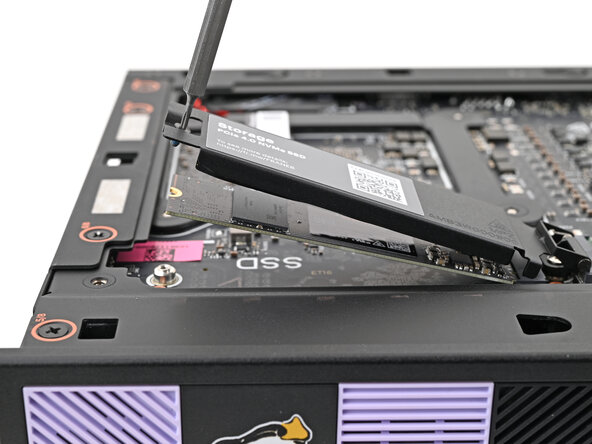
- The SSD and its heat spreader will pop up to an angle when its screw is fully loosened.
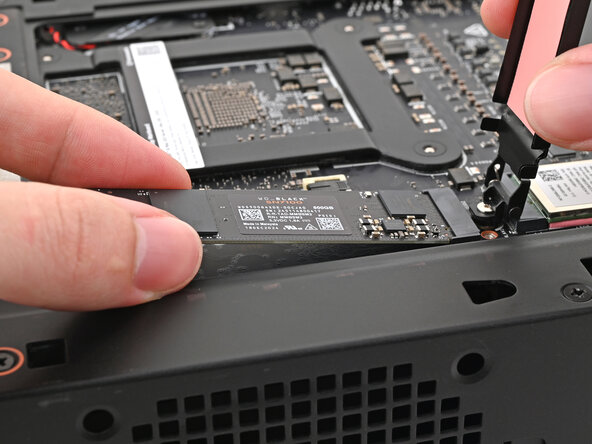
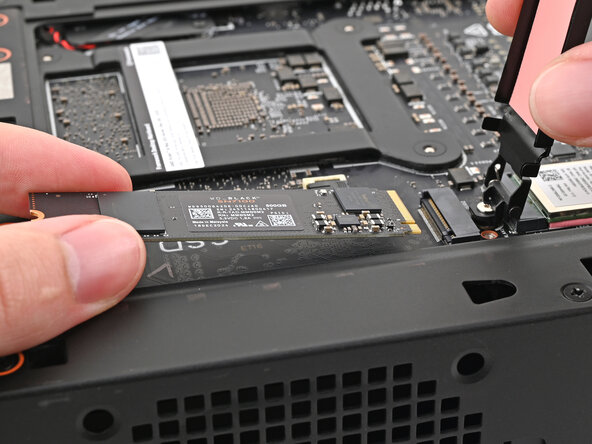
- While holding the heat spreader upright, grab the SSD by its edges and pull it out of its socket.
- Remove the SSD.
- Use your Framework Desktop Screwdriver to tighten the captive T5 Torx screw securing the heat spreader.
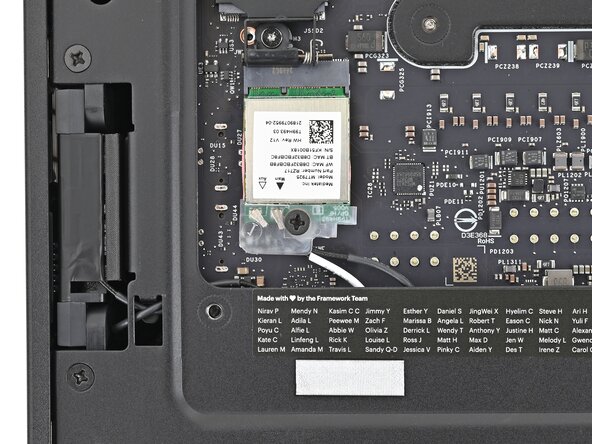
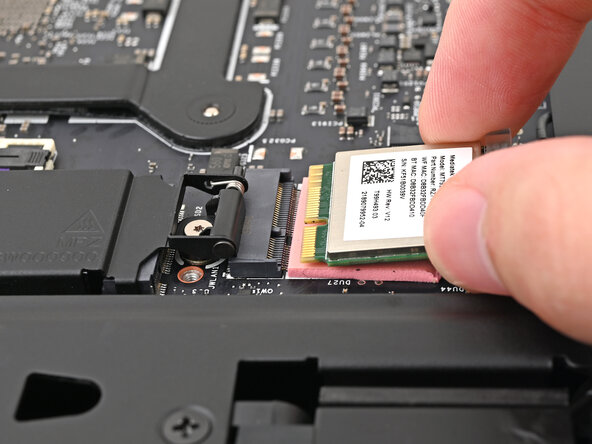
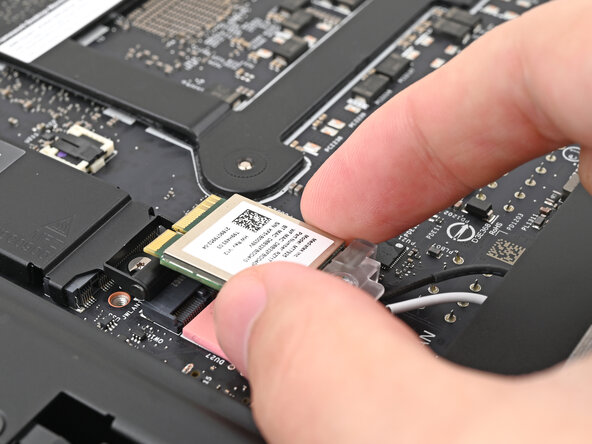
- Use your Framework Desktop Screwdriver to remove the 7.0 mm‑long Phillips screw securing the Wi-Fi module.
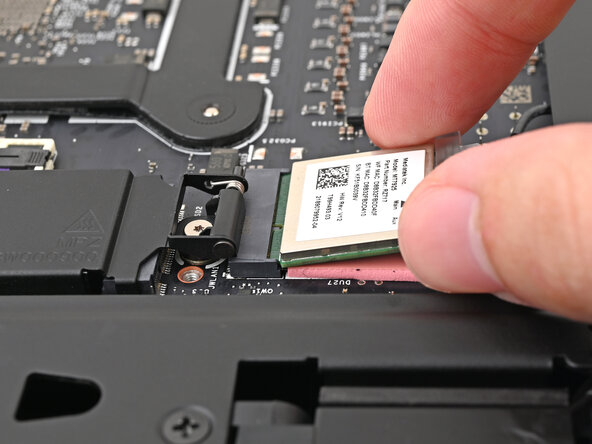
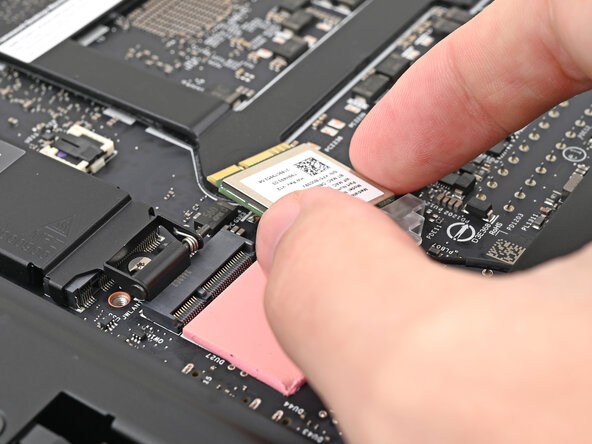
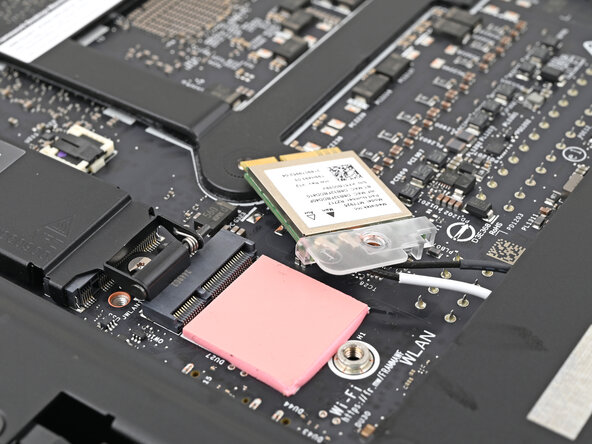
- Grip the Wi-Fi module by its edges and pull it straight out of its socket.
- Move the Wi-Fi module towards the center of the Mainboard to keep it out of the way.
- Rotate the Desktop onto its right side so the Mainboard is facing upward.
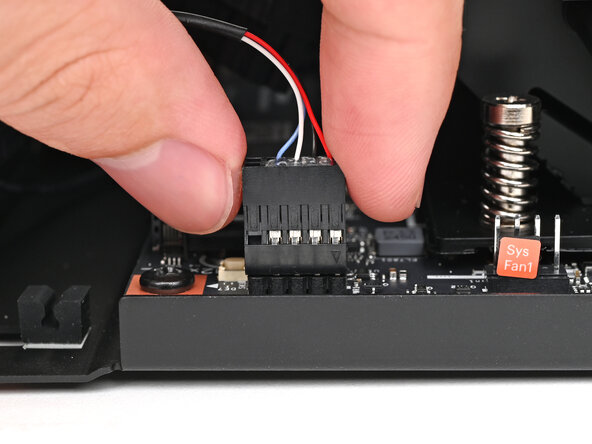
- Use your fingers to lift the power button cable connector off its nine‑pronged socket on the Mainboard.
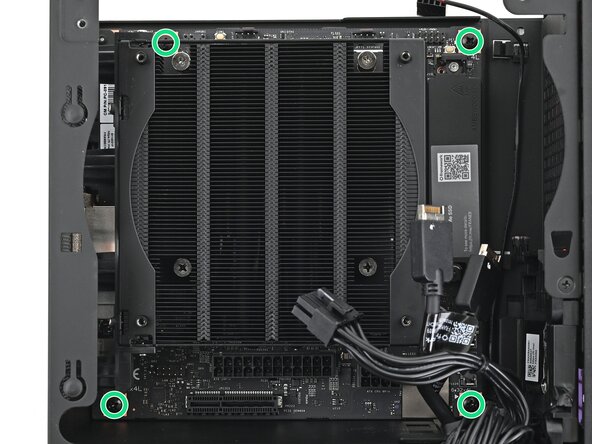
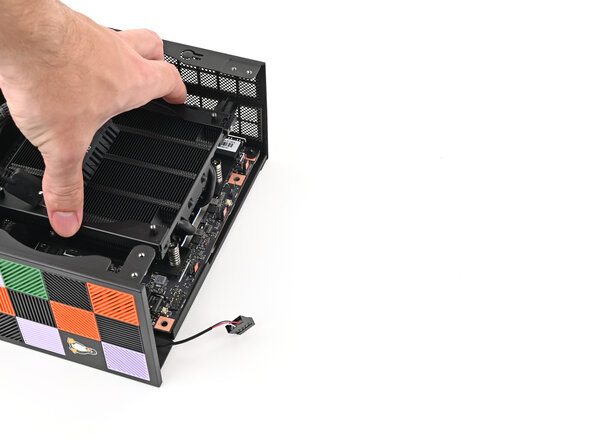
- Use your Framework Desktop Screwdriver to remove the four 8.2 mm‑long Phillips screws securing the Mainboard.
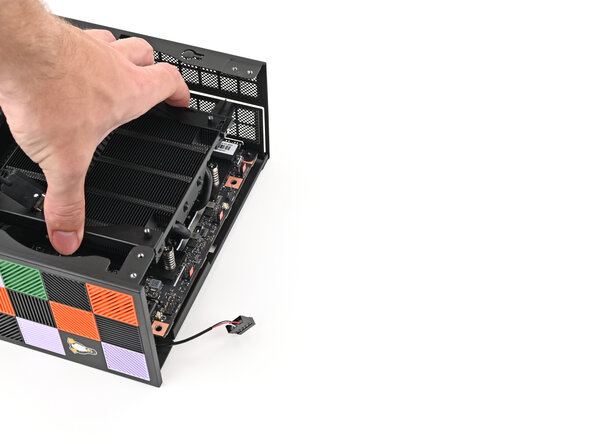
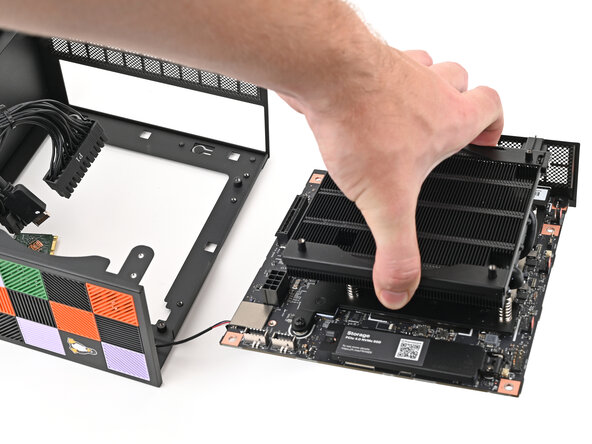
- Grab the Mainboard by its heatsink and pull it towards the front of the Desktop to slide it out of the rear port cutout.
- Slide the Mainboard towards the top of the Desktop to remove it from the chassis.