iPhone 17 Pro Battery Removal
ID: 199452
Description: This guide shows how to remove the battery from...
Steps:
- Let your iPhone's battery drain below 25% before starting this repair—a charged lithium‑ion battery may catch fire if damaged.
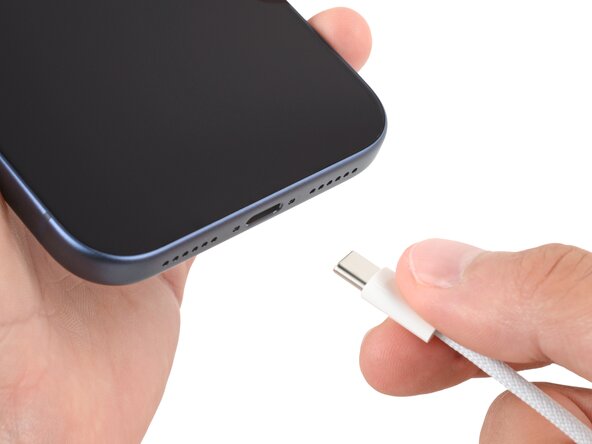
- Unplug all cables from your phone.
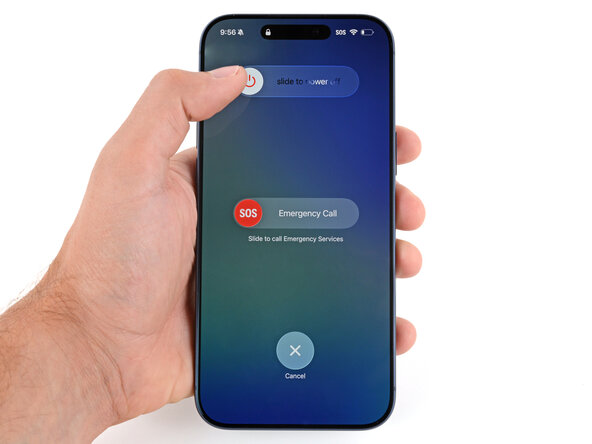
- Hold the power and either volume button and slide to power off your phone.
- Glass shards can complicate disassembly—or worse, cause injury. If your phone is cracked, follow this step.
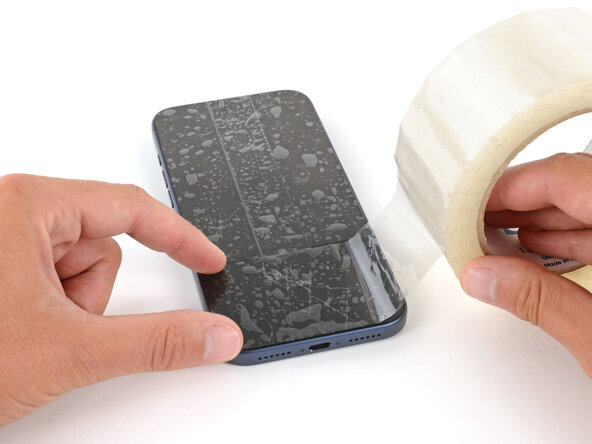
- Apply strips of packing tape to the cracked glass until it's completely covered—this will help keep the glass contained and allow the suction cup to stick.
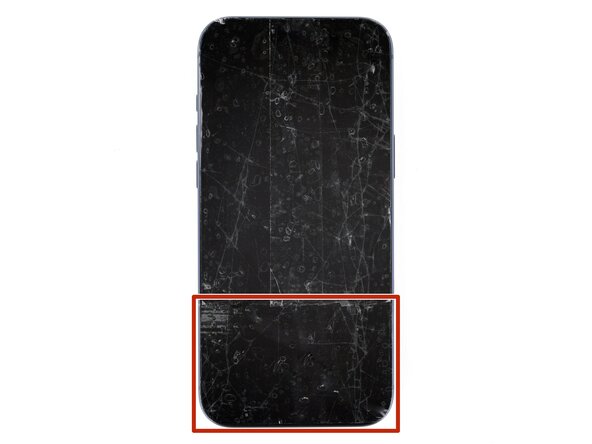
- Make sure there's a single strip of tape (not overlapping) across the bottom edge, big enough for a suction cup to fit on.
- Only cover the glass itself—don't stick any tape to the frame.
- Consider wearing safety glasses to protect your eyes from any glass shaken free during the repair.
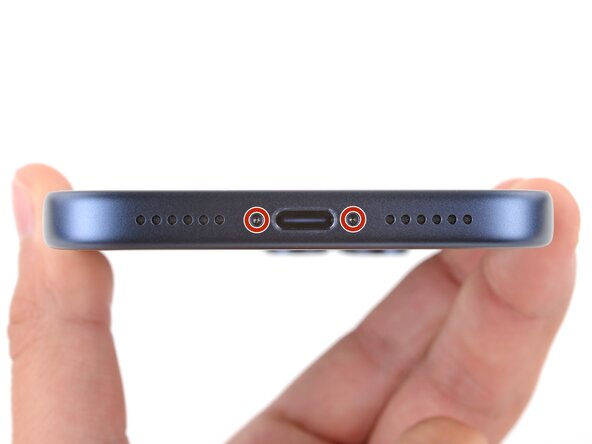
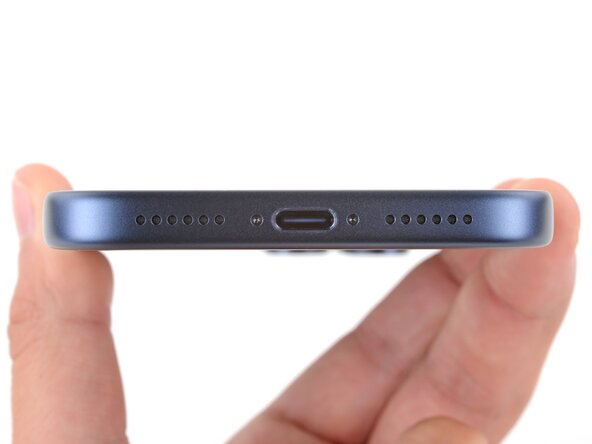
- Use a P2 pentalobe screwdriver to remove the two 7.5 mm‑long screws on either side of the charging port.
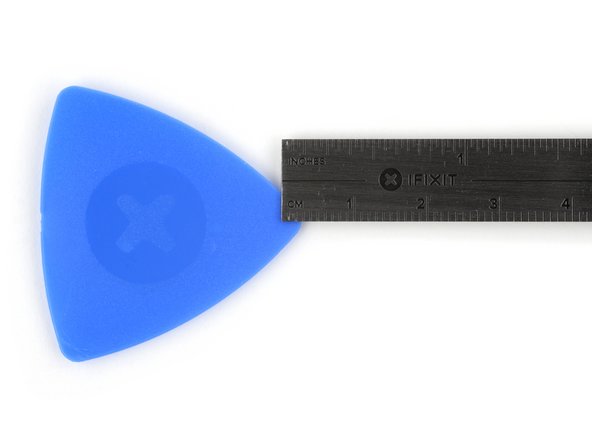
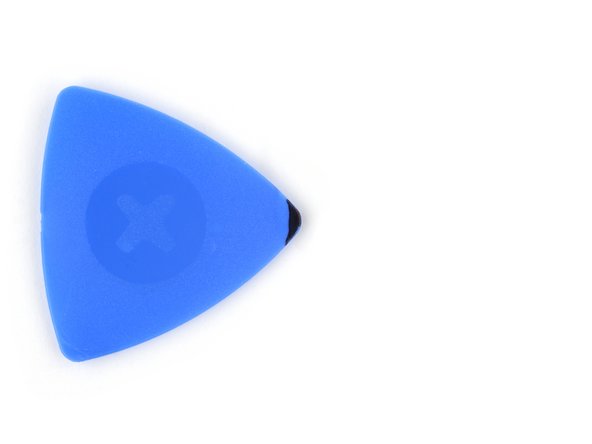
- If inserted too far, an opening pick can damage your device. Follow this step to mark your pick and prevent damage.
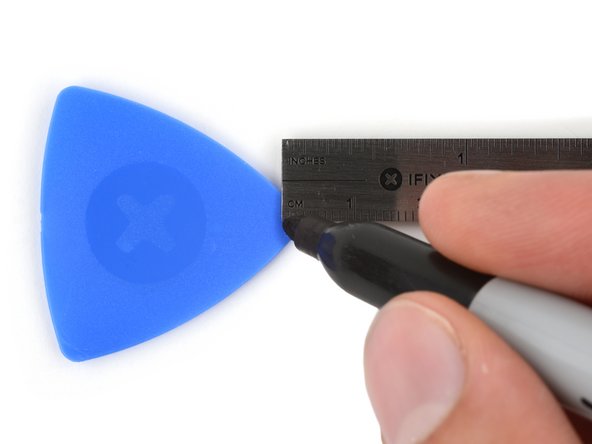
- Measure 3 mm from the tip and mark the opening pick with a permanent marker.
- Alternatively, you can tape a coin 3 mm from the tip of the pick.
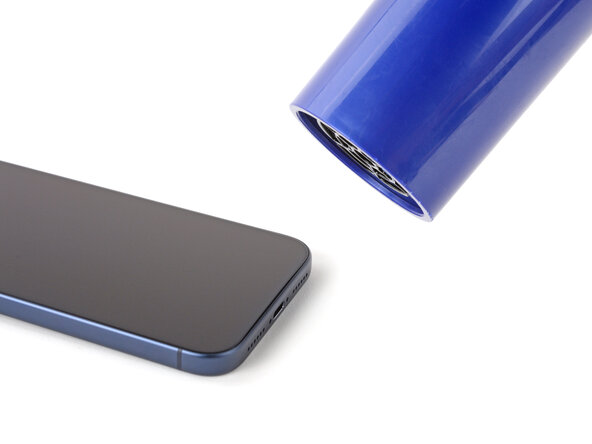
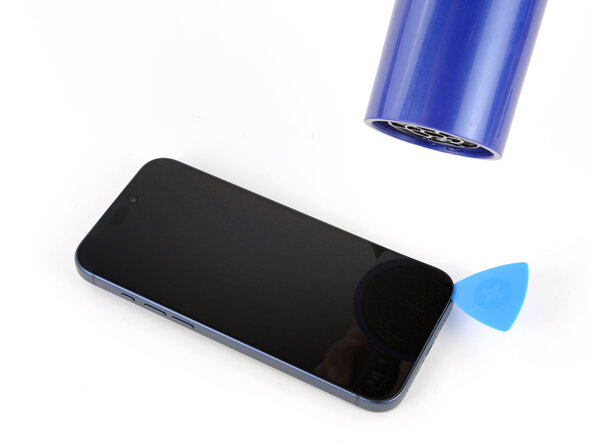
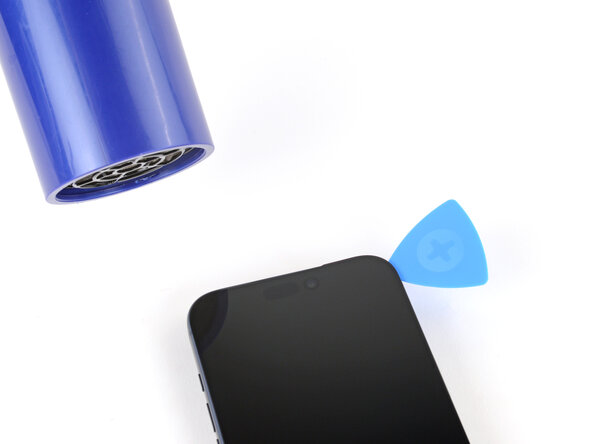
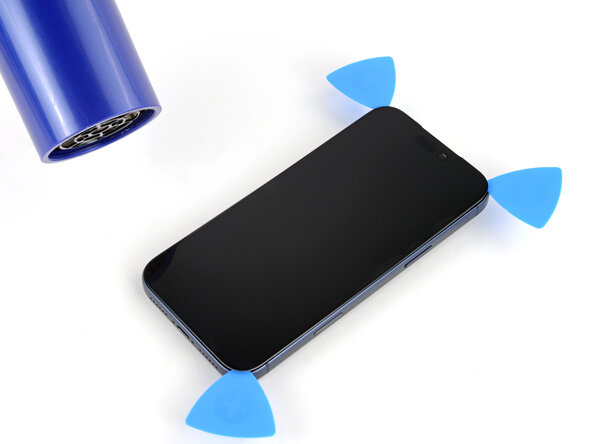
- Use a hair dryer or heat gun to heat the bottom edge of the screen until it's slightly too hot to touch.
- Improper use of a heat gun can destroy the display and/or battery—follow the linked instructions carefully.
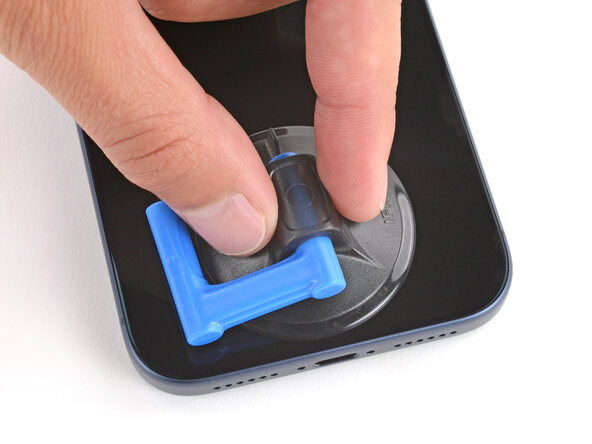
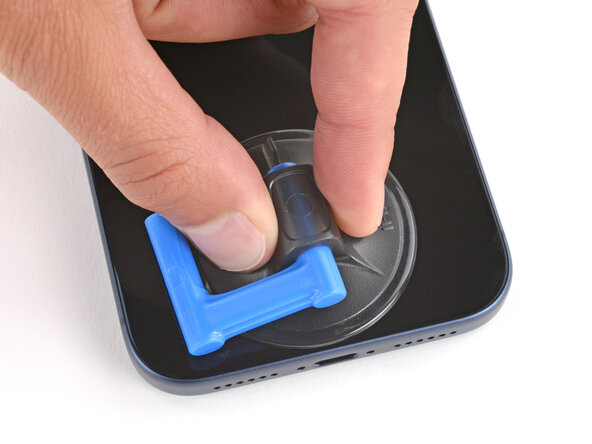
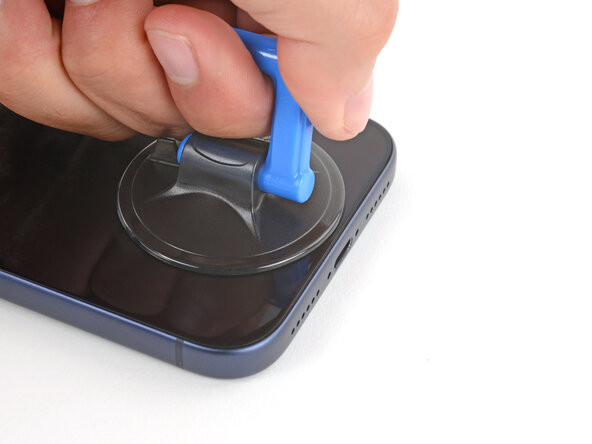
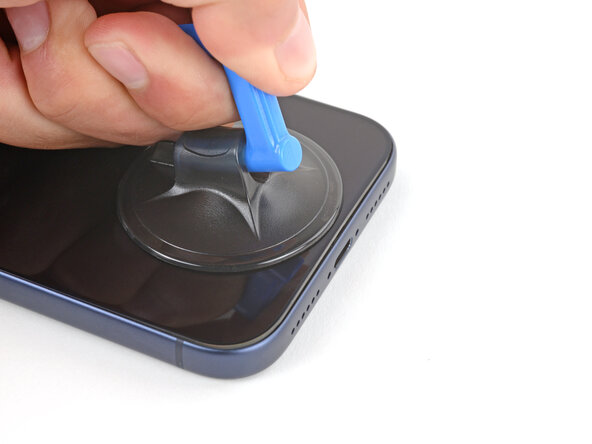
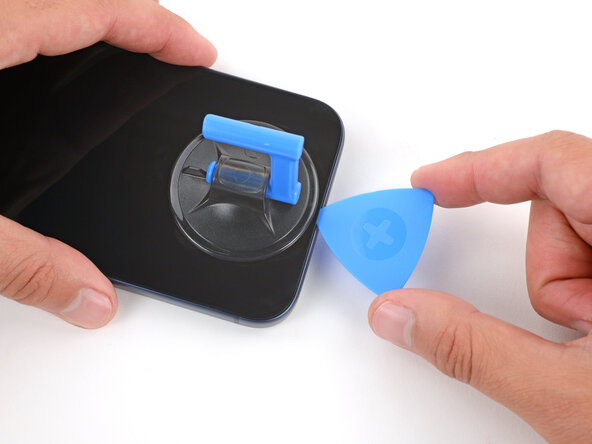
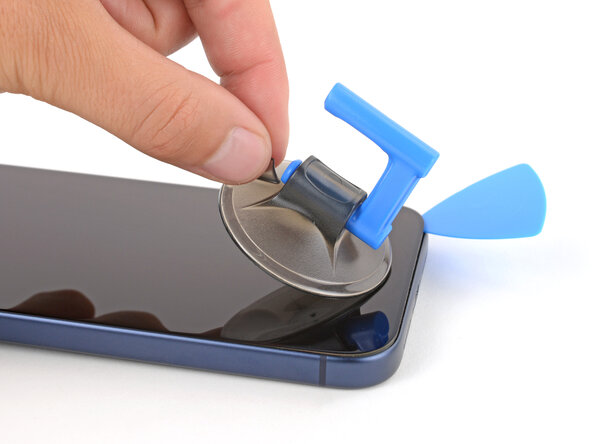
- Apply a suction handle to the bottom edge of the screen, as close to the edge as possible.
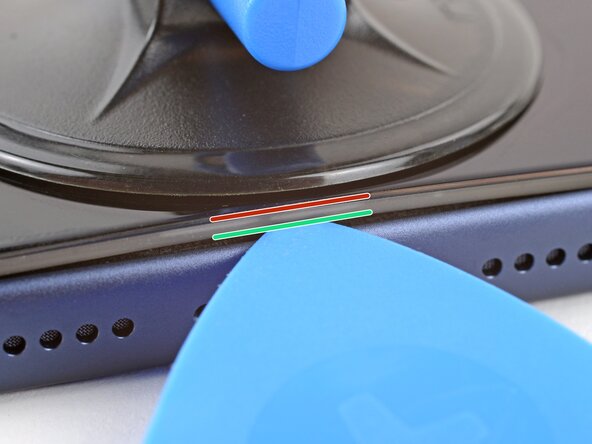
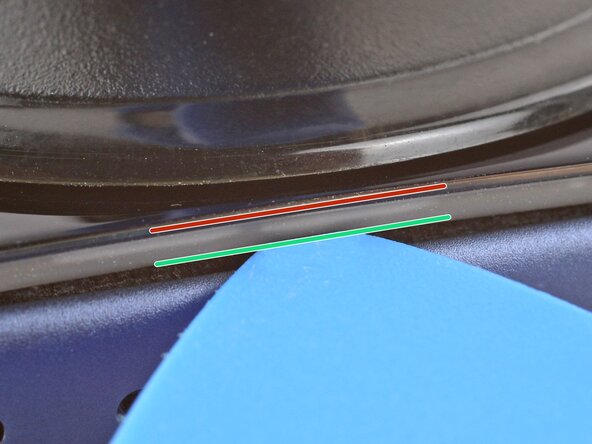
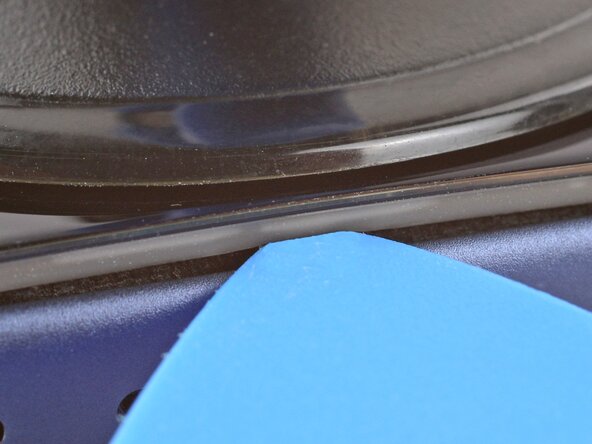
- During the next step, make sure you're inserting your pick in the correct location:
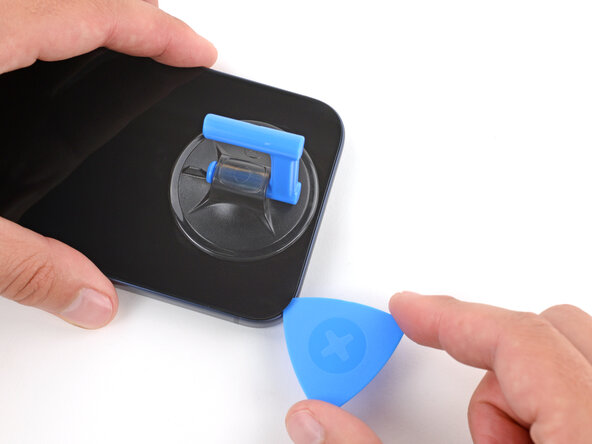
- There's a plastic bezel on the underside of the screen that sits on the frame. Insert your pick here, making sure it's completely under the bezel.
- There's a seam between the plastic bezel and the display panel. Don't insert your pick here or you'll separate the two, complicating the repair.
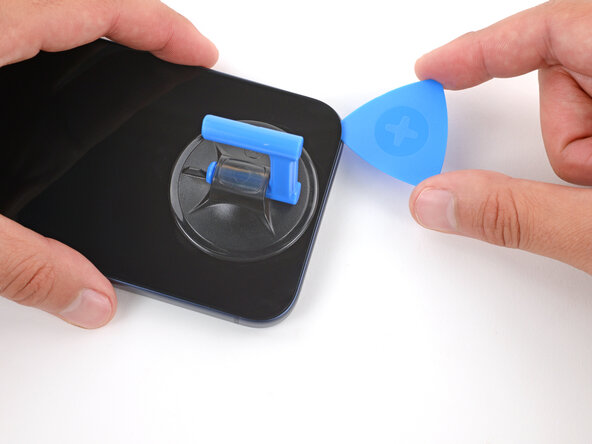
- Pull up on the suction handle with strong, steady force until a gap forms between the screen and frame.
- This may take significant force. If you're having trouble, reheat the screen and try again.
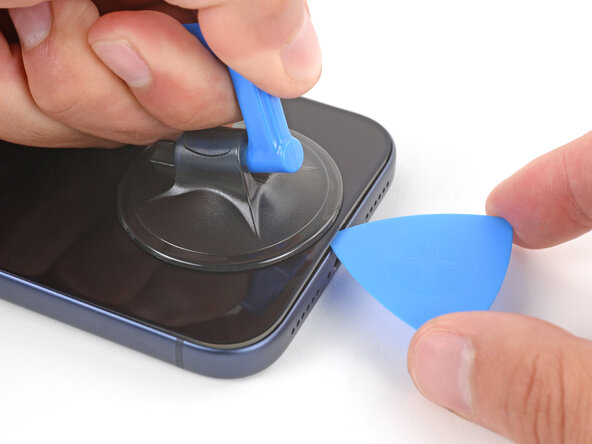
- Insert the tip of an opening pick in the gap you just created.
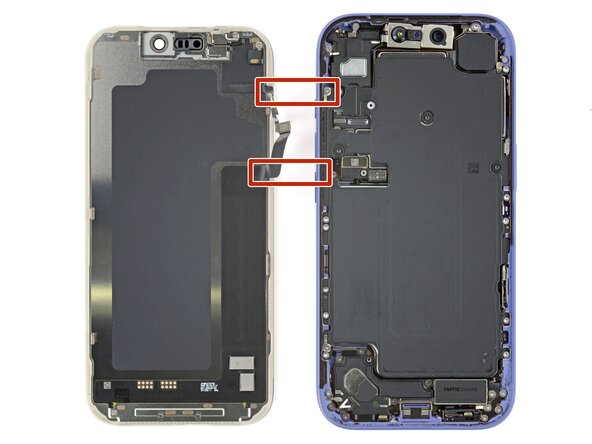
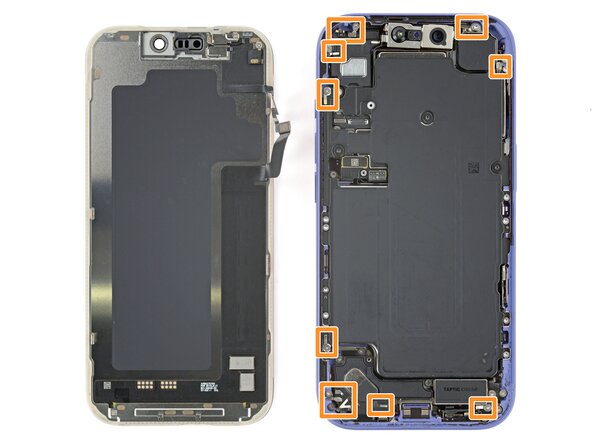
- Don't insert your pick more than 3 mm under the screen to avoid damaging the following components:
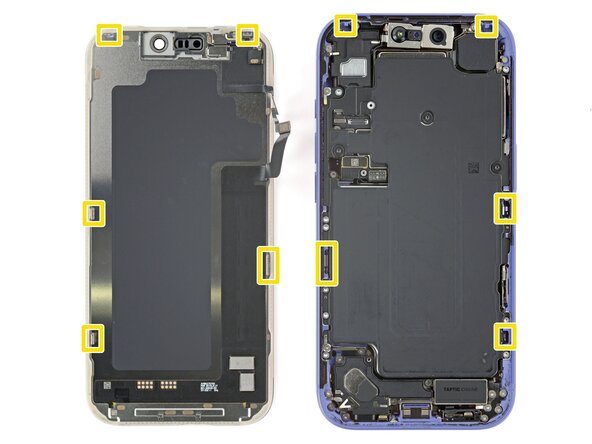
- The screen and ambient light sensor cables are located near the volume and Action buttons.
- There are delicate spring contacts around the perimeter of the phone.
- The underside of the screen has thin, metal clips that go into corresponding slots on the frame.
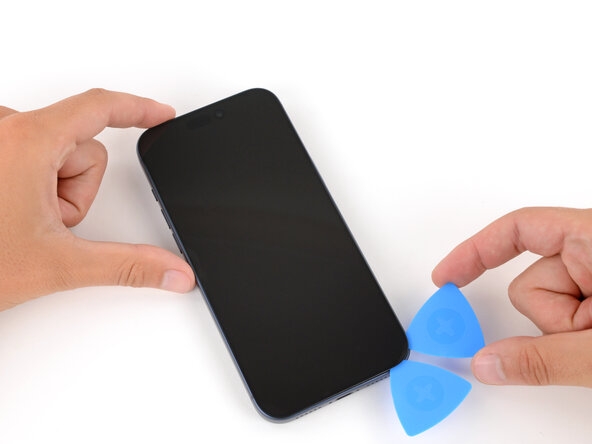
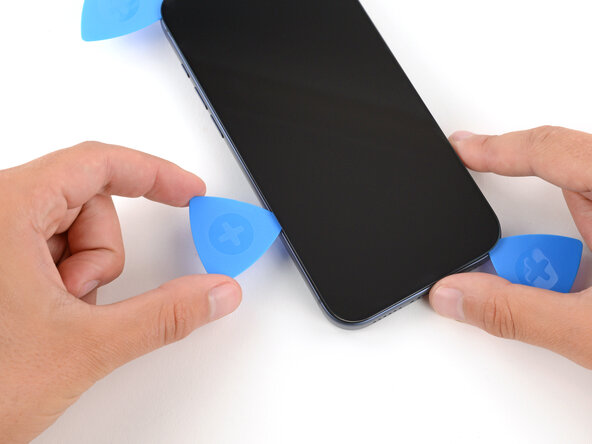
- Slide the opening pick along the bottom edge to separate the adhesive.
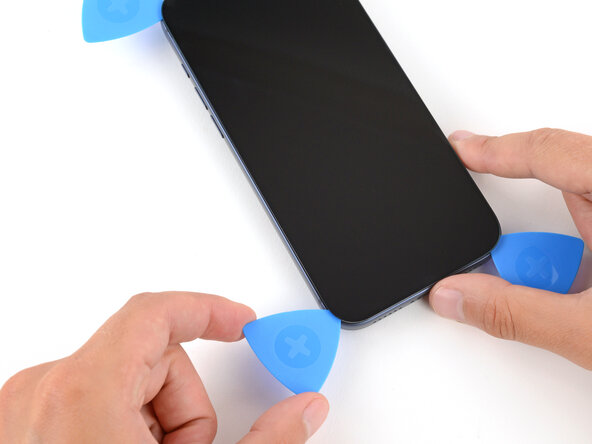
- Leave the pick inserted under the bottom right corner to prevent the adhesive from re‑sealing.
- Pull the small nub on the suction cup to remove it from the screen.
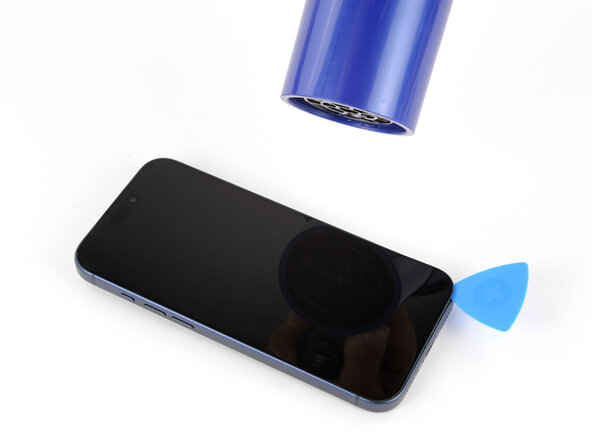
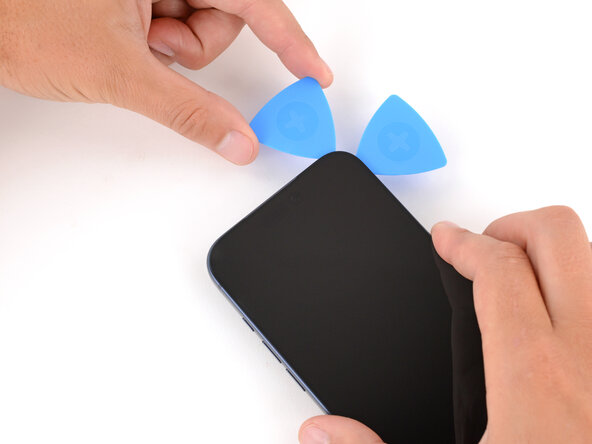
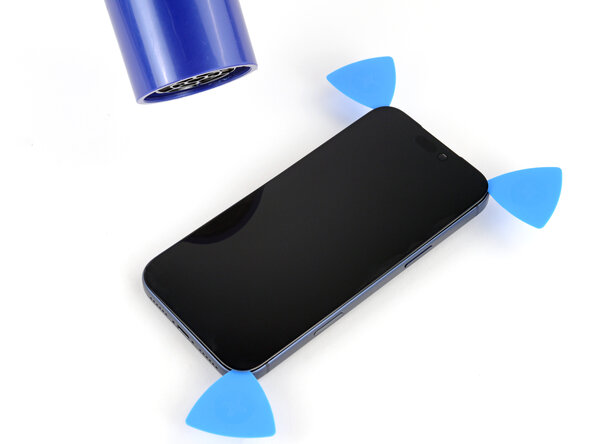
- Use a hair dryer or heat gun to heat the right edge of the screen until it's slightly too hot to touch.
- Insert a second opening pick under the bottom right corner of the screen.
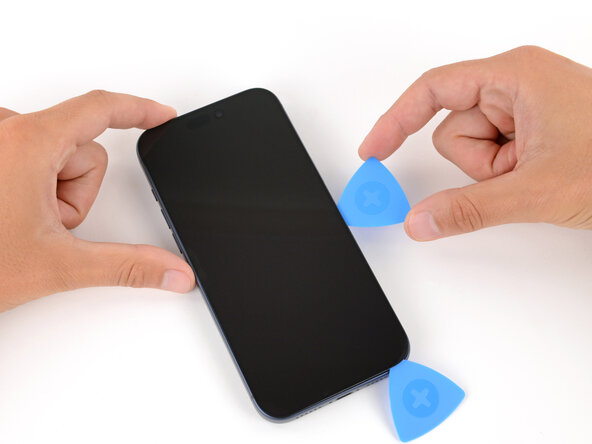
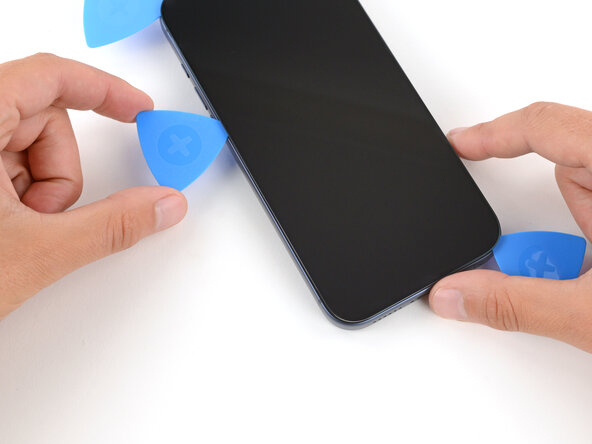
- Slide the pick up the right edge to separate the adhesive and release the two clips.
- You may need to pry the screen up slightly to release the clips
- Leave the pick inserted under the top right corner to prevent the adhesive from re‑sealing.
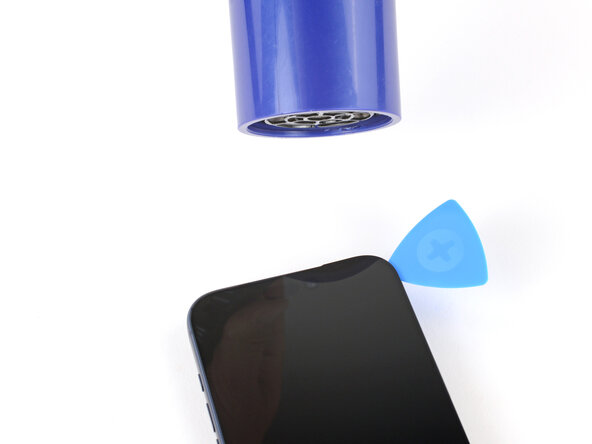
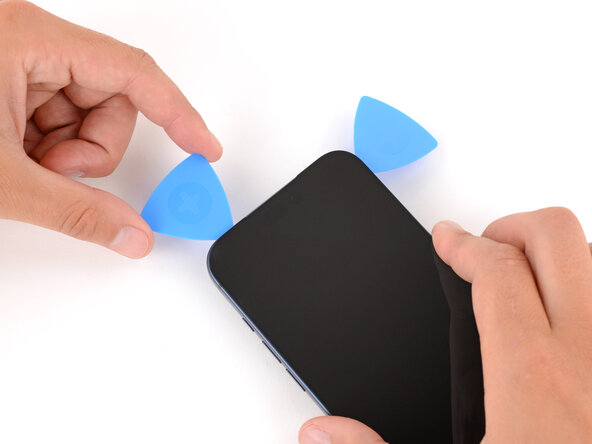
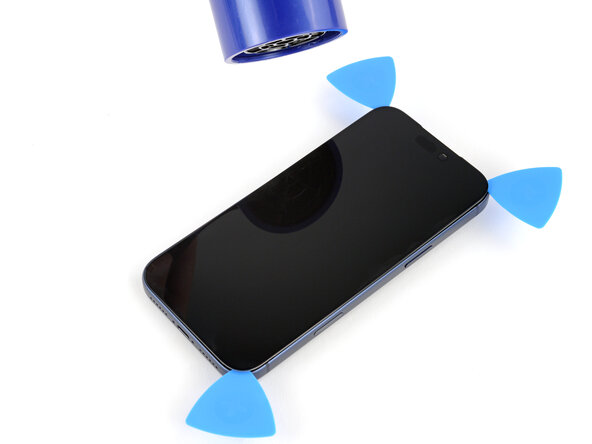
- Use a hair dryer or heat gun to heat the top edge of the screen until it's slightly too hot to touch.
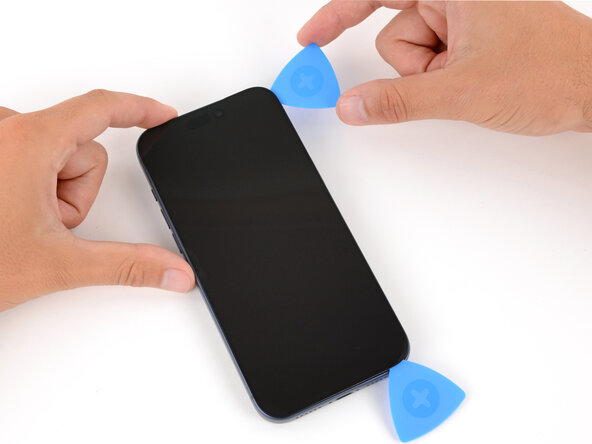
- Insert a third opening pick under the top right corner of the screen.
- Slide the pick along the top edge and just barely around the top left corner to separate the adhesive and release the two clips.
- Don't slide the pick farther, or you may damage the ambient light sensor cable.
- Leave the pick inserted under the top left corner to prevent the adhesive from re‑sealing.
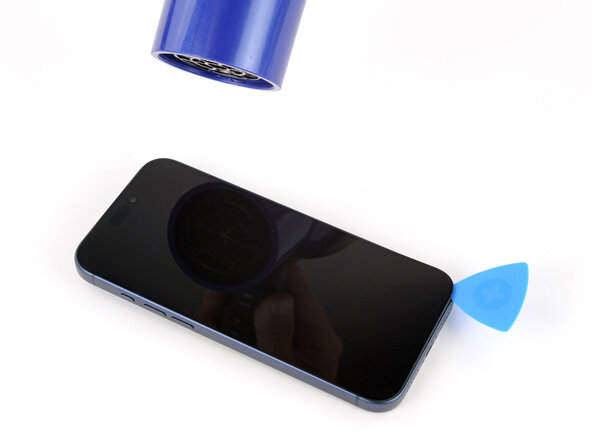
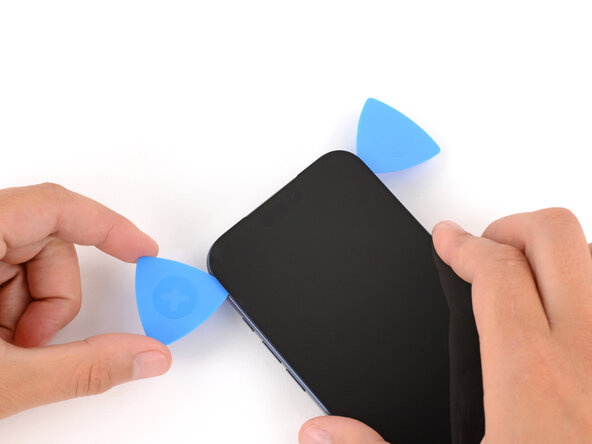
- Use a hair dryer or heat gun to heat the left edge of the screen until it's slightly too hot to touch.
- Insert a fourth opening pick under the bottom left corner of the screen.
- Slide the pick up the right edge to separate the adhesive and release the clip, stopping just before the volume up button.
- You may need to pry up the screen slightly to release the clip.
- Don't slide the pick farther, or you may damage the screen cable.
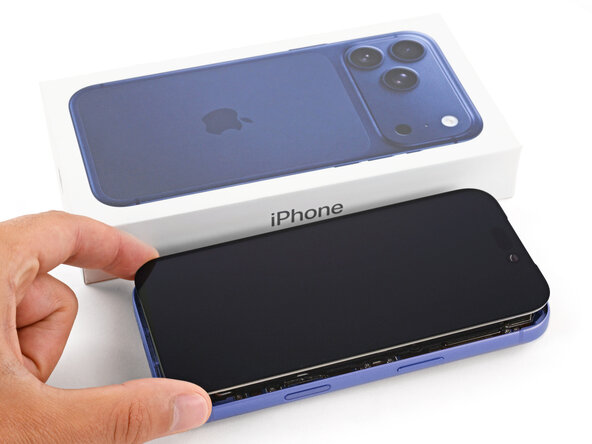
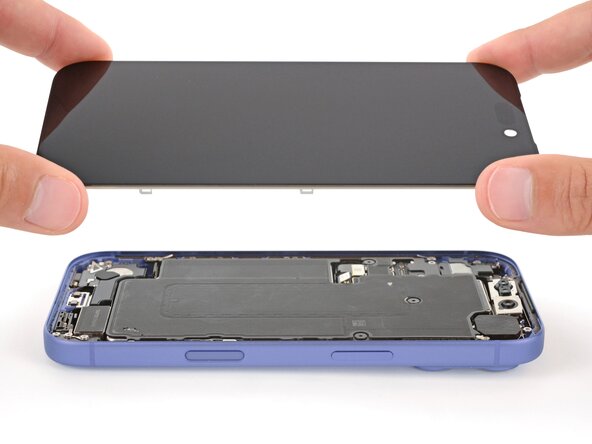
- At this point, the screen should be completely detached from the frame. If it feels stuck, go back around the perimeter and separate any remaining adhesive or clips.
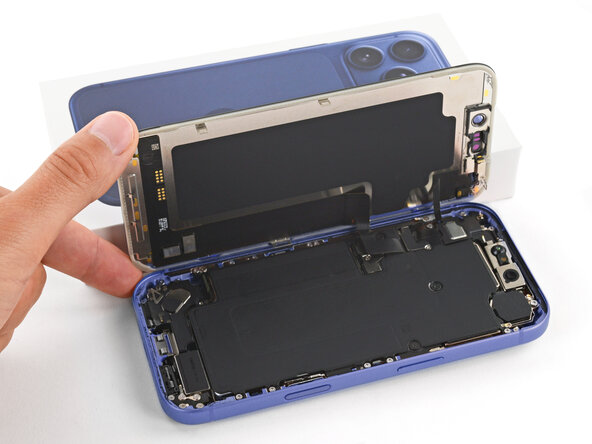
- Lift the screen straight up and swing it over the left edge, propping it up against a sturdy box or stack of books so the cables aren't strained.
- Alternatively, you can lay the screen down flat over the left side.
- Throughout this repair, keep track of each screw and make sure it goes back exactly where it came from.
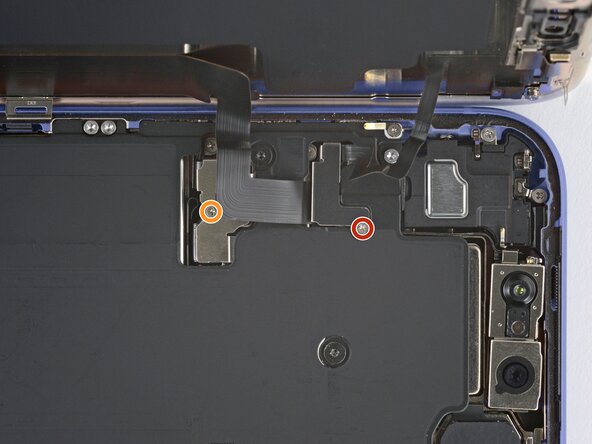
- Use a JIS 00 screwdriver to remove the two screws securing the cable covers:
- One 1.4 mm‑long screw for the screen and front sensor cable cover
- One 1.3 mm‑long screw for the battery cover
- Small iFixit Phillips bits are designed to work with JIS screws. You can try Phillips drivers from other manufacturers, but you risk stripping the screw.
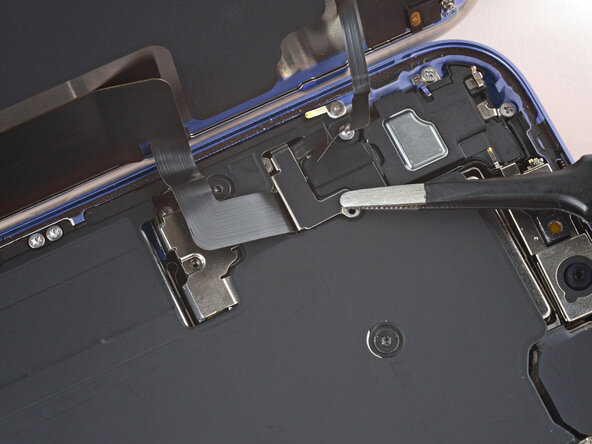
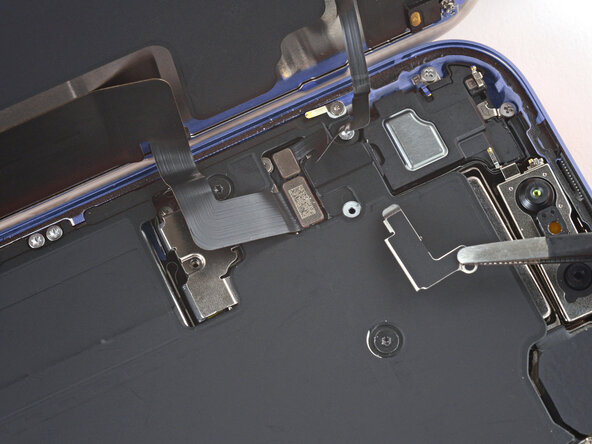
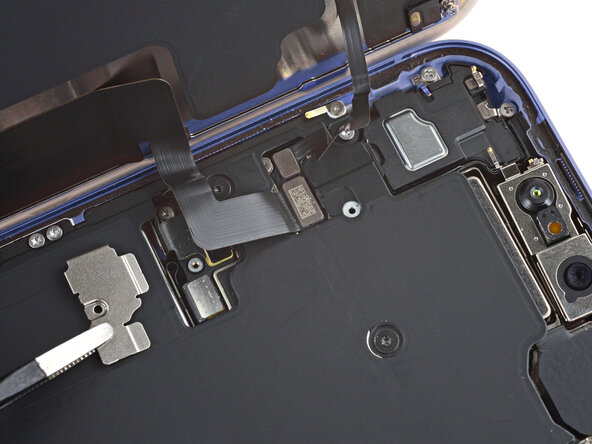
- Remove the two covers.
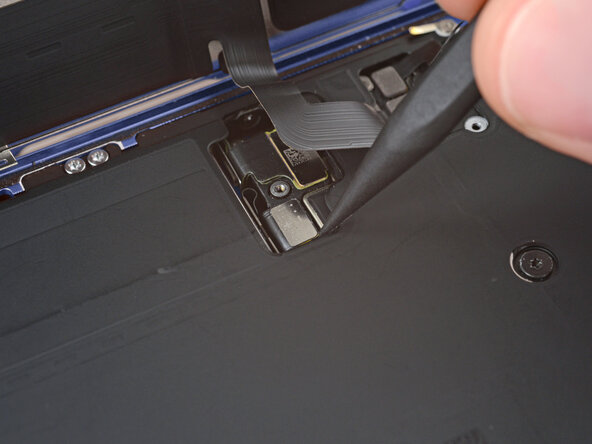
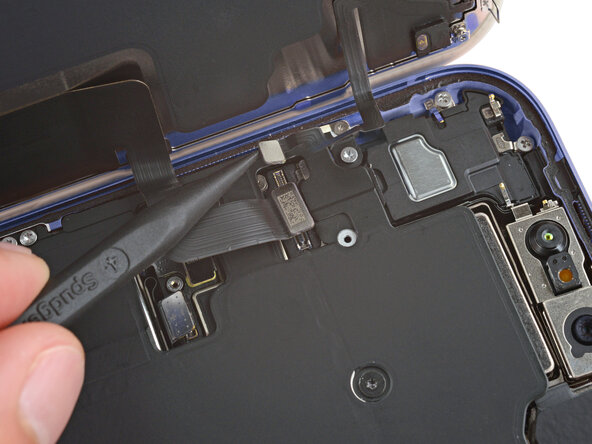
- Use the point of a spudger to pry up and disconnect the battery press connector.
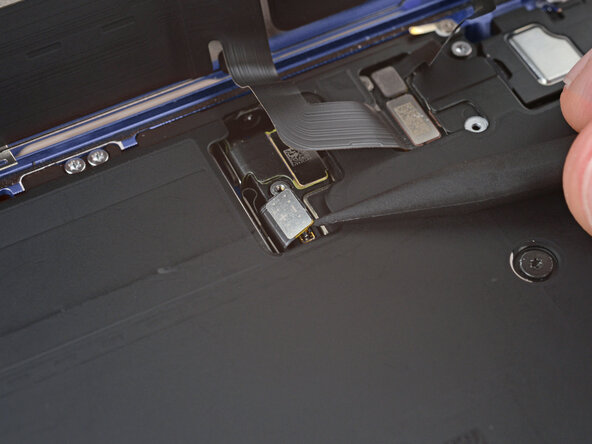
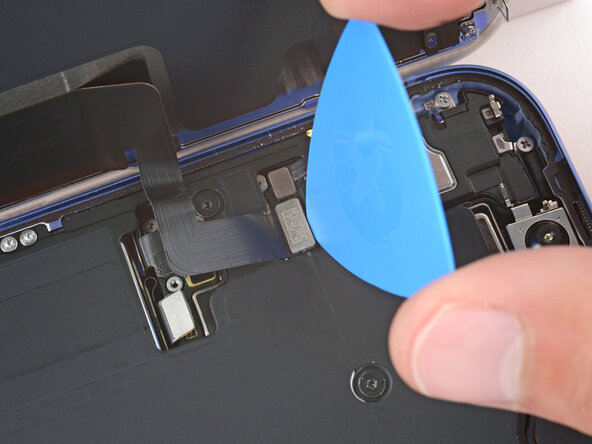
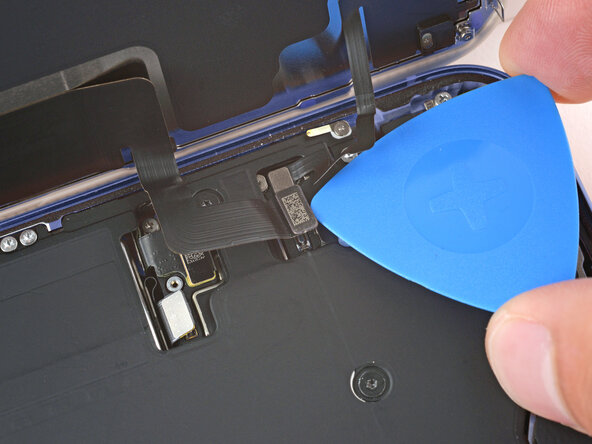
- Use the tip of an opening pick or the point of a spudger to pry up and disconnect the screen and ambient light sensor press connectors.
- Remove the screen.
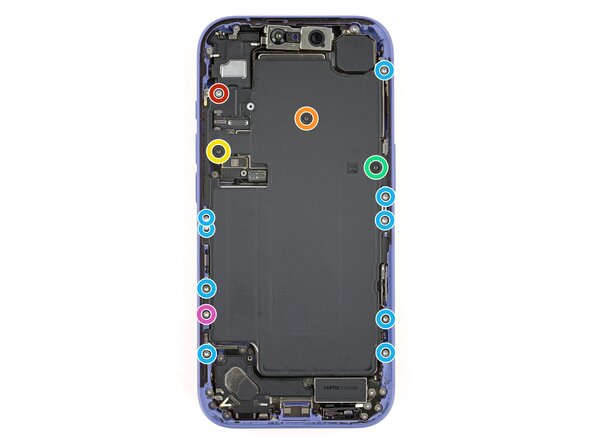
- Use a Torx Plus 4IP screwdriver to remove the screws securing the battery tray:
- One 7.5 mm‑long screw
- One 5.9 mm‑long screw
- One 3.4 mm‑long screw
- One 2.3 mm‑long screw
- Nine 3.7 mm‑long screws
- One 3.7 mm‑long screw
- iPhone models with a physical SIM card won't have this screw.
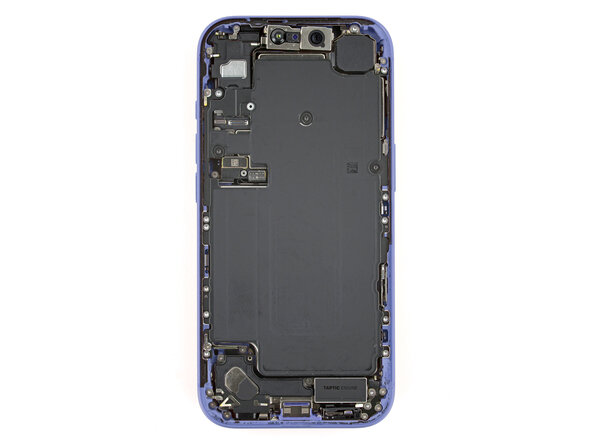
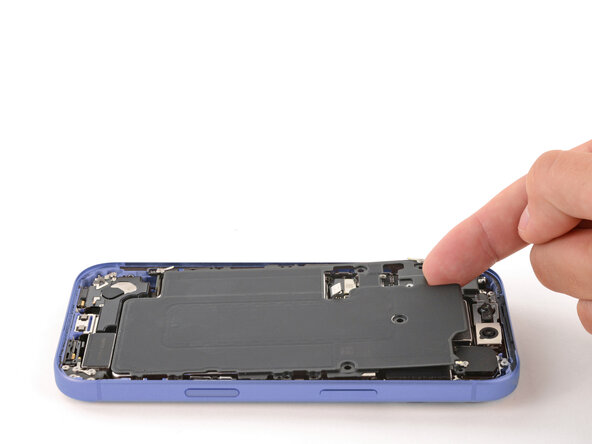
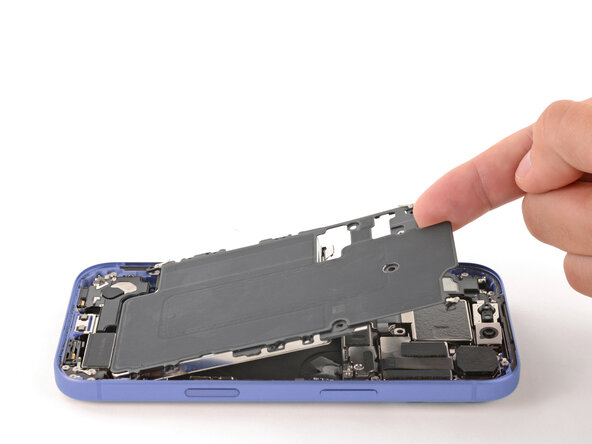
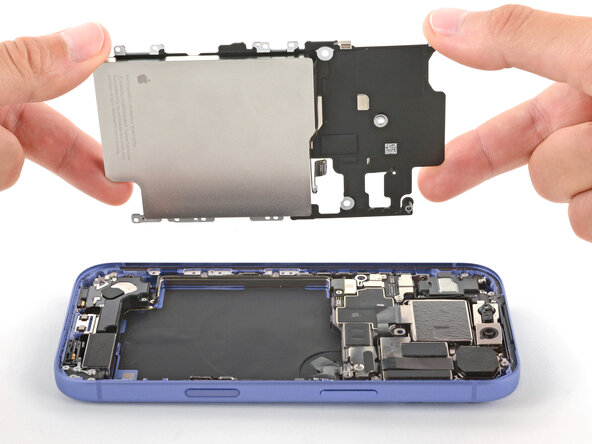
- Use your finger to lift the top left corner of the battery tray and remove it.
- Be careful not to smudge the front camera.