Framework Laptop 16 Display Replacement
ID: 205681
Description: Use this guide to remove and replace the...
Steps:
- Unplug all cables and fully shut down your laptop.
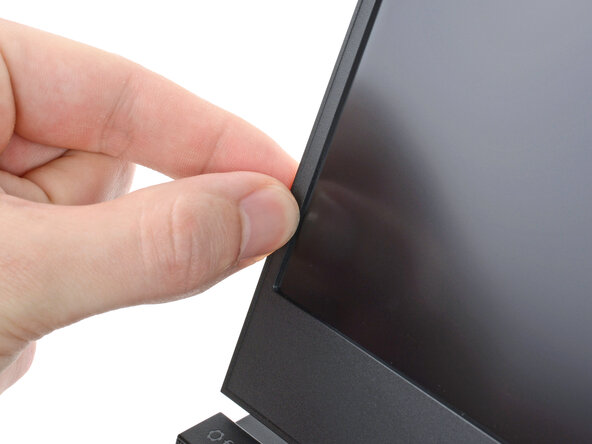
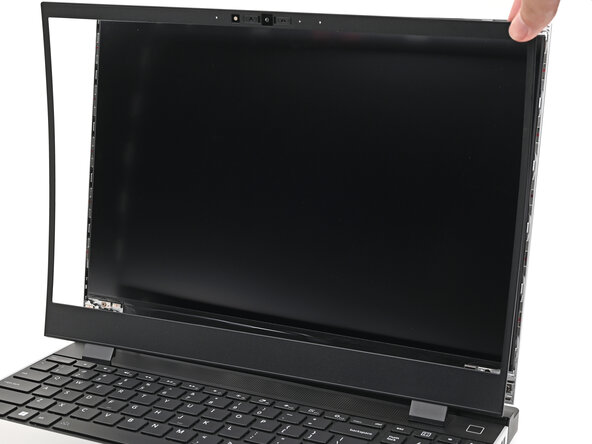
- The bezel is secured with magnets.
- Slide your fingernail under the inside edge of either bottom corner of the bezel.
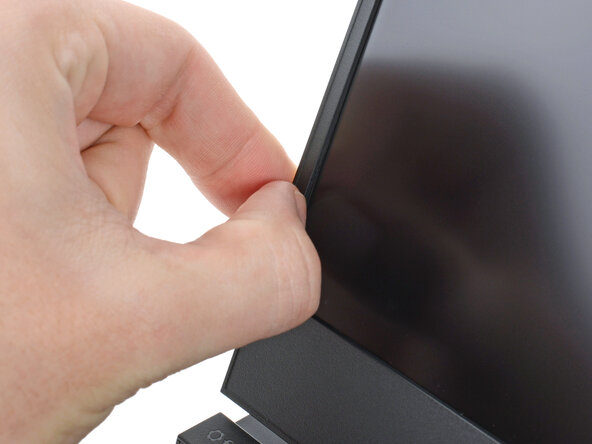
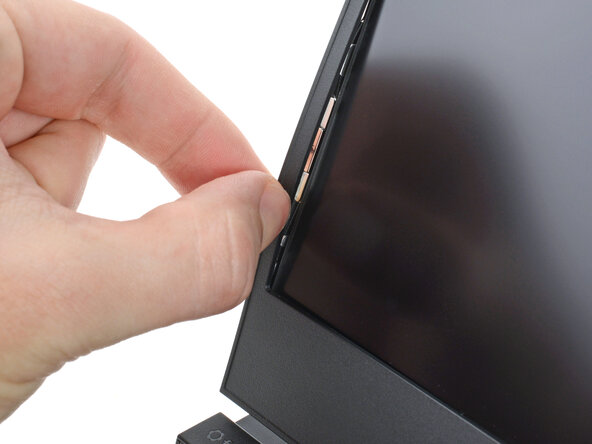
- Pull the bezel away from the screen to release the first few magnets.
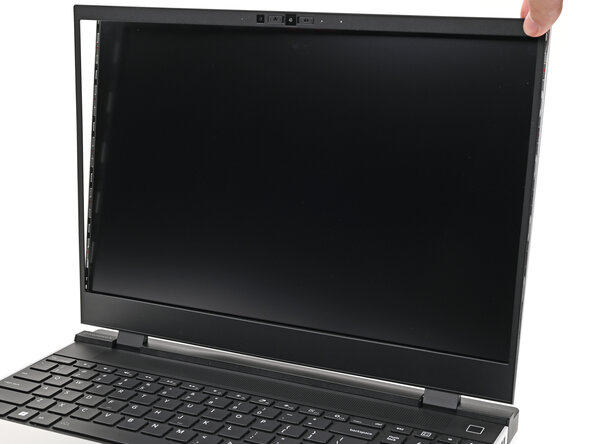
- Lift the bezel around the perimeter of the screen until all of its magnets are released.
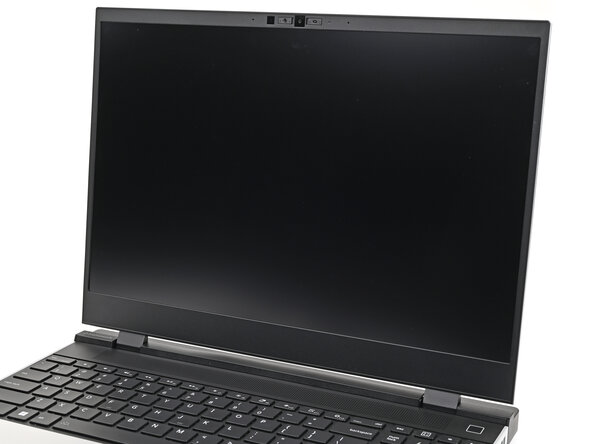
- Remove the bezel.
- While supporting the display with one hand, use your Framework Screwdriver to remove the four 2.4 mm‑long T5 Torx screws securing the display.
- Grab the display and pull it straight off the Top Cover to free it from its alignment pegs.
- Don't pull the display too far from the Top Cover, as it's still attached by a cable.
- Flip the front of the display down and rest it on the keyboard.
- Use your fingers to flip up the plastic tab and access the connector underneath.
- Use the flat end of your Framework Screwdriver to lift up the metal locking tab over the eDP cable connector.
- Grip the eDP cable where it meets the connector head.
- Slide the connector straight out of its socket to disconnect it.
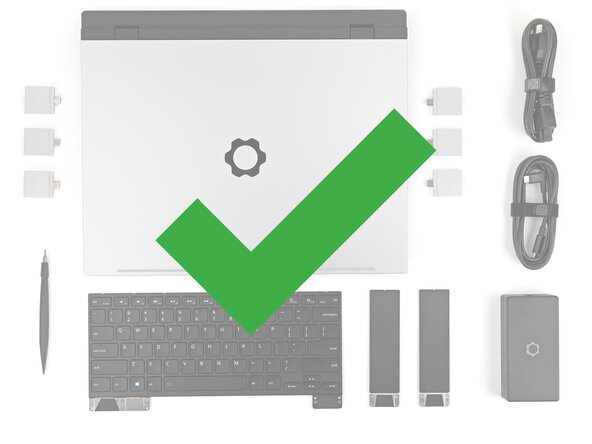
- Congratulations on completing disassembly! The remaining steps will show how to reassemble your Framework Laptop.
- Grip the eDP cable where it meets the connector head.
- Slide the eDP cable connector straight into its socket.
- Push the metal locking tab down over the eDP cable connector until it snaps into place.
- While supporting the display with one hand, use your Framework Screwdriver to install the four 2.4 mm‑long T5 Torx screws securing the display.
- Align the display with its alignment pegs and place it on the Top Cover.
- Align the bezel over the perimeter of the display and let the magnets pull the bezel into place.
- The bezel should "snap" into place. If it doesn't, realign it and make sure it sits flush with the display.