Framework Laptop 16 Webcam Replacement
ID: 205699
Description: Use this guide to remove and replace the webcam...
Steps:
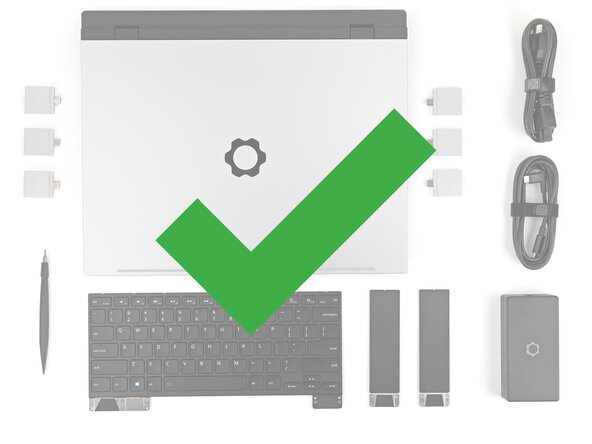
- Unplug all cables and fully shut down your laptop.
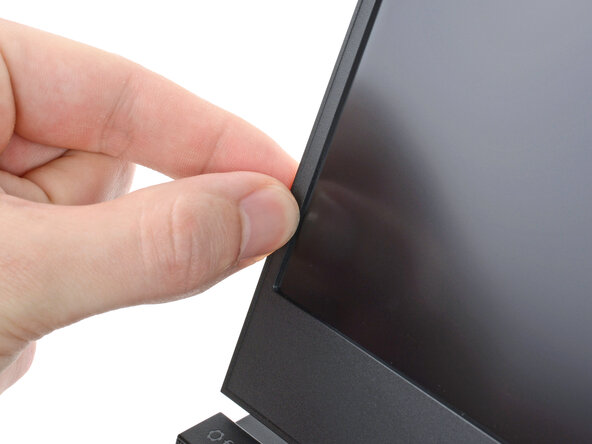
- The bezel is secured with magnets.
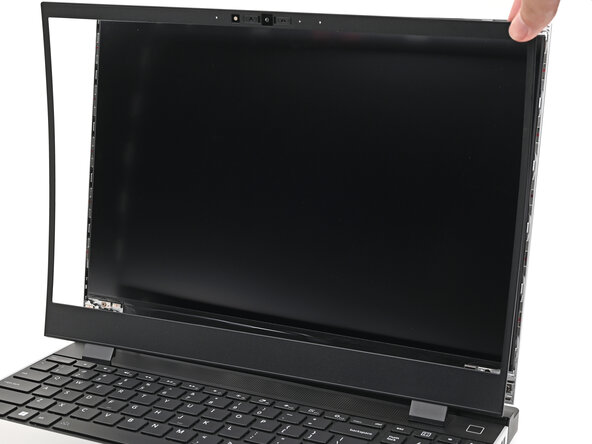
- Slide your fingernail under the inside edge of either bottom corner of the bezel.
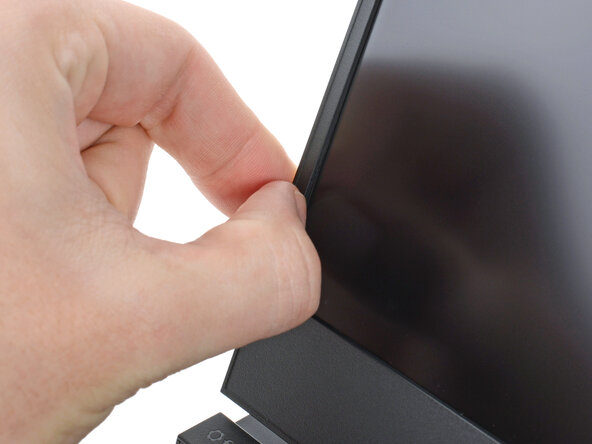
- Pull the bezel away from the screen to release the first few magnets.
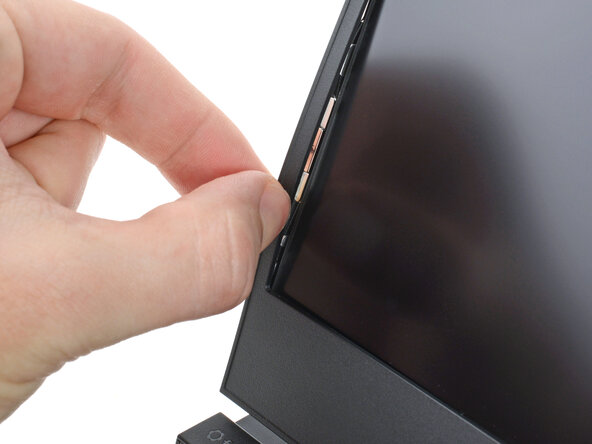
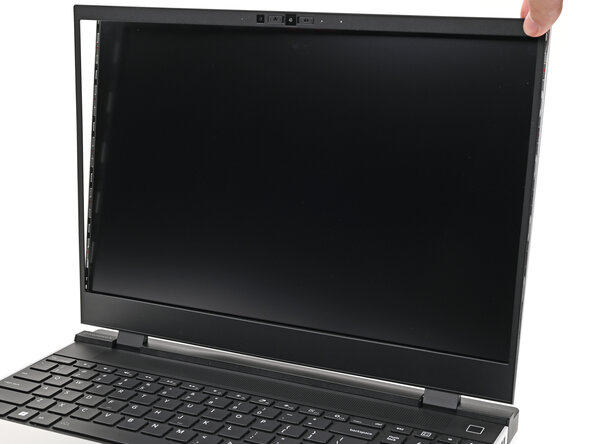
- Lift the bezel around the perimeter of the screen until all of its magnets are released.
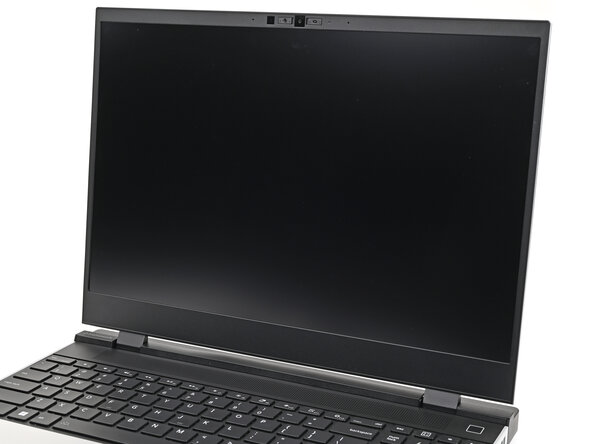
- Remove the bezel.
- Use the flat end of a spudger, or a clean fingernail, to lift up the locking tab on the webcam ZIF connector.
- While supporting the screen with one hand, use your Framework Screwdriver to remove the two 2.0 mm‑long T5 Torx screws securing the webcam.
- The washers underneath the screws are magnetic. If they come off with the screws, you can skip the next step.
- Use the magnetic tip of your Framework Screwdriver to pull the two washers off the Top Cover.
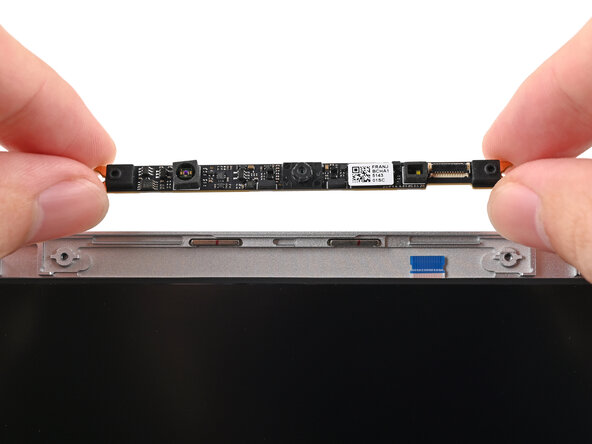
- Grip the edges of the webcam and lift it straight up so its cable slides out of the ZIF connector.
- Remove the webcam.
- Reconnecting the webcam module is a little tricky. If you're having difficulty, you can reposition the display to give the webcam cable more slack.
- During reassembly, follow these instructions to reinstall a new webcam module:
- Use tweezers to gently bend the webcam cable away from the screen frame.
- Use your other hand to align the webcam module over the cable and lower it into place.
- Make sure the webcam module sits level with the display before flipping down the cable locking tab and continuing reassembly.
- Congratulations on completing disassembly! The remaining steps will show how to reassemble your Framework Laptop.
- If your replacement webcam comes with liners covering the lenses, remove them now.
- Place the webcam into its spot above the display, making sure the cable slides into its socket.
- Use the flat end of your Framework Screwdriver, or a clean fingernail, to press down the locking tab on the webcam ZIF connector.
- Use your fingers to place the washers into their spots on the Top Cover.
- The washers only fit one way. If they're aren't fitting properly, flip them over.
- While supporting the screen with one hand, use your Framework Screwdriver to install the two 2.0 mm‑long T5 Torx screws securing the webcam.
- Align the bezel over the perimeter of the display and let the magnets pull the bezel into place.
- The bezel should "snap" into place. If it doesn't, realign it and make sure it sits flush with the display.