How to Reset the Mainboard in your Framework Laptop 16
ID: 205713
Description: Follow this guide to reset the Mainboard in...
Steps:
- Unplug all cables and fully shut down your laptop.
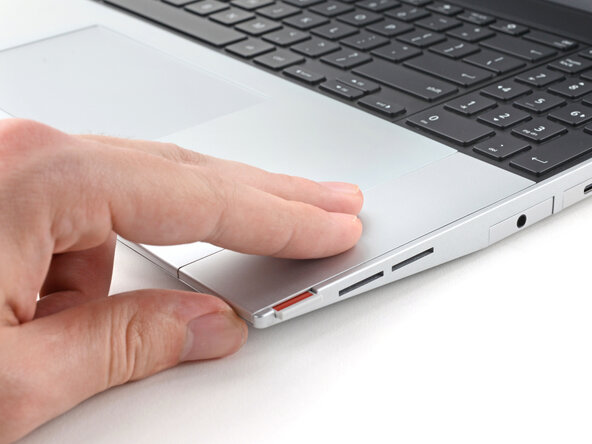
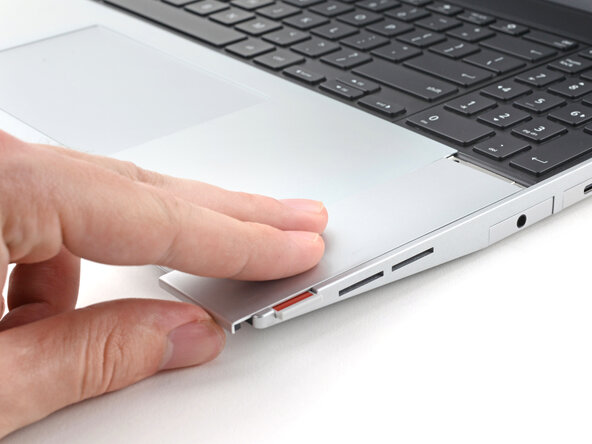
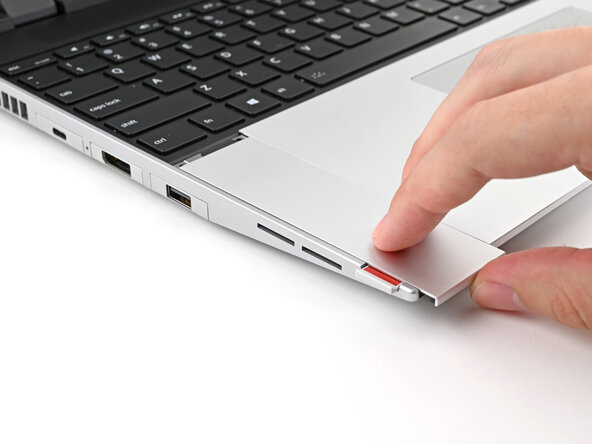
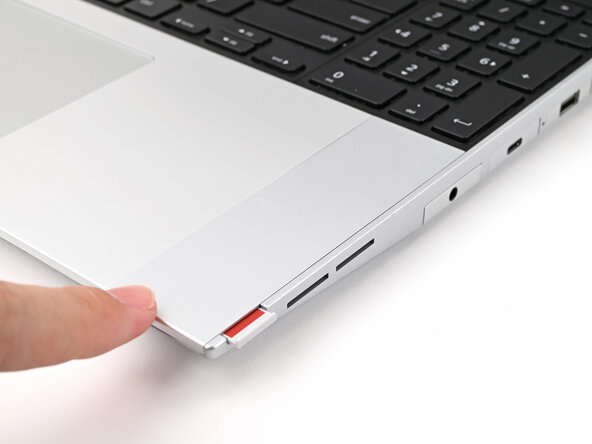
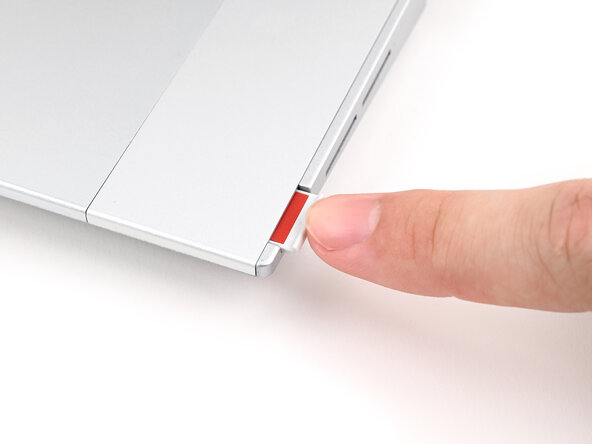
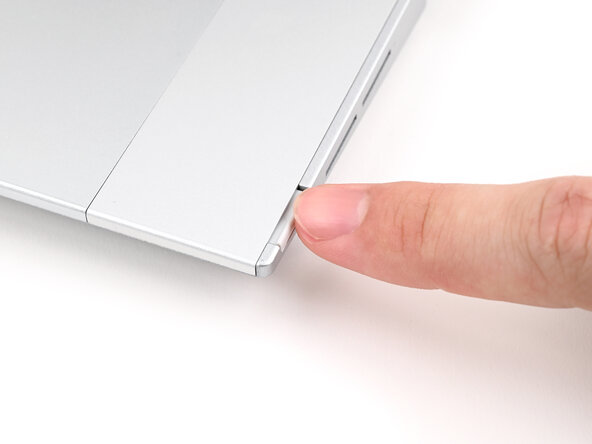
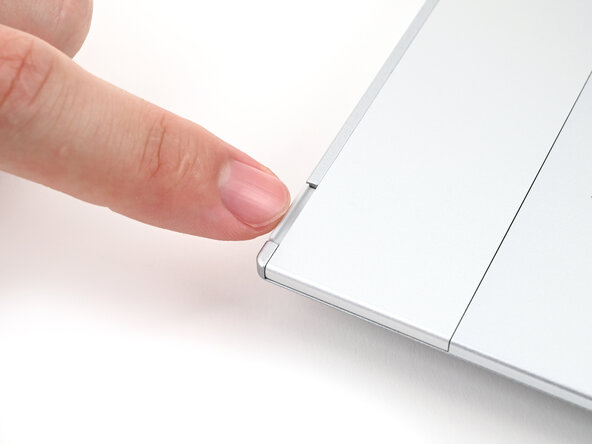
- Use your fingers to slide the Touchpad Spacer toward the bottom edge of the laptop and unclip it.
- If you're having trouble, check if the corresponding Input Module latch is properly unlocked.
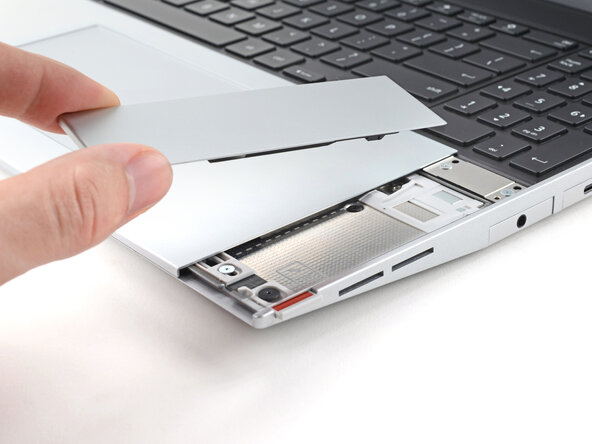
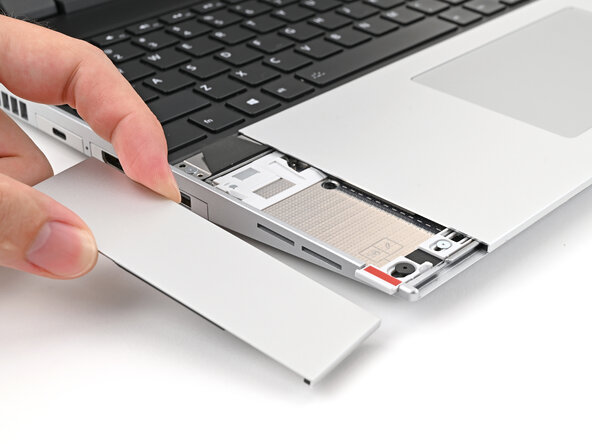
- Lift the Touchpad Spacer off the laptop and remove it.
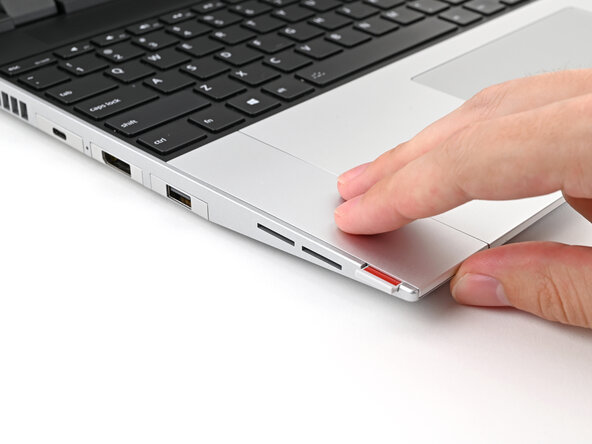
- Repeat the same procedure for the other touchpad spacer.
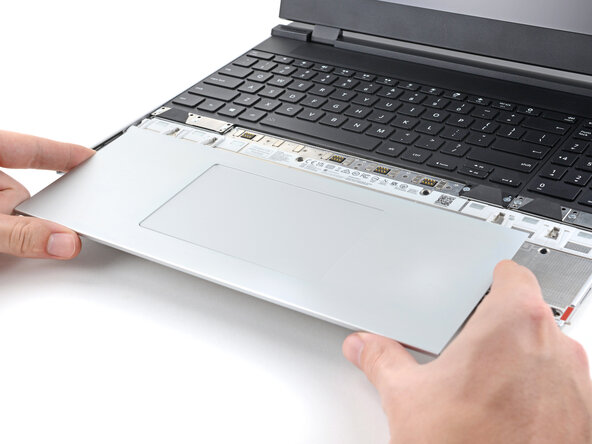
- Use your fingers to slide the Touchpad Module toward the bottom edge of the laptop and disconnect it.
- If you're having trouble, check if the Input Module latches are properly unlocked.
- Lift the Touchpad Module and remove it.
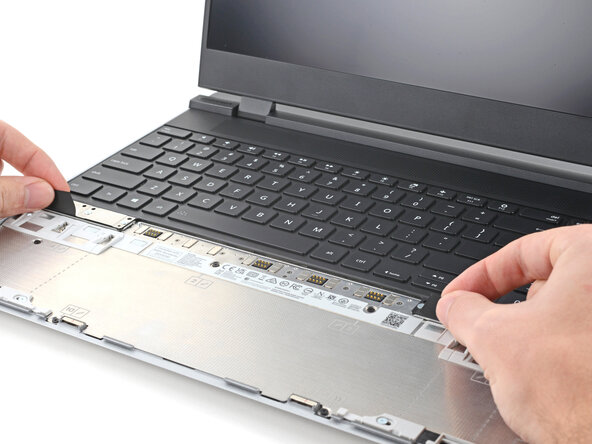
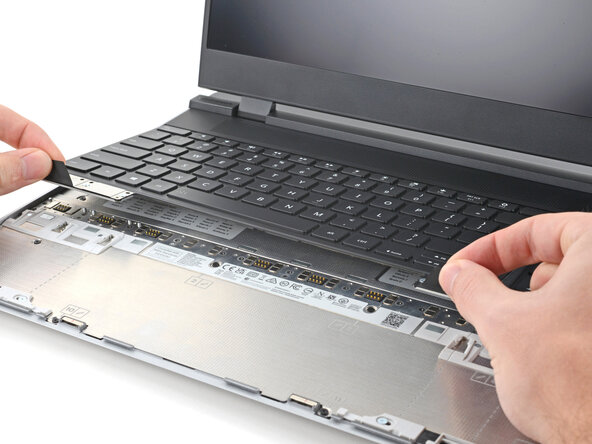
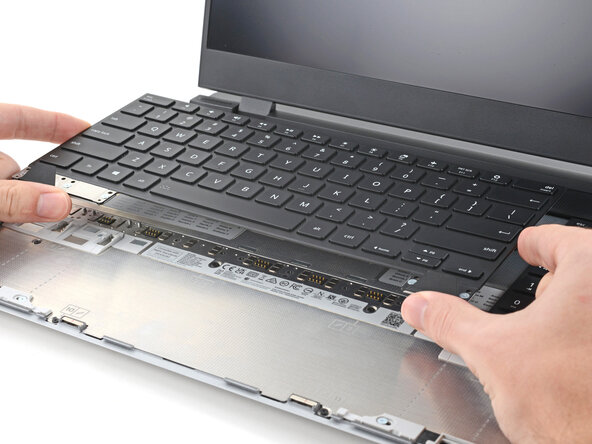
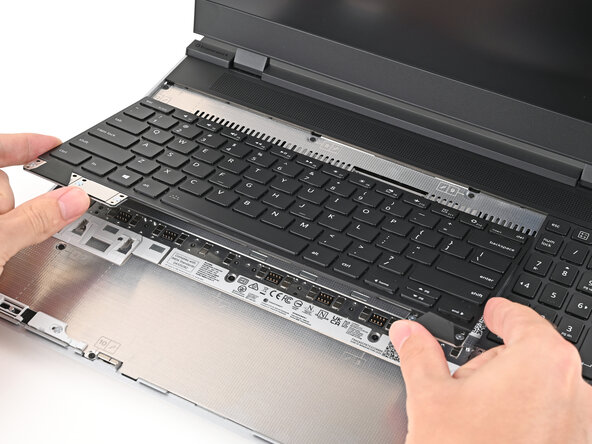
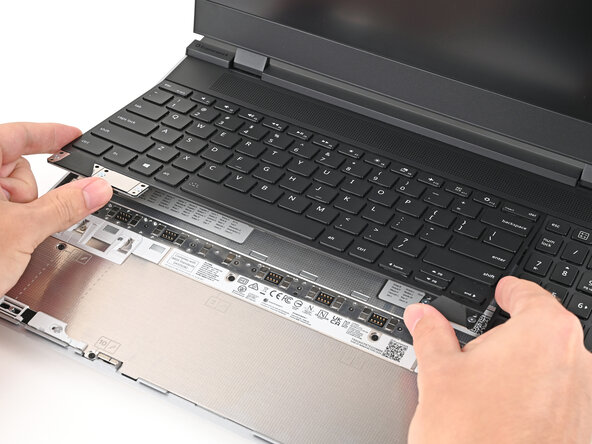
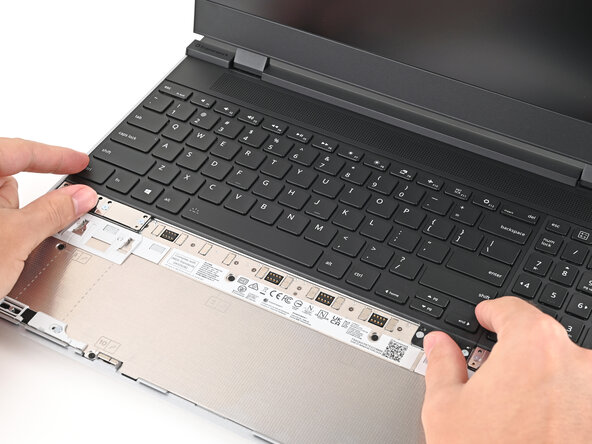
- The keyboard is held in place with strong magnets. Apply gradually increasing force to avoid having the keyboard violently eject.
- Grip the two pull tabs along the bottom of the keyboard and lift until its magnets release.
- Remove the keyboard.
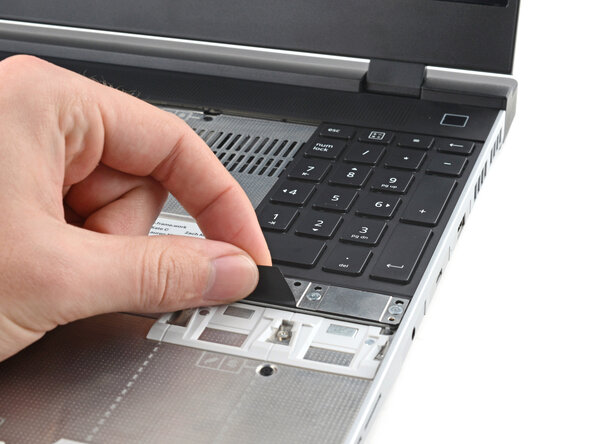
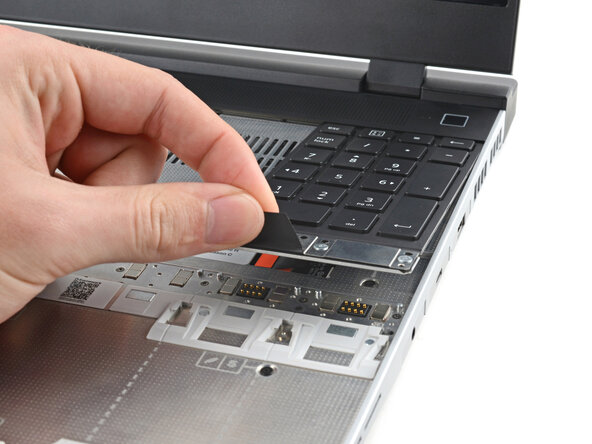
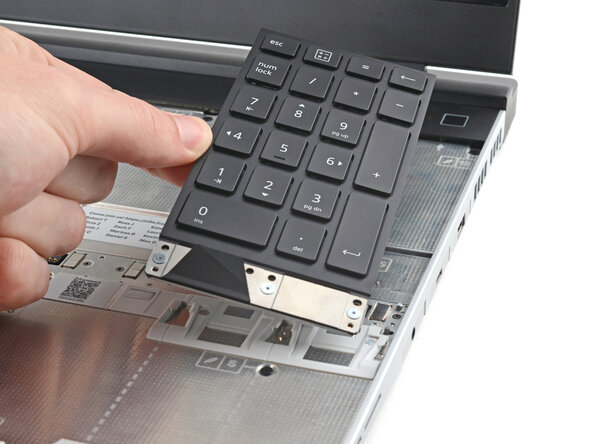
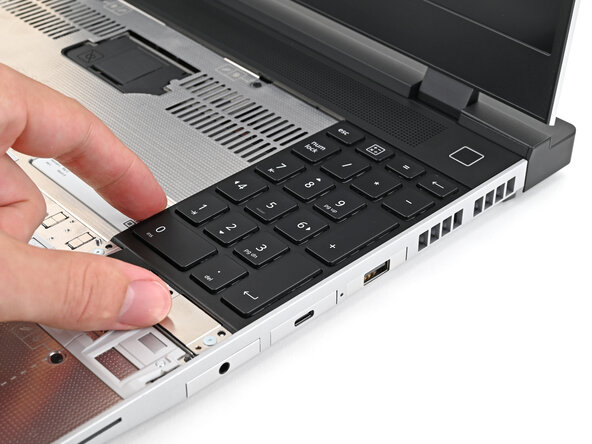
- Your Input Module(s) might be different, but the procedure to remove them is the same.
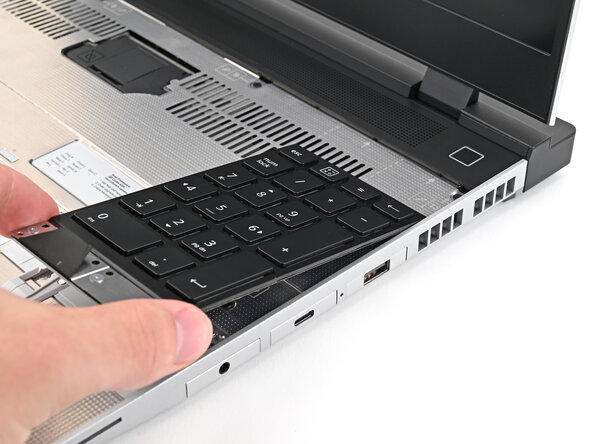
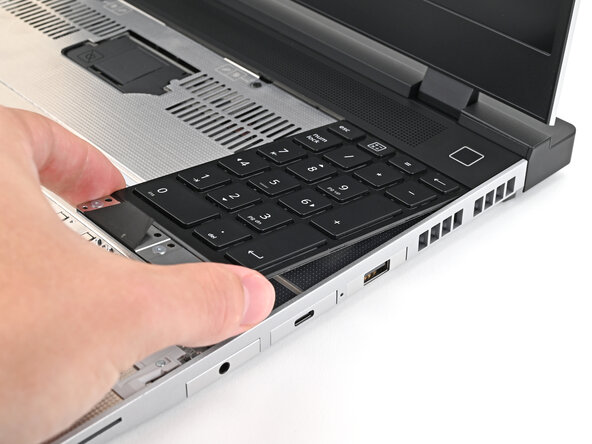
- Grip the pull tab at the bottom of the Input Module and lift until its magnets release.
- Remove the Input Module.
- Repeat for any remaining Input Modules.
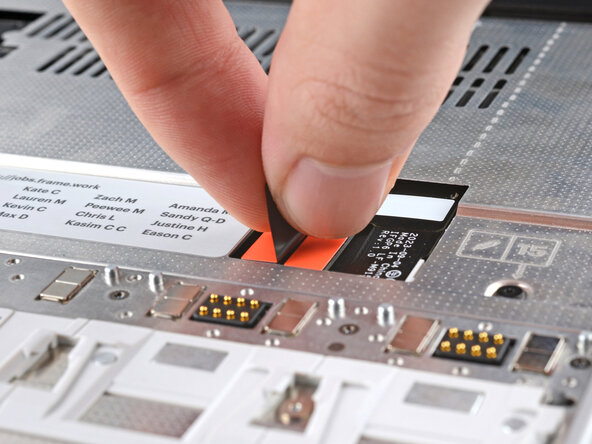
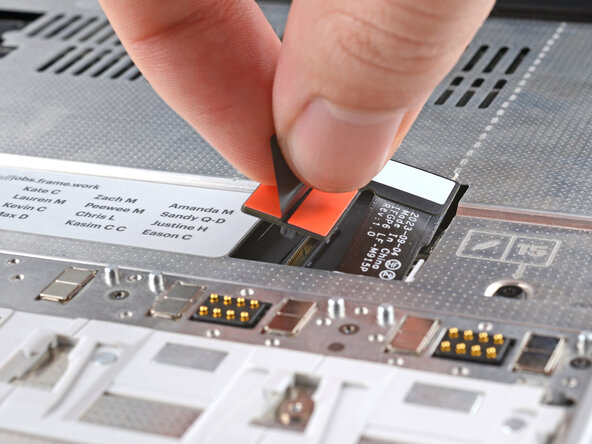
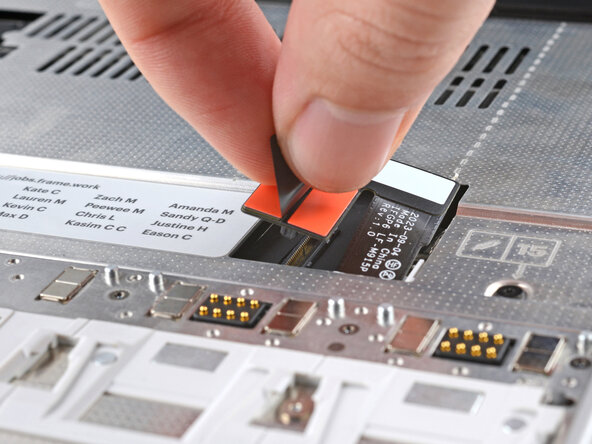
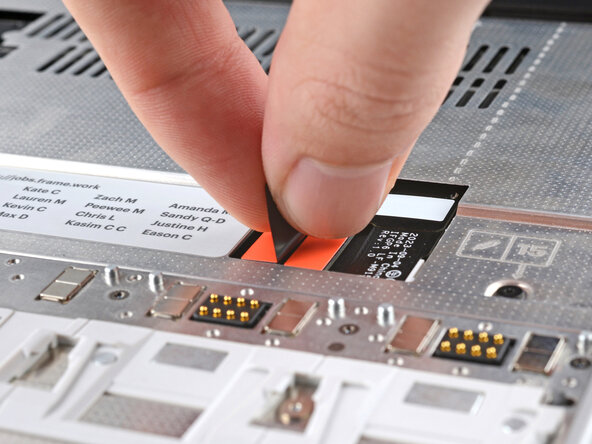
- Grip the black pull tab on the Mid Plate cable press connector.
- Lift up to disconnect the Mid Plate cable.
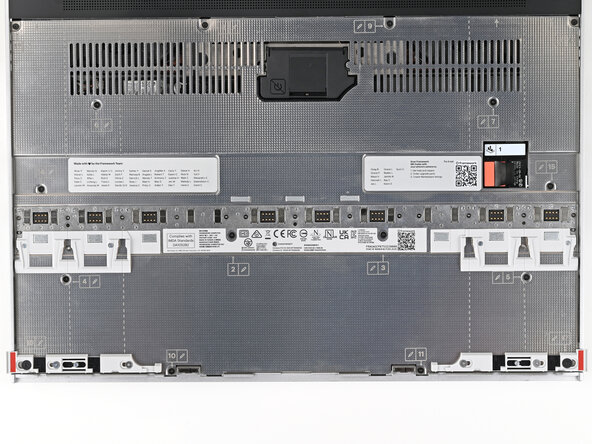
- The Mid Plate screws are ordered from 2–17 (number 1 is the press connector). You don't have to follow the order, but you can use it to help keep track of the screws you've loosened.
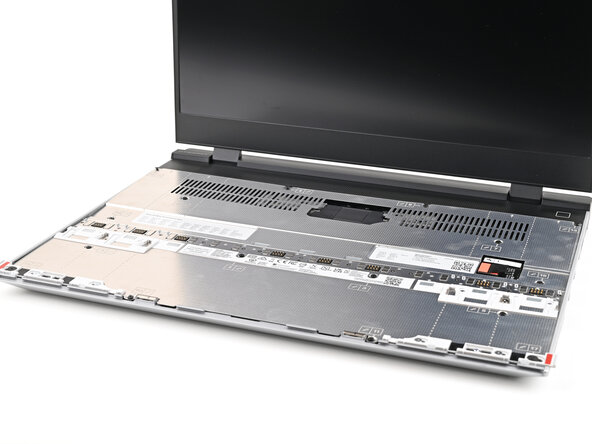
- Use your Framework Screwdriver to loosen the 16 captive T5 Torx screws securing the Mid Plate.
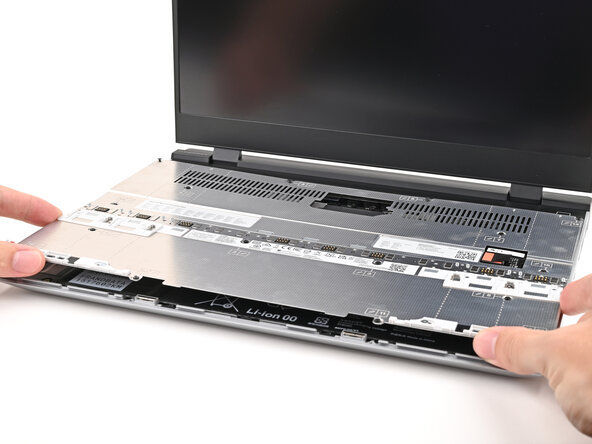
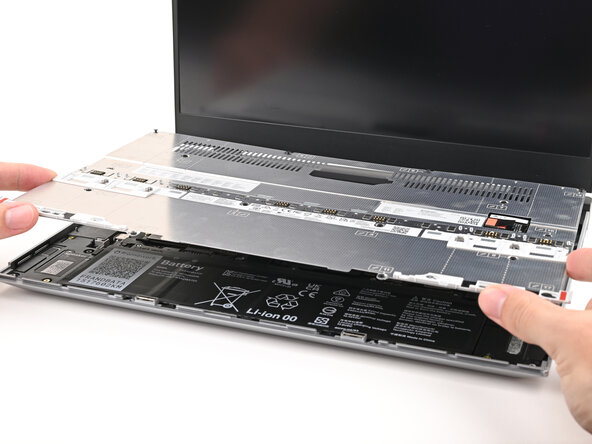
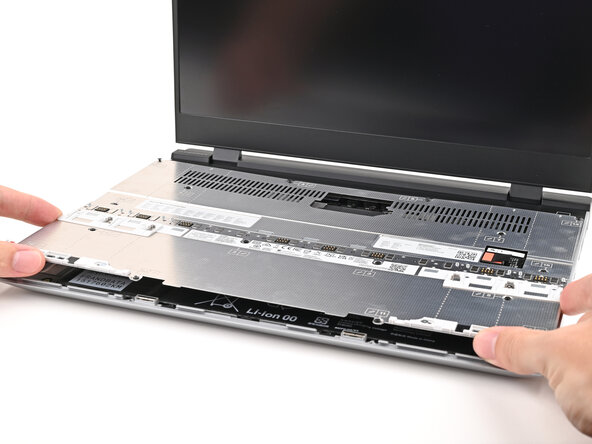
- Use your fingers to lift the Mid Plate off the laptop and remove it.
- Plug the laptop into a power source.
- The red status LED near the right Expansion Card slots should blink continuously. If this LED isn't blinking, the laptop isn't receiving power correctly—try another USB-C port.
- Don't proceed unless the LED is blinking.
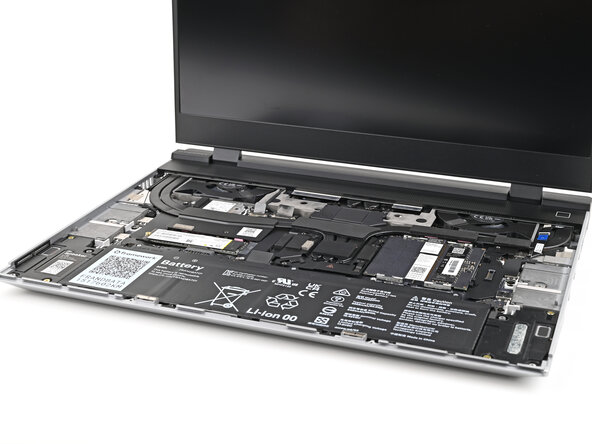
- Locate the chassis open switch below the memory.
- This switch is a sensor that detects if the Mid Plate has been removed. It's a small silver block with a black toggle tab.
- Use your finger or the flat end of a Framework Screwdriver to press the chassis open switch 10 times:
- Press and hold the switch down for two seconds.
- Release the switch and wait for the indicator LED to resume blinking.
- Repeat the process 10 times total.
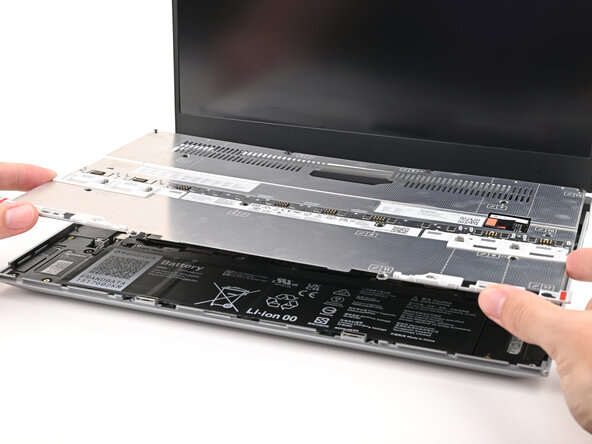
- Place the Mid Plate on the laptop, making sure it sits evenly on its alignment pegs.
- Use your Framework Screwdriver to tighten the 16 captive T5 Torx screws in order (starting with 2) to secure the Mid Plate evenly.
- Align the Mid Plate cable press connector over its socket and press down to connect it.
- Your Input Module(s) might be different, but the procedure to remove them is the same.
- Align the top edge of the Input Module with the top edge of the laptop.
- Lay the Input Module on the laptop and let the magnets pull the keyboard into place
- Make sure the Input Module is seated properly on its alignment pegs and sits flush with the edges of the laptop.
- Repeat for any remaining Input Modules.
- Align the top edge of the keyboard with the top edge of the laptop.
- Lay the keyboard on the laptop and let the magnets pull the keyboard into place
- Make sure the keyboard is seated properly on its alignment pegs and sits flush with the edges of the laptop.
- Place the Touchpad Module flat on its cutout so its clips are properly aligned.
- Press the Touchpad Module down and slide it into place so it lines up evenly with the bottom edge of the laptop.
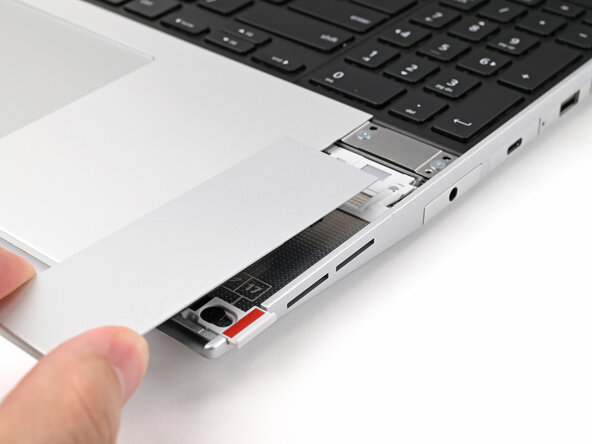
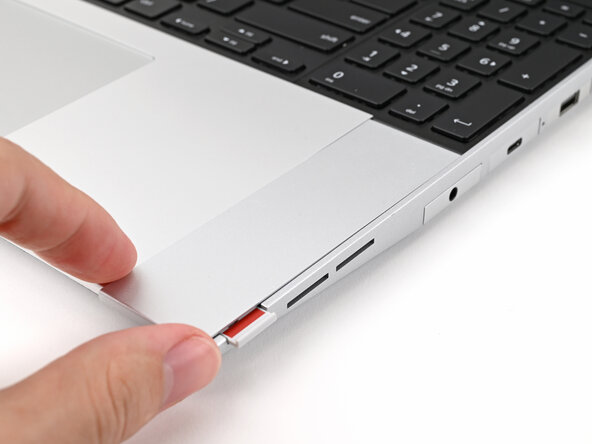
- Place the Touchpad Spacer over its spot on the laptop with the bottom edge overhanging slightly.
- Slide the Touchpad Spacer towards the top of the laptop to secure it.
- Repeat the same procedure for the other Touchpad Spacer.
- Push the Input Module latches back into place to lock them.