iPhone 17 Pro Screen Installation
ID: 207260
Description:
Steps:
- Work around the fragile grounding clips as you clean the frame. If you bend one out of place, gently bend it back with your fingers or tweezers.
- Use tweezers or your fingers to remove large pieces of adhesive from the frame perimeter.
- Use a spudger to scrape the adhesive residue off the frame.
- If the adhesive feels stubborn, apply some heat using a hair dryer or heat gun and try again.
- Use a lint-free cloth or a coffee filter to wipe in one direction along the perimeter of the frame to clean the adhesive residue.
- If the residue feels sticky, apply a few drops of isopropyl alcohol to the cloth and wipe again.
- Take your time doing this. A clean frame allows replacement adhesive to lay evenly, ensuring a better bond.
- If you're reusing your screen, apply a few drops of highly-concentrated isopropyl alcohol (over 90%) to a microfiber or lint-free cloth and wipe around the perimeter to prepare the surface for new adhesive.
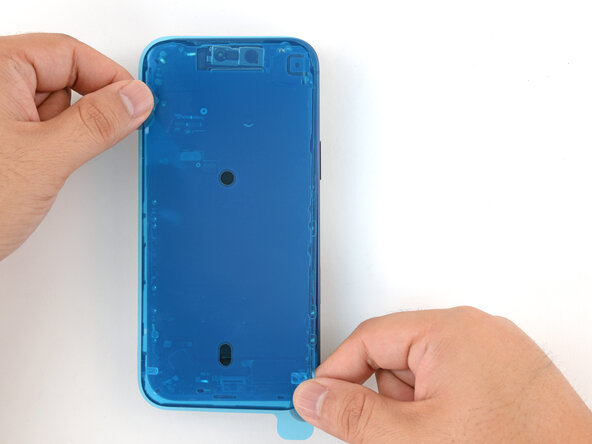
- Without peeling any liners, lay the adhesive sheet over the frame to determine its proper orientation.
- Use features such as the camera cutout and notches along the top and bottom edges to visualize how the adhesive will lay in the frame.
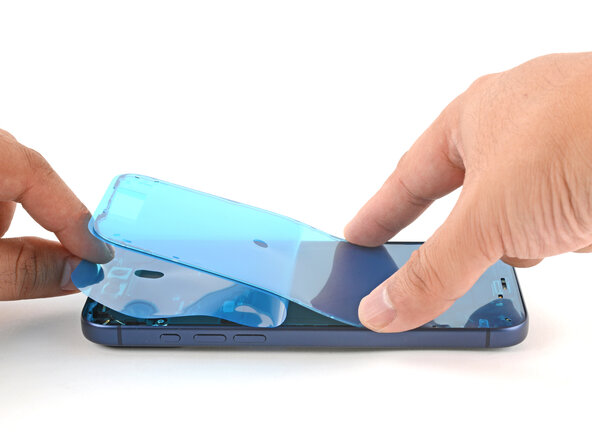
- Grab the tab in the corner of the adhesive sheet and peel the liner to expose a third of the adhesive.
- The exposed adhesive is very sticky. Don't let it touch anything until you're ready to apply it to the frame.
- If your adhesive has multiple liners, peel the liner that exposes the side that sticks to the frame.
- Once the adhesive is pressed into place, you can't reposition it—you'll have to remove it and start over with new adhesive.
- Carefully align the exposed edge of the adhesive strip with the corresponding edge of the iPhone's frame.
- When it's correctly aligned, gently press the exposed adhesive strip onto the frame.
- Continue peeling away the liner from the adhesive, gently pressing the adhesive into place.
- If you've correctly aligned the adhesive, the edges will fall perfectly into place.
- If your adhesive is slightly misaligned, gently pull the long edges into alignment with the frame.
- If the adhesive begins to crease or wrinkle, remove it and start over with fresh adhesive.
- If you don't have another set of adhesive strips handy, it's okay to temporarily put your iPhone back together and use it normally without any adhesive. Just keep in mind that your iPhone's water resistance will be compromised until you replace the adhesive.
- Use a spudger to press the adhesive around the entire perimeter of your iPhone.
- Work around the fragile grounding clips. If you bend one out of place, gently bend it back with your fingers or tweezers.
- Don't press too hard, or you'll stretch and deform the adhesive.
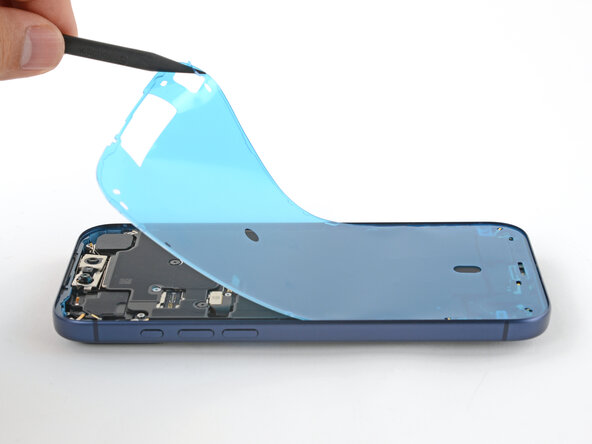
- Use the pull tab to peel off the large front liner from the adhesive. The pull tab is often in a corner of the liner.
- At this point, you'll still have liners covering the perimeter. Don't remove these liners yet—they prevent the adhesive from accidentally sticking while you reassemble your iPhone.
- Set the iPhone screen next to the frame such that the screen cables can comfortably reach the logic board.
- Use your finger or the flat end of a spudger to press and connect the two screen connectors onto the logic board.
- Don't try to force the connector into place. If you're having trouble, reposition it and try again.
- Use your finger or the flat end of a spudger to press and connect the battery connector onto the logic board.
- This is a good point to test your repair before sealing up your iPhone. Power on your iPhone and make sure it works as expected. Power it back down and continue reassembly.
- If your iPhone doesn't turn on, connect it to a power source and try again.
- Tuck the top edge of the battery connector cover under the cutout lip.
- Make sure both tabs are tucked under the lip.
- Align the cover by its screw hole and lay it in place.
- Use a JIS 00 screwdriver to install the 1.2 mm‑long screw to secure the battery connector cover.
- Tuck the left edge of the screen connector cover under the cutout lip.
- Align the cover by its screw hole and lay it in place.
- Use a JIS 00 screwdriver to install the 1.2 mm‑long screw to secure the screen connector cover.
- With one hand hold the screen steady.
- Use your fingers or a spudger to peel away all perimeter liners, exposing the adhesive.
- Make sure nothing touches the exposed adhesive.
- Check the internals for any stray liners and remove them. There should be no liners remaining.
- Lower the screen onto the frame, beginning with the top edge.
- If you feel resistance, a perimeter clip may have bent out of place and is being crushed by the frame. Look at the point of resistance and gently straighten any bent clips.
- Make sure the screen edge isn't pinching any cables.
- Press along the edges of the iPhone until the screen sits flush against the frame.
- Firmly squeeze around the entire perimeter of the iPhone.
- Use a hair dryer or a heat gun to heat the screen perimeter until it's slightly too hot to touch.
- The heat softens the adhesive and helps create a better bond.