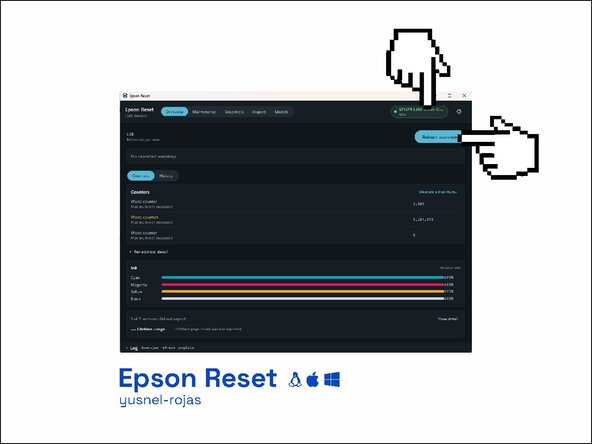
Epson: How to Reset the Counter (Ink Pad End of Service Life)
ID: 237598
Description: Does this guide work for your Epson?: This guid...
Steps:
- Confirm the end-of-life message for the ink pads, alternating lights, or the error message E-11 / E-10, W-01 / W-11.
- The printer stops printing as a protection measure because the EEPROM counter has reached its limit.
- Locate the waste ink pad or maintenance box/tank (usually found on the side, at the lower back of the printer, secured with a screw).
- Wash it until it runs clear and dry it well, replace it, or divert the output to an external tank.
- The reset only sets the counter to zero; the physical ink is still there.
- If the box has a chip with contacts, replacing it or resetting that chip is a different process: it involves buying a physical resetter, a new chip, or replacing the maintenance box entirely.
- Connect via direct USB (no hub) or put the PC and the printer on the same Wi-Fi network if you are using SNMP. If you are using Android, use an OTG adapter.
- Turn on the printer.
- Close any Epson utilities and clear the print queue.
- On Windows, restart the Print Spooler service if necessary.
- Go to https://padreset.com/en/download/ and choose the tool according to your system and printer.
- If you are not sure which one, use "Epson Reset" (it is the default recommendation). The program supports more than 1,500 models. It is not necessary to download a new program for each model. Each tool (Epson Reset, ez-reset, Pad Zero, etc.) follows a very similar procedure.
- You can verify the SHA-256 hash if the project publishes it.
- Avoid pirated AdjProg programs or serial number generators. The tools recommended by padreset have been scanned with VirusTotal and their open source code can be reviewed by anyone.
- If SmartScreen («Windows protected your PC») appears in Windows, it is because the programs are not signed. Signing the program avoids that, but doing so is expensive. The same applies to MacOs. ez-reset (Windows) is the only one on the list that is signed. It makes no difference in the functionality of the program.
- Open the tool and use only the read mode first.
- Note the waste, main, and platen percentages if they appear.
- Confirm that the detected model matches the printer label.
- If the tool offers a backup or snapshot feature, export the file before writing. "Epson Reset" always saves a copy automatically before writing.
- Save it in a safe place in case you need to restore the EEPROM.
- Confirm the write only when you are ready.
- An OK response is a good sign.
- If you see NG, abort: the key or model does not match. Do not retry in a loop; try testing with one of the other tools in the directory.
- Once the program has finished, turn off your printer using the physical power button, wait 10 seconds, and turn it back on.
- Without this cycle, the change may not take effect.
- Read the counter again; it should be near 0%.
- Print a test page.
- If the error persists with the counter at 0%, check the maintenance box chip or unplug the printer completely for 1 minute.