Samsung Chromebook XE500C21-A03US RAM Replacement
ID: 98915
Description: This guide will help you replace your RAM in...
Steps:
- Turn the power off before beginning this step.
- Most Chromebooks contain rubber circle pads on each of the four corners to cover the screws. In order to remove the rubber pads, simply use any opening tool.
- Lay the Chromebook down so that the bottom cover is facing upward.
- Using a Phillips #00 screwdriver, remove all seven 5.5 mm screws from the back cover.
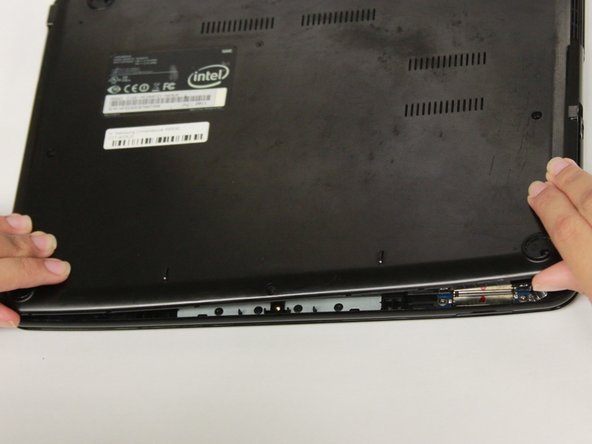
- Place the opening tool in the divot between the spine of the Chromebook and the back cover.
- Slowly glide and push down the end of the opening tool along all sides of the Chromebook to detach the brackets. You will hear the brackets detach.
- Using the opening tool, pry off the back cover of the Chromebook
- Be gentle while prying to avoid breaking the back cover.
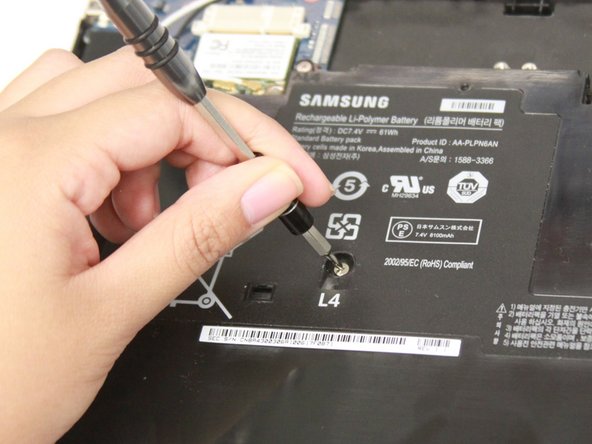
- Remove the four 3 mm screws using a Phillips #000 screwdriver.
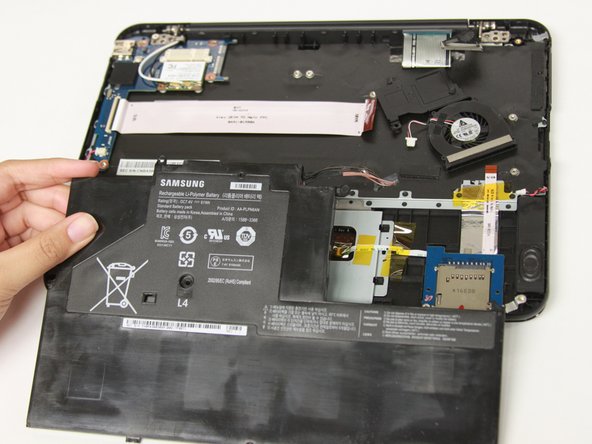
- Carefully lift the top of the battery then pull it away from you to remove it.
- Some batteries may be attached via a battery connector. Disconnect the battery connector by simply pulling straight up at its base.
- Use a blunt precision tweezer to remove the speaker cord from the RAM
- Using a Phillips #00 screwdriver, remove all six 2.5 mm screws .
- Start removing the screws from the wifi card.
- Gently lift the bottom of the wifi card then pull it towards you to disconnect it from the socket.
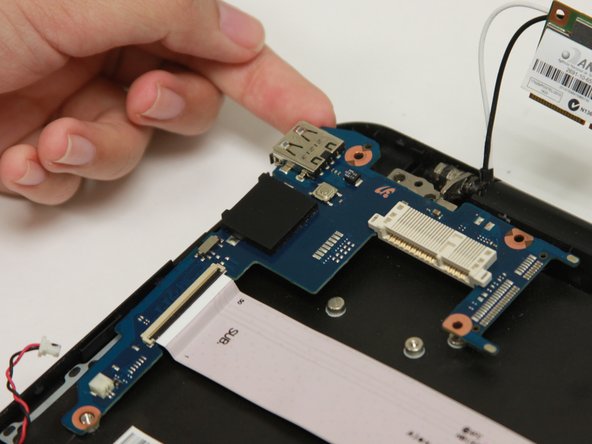
- Our Chromebook does not have a circuit board. Remove all units connected to the circuit board if necessary.
- Gently lift the top left corner of the RAM and pull upward to remove it from the Chromebook.