Canon MF4700n Laser Toner Cartridge Replacement
ID: 140276
Description: If your Canon MF4700n (alternate model:...
Steps:
- Turn off the printer.
- Make sure that the energy saver button is not lit up. If it is, the printer needs to be turned off.
- Grab the operation panel and lift it up to reveal the toner cover.
- Make sure there is nothing on top of the printer.
- Potential for Device Damage: Forcing the operation panel to open may cause damage to the printer.
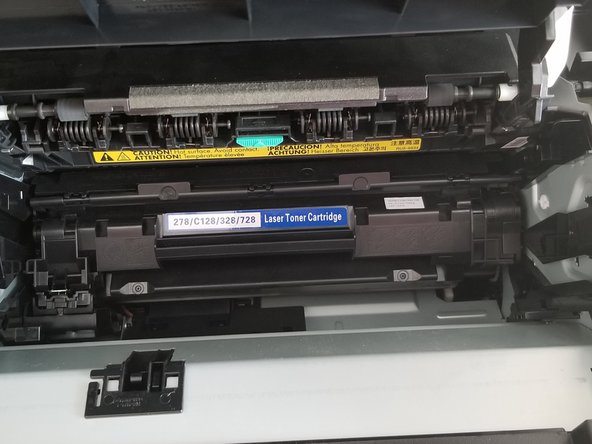
- Open the toner cover to reveal the toner cartridge.
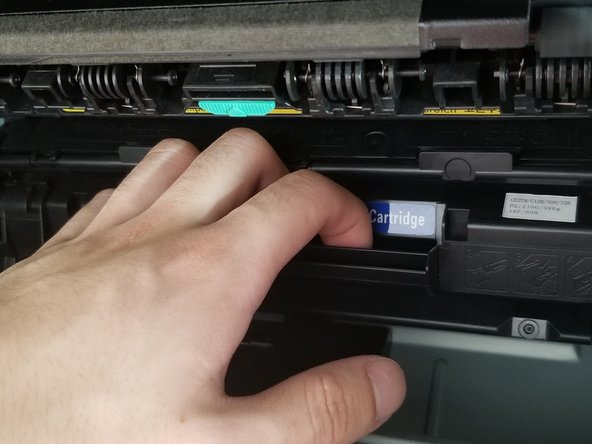
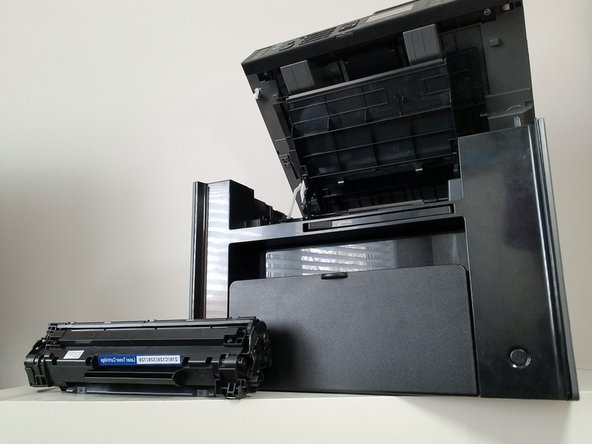
- Grab the ledge of the cartridge and pull it out.
- Grab a new/working toner cartridge.
- If the cartridge is new, then there will be plastic components on it. Follow the manual that comes with the new cartridge to remove the plastic components.
- Shake the cartridge to distribute the toner evenly inside.
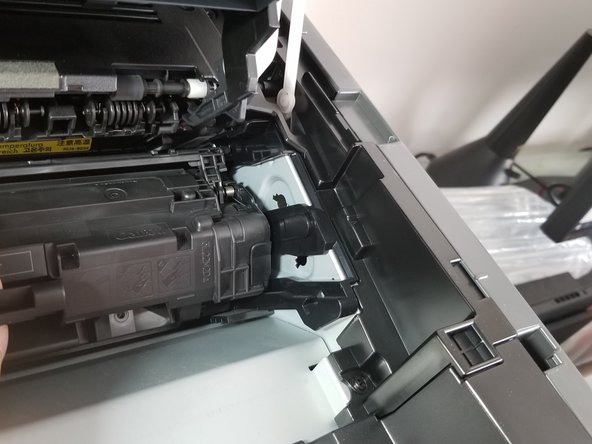
- On both sides of the cartridge, there are two knobs sticking out.
- Inside the toner cover, there are two toner guides, one on each side.
- Align the knobs with the toner guides and push the cartridge securely all the way in.
- Close the toner cover.
- Lower the operation panel.