HP Star Wars Special Edition 15-an051dx RAM Replacement
ID: 155008
Description: Replace RAM (1) If you are experiencing a...
Steps:
- Make sure the laptop is fully shut down
- Remove battery by pushing slide tabs to the left.
- Remove residual power by holding the power button down for 5 seconds.
- Set aside any screws removed separately as to not mix them up
- Use a Phillips #1 screwdriver to remove the two 12.5 mm screws, four 5.5 mm screws, and six 7.25 mm screws.
- Remove the two corner panels along the ends of the battery slot and this will expose another set of screws (1 under each panel).
- Remove the remaining six 7.2 mm Phillips #1 screws hidden in the battery area and underneath the covers.
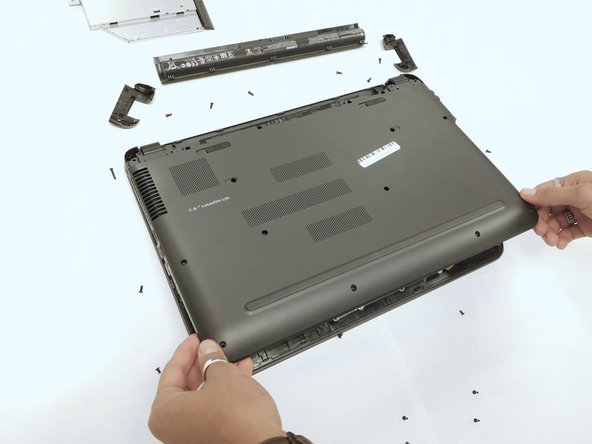
- Remove the optical drive by pulling on the plastic cover panel.
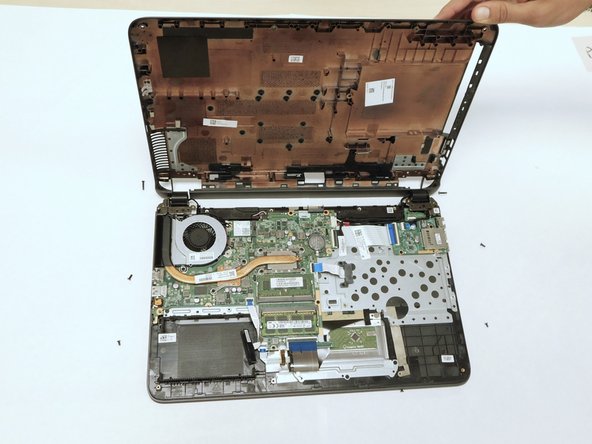
- With a prying tool, gently pry the back panel off.
- Start with the corners of the device and carefully slide the tool towards the middle, lifting the panel off as you go.
- Set the optical drive and back panel somewhere safe.
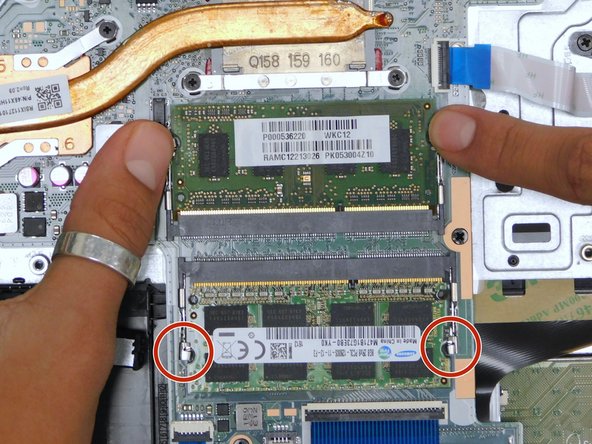
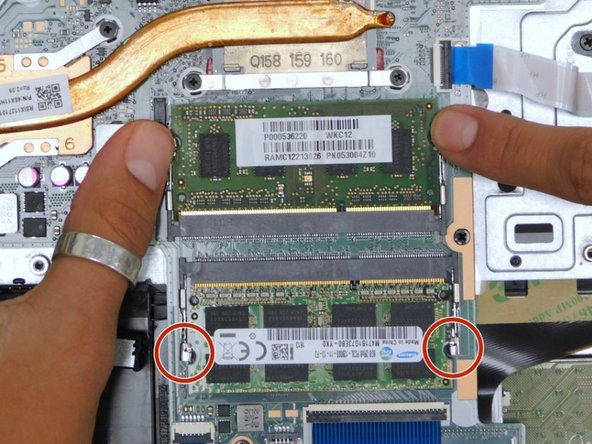
- You will need to spread the two silver clips that hold the RAM down on its slot.
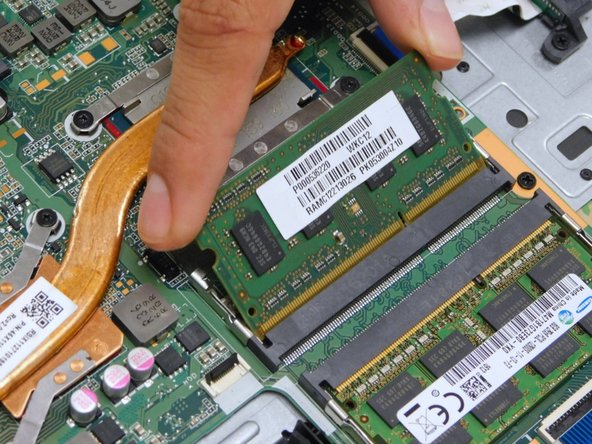
- Once both clips are spread apart, this will release the RAM and it will slightly spring upward in an angle.
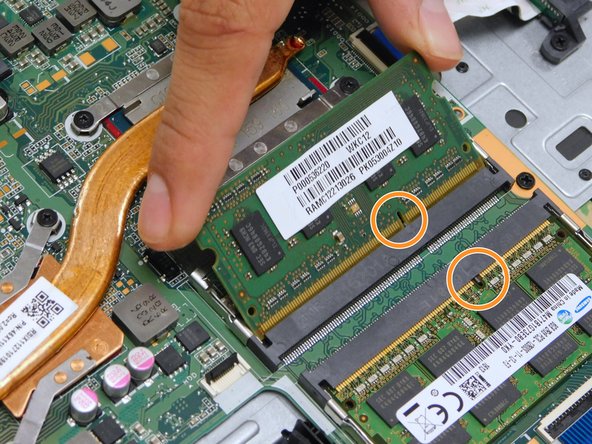
- Pull the RAM away in the same orientation.
- Keep in mind the notch on the RAM that connects on to the DIMM slot.
- Match the notch on new/replacement RAM and gently install it in the same angled orientation.
- Once the new RAM is installed, gently press and lay the RAM down on its side until it reaches the clips on the side notches and locks in.
- Do the same for the other DIMM/RAM if replacing or adding another RAM.