Mitsubishi MMCS NR-242 Map Data Card Update (ISO Image, European locale)
ID: 167724
Description: Keeping your car's navigation system up-to-date...
Steps:
- You can find the Version Number of your MMCS printed on the top right corner of the unit.
- In this case the Version Number is W-12.
- You can download the image file here: link
- Press on ISO IMAGE.
- Download the MAPCARD_####_2023-A_EU.img file containing the version number of your device in its title.
- MMCS E-11 and E-12 are analogues of W-13.
- The SD Card has to be a 16GB SDHC card with at least 15.718.400.000 Bytes and 30.700.000 Logic Sectors.
- If the SD Card you have is a bit too small, but you have larger one on hand, you can also just flash to the larger one, format the smaller one to exFAT at 512 Bytes per sector and copy all the files over from the larger one. This might lead to some instability, but still works.
- Insert the SD Card into your PC.
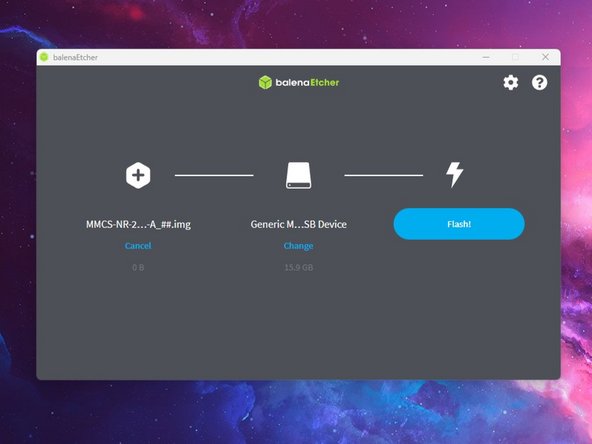
- Launch balenaEtcher.
- Since we are using a standard .img-file, you can also use any other program capable of flashing image files, though this guide will only cover the process using Balena Etcher.
- Press the Flash from file-button.
- Select the file we downloaded in step 2.
- Press the Select target-button.
- Select the SD card you want to write to.
- Press the Select-button.
- Press the Flash!-button.
- Wait until the program finishes writing to the card.
- Remove the SD card from the computer once the process is finished.
- Press the OPEN-Button.
- Press the Monitor OPEN-Button on the screen.
- Swap the SD Card with the one already installed in the MAP-Slot.
- Close the display by pressing the OPEN-Button again.
- If the car accepts the SD Card it will now be permanently paired to the MMCS and no longer work with any other car or show up on a computer.
- If the firmware on the SD Card is newer than the version already installed the Unit will ask you if you want to update. Press the Update-Button on the screen to proceed.
- If you were already on the newest firmware version, the car will normally at most run a short update sequence after you restart the car.
- Do not turn off the ignition while the update is running!
- If you are switching from the Russian to the European interface or vice versa, the unit might tell you that it can’t read the Map card data. The following steps will only apply if you are encountering this problem.
- Enter the Service Menu by pressing and holding the SETTINGS and MAP-Buttons (for W-16 & W-17 INFO/SET and SEEK) for 4 seconds.
- Navigate to Versions Indication.
- Long-press Navi (Application) for 4 seconds.
- Press Update from Map Card.
- Confirm by pressing on Update.
- The Unit will now start the update process. In this process it will reboot twice and reset itself back to factory settings.
- Do not turn off the car while the update is running!